The Excel TRUE and FALSE functions are written with no arguments, as TRUE() and FALSE(), and return the logical values TRUE and FALSE. Because Excel recognizes TRUE and FALSE just the same when you type them directly into a cell or formula, in practice you'll far more often use the AND, OR, and NOT logical functions to produce TRUE and FALSE and pass them to IF.
AND returns TRUE when all conditions are true, OR returns TRUE when at least one is true, and NOT reverses the result.
"I only want to mark people as 'Met' if they beat both their sales target and their account target, but IF on its own only takes one condition." When you're putting together a monthly performance sheet or a campaign report, there are times when you need to check two or three conditions together like this. You've probably also been caught off guard at least once when a formula cell suddenly showed TRUE or FALSE. In this post, I'll cover what TRUE and FALSE are, the differences between AND, OR, and NOT, how to use them with IF, and the points that often trip people up.
1. What Do the Excel TRUE and FALSE Functions Return?
According to the TRUE function help and the FALSE function help, both functions take no arguments and return the logical values TRUE and FALSE, respectively.
The help notes that these functions are provided mainly for compatibility with other spreadsheet programs, because Excel understands TRUE or FALSE as logical values even when you type them directly into a cell or formula.
The example in the TRUE help also puts =IF(A1=1,TRUE()) and =IF(A1=1,TRUE) side by side and explains that both return TRUE if A1 is 1.
So when does a formula return TRUE or FALSE? The most common case is a comparison.
The calculation operators help explains that when you compare two values with a comparison operator such as =, >, or <>, the result is a logical value, TRUE or FALSE.
That's exactly why writing just =B2>=100 shows TRUE when B2 is 100 or more, and FALSE otherwise.
If you use Excel for Microsoft 365, you'll also come across logical values in checkboxes. According to the Use checkboxes in Excel help, you can add them by selecting a cell range and going to Insert > Checkbox (the Korean version of the help uses two different terms for it in the body text, but the menu name is Checkbox). A checked box has the value TRUE, and an unchecked box has the value FALSE.
So when you reference a checkbox cell in a formula, TRUE or FALSE is passed along as is, and the help gives an example like =IF(A1,"Checked","Unchecked") that shows different text depending on the state.
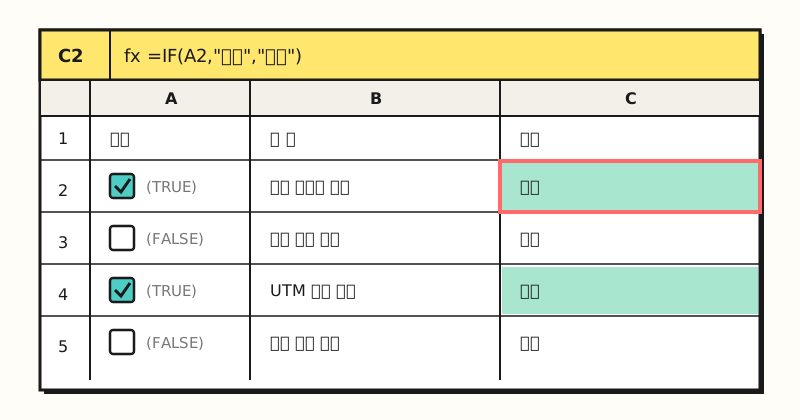 Example figure: rows with a checked box hold TRUE and unchecked rows hold FALSE (the text in parentheses describes the cell value), and the IF formula in column C uses these values to display "Done" or "Pending" (sample data, figure labels in Korean).
2. How Do the AND and OR Functions Differ?
The AND function and the OR function share the same syntax, AND(logical1, [logical2], ...) and OR(logical1, [logical2], ...), and each can take up to 255 conditions.
The difference lies in when they return TRUE.
- AND: TRUE only when every condition is TRUE; FALSE if even one is FALSE. The help example
=AND(A2>1,A2<100)returns TRUE when A2 is greater than 1 and less than 100. - OR: TRUE if at least one condition is TRUE; FALSE only when all are FALSE. Writing
=OR(A2<0,A2>50)returns TRUE when A2 is less than 0 or greater than 50.
It's easy to picture if you think about packing a suitcase. If you can only leave when you have your passport and your plane ticket, that's AND; if you can pay with either a card or cash, that's OR.
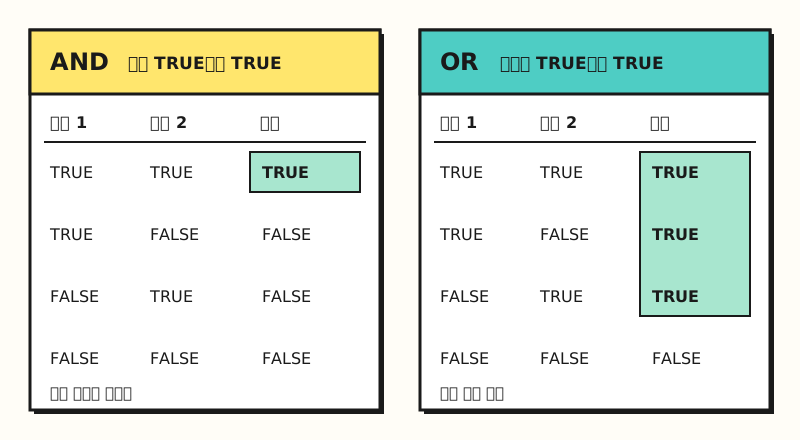 With AND, only the row where both conditions are TRUE is TRUE; with OR, only the row where both conditions are FALSE is FALSE (figure labels in Korean).
3. When Should You Use the NOT Function?
The NOT function takes just one argument, NOT(logical), and flips TRUE to FALSE and FALSE to TRUE.
The help introduces it as a function for checking that one value is not equal to another, and includes the example =NOT(A2>100), which checks whether A2 is not greater than 100.
In fact, for a simple comparison, you could get the same result with =A2<=100 or the not-equal operator <>. Where NOT really shines is when you want to flip an entire condition you've already built.
For example, =NOT(AND(B2>=100,C2>=5)) returns TRUE for rows that are "not cases where both targets were met," in other words, rows that fell short on at least one. There's less room for mistakes than rewriting each condition in reverse.
So how do you turn these TRUE and FALSE results into words like "Met" or "Not met"?
4. How Do You Use IF with AND, OR, and NOT?
The Using IF with AND, OR, and NOT functions help shows the structure of placing a logical function in IF's first argument.
| Form | Syntax |
|---|---|
| IF + AND | IF(AND(logical1, [logical2], ...), value_if_true, [value_if_false]) |
| IF + OR | IF(OR(logical1, [logical2], ...), value_if_true, [value_if_false]) |
| IF + NOT | IF(NOT(logical1), value_if_true, [value_if_false]) |
The AND help includes a sales bonus example, =IF(AND(B14>=$B$7,C14>=$B$5),B14*$B$8,0): if total sales are at or above the sales goal and the number of accounts is also at or above its goal, it multiplies sales by the bonus rate; otherwise it returns 0.
For the performance sheet at the start of this post, you could write =IF(AND(B2>=100,C2>=5),"Met","Not met"), and if beating just one of the two should count, change AND to OR.
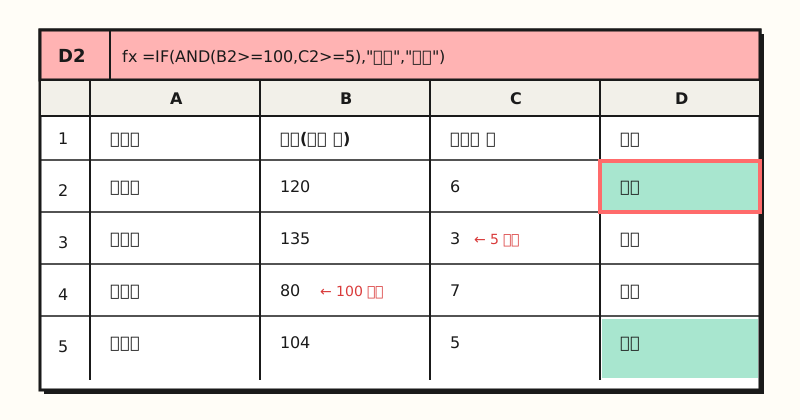 Example figure: fill
=IF(AND(B2>=100,C2>=5),"Met","Not met") in D2 down the column, and only rows 2 and 5, which beat both targets, show "Met" (sample data, figure labels in Korean).
The help emphasizes two points when writing these formulas.
- Parenthesis placement: Close the AND or OR parentheses right after the conditions first, and then write IF's true and false values.
- Keep conditions to a handful: AND and OR can take 255 conditions, but the help advises that more than a few isn't desirable, because complex nested formulas are hard to build, test, and maintain. If a result looks wrong, you can evaluate a nested formula step by step with Evaluate Formula in the Formula Auditing group on the Formulas tab.
The same help explains that in conditional formatting you can drop IF and use AND, OR, and NOT directly. In a new rule, choose Use a formula to determine which cells to format and enter only a formula that produces TRUE or FALSE, such as =AND(B2>=100,C2>=5). That's because, as the conditional formatting help also states, the formula must start with an equal sign and return a logical value of TRUE (1) or FALSE (0).
It points to entering the formula without the equal sign (=) as a common mistake, so be sure to check the = at the start of your formula.
5. Can You Count TRUE and FALSE Like Numbers?
Logical values sometimes behave like numbers and sometimes don't, so they're easy to get confused about when counting. Here's what the official help says.
- Converted to numbers, they're 1 and 0: The N function help says it converts TRUE to 1 and FALSE to 0. It adds, though, that Excel automatically converts values when needed, so you'll rarely need N in formulas.
- COUNT doesn't count logical values in references: According to the COUNT function help, logical values typed directly into the argument list are counted, but logical values inside a range or reference are not, and it recommends COUNTA if you want to count logical values too. That's why COUNT returns 0 on a column that holds only checkboxes. Also keep in mind that COUNTA counts both TRUE and FALSE, so it gives you the total number of checkboxes, not the number of checked ones.
- When you pass a range to AND or OR: Text and empty cells in the range are ignored, and if the range contains no logical values at all, you get a #VALUE! error. Both the AND and OR help say the same thing.
- Joined to text, it becomes "TRUE": As in the calculation operators help example,
="A"&TRUEreturns "ATRUE." That's because logical values turn into text where text is expected. If you want your report to show words like "Done" instead of TRUE or FALSE, it's better to wrap them in IF.
Think of TRUE and FALSE less as something you use on their own and more as containers that hold the results of conditions. To sum up, the flow is: build TRUE/FALSE with comparisons or AND, OR, and NOT, then turn them into visible words with IF. If you need a not-equal condition, also see my post on Excel's not-equal operator, and for detailed behavior of each function, refer to the official help linked above.
FAQ
- Is using the Excel TRUE/FALSE functions different from just typing TRUE?
- The result is the same. The TRUE and FALSE functions return logical values with no arguments, and Microsoft's help explains that TRUE or FALSE typed directly into a cell or formula is also interpreted as a logical value, and that these functions are provided mainly for compatibility with other spreadsheet programs.
- What is the difference between the Excel AND and OR functions?
- The AND function returns TRUE only when all conditions are true, and the OR function returns TRUE if at least one condition is true. Both can take up to 255 conditions, and they're mostly used in the first argument of the IF function to test multiple conditions at once.
- How do I show text instead of TRUE/FALSE with IF AND?
- Put the text you want to show, wrapped in double quotation marks, in the second and third arguments of the IF function. For example, to show Met when sales are 100 or more and accounts are 5 or more, and Not met otherwise, put the AND condition inside IF, then enter Met as the value if true and Not met as the value if false.
- Why does COUNT return 0 on a column with checkboxes?
- Checkbox cells hold logical values, TRUE or FALSE, and the COUNT function doesn't count logical values inside a range or reference. Microsoft's help recommends the COUNTA function if you want to count logical values too, but COUNTA also counts FALSE, so the result is the number of cells with a value, not the number of checked boxes.
Related Posts
Posts that pair well with this one when you work with conditional formulas in Excel.
- Excel not-equal
<>operator: how to use it in IF and COUNTIF - Producing TRUE/FALSE with comparison operators - Excel conditional formatting: see numbers at a glance with colors, bars, and icons - Coloring rows by entering AND/OR formulas as rules
- What is an Excel PivotTable? From definition to building and refreshing - Summarizing flagged data by multiple criteria