Making slides in NotebookLM just got a step more precise. With a feature Google announced on October 19, 2026, you can now review and edit an outline first, instead of going straight to the finished product, when you create a slide deck or Video Overview in Gemini Notebook (the service NotebookLM was renamed to in July 2026). The announcement says it's rolling out to all users over the course of a week, but the English Help article currently lists this co-creation feature as available only to Google AI Ultra subscribers, so you'll need to check availability yourself.
"I added all my sources, but the slides don't come out in the order I want." If you've ever generated report slides with NotebookLM, you've probably thought this at least once. Until now, you could only make changes after getting the finished version, but in its announcement of the new feature, Google introduced a flow where you refine the plan together before generation. In this post, I'll go through why the name changed, how to use the review feature, how to edit and download slides, and the limits worth knowing before you use it.
Why did NotebookLM become Gemini Notebook?
On July 16, 2026, Google announced in its post NotebookLM is now Gemini Notebook that it was renaming NotebookLM to Gemini Notebook. The service was first introduced at Google I/O 2023 under the name Project Tailwind. The name has changed, but it's the same standalone product with the same role as a research tool, and Google says it will do more inside the Gemini app and Google Search going forward. In fact, if you go to the old address, notebooklm.google.com, you're redirected to the new one (notebook.google.com).
The part worth knowing for day-to-day work is its relationship with the Gemini app. According to the help article on notebooks in the Gemini app, notebooks created in Gemini Notebook also appear in the Gemini app menu, and name and source changes sync between the two. However, it says that Studio outputs like slide decks, Video Overviews, and infographics can only be created in Gemini Notebook. So what's different about how slides are made now?
What changed with NotebookLM slides?
The key point is that it shows you the plan before the finished version. According to the announcement, when you ask for slides or a Video Overview in chat, the notebook suggests topics to cover based on your sources, and after confirming them you can further refine the content, visual style, and format. On top of that, if you turn on the new review toggle, you can open the plan first in the Studio panel: "Review outline notes" for slides and "Review producer notes" for video.
As an analogy, it's like going from sending a job straight to the print shop to having a step where you get a proof and mark it up with a red pen before printing. As in the announcement's examples, you can give feedback like "Add a summary slide at the beginning" or "Swap the order of these two scenes" before rendering, and when you're happy with it, click "Proceed" to create the final version.
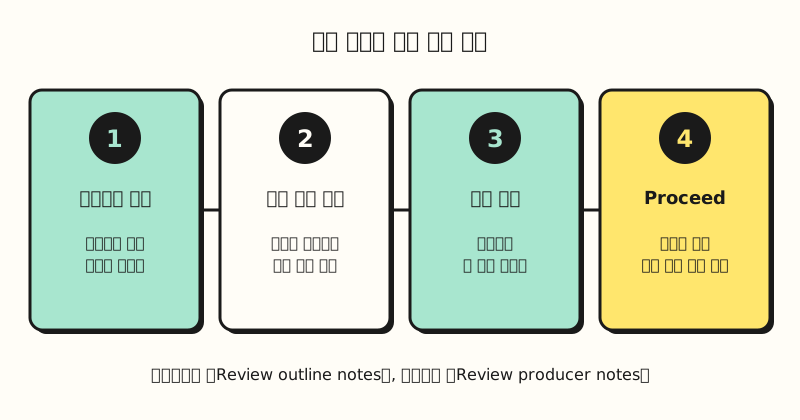 A step-by-step version of the order in the announcement and English Help. If you turn off the review toggle, it generates right away as before. (figure labels in Korean)
In what order do you use outline review?
Following the "Co-create slide decks" section of the English Help article on slide decks, the steps are as follows. Button names below are as they appear in the English Help article.
- Open a notebook: Open a notebook you have edit access to, or create a new one by adding sources.
- Create an outline: In the Studio panel, choose "Slide Deck," set the format, output language, length, and sources, then turn on "Review outline notes" and click "Generate now." If you asked in chat with something like "Make a slide deck about [topic]," turn on "Review outline before final rendering" on the card that appears in the chat.
- Review and generate: When the outline is ready, click "Review" in the Studio panel, write your feedback all at once, and click "Proceed."
Note that once you click "Proceed," you can't refine the outline any further, which is why the Help article also recommends entering all your feedback at once. It also says that choosing "Generate later" schedules generation without an outline. Video works the same way: according to the English Help article on Video Overviews, turning on "Review producer notes" shows producer notes first, which you review the same way before generating.
How do you edit and download finished slides?
Separately from the review step, you can also edit slides after they're made. According to the slide deck Help article, you choose a format between a Detailed Deck, which reads well on its own, and Presenter Slides for presenting, and set the length to short, default, or long. After generation, if you write a request for each slide under "Edit" at the top, the requests collect under pending changes, and clicking the button to generate the revised deck creates a new deck with them applied.
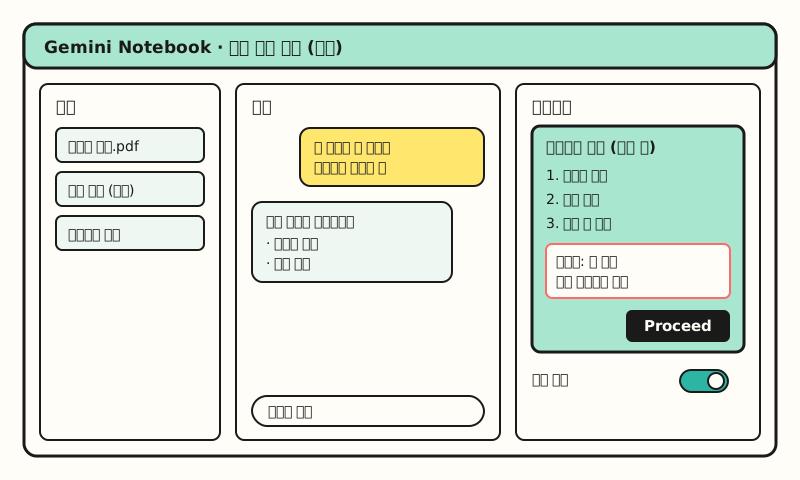 Example: not an actual screenshot but a simplified layout based on the Help article's description, with made-up content. (figure labels in Korean)
The Help article also lists things to know when editing.
- Sources aren't considered: Sources aren't taken into account during edits, so if you want to add new facts, it's better to add sources and regenerate.
- Each edit creates a new deck: Every revision creates an entirely new deck, and there's a limit on how many decks can be edited, so it's best to bundle your edit requests into one go.
- Download formats: From the three-dot menu, you can download as PDF or PowerPoint (.pptx), and you can also present right away in slideshow mode.
Since you can get it as PowerPoint, you could paste it into your company template and polish it there, though that's a use I came up with based on the download feature. The Help article notes that both slide decks and videos are AI-generated and may contain visual or factual inaccuracies, so I recommend checking the numbers and wording against your sources again before using them in a report.
※ Note: Availability and limits
Different sources describe the scope of this feature differently, so it's worth laying out.
- Conflicting eligibility: The October 19 announcement says "rolling out globally to all Gemini Notebook users over the course of a week," but the co-creation section of the English Help article says "currently only for Google AI Ultra subscribers" (checked October 21). Check whether the review toggle appears in the Studio panel of your own account.
- Age limit: Slide decks are currently available only to users 18 and older, and the Cinematic video format is also limited to users 18 and older.
- Video languages: Explainer and short-format videos let you choose Korean narration, but the Cinematic format supports English only. Generation can reportedly take more than 30 minutes in some cases.
- Usage limits: According to the usage limits Help article, starting September 2, 2026, limits calculated based on prompt complexity and features apply (starting with personal accounts, per the announcement post), refreshing every 5 hours within a weekly limit. If you exceed the limit, you can defer generation on the web with "Generate later."
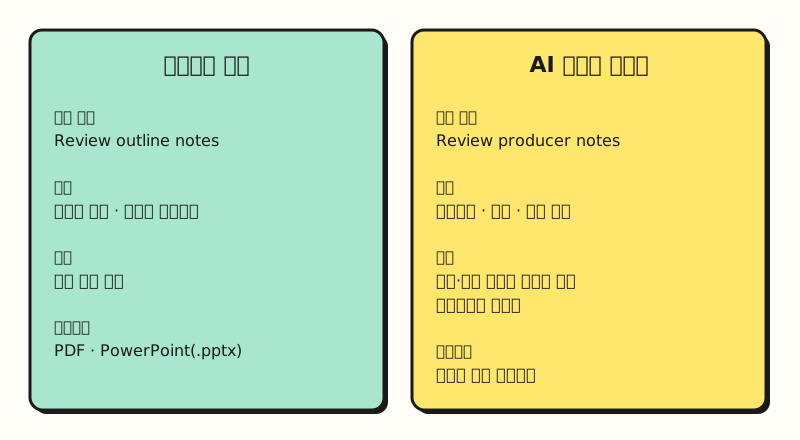 With the review toggle on, both outputs show the plan first, and after "Proceed" the plan can't be changed. (figure labels in Korean)
If you're a marketer, there's one more thing to remember. According to the plans Help article, images and videos created in Gemini Notebook include a SynthID watermark, and if you live in South Korea, a visible watermark is applied automatically. If you're planning to use the videos as public-facing ad creative, it's good to know this in advance.
To sum up, this update lets you review and edit outlines and producer notes before creating slides and videos in NotebookLM, now Gemini Notebook, though eligibility is still described differently depending on the source. When the review toggle shows up in the notebook I use to organize my study materials, I'll look at how to edit the outline to get the flow I want and write it up again. For details, see the Gemini Notebook announcement, the slide deck Help article, and the Video Overviews Help article.
FAQ
- Are NotebookLM and Gemini Notebook different services?
- No. Google renamed NotebookLM to Gemini Notebook on July 16, 2026, and said it's the same standalone product. Going to the old address, notebooklm.google.com, takes you to notebook.google.com.
- Can I download NotebookLM slides as a PPT?
- Yes. According to the slide deck Help article, you can download a generated deck as a PDF or PowerPoint (.pptx) file from the three-dot menu next to it. However, notebooks that use Play Books eBooks as a source may not be downloadable because of publisher restrictions.
- Can I create slide decks in the Gemini app too?
- You can view and chat with notebooks in the Gemini app, but the Help article says Studio outputs like slide decks, Video Overviews, and infographics can only be created in Gemini Notebook.
- What if I don't see the review toggle?
- The announcement said it would roll out to all users over a week, but the English Help article currently lists this co-creation feature as limited to Google AI Ultra subscribers. If there's no toggle, you can generate directly in the Studio panel as before and then add per-slide requests with "Edit."
Related posts
Posts worth reading when using Gemini and AI outputs at work.
- Gemini Connected Apps | Apps added in September and what's available in Korea - A rundown of connected apps linking the Gemini app with Google services
- Why do AI hallucinations happen? Ways to reduce them, from official guides - Basics to know when reviewing AI-generated slides
- How to check AI-generated images | SynthID Detector and Gemini's verification feature - A rundown of the SynthID watermark in generated content