In Excel, a not equal to condition is written with the comparison operator <>. When you compare two values in a formula like =A1<>B1, the result is TRUE or FALSE, and the IF function uses that result directly as its condition.
Criteria functions like COUNTIF and SUMIFS work a little differently: you need to put the operator and the value together inside quotes, as in "<>Canceled".
"I only want to count orders whose status isn't 'Canceled,' but how do I write 'not equal to' in Excel?"
When you're cleaning up ad reports or order data, you often need to count everything except a certain value, or pick out only the rows where two columns differ.
But the ≠ sign you learned in math class isn't in Excel's list of comparison operators, so at first you may have been stuck on which symbol to use.
In this post, I'll go over what the not-equal operator <> means and how to use it in IF and COUNTIF.
1. What symbol does Excel use for "not equal to"?
The Calculation operators and precedence in Excel help article lists six comparison operators for comparing two values.
When you compare two values with these operators, the result is a logical value, TRUE or FALSE, and "not equal to" is <>, a less-than sign followed by a greater-than sign.
| Operator | Meaning | Example (official help) |
|---|---|---|
= | Equal to | =A1=B1 |
> | Greater than | =A1>B1 |
< | Less than | =A1<B1 |
>= | Greater than or equal to | =A1>=B1 |
<= | Less than or equal to | =A1<=B1 |
<> | Not equal to | =A1<>B1 |
For example, if A1 contains "Apple" and B1 contains "Pear," =A1<>B1 returns TRUE, and if both contain "Apple," it returns FALSE.
It's easy to picture as pulling two socks out of a drawer and comparing them. If they match, = is TRUE; if they don't, <> is TRUE.
One more thing to know is operator precedence. In the help article's precedence table, comparison operators come last, so the comparison happens only after addition, multiplication, and text concatenation (&) are all done.
That means =A1+1<>B1 compares A1 plus 1 with B1. If it's confusing, wrapping the part to calculate first in parentheses also makes the formula easier to read.
So how are these TRUE and FALSE values used in the IF function?
2. How do you write a "not equal to" condition in the IF function?
The syntax in the IF function help article is IF(logical_test, value_if_true, [value_if_false]).
You put a comparison in the first argument, logical_test, then write the values to return when the result is TRUE and when it's FALSE.
A "not equal to" condition goes right in there.
- Comparing two cells:
=IF(A2<>B2,"Mismatch","Match")shows "Mismatch" if A2 and B2 differ and "Match" if they're the same. It's handy for reconciling order numbers or amounts downloaded from two systems. - Excluding specific text:
=IF(C2<>"Done","Check needed","")leaves "Check needed" only on rows whose status isn't "Done." - Calculating only when a cell isn't blank:
=IF(B2<>"",B2*C2,"")multiplies only when B2 has a value, and shows nothing if it's empty.
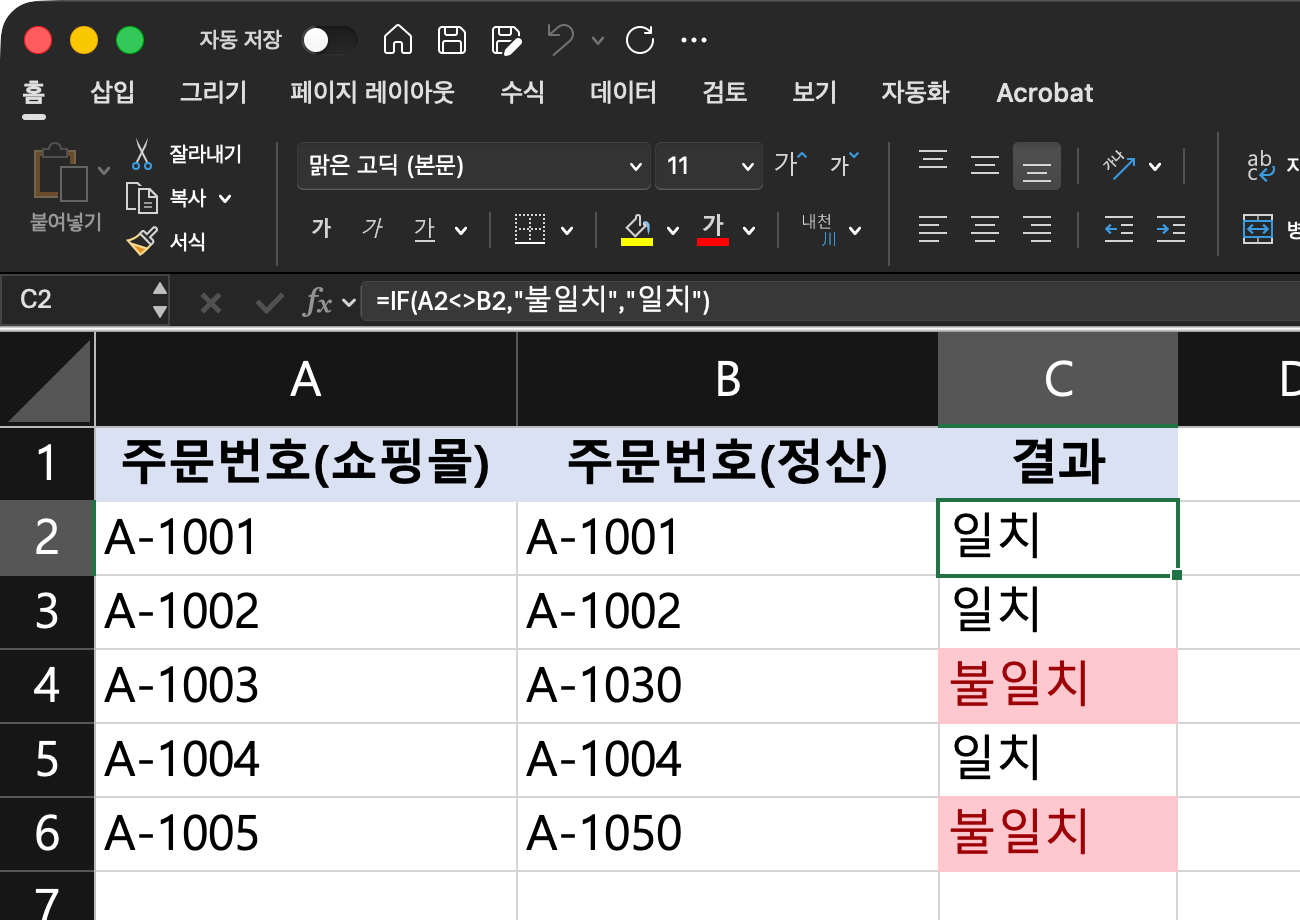 Actual Excel screen (sample data): filling
=IF(A2<>B2,"Mismatch","Match") down from C2 flags rows 4 and 6, where the order numbers differ, as "Mismatch." (figure labels in Korean)
The thing to watch here is that text must always be wrapped in double quotes. The IF help article says that to use text in a formula, you need to enclose it in quotes, with the only exceptions being TRUE and FALSE.
The "" in the last example is the expression that the help article on using IF to check for blank cells describes as meaning "nothing."
That article presents skipping the calculation when a cell is blank, as in =IF(D3="","",YourFormula()), as a common approach, and my example just flips that condition around with <>.
In IF, we kept the operator outside the quotes and wrapped only the value being compared. So does the same approach work in COUNTIF?
3. Why does "not equal to" go inside quotes in COUNTIF?
COUNTIF is written differently. The syntax in the COUNTIF function help article is COUNTIF(range, criteria), where criteria is a condition in the form of a number, expression, cell reference, or text string.
Just as the help article gives comparisons like ">32" as criteria examples, unlike IF, this structure passes the comparison as a string, so the operator and value have to go inside the quotes together.
The help article also lists not enclosing the criteria argument in quotes as a reason values may not come out as expected.
- Excluding a number: The help example
=COUNTIF(B2:B5,"<>75")counts the cells in B2:B5 that aren't 75. - Excluding text: Writing
=COUNTIF(C2:C100,"<>Canceled")counts the cells whose status isn't "Canceled." - Excluding a cell's value: If you've written the value to exclude in a cell, join the quoted operator and the cell reference with
&, as in=COUNTIF(B2:B5,"<>"&B4). The help article explains that this formula reads as"<>75", because B4 contains 75.
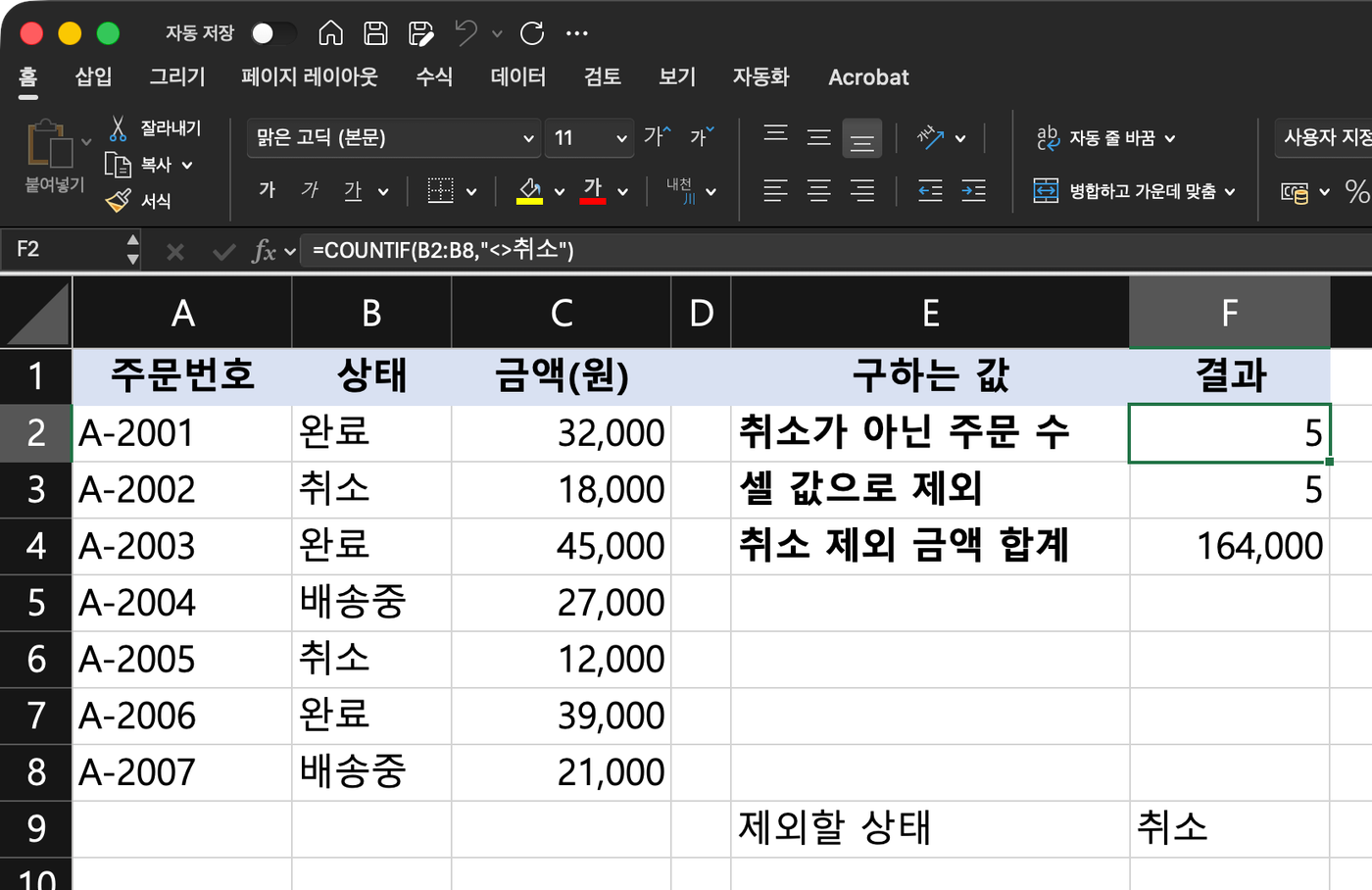 Actual Excel screen (sample data):
=COUNTIF(B2:B8,"<>Canceled") in F2 returns 5 by excluding the 2 "Canceled" orders out of 7, the "<>"&F9 condition in F3 returns the same 5, and SUMIFS in F4 returns 164,000, the total amount excluding canceled orders. (figure labels in Korean)
One thing worth pointing out: in the example table of the Korean version of the COUNTIF help article, the quote placement in this formula got misaligned during translation, so this post follows the notation "<>"&B4 from the English version of the help article.
The same approach works in other criteria functions. The SUMIFS help article shows an example that excludes bananas with the "<>Bananas" condition and uses a second condition to specify the seller, and the AVERAGEIF help article includes an example that combines it with the wildcard *, as in "<>*(New Office)", to exclude items ending in certain text.
Since COUNTIF takes only one condition, the help article says to use COUNTIFS when you have two or more conditions, such as "not canceled and from a specific channel."
4. What commonly trips people up with "not equal to" conditions?
Sometimes the formula looks right but the count comes out different from what you expected. Based on what the official help articles say, there are four places worth checking.
- Case: The COUNTIF help article says criteria aren't case-sensitive, so "apples" and "APPLES" match the same cells. If you want values that differ only in case to count as different, you can compare them with the case-sensitive EXACT function together with NOT, as in
=IF(NOT(EXACT(A2,B2)),"Different","Same"). - Invisible characters: The help article says COUNTIF can return unexpected values if there are leading or trailing spaces, a mix of straight and curly quotes, or nonprinting characters, and recommends the TRIM or CLEAN functions. "Canceled" and "Canceled " look the same to the human eye but are different values.
- Counting blank cells: The help article says to count non-blank cells with COUNTA. However, the COUNTA help article counts formulas that return an empty string (
""), and the COUNTBLANK help article says it also counts such cells as blank, so a column filled with"", like the earlier IF example, can be picked up by both functions. Counting non-blank cells with just"<>"as the criteria is also widely recommended, but since it isn't in the COUNTIF help examples, I recommend COUNTA first. - Blank cells within the range: The COUNTIF help article doesn't specifically say whether blank cells get counted by a condition like
"<>Canceled". If the count looks off, I recommend limiting the range to rows that contain data, or checking the number of blank cells separately with COUNTBLANK.
5. To sum up, when and how should you use it?
Here's everything so far in one table. The key point is that in IF the operator goes outside the quotes, and in criteria functions it goes inside.
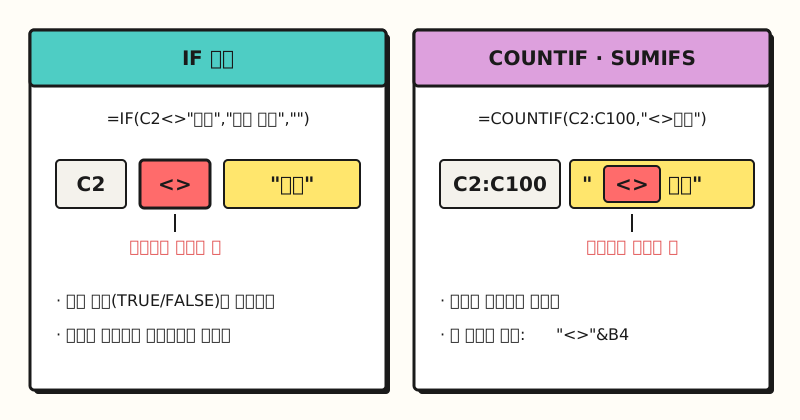 IF wraps only the text being compared in quotes, while COUNTIF and SUMIFS put the operator and value inside the quotes together. (figure labels in Korean)
| Situation | Formula example |
|---|---|
| Flag whether two cells differ | =IF(A2<>B2,"Mismatch","Match") |
| Flag when it isn't specific text | =IF(C2<>"Done","Check needed","") |
| Calculate only when not blank | =IF(B2<>"",B2*C2,"") |
| Count excluding a specific value | =COUNTIF(C2:C100,"<>Canceled") |
| Count excluding a value in a cell | =COUNTIF(B2:B5,"<>"&B4) |
| Sum excluding a specific value | =SUMIFS(D2:D100,C2:C100,"<>Canceled") |
The not-equal operator itself is just one symbol, but because the quote position differs by function, it's easy to get wrong at first. If you want to summarize the filtered data by multiple criteria, it also works well alongside a PivotTable. I plan to come back to this table myself whenever I get confused while putting reports together; for detailed behavior of each function, please refer to the official help articles linked above.
FAQ
- What is the not equal sign in Excel?
- Excel's not-equal operator is a less-than sign followed by a greater-than sign. It's listed as "not equal to" in the comparison operator table of Microsoft's calculation operators help article, and comparing two values with it returns TRUE or FALSE. The math sign with a slash through the equals sign isn't in that table.
- How do I use a cell value as the not-equal condition in COUNTIF?
- Wrap only the not-equal operator in double quotes, then join the cell reference after it with an ampersand (&). The example in Microsoft's COUNTIF help article explains that the condition built this way combines with the value 75 in B4 to count cells that aren't 75.
- Where do the quotes go when comparing text with not equal to in the IF function?
- In IF, keep the operator outside the quotes and wrap only the text being compared in double quotes. The IF help article says text in a formula must be enclosed in quotes, with TRUE and FALSE as the only exceptions. In criteria functions like COUNTIF, on the other hand, the operator and value go inside the quotes together.
- Is the not-equal condition case-sensitive?
- The COUNTIF help article says criteria aren't case-sensitive. To compare with case sensitivity, you can use the case-sensitive EXACT function together with the NOT function.
Related posts
Posts worth reading when you're organizing data in Excel.
- What is an Excel PivotTable, and when should you use it? - How to summarize filtered data from multiple angles
- VLOOKUP vs XLOOKUP | Which Excel lookup function to use when - How to pull values from another sheet based on a code
- How to fix broken Korean text in Excel data - Fixing garbled Korean characters when opening downloaded data in Excel