The Excel ISNUMBER function takes just one argument, ISNUMBER(value), and returns TRUE if the value is a number and FALSE if it isn't.
You use it to pick out values that look like numbers but are stored as text, and when you wrap SEARCH inside it as ISNUMBER(SEARCH(...)), it becomes a formula that checks whether a cell contains specific text.
"I want to flag only the rows whose campaign name contains 'brand'. Can't I do that with a formula instead of a filter?" You've probably thought this while cleaning up a downloaded ad report. Or the opposite: your total looked off, and when you dug in, a few cells that looked like numbers were actually text. In this post, I'll cover what ISNUMBER checks, how to find numbers stored as text, how to check whether a cell contains specific text, how to use it in conditional formatting, and the other IS functions and pitfalls.
1. What does the Excel ISNUMBER function check?
The IS functions help article describes ISNUMBER together with ISBLANK, ISTEXT, and others as a group called the IS functions. All of them check the type of a value and return TRUE or FALSE depending on the result. ISNUMBER returns TRUE when the value refers to a number, and the argument can be a blank cell, an error, a logical value, text, a number, a reference value, or a name referring to any of these.
Think of a front desk that only checks for an access badge. It doesn't ask who you are or why you're there, it just answers "badge or no badge." ISNUMBER likewise doesn't care what the value is; it only tells you whether it's a number or not.
In the help article's examples, =ISNUMBER(4) is TRUE, and checking a cell containing 330.92 also returns TRUE.
It's worth knowing that dates are treated as numbers too. According to the DATEVALUE function help article, Excel stores dates as sequential serial numbers so they can be used in calculations, and by default January 1, 1900 is serial number 1. So a cell with a properly entered date returns TRUE with ISNUMBER, while a cell that looks like a date but was entered as text returns FALSE.
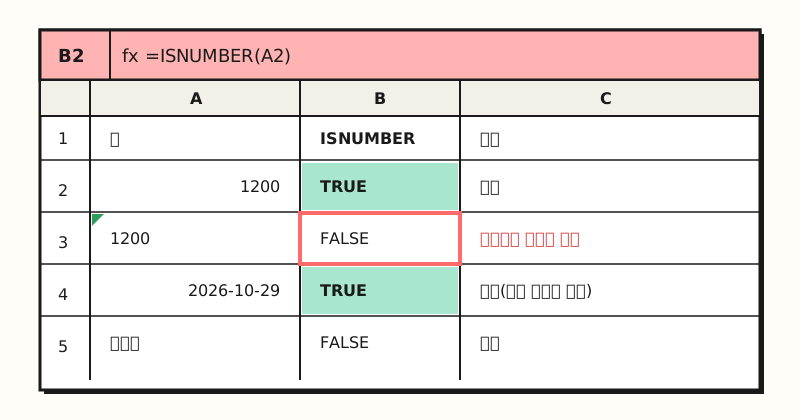 Example figure: Filling column B with
=ISNUMBER(A2) returns TRUE for numbers and dates, and FALSE for numbers stored as text and for text (sample data; figure labels in Korean).
2. Why do numbers stored as text return FALSE?
The remarks in the IS functions help article include the sentence the value arguments of the IS functions are not converted.
Most other functions that need a number convert the text "19" to the number 19, but the article explains that in ISNUMBER("19"), "19" isn't converted to a number, so it returns FALSE.
That's because a number wrapped in double quotes is treated as text.
This property makes ISNUMBER a handy tool for finding numbers stored as text.
Put =ISNUMBER(C2) next to your revenue column and fill it down: the rows that return FALSE are very likely the cells being left out of your total. Filter for FALSE only, and you can see at a glance what needs fixing.
I've covered how to convert those cells into real numbers in a separate post on Excel not recognizing numbers, and for dates stored as text, you can convert them to serial numbers with the DATEVALUE function.
If you only want the count, you don't need ISNUMBER on every row. According to the COUNT function help article, COUNT counts cells that contain numbers, so if =COUNT(C2:C100) and =COUNTA(C2:C100) give different results, you can take it as a sign that non-numeric values are mixed in.
So how do you check not whether a cell is a number, but "does this cell contain the word brand?"
3. How do you check if a cell contains specific text with ISNUMBER SEARCH?
The help article on checking if a cell contains text says that to check whether part of a cell matches specific text, you should use the IF, SEARCH, and ISNUMBER functions together. The trick is in the SEARCH function. According to the SEARCH function help article, SEARCH returns the position where the text you're looking for starts as a number, and returns a #VALUE! error if it can't find it.
- When found: The SEARCH result is a number, so
ISNUMBER(SEARCH("brand",A2))is TRUE. - When not found: The SEARCH result is a #VALUE! error, and an error isn't a number, so it's FALSE.
In effect, ISNUMBER turns SEARCH's result into "found" or "not found." To show easy-to-read labels in your report instead of TRUE and FALSE, wrap it once more with IF.
=IF(ISNUMBER(SEARCH("brand",A2)),"Brand","General")
Because SEARCH isn't case-sensitive, this formula classifies both "Brand_Search" and "BRAND_Shopping" as Brand.
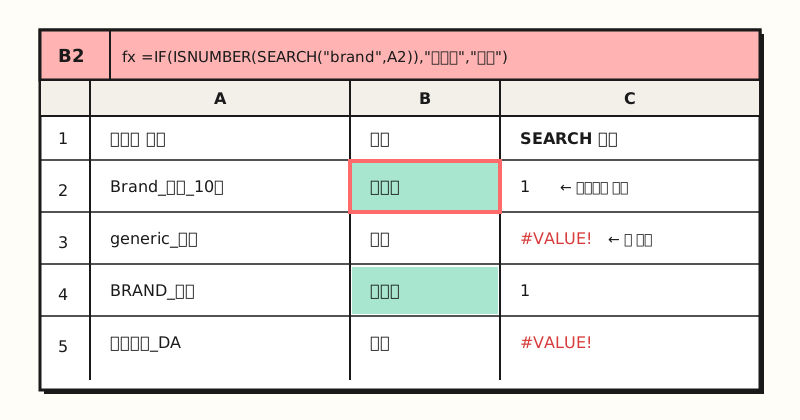 Example figure: SEARCH isn't case-sensitive, so rows containing both Brand and BRAND are classified as "Brand" (sample data; figure labels in Korean).
4. What's the difference between SEARCH and FIND?
The formula also works if you put the FIND function in the same spot, but the results can differ. The help article on #VALUE! errors in FIND/FINDB and SEARCH/SEARCHB explains that the two functions work the same way, but FIND is case-sensitive and SEARCH is not.
In the article's example, =FIND("gloves","Gloves (Youth)",1) returns a #VALUE! error, while =SEARCH("gloves","Gloves (Youth)",1) with the same conditions returns 1.
| SEARCH | FIND | |
|---|---|---|
| Case | Not case-sensitive | Case-sensitive |
| Wildcards | Can use ? (one character) and * (multiple characters) | Not allowed |
| If not found | #VALUE! error | #VALUE! error |
Wildcards are covered in the SEARCH help article; if you want to find an actual question mark or asterisk, put a tilde (~) in front of it.
For FIND, the FindB description on Microsoft Learn states that both FIND and FINDB are case-sensitive and don't allow wildcard characters.
For data with mixed case like campaign names, SEARCH is more convenient; for values where case carries meaning, like product codes, switch to FIND.
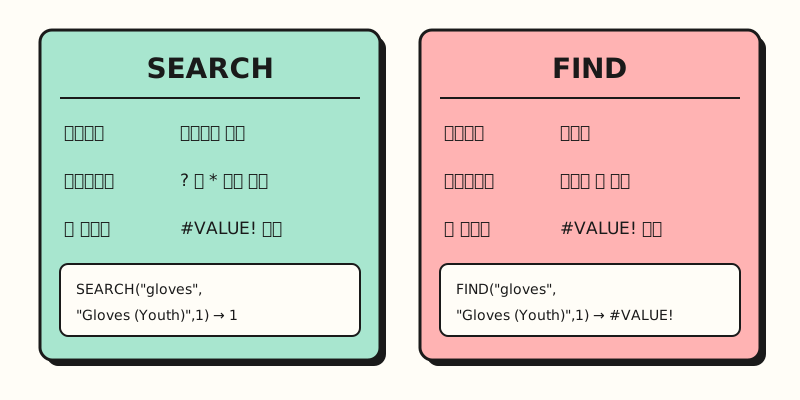 SEARCH ignores case and allows wildcards, while FIND only matches when the case is identical too (figure labels in Korean).
The same formula works as-is in Conditional Formatting. According to the conditional formatting help article, the formula in a Use a formula to determine which cells to format rule must start with an equals sign and return TRUE or FALSE. =ISNUMBER(SEARCH("brand",$A2)) fits that exactly, so you can color the entire row of every line containing brand.
5. What other IS functions are there besides ISNUMBER, and what should you watch out for?
Here are the IS functions from the help article that you'll run into most often in practice.
| Function | Returns TRUE when |
|---|---|
| ISNUMBER | The value refers to a number |
| ISTEXT | The value refers to text |
| ISNONTEXT | The value refers to any item that isn't text (TRUE for blank cells too) |
| ISBLANK | The value refers to an empty cell |
| ISERROR | The value is an error value (including #N/A) |
| ISNA | The value is the #N/A error |
A few points to keep in mind before using them:
- Numbers in quotes are text: As we saw,
ISNUMBER("19")is FALSE. When you type a number directly into a formula, leave out the double quotes. - ISNONTEXT isn't for checking numbers: According to the help article, ISNONTEXT returns TRUE even for blank cells. "Not text" doesn't mean "a number," so ISNUMBER is more accurate when you want only numbers.
- It's the same in Google Sheets: The Google Sheets ISNUMBER help article also says it returns FALSE if a number is entered as a string (
ISNUMBER("123")), and notes that it's most often used with IF. - Supported versions: The IS functions help article lists Excel for Microsoft 365, Excel 2024, 2021, 2019, 2016, and Excel for the web.
To sum up, ISNUMBER is a function that only answers whether something is a number. On its own, it's used to find numbers stored as text; combined with SEARCH, it checks whether a cell contains specific text. Remember to wrap it with IF when you want the result shown as words, and for other functions that work with TRUE and FALSE, see my post on Excel TRUE and FALSE functions.
FAQ
- How do I use the Excel ISNUMBER function?
- Put in one cell or value to check, like =ISNUMBER(A2), and it returns TRUE if the value is a number and FALSE if it isn't. Dates are stored as serial numbers in Excel, so cells entered as dates also return TRUE. To show the result as words, use it as the first argument of the IF function.
- Why does ISNUMBER return FALSE for a number in quotes?
- According to Microsoft's IS functions help article, the value arguments of the IS functions are not converted, and a number wrapped in double quotes is treated as text. Many other functions convert the text 19 to a number for calculation, but ISNUMBER checks it as-is without converting.
- How do I check if a cell contains specific text in Excel?
- Use =ISNUMBER(SEARCH("text to find",A2)), which returns TRUE if the text is there and FALSE if it isn't. SEARCH returns the position as a number when found and a #VALUE! error when not, and ISNUMBER turns that into TRUE and FALSE. Wrap it with IF to show the result as words, and use FIND instead of SEARCH if you need case sensitivity.
- Is the ISNUMBER SEARCH formula case-sensitive?
- No. The SEARCH function isn't case-sensitive, so searching for brand also finds Brand and BRAND. If you need case sensitivity, put the FIND function in the same spot; the difference is that FIND can't use wildcard characters.
Related posts
Posts worth reading alongside this one when checking and cleaning up Excel data.
- Excel Not Recognizing Numbers | How to Convert Numbers Stored as Text - How to turn the text numbers you found with ISNUMBER into real numbers
- Excel TRUE and FALSE Functions | Using the AND, OR, and NOT Logical Functions - How to combine ISNUMBER results with AND, OR, and IF
- What Is an Excel PivotTable? From Creating to Refreshing, a Practical Guide - How to summarize data classified as Brand and General with a PivotTable