
Marking blank cells in Excel works differently depending on what you're after. To select all the empty cells at once, use Blanks in [Go To Special]. To make them stand out with color, use Conditional Formatting. To replace them with text like "Missing," use the IF and ISBLANK functions. And to count how many cells are empty, use the COUNTBLANK function. That said, what Excel considers "empty" is a little different from what you see on screen, so cells containing a space and formula cells that return an empty string need to be treated separately.
When you merge ad reports from several people, you inevitably end up with cells missing values here and there. Have you ever scrolled down a long way thinking, "Isn't there a way to pick out only the blank cells in this sheet of thousands of rows and fill them with 'Missing'?" In this post I'll go through how to find, mark and count blank cells in Excel, one step at a time.
Which cells does Excel treat as "blank"?
The Conditional Formatting help article explains that blank cells are cells that contain no data, and that they're different from cells containing one or more spaces, which are treated as text. So a cell where someone pressed the space bar once looks empty on screen, but to Excel it's a cell with text in it, and data downloaded from other systems often has cells like this mixed in.
The other case is a cell containing a formula that returns an empty string (""), like =IF(D3="","",YourFormula()).
The help article on using IF to check whether a cell is blank introduces this formula as a very common way to avoid calculating when a referenced cell is blank. The result only looks empty; there's still a formula inside the cell.
Think of it like theater seats. If an empty seat is a truly blank cell, then a seat with only a bag on it is a cell with a space, and a seat with just a "Reserved" sign on it is a formula cell returning an empty string. From a distance all three look empty, but depending on how you count, they may or may not be counted as empty seats. So let's start with how to pick out the truly empty seats all at once.
1. How do you find and select all blank cells at once?
In Excel for Windows, the Go To command lets you select every cell that meets a specific condition at once. Here are the steps from the help article on finding and selecting cells that meet specific conditions.
- Step 1: Select the range where you want to find blank cells. If you select just one cell, Excel searches the whole worksheet.
- Step 2: On the [Home] tab, in the [Editing] group, click [Find & Select] → [Go To]. The keyboard shortcut is Ctrl+G.
- Step 3: Click [Special], choose Blanks in the dialog box, and click [OK].
With those cells selected, a feature you can use right away is entering the same value in multiple cells. The help article on entering data in cells explains that you select the cells where you want the same data, type it in the active cell, and press Ctrl+Enter. The cells don't even need to be next to each other. So with only the blank cells selected, type "Missing" or 0 and press Ctrl+Enter, and all the blanks are filled at once.
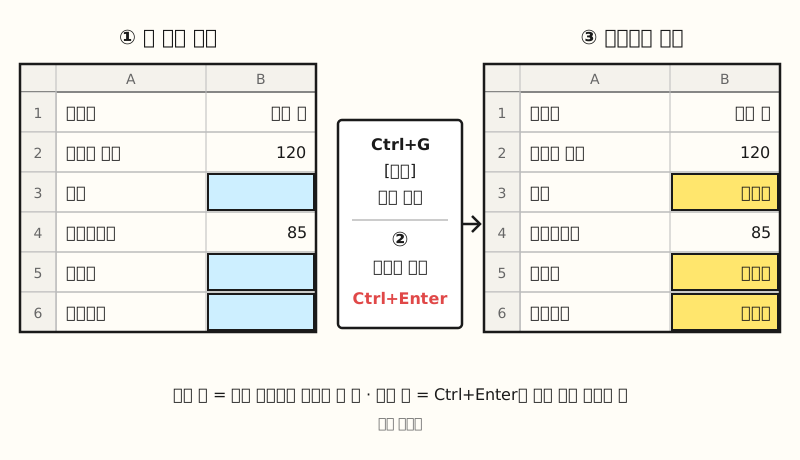 Example figure: with only the blank cells selected, type "Missing" and press Ctrl+Enter to fill every selected cell (sample data, not a real screenshot; figure labels in Korean).
I recommend copying the original sheet before you fill anything. Whether a blank means "no value" or "not received yet" depends on the data.
2. How do you highlight blank cells in Excel with color?
If you want them to stand out without changing any values, Conditional Formatting is the right tool. Based on the Conditional Formatting help article mentioned above, the steps are:
- Step 1: Select the range where you want to mark blanks.
- Step 2: On the [Home] tab, in the [Styles] group, click [Conditional Formatting] → [New Rule].
- Step 3: Under Select a Rule Type, choose Format only cells that contain, then choose Blanks from the list below.
- Step 4: Pick a fill color under [Format] and click [OK].
If you choose No Blanks from the same list, you can do the opposite and color only the cells that have values. This rule also uses the definition we saw earlier, cells with no data, so cells containing a space won't be colored. If your condition is more complex, you can choose Use a formula to determine which cells to format in the same [New Rule] window and enter your own formula that returns TRUE or FALSE. I've covered other Conditional Formatting rules separately in my Excel Conditional Formatting post, so take a look at that too.
3. How do you show text like "Missing" in blank cells?
If you want to leave the original data alone and show the status as text in the next column, use IF and ISBLANK together.
According to the IS functions help article, ISBLANK returns TRUE if the value argument is a reference to an empty cell and FALSE otherwise.
Adapting the example from the IF help article above, =IF(ISBLANK(D2),"Blank","Not Blank"), for real-world use gives you this:
=IF(ISBLANK(C2),"Missing",C2)
This formula shows "Missing" if C2 is empty, and the value itself if C2 has one.
The same help article also introduces =IF(D3="","Blank","Not Blank"), which compares against an empty string instead of using ISBLANK, and explains that "" here means "nothing."
If you want the opposite condition, "only when there's a value," add the not-equal operator and write C2<>"". I covered this operator in detail in my Excel not-equal operator post.
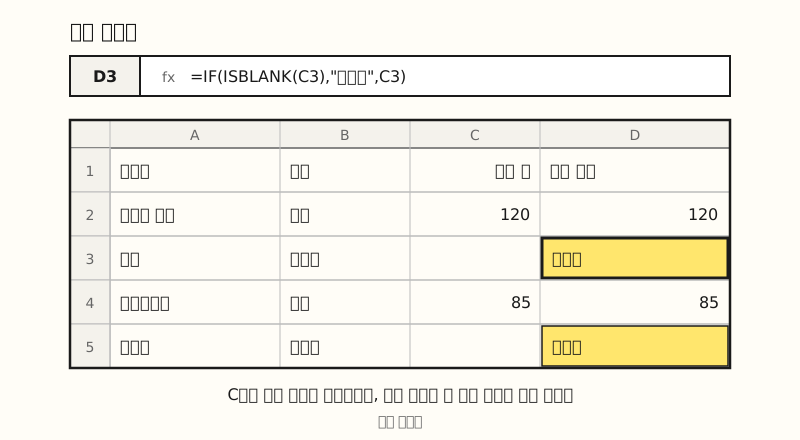 Example figure: entering =IF(ISBLANK(C2),"Missing",C2) in column D shows "Missing" only on rows where column C is empty (sample data, not a real screenshot; figure labels in Korean).
4. Which function counts blank cells?
When you want a number for how many values are missing from a report, it's handy to use COUNTBLANK and COUNTA as a pair.
| Function | What it counts | Watch out for |
|---|---|---|
| COUNTBLANK(range) | Blank cells in the range | Also counts formula cells that return "", and doesn't count cells containing 0 |
| COUNTA(value1, …) | Non-empty cells in the range | Also counts cells containing error values and empty text ("") |
Reading the COUNTBLANK help article and the COUNTA help article side by side reveals something interesting. Formula cells that return "" are counted by both COUNTBLANK and COUNTA, so in a range with cells like this, the two results added together can be larger than the total number of cells. Going back to the theater analogy, it's like counting the "Reserved" seats as both empty and taken.
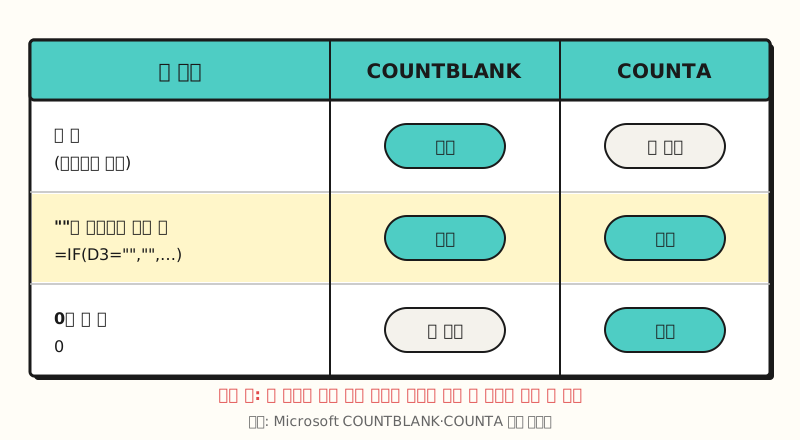 COUNTBLANK and COUNTA both count formula cells that return "". This is the first thing to check when the numbers don't add up (figure labels in Korean).
※ Note: what if a cell looks empty but isn't picked up as blank?
If a cell looks empty but the methods above don't catch it, it's usually one of these three.
- Cells containing a space: per the Conditional Formatting help article, spaces are treated as text, so these cells don't match the Blanks rule. You can check by putting
=LEN(C2)in the next column. As the LEN function help article explains, spaces count as characters, so if a cell looks empty but the result is greater than 0, it contains a space. - Formula cells that return "": nothing shows on screen, but there's a formula in the cell. When counting, check whether both COUNTBLANK and COUNTA are counting it, as in the table above.
- Excel version and environment: the help article on Go To Special is written for Excel for Windows, and it lists Excel for Microsoft 365, Excel 2024 and Excel 2021 as applying. The ISBLANK and COUNTA help articles list everything from Excel 2016 to Excel for Mac.
Sometimes Korean text in a CSV from somewhere else gets garbled and looks like blank cells. In that case, check my post on fixing garbled Korean text in Excel first.
To sum up, the fastest approach to marking blank cells in Excel is to decide first whether you want to select and fill them (Go To Special), see them in color (Conditional Formatting), show them as text (IF and ISBLANK), or count them (COUNTBLANK), and then pick the method. Data you've already checked for blanks is also easier to summarize with a pivot table, because you won't be confused about which cells are missing. I'm planning to revisit this as I build the habit of checking blanks first when merging reports, so please refer to the official help articles for detailed options.
FAQ
- Is there a shortcut to find blank cells in Excel?
- In Excel for Windows, press Ctrl+G to open the [Go To] window, click [Special], and select Blanks. According to Microsoft's help article, if you select a range first, Excel searches only within it; if you select a single cell, it finds blank cells across the whole worksheet.
- How do I fill all blank cells in Excel with 0 or Missing at once?
- With only the blank cells selected through Go To Special, type 0 or "Missing" and press Ctrl+Enter, and the same value goes into every selected cell. After filling, it's hard to tell which cells were originally blank, so I recommend copying the original sheet before you do this.
- Are cells with only a space treated as blank?
- No. Microsoft's Conditional Formatting help article defines blank cells as cells with no data, and explains that cells containing one or more spaces are treated as text and are different from blank cells. So the Blanks rule in Conditional Formatting won't color them.
- Why does COUNTBLANK plus COUNTA come out higher than the total number of cells?
- Because some cells contain a formula that returns an empty string (""). According to Microsoft's help articles, COUNTBLANK counts these cells as blank, and COUNTA also counts cells containing empty text. The same cell gets counted once on each side.
Related posts
Posts worth reading alongside this one when cleaning up Excel data.
- What Is an Excel Pivot Table, and When Should You Use It? - how to summarize cleaned-up data by multiple criteria
- Excel Conditional Formatting: See Numbers at a Glance with Colors, Bars and Icons - Conditional Formatting rules beyond blank cells
- Excel Not Equal <> Operator: How to Use It in IF and COUNTIF - how to set conditions for only cells that have values