You found some useful data and downloaded it to work with, but all the Korean text is garbled?!
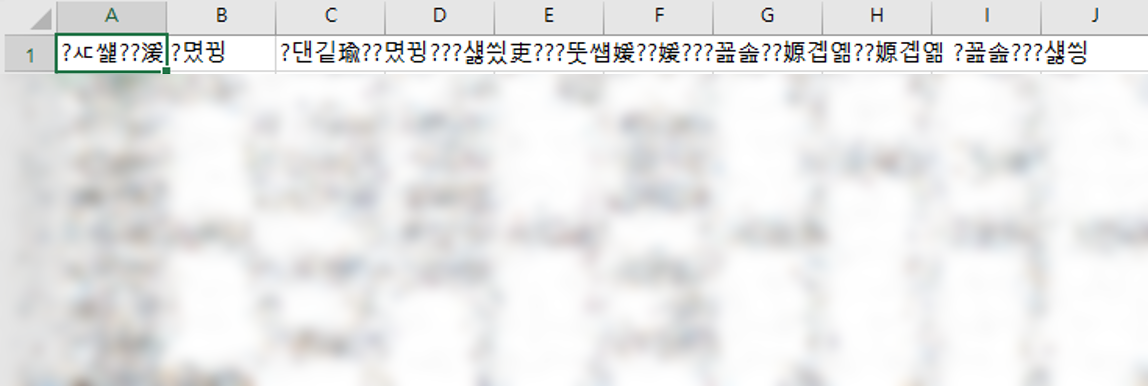
You may have seen text break when you open data downloaded from the web as an Excel file. This happens because of differences in data encoding, so let's look at how to bring this data into Excel in a usable form.
Use Excel's "Get Data" Feature to Load Garbled Korean Data Correctly
If you don't know this feature, the Korean text comes out garbled when you bring the data into Excel, so you can't use the data. But if you know it, the Korean text comes through correctly without breaking, so you can put the data to use.
1. Don't open the file; open a blank Excel window instead.
If you open the file directly, the text comes out garbled. So you need to start by opening a blank Excel window first.
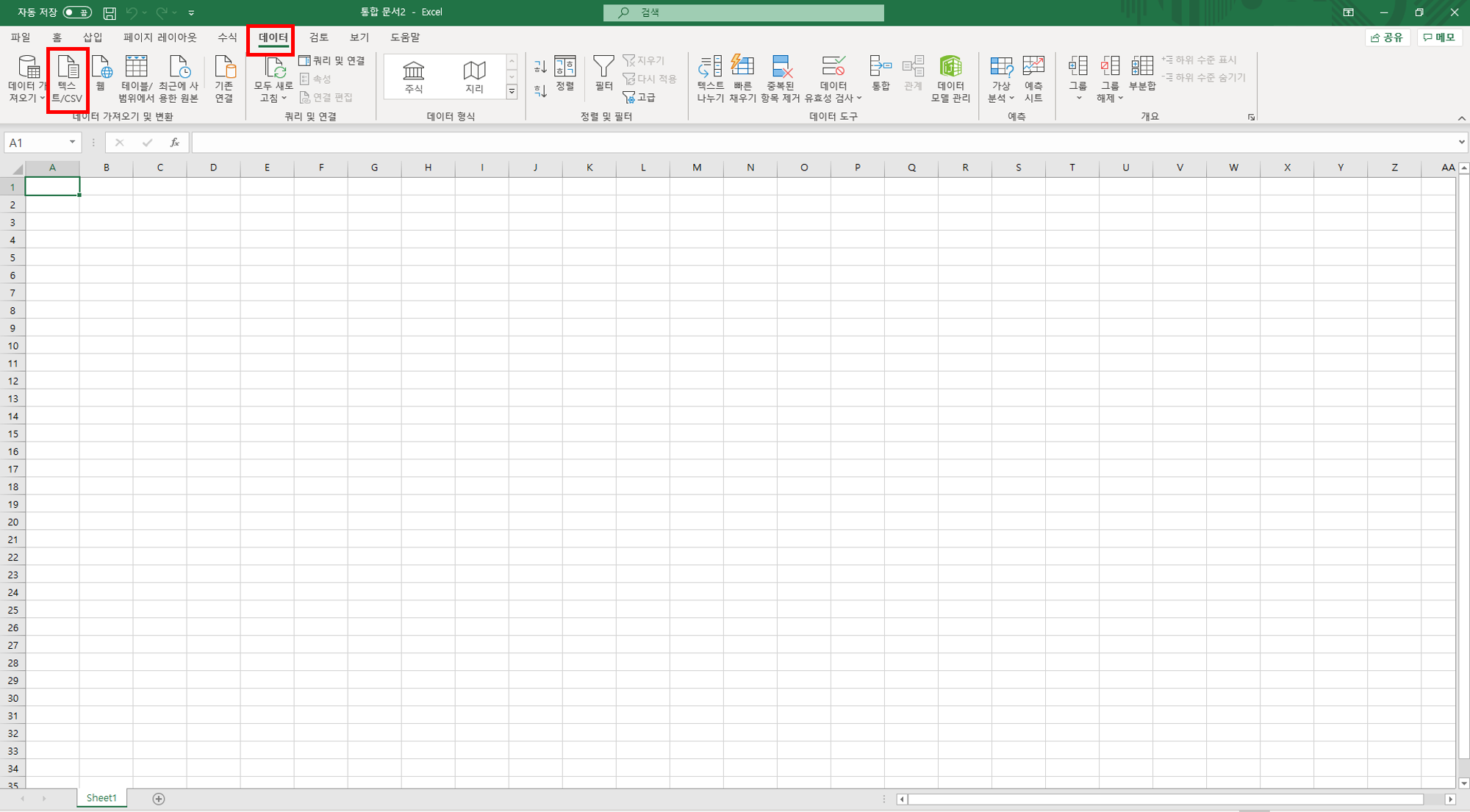
2. Click Data > From Text/CSV
3. Select the file that showed errors when you opened it.
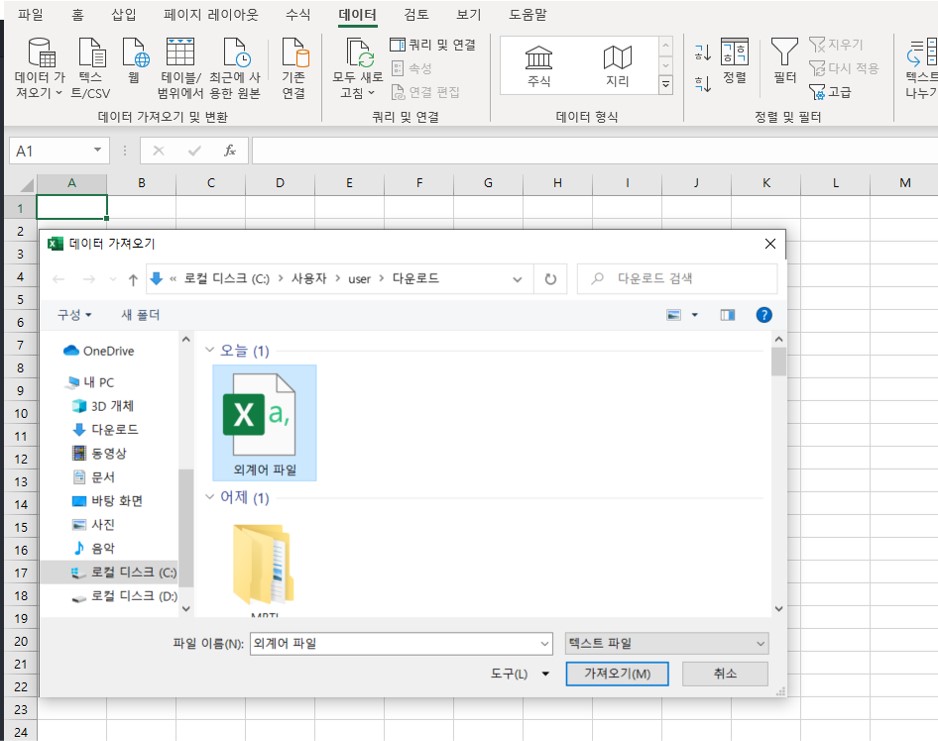
4. Under File Origin, choose Unicode (UTF-8).
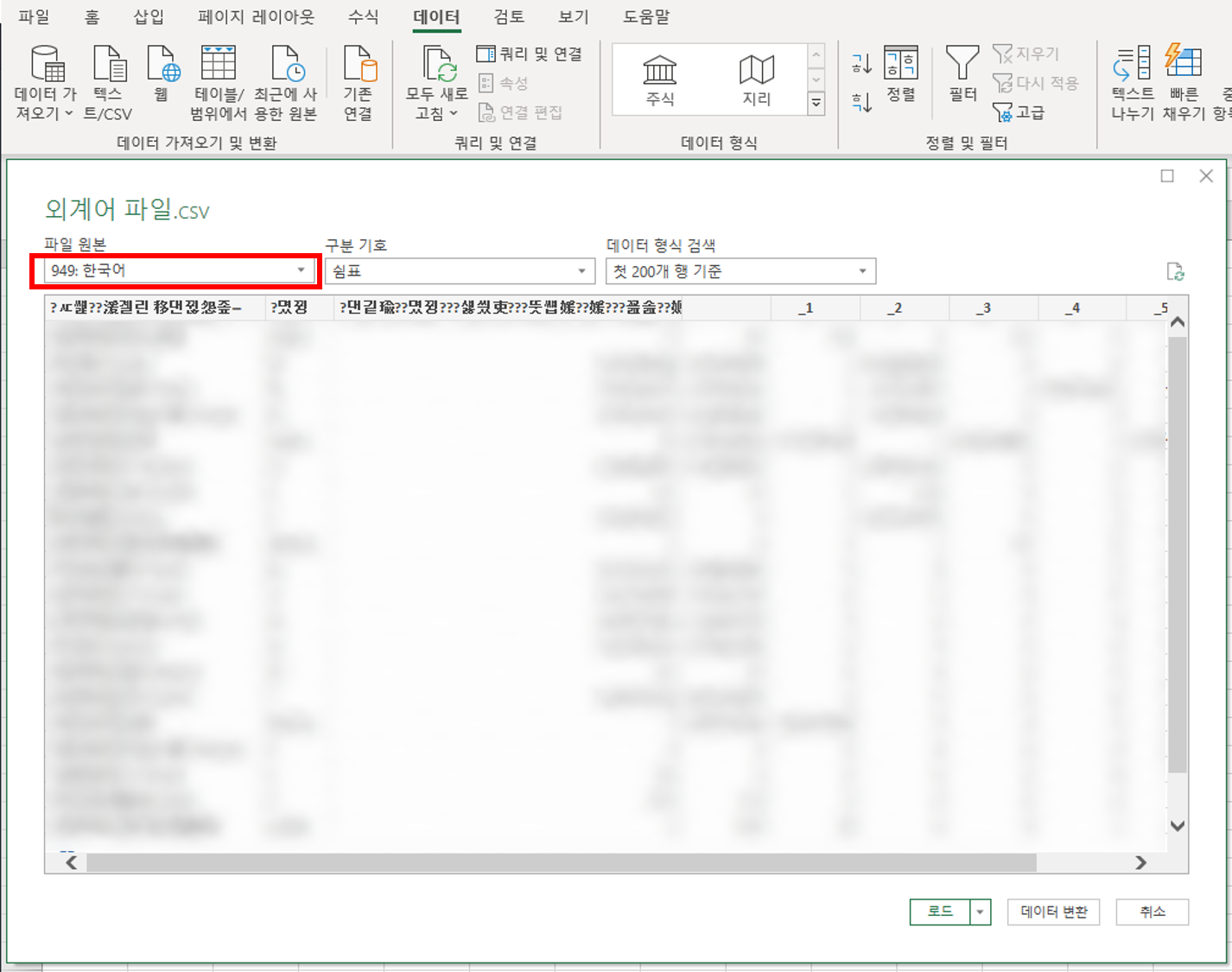
5. Click [Load] on the converted file!
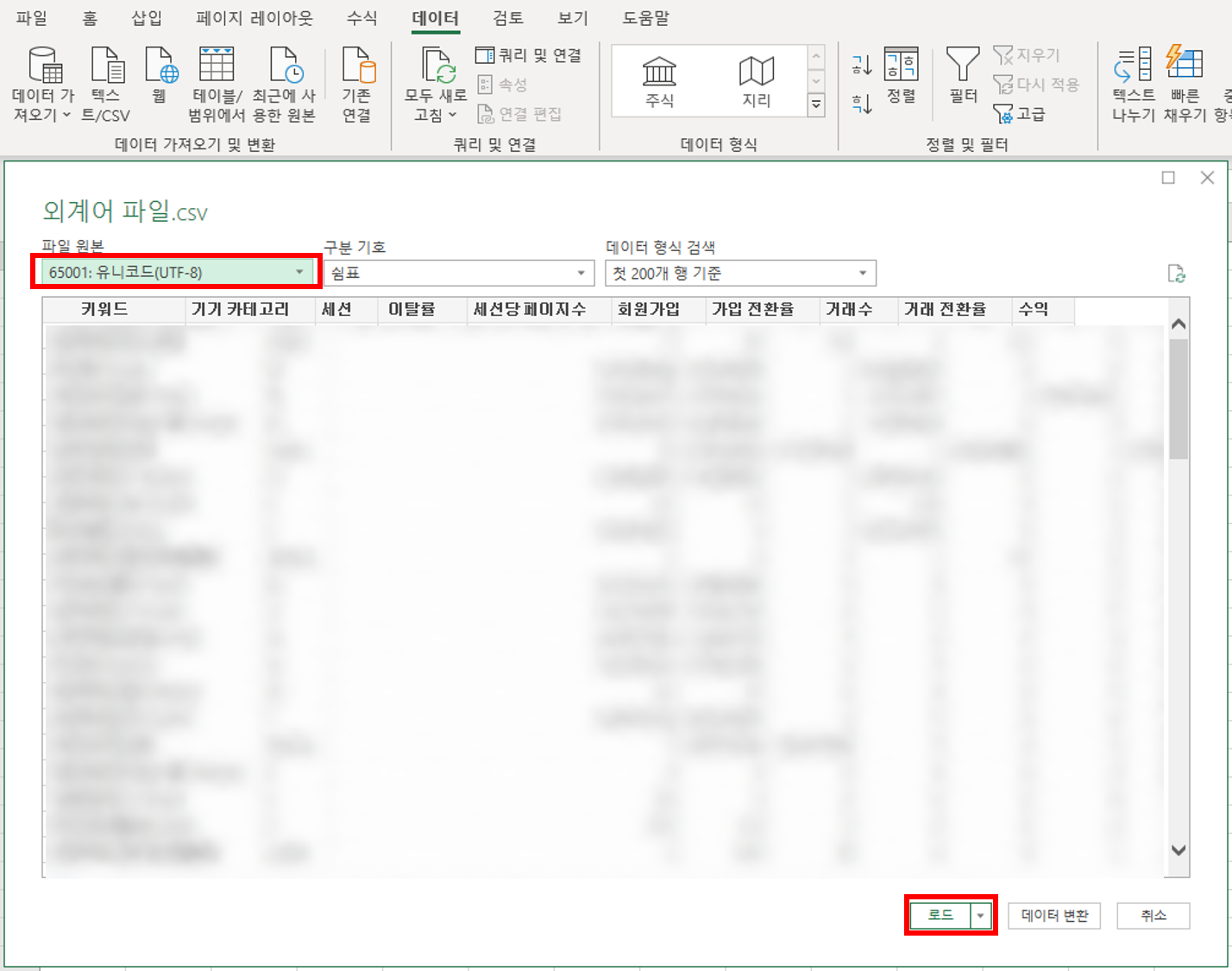
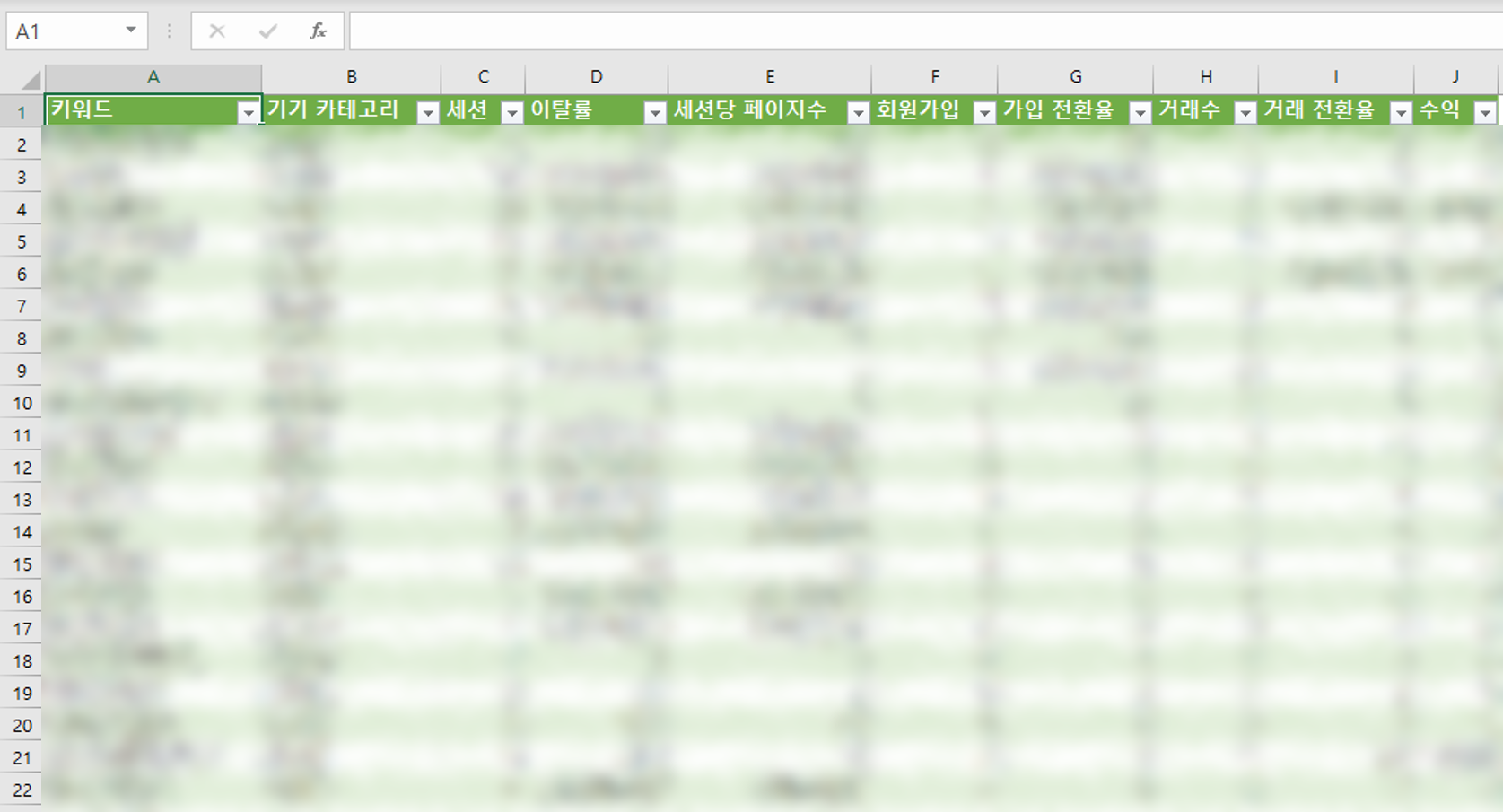
6. Use the converted data however you like!
Bonus: Import Data from the Web into Excel!
There's also an easy way to bring data that sits in tables on a web page into Excel. COVID-19 cases have been trending up again lately, so shall we try importing Korea's COVID-19 case data?
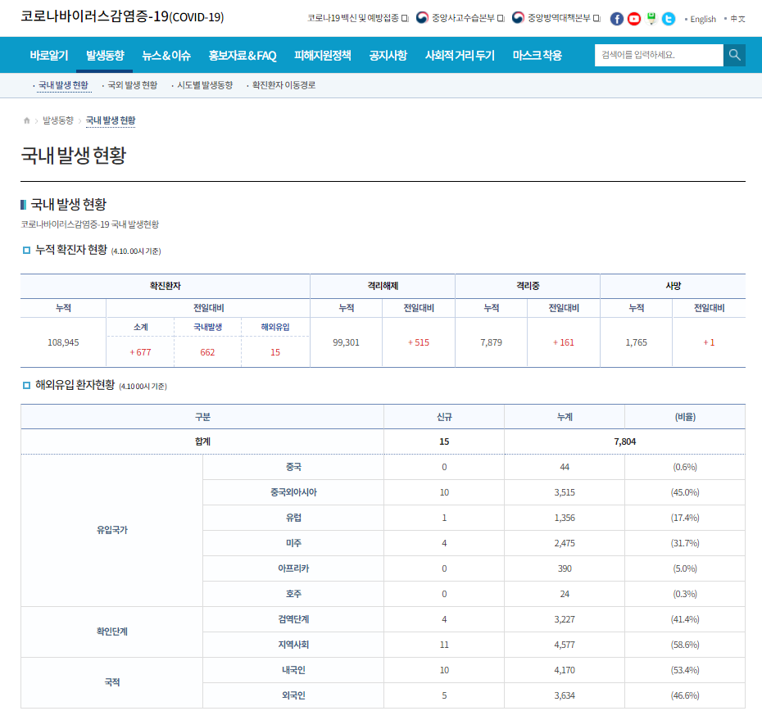
The page above is run by the Korean government and shares the status of COVID-19 cases in Korea and abroad. It has a lot of tables, so I used it as an example.

1. Click the "From Web" button next to the one you used to import the CSV file.
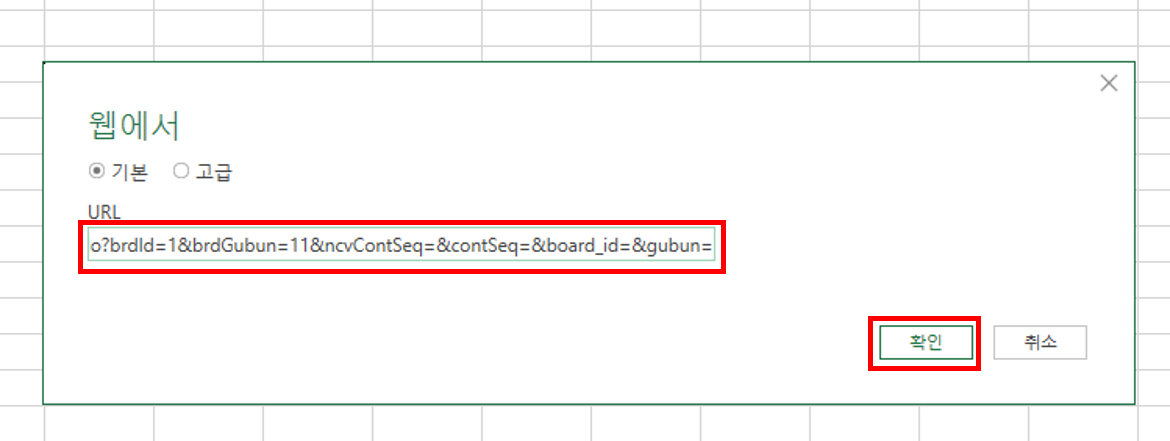
2. Enter the URL of the page you want to pull data from and click [OK]
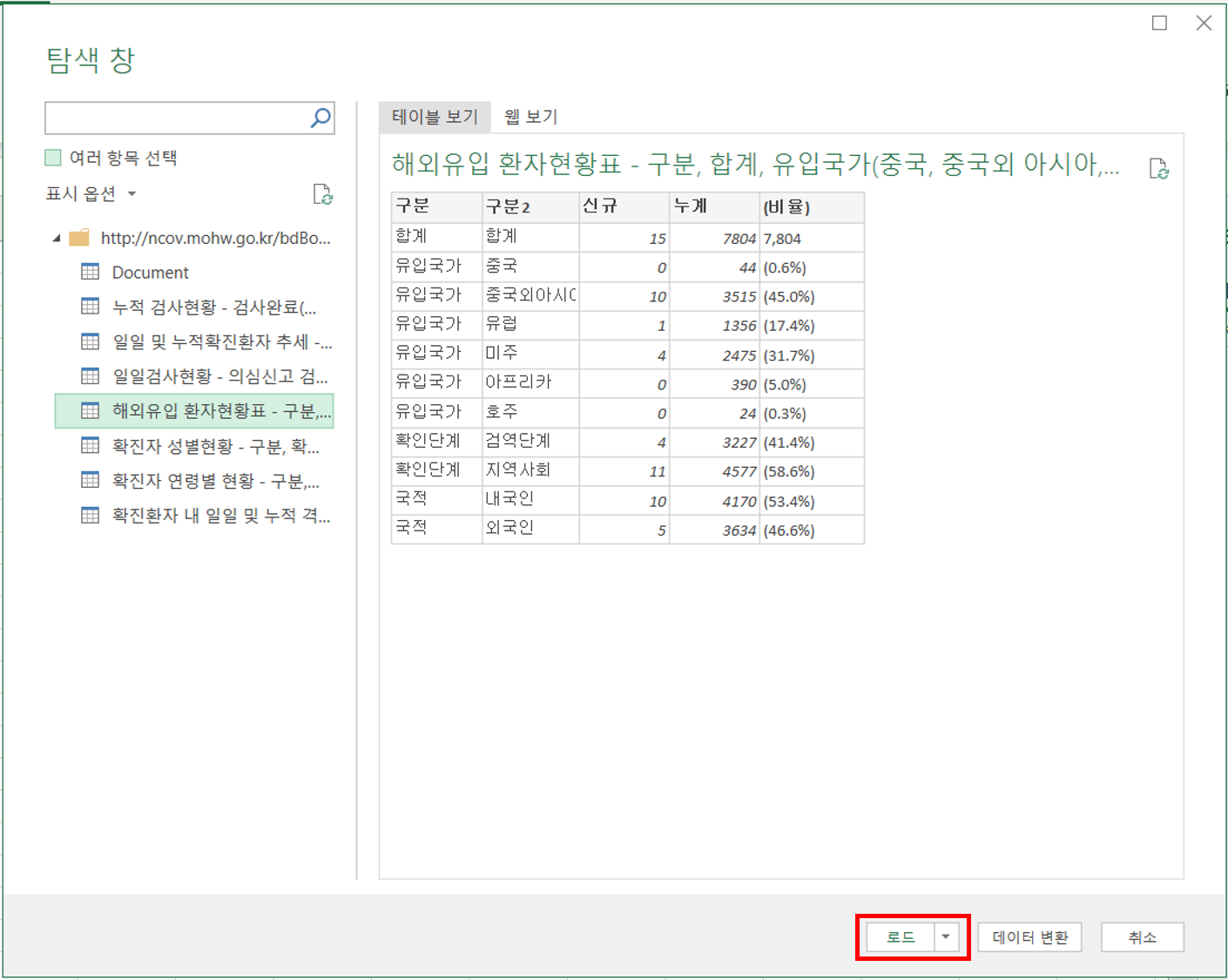
3. In the left pane of the pop-up, select the data you want from the list and click [Load]
There are several tables on this page, so several items appear in the list.
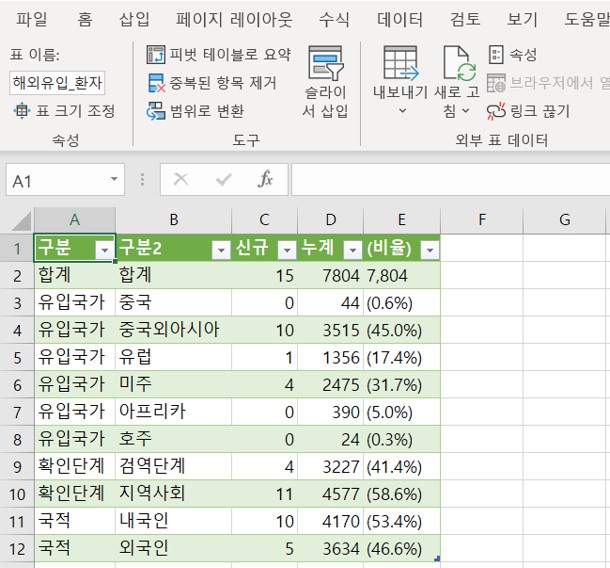
4. Make good use of the loaded data.
Today we looked at two ways to make good use of web data. Without these features, you'd have to type everything over by hand or spend time rearranging the rows and columns of data that got pasted in any which way. Being able to pull the data in directly makes your work much more efficient, right?! I hope you get to leave work on time today.