Display retargeting is a targeting method that shows banner ads again to people who have already visited your site. Google Ads used to call this "remarketing" and now calls it "Your data" segments. If you use GA4, you can send audiences built in GA4 to Google Ads and attach them to display campaigns. In this post, I'll walk through the linking order, the size and duration criteria for segments, and what to watch out for with exclusions and optimized targeting.
"Can't I show ads again only to people who added something to their cart and left?" If you run ads, you've probably wondered this at least once. In my earlier post on display ads, I looked at how cookie-based retargeting works in principle. This time, I'll follow the actual setup steps in Google Ads and GA4.
What is display retargeting, and what does Google Ads call it?
The Google Ads help article on Your data segments describes this feature as using data to "re-engage people who have previously interacted with your brand or services on mobile or desktop," and notes that "'Remarketing' has changed to 'Your data.'" That's why current Google Ads help articles use the name Your data segments instead of remarketing.
The segment types listed in that article are website visitors, engaged audiences, dynamic remarketing, data segments for search ads, YouTube users, Customer Match, app users, and lead form segments. Of these, the foundation of display retargeting is the website visitors segment, which "shows ads to past visitors as they browse sites and apps on the Display Network."
Think of it like the guestbook at a neighborhood clothing shop. If a customer stopped in, tried on a coat, left without buying, and signed the guestbook, the shop could send a flyer only to that customer at the next sale. On a website, the Google tag plays the role of the guestbook, and "how long names stay in the guestbook" is the membership duration we'll look at later.
In what order do you link Google Ads and GA4?
There are two ways to collect a visitor list: build it directly with the Google tag in Google Ads, or import GA4 audiences. If you already use GA4, it's easier to manage by setting detailed conditions in GA4 and passing them to Google Ads. There are four steps.
- Link GA4 and Google Ads: According to the GA4 Google Ads linking help article, go to Admin > "Product links" and click "Google Ads links." You need the Administrator or Editor role on the GA4 property and administrative access in Google Ads.
- Keep personalized advertising enabled: This option is on by default when you link. The GA4 audiences help article explains that if you keep this default, audiences are shared with Google Ads automatically.
- Create audiences in GA4: Open "Audiences" under "Data display" in Admin. According to the same article, this requires the Marketer role on the property.
- Add to your display campaign: Add the segment that came over to Google Ads as an audience on your campaign or ad group.
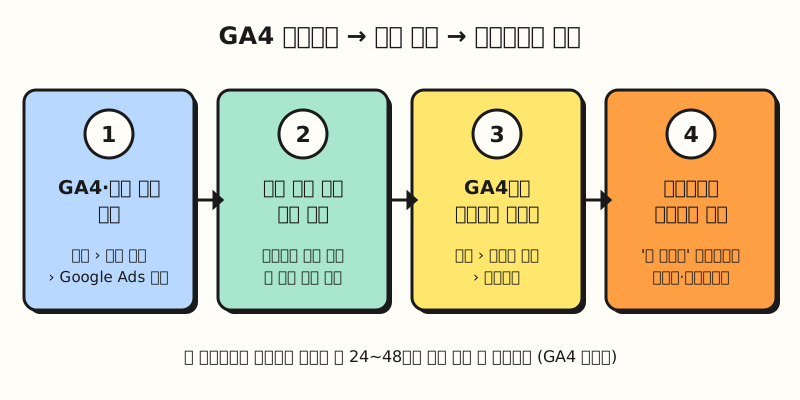 Figure: The four steps by which a GA4 audience becomes a Google Ads "Your data" segment used in a display campaign (figure labels in Korean).
It's also good to know that a newly created audience doesn't fill up right away. According to the GA4 help article, an audience can take about 24~48 hours to accumulate new users, and the feature that prefills users who met the conditions in the last 30 days at creation time applies only to Google Ads audiences.
How do you build audiences like cart abandoners?
GA4 comes with "All users" and "Purchasers" audiences by default, and the GA4 audience examples help article includes examples you can use for retargeting right away.
The classic one is cart abandoners: include users who triggered the add_to_cart event and permanently exclude users who triggered the purchase event.
Because GA4 evaluates users against the include conditions first and then applies the exclude conditions, you're left with only people who added items but didn't buy.
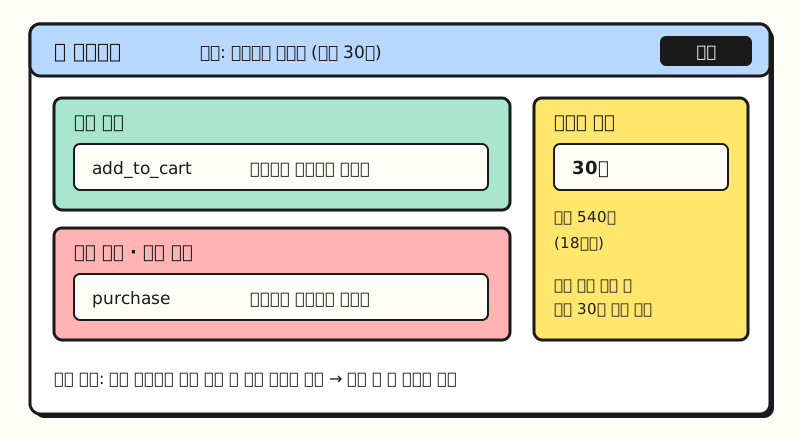 Example figure: A simplified drawing of the screen layout, not an actual capture. The audience name and duration values are hypothetical examples (figure labels in Korean).
The help article also has examples that group users by purchase count, such as users who triggered the purchase event six or more times, and examples based on LTV (customer lifetime value).
The example conditions are based on GA4 recommended event names like add_to_cart and purchase, so I recommend first checking whether these events come in under the same names on your site, using my post on GA4 events and parameters.
How do you set segment size and membership duration?
Just creating a retargeting list doesn't mean you can use it in ads right away, because it has to pass a minimum size. According to the Audience manager help article, the Display Network requires "at least 100 active visitors or users in the last 30 days," and the same criterion is listed for the Search Network and YouTube. If you split conditions too finely, each segment will struggle to reach this threshold, so for sites without much traffic, it's better to start with broad conditions.
Membership duration is how long visitors stay on the list. According to the help article on how Your data segments work, the default for the Display Network is 30 days and the maximum is 540 days; even if you enter something longer than the maximum, visitors drop off the list after 540 days. The GA4 audiences help article also lists the maximum as 540 days (18 months). Match it to the purchase cycle: shorter for products people decide on quickly, longer for products people compare over a long period.
Why do you need to check buyer exclusions and optimized targeting?
Exclusions are often overlooked in retargeting. If you keep showing the same product ad to people who already bought it, you waste budget and annoy the people seeing it. According to the audience exclusion help article, you can exclude segments in Search, Display, Demand Gen, standard Shopping, Video, and Performance Max campaigns, and you set it up from the section menu under "Audiences, keywords, and content" > "Audiences." However, you can't add exclusions while creating a campaign, so you need to add them after the campaign is created, and the article also notes that exclusions may not apply to users who have opted out of ads personalization.
The other one is optimized targeting. According to the optimized targeting help article, this feature is available in Display and Demand Gen campaigns and some Video campaigns and is turned on automatically. It uses the segments you added as signals, but "your ads may be shown to people outside of the signals you've selected." If you meant to show ads only to visitors, this setting means ads may also go to people who have never seen your site, so if you want to look at retargeting on its own, I recommend considering turning it off in your ad group settings.
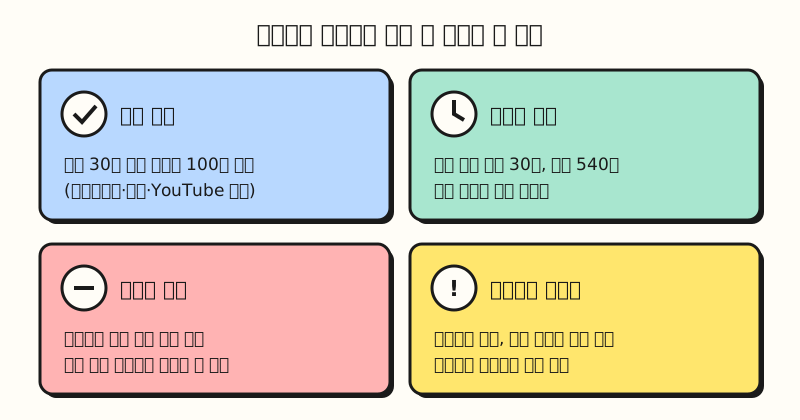 Figure: The criteria from the Google Ads help articles grouped into four checks before you turn on a retargeting campaign (figure labels in Korean).
Note: Policies and your privacy policy
Retargeting is personalized advertising, so some industries can't use it. Google's personalized advertising policy defines sensitive categories such as health, negative financial status, gambling, and religious beliefs, and restricts the use of advertiser-curated audiences in ads promoting such products or services.
You also need to update your site's privacy policy. The help article on privacy policies for Your data segments asks you to describe how you advertise using data, how third-party vendors including Google use cookies and device identifiers to show ads based on past visits, and how visitors can opt out in Google's Ads Settings. For the items to include in your policy, see them alongside the remarketing section I summarized in my post on the GA4 privacy policy generator.
Summary: Where should you start with display retargeting?
Display retargeting ultimately comes down to deciding whom to reach again, for how long, and whom to leave out. I recommend starting in this order: link GA4 and Google Ads, create one audience with clear intent such as cart abandoners, check that it passes the size threshold, and then review buyer exclusions and optimized targeting settings. I'll also review this blog's GA4 audiences against the same criteria and write more if I find anything worth adding. Menu names and criteria can change, so please refer to the original Google Ads and Analytics help articles linked above as well.
FAQ
- Are retargeting and remarketing different?
- They're used to mean the same thing: showing ads again to people who previously interacted with your site or app. Google Ads used to call this feature "remarketing" and now uses the name "Your data" segments.
- Can a site with few visitors use display retargeting?
- According to Google Ads help, to use a segment on the Display Network you need at least 100 active visitors or users in the last 30 days. The more finely you split conditions, the harder it is for each segment to reach this threshold, so I recommend starting with broad conditions such as "All users."
- How do I exclude buyers when targeting cart abandoners?
- The GA4 help article gives an example of creating an audience that includes the
add_to_cartevent and permanently excludes thepurchaseevent. In Google Ads, you can also add a purchaser segment as an exclusion to an existing campaign, but you can't add exclusions while creating a campaign.
Related posts
- Display Ads That Read Your Mind - How cookie-based targeting and retargeting work
- GA4 Events and Parameters Basics - How to properly collect the events used in audience conditions
- Ad Metrics Basics: How to Calculate CPC, CPM, CTR, Conversion Rate, and ROAS - Metrics for comparing retargeting campaign performance