Excluding internal traffic in GA4 takes two steps: you use internal traffic definitions to tag data coming from your company's IPs, and then use a data filter to remove the tagged data. Once a data filter is active, the excluded data is permanently not processed, so it's safer to check it in testing state first before turning it on. In September 2026, a hostname include filter was also added that keeps only data coming from your own domains.
Have you ever opened a report wondering "Why are there so many visitors today?" only to find out it was your teammates refreshing a newly launched landing page all day? Working in digital marketing, you often notice internal visits like these slowly blurring metrics like conversion rate and engagement rate. In this post I'll go over how to exclude internal traffic in GA4, along with what you need to know before turning on a data filter.
1. How are GA4 data filters different from report filters?
There are two main ways to filter data in GA4. According to the data filters help article, a data filter excludes incoming event data so that GA4 doesn't process it. It applies from the moment you create it and doesn't affect earlier data, and the excluded data can't be seen in GA4 or in BigQuery. A report filter, on the other hand, just shows the data you need in a detail report and hides the rest, so when you remove the filter, the original numbers come right back.
A water purifier analogy makes this easy to picture. A data filter is a strainer at the inlet of the water pipe, so anything it catches can't be taken back out, while a report filter is more like a sieve you use only when looking at water already poured into a cup. So use a data filter only when you're sure you'll never need to see that data again, and use a report filter when you just want to leave something out for a while.
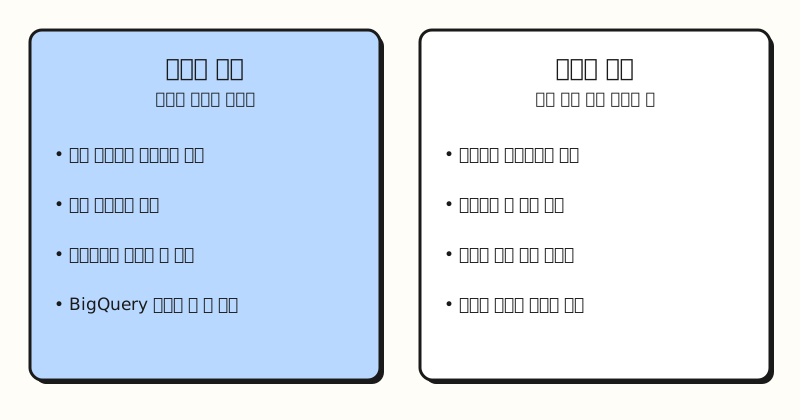 Data filters permanently filter at the collection stage, while report filters only change what you see on screen (figure labels in Korean)
There are three types of data filters.
- Developer traffic: Excludes activity from developers using debug mode.
- Internal traffic: Excludes users from specific IP addresses or IP address ranges.
- Web hostname traffic: Filters based on the domain the event data comes from.
According to the internal traffic help article, you can create up to 10 data filters per property, and creating or editing them requires the Editor role at the property level, so if you don't have permission, ask your property administrator first.
2. How do you set up internal traffic exclusion in GA4?
Setup is split into two steps: tagging and removing.
For the first step, defining internal traffic, go to Admin > Data collection and modification > Data streams, choose your web stream, then go to Configure tag settings > Show more > Define internal traffic and create a rule.
When you create a rule, GA4 adds a traffic_type parameter to incoming events. The default value is internal, and if you want to separate locations like headquarters and branch offices, you can enter other values yourself.
For the IP address condition, you choose from "equals," "begins with," "ends with," "contains," "is in range," and "matches regular expression."
"Is in range" has to be written in CIDR notation like 192.168.0.0/16, and both IPv4 and IPv6 work.
If you add multiple conditions, they're combined with OR, not AND, so if you add one office IP and another office IP as separate conditions, traffic matching either one is tagged as internal.
The second step is to go to Admin > Data collection and modification > Data filters, choose Create Filter > Internal Traffic, and set it to exclude events that match the traffic_type value you set earlier.
Filter names must be unique within the same property, and can be up to 40 characters (in English).
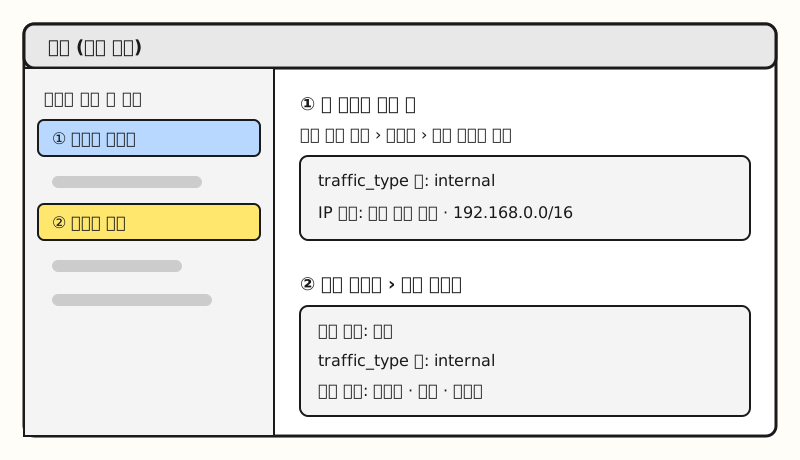 Illustration: A simplified structure of the menu locations in GA4 Admin, not an actual screenshot (figure labels in Korean)
3. How do you test a data filter before turning it on?
When you create a data filter, you choose its state from Testing, Active, and Inactive. Active applies the filter to incoming data and changes it permanently, so if you turn it on as Active from the start and write the rule wrong, there's no way to undo it. In Testing state, no data is removed. Matching data is just labeled with the filter name in the "Test data filter name" dimension.
You check it by building a free-form report in Explore. Put Test data filter name and Event name in rows and Event count in values, then add a filter where Test data filter name contains your filter's name, and you'll see the events that would be filtered out. The help article says it can take 24–36 hours for the filter to apply, so if the values are empty on the day you create it, wait about a day and check again.
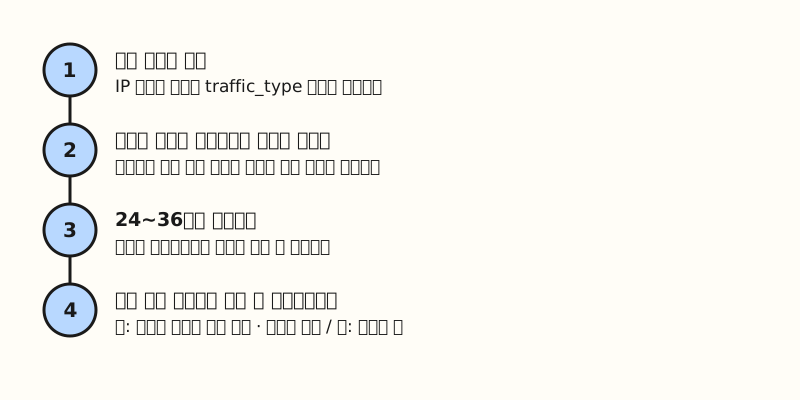 Check which events would be filtered out in Testing state first, then switch to Active if there are no problems (figure labels in Korean)
If the results match what you expected, open the filter from the data filters list, change its state to Active, and save.
4. What changed with hostname filters?
According to What's new in GA4, starting September 21, 2026, you can use an include filter on hostnames. Previously there were only exclude filters, so you had to add rules by hand every time a new spam source appeared. Now you can set a list of domains allowed to send data (an allowlist) and have everything else not be processed. The same announcement notes two caveats.
- It doesn't apply to Measurement Protocol events: Events sent through the Measurement Protocol aren't blocked by the hostname include filter.
- Events with an empty hostname are blocked automatically: The announcement treats a missing hostname as a typical sign of spam or abnormal traffic.
According to the web hostname filter help article, you choose the filter operation from Exclude and Include only, and there are four match types: exact match, begins with, ends with, and contains. The data filters help article explains that active "Include only" filters are first grouped together and applied, and then exclude filters are applied in order. In my view, the most important thing when using an include filter seems to be adding every domain that actually sends data, such as addresses with and without www, and subdomains. Data from any domain left off the list presumably won't be processed, so I'd recommend checking this filter in Testing state first as well.
※ Note: What should you check before setting this up?
- You can't exclude internal traffic from app users: The internal traffic help article describes IP-based exclusion only for website activity.
- Only the IPs in your definition are filtered: Because it's based on IP address, visits from teammates connecting from other networks not included in the rule won't be tagged as internal traffic.
- Developer traffic is filtered separately: According to the exclude developer traffic help article, this filter targets activity from developers using debug mode, and according to the DebugView help article, you turn on debug mode with Tag Assistant or the
debug_modesetting. - Earlier data doesn't change: Data filters apply from the moment you create them, so noting the date you turned the filter on in a team doc will save confusion when comparing before and after.
Summary
Excluding internal traffic in GA4 works in this order: tag events with traffic_type using internal traffic definitions, then remove the tagged events with a data filter.
Data filters can't be undone, so I'd recommend checking what will be filtered out in Testing state first, and for the new hostname include filter, making sure you've included all of your domains before activating it.
For menu names and conditions, see the help articles linked in the post.
FAQ
- If I turn on a GA4 data filter, is internal traffic removed from past data too?
- No. Data filters apply from the moment you create them and don't affect earlier data. If you want to temporarily leave something out of past data, use a report filter.
- Can I block spam traffic with a GA4 hostname filter?
- Since September 2026, you can use a hostname include filter so that only data from allowed domains is processed. Keep in mind, though, that it doesn't apply to events sent through the Measurement Protocol, and that events with an empty hostname are blocked automatically.
- How many data filters can I create in GA4?
- You can create up to 10 per property, and creating or editing them requires at least the Editor role at the property level.
Related posts
- GA4 Users, Sessions, and Engagement Rate Explained - Definitions of the metrics that internal traffic blurs
- GA4 Events and Parameters Basics: From Automatic Collection to Custom Events - The event structure that parameters like
traffic_typeattach to - GTM Tags, Triggers, and Variables: Google Tag Manager Basics - Setting up the tags that send GA4 data