Fill with Gemini in Google Sheets is a feature where you select empty cells or drag down a column, and Gemini reads the context of the table and fills in the values. With an update announced on October 28, 2026, the web sources Gemini referenced are now shown for each cell, and a single request can handle up to 3,000 cells. If you've always been uneasy about whether you can trust values filled in by AI, what this change means is that you now have a way to check.
"Can you put together the headquarters location and main products for 30 competitors in a sheet?" In marketing, research requests like this come up pretty often. Going back and forth between a search box and a sheet, pasting one cell at a time, can eat up half a day before you know it. In this post I'll cover how to use Fill with Gemini, what changed this time, how it differs from the AI function, and who can use it.
1. How do you use Fill with Gemini in Google Sheets?
According to the April 2026 launch announcement, this feature is a data organization tool built to fill cells without complex formulas. The examples in the announcement are pulling information from the web, categorizing existing data, and drafting responses to customer feedback. There are two ways to start.
- Drag to fill: if there's at least one cell with a value in the column, drag the column down with the new drag handle, and the rest is filled to match the context of the table.
- Select empty cells to fill: when you select several empty cells, a Fill button appears that you click once, and you can either fill automatically or write your own instructions.
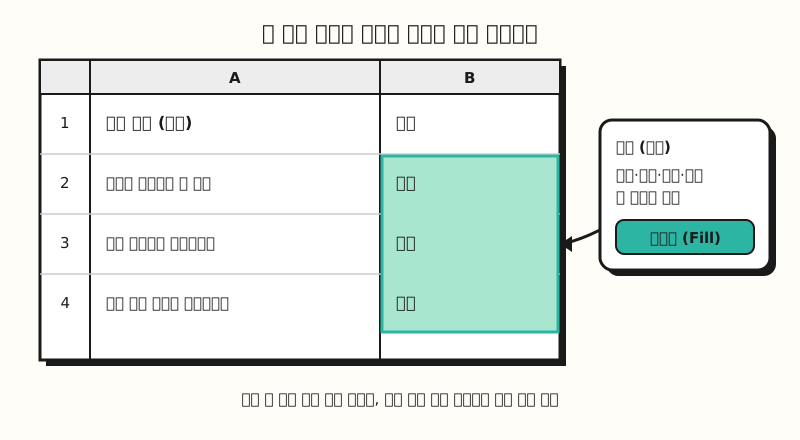 Example figure: not a real screenshot but a sheet drawing based on the announcement, with sample data (figure labels in Korean).
To put it in an analogy, drag to fill is like showing the first row and saying "do the rest like this," while selecting empty cells to fill is closer to handing over a note with the task written on it. I couldn't confirm the button names in the Korean interface from the official Korean help pages, so I included the English labels alongside them. The July announcement shows that Korean was among the languages supported first, along with English, Japanese and others.
Applying the announcement's three examples to marketing work, you could use it like this.
- Pulling information from the web: next to a column of competitor or partner names, have it fill in "each company's official website URL and headquarters country." Even if you're researching dozens of companies, you only need to select one column.
- Categorizing existing data: have it "categorize as one of price, shipping, quality or other" for open-ended survey answers or customer inquiries, and then you can count them with a pivot table.
- Drafting responses: have it fill a column next to reviews with "a polite one-sentence reply draft," then have a person read and polish it before using it.
In any case, it's good to remember that the values Gemini fills in are drafts, because the AI function help article states that Gemini features may suggest inaccurate or inappropriate information. Information pulled from the web in particular needs checking: as of when, and whether it really belongs to that company. So what changed in the October update that helps with this checking?
2. What changed in the October update?
The changes in the October 28 announcement fall into three groups.
- Web sources per cell: the web sources Gemini referenced are shown right inside each cell. You can view the sources in Google Sheets on the web.
- Larger requests: a single request handles up to 3,000 cells.
- Speed and consistency: the announcement says processing is faster and results are more consistent across cells.
The rollout started gradually from October 20, 2026 for both Rapid Release and Scheduled Release domains, and it may take up to 15 days for the feature to appear. If you don't see it yet, you can wait a bit longer.
There's one place where the documents need to be reconciled, though. The AI function help article has a line saying that when you select multiple cells containing the AI function to generate, output is generated only for the first 350 of the selected cells. The help article doesn't say whether this limit also applies to Fill with Gemini, and this post follows the 3,000 figure from the more recent October announcement. I'd recommend checking on screen how many cells actually get filled at once.
3. How do you check the web sources attached to each cell?
The October announcement only says that sources are shown inside each cell, without describing the steps to check them. The AI function help article says that to see the sources for a cell generated by Gemini, you click the cell, hover over its content, and then click the Sources icon.
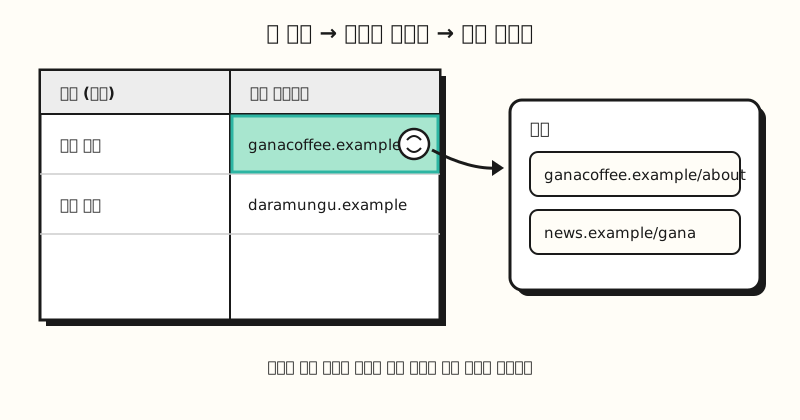 Example figure: not a real screenshot but a simplified screen layout of the steps in the help article; the companies and source URLs are fictional (figure labels in Korean).
This step matters because having a source attached doesn't guarantee the content is correct. The Gemini sources help article warns that Gemini may make up sources that weren't in your request and present them as fact, and advises you to double-check answers against the listed sources. For numbers or company information going into a report, I recommend getting into the habit of opening a few source links to see if they match the original. I've written about why AI produces plausible wrong answers in my post on AI hallucinations.
4. How is it different from the AI function and Smart Fill?
Sheets has three AI features that look similar, so they're easy to confuse.
- Fill with Gemini: an on-screen feature you use by selecting or dragging cells. It can fill based on the table's context even if you don't write instructions.
- AI function: written as a formula in a cell, like
=AI("prompt", range). You can also use=Gemini(), and results come out as text only. According to the help article, it can't see the whole sheet or other files in Drive, so you need to keep the data you need in the sheet and pass it as a range. - Enhanced Smart Fill: according to the Smart Fill help article, it finds relationships between columns from at least 3 example rows and predicts the blanks. It works only with English values, only on desktop, and only in text columns.
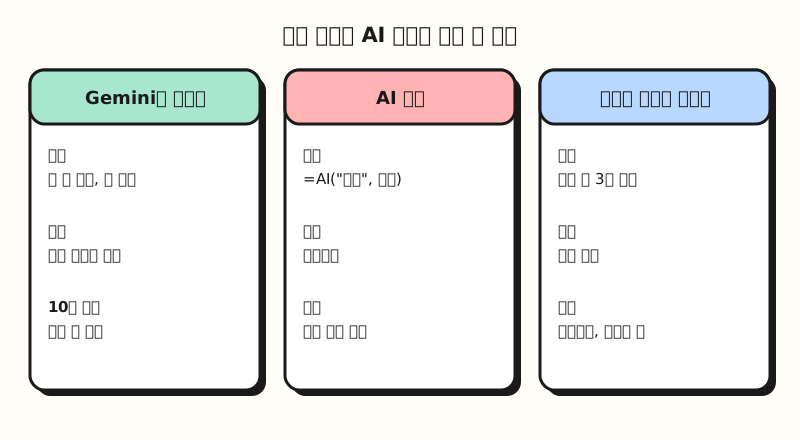 All three features require a Google plan that includes Gemini (figure labels in Korean).
The help article also notes that the AI function can't be undone or redone, and that you regenerate results with Refresh and insert. The same help article says it doesn't support nesting the AI function inside other functions. If you want to keep instructions in each cell as a formula, the AI function is handy; if you want to fill quickly without formulas, Fill with Gemini is easier.
※ Note: who can use it, and what should you watch out for?
As of the October announcement, the eligible plans are as follows.
- Work accounts: Business Standard and Plus, Enterprise Standard and Plus
- Personal accounts: Google AI Pro and Ultra
- Add-ons: Google AI Pro for Education, AI Expanded Access
It's on by default for users who have Gemini in Sheets turned on, but according to the April announcement, if your admin has turned off Workspace smart features, the menu won't appear. The AI function help article mentions short-term and long-term generation limits, and says to try again after 24 hours if you hit the long-term limit, so it's better to split large jobs into smaller ones. Also keep in mind that Excel files (.xlsx) need to be converted and saved in Google Sheets format for Gemini features to work well.
To sum up, with this update Fill with Gemini has moved a step from "a feature that fills things in quickly" toward "a feature that shows where it got the information." I'll revisit this as I apply it to repetitive tasks like competitor research and work out a good order for checking sources.
FAQ
- Is Fill with Gemini in Google Sheets free?
- As of the October 28 announcement, eligible plans are Business Standard and Plus and Enterprise Standard and Plus for work accounts, and Google AI Pro and Ultra for personal accounts. The Google AI Pro for Education and AI Expanded Access add-ons are also included. The announcement doesn't list free accounts as eligible.
- Where can I see the sources for values filled by Fill with Gemini?
- According to the October announcement, sources are shown inside each cell in Google Sheets on the web. The AI function help article explains that you click the cell, hover over its content, and click the Sources icon. Google notes that Gemini may make up sources, so it's a good idea to compare important values against the original source.
- What's the difference between the Google Sheets AI function and Fill with Gemini?
- The AI function is written as a formula in a cell, like =AI("prompt", range), and results come out as text. Fill with Gemini is an on-screen feature where you select empty cells or drag a column down, so you don't need to know formulas, and it can fill based on the table's context without instructions.
- Can I use Fill with Gemini in Korean?
- Yes. According to the July 2026 Workspace update announcement, Korean is among the languages supported first, along with English, Spanish, Japanese and others. However, Enhanced Smart Fill is a separate feature and supports English values only.
Related posts
- Gemini in Google Sheets for BigQuery Analysis - ask about BigQuery data in natural language and build dashboards with Gemini in Sheets
- Google Sheets QUERY Function Basics - a function that lets you treat a sheet like a database
- What Is an Excel Pivot Table? - pivot table basics for summarizing categorized data into counts and totals