When you create a new presentation with PowerPoint Copilot (Copilot in PowerPoint), you can now attach an existing PPT file and Copilot will apply that file's theme and style to the new slides. This change appeared in the October 27, 2026 entry of the Microsoft 365 Copilot release notes, and on the same day a feature for attaching images to a prompt and having them placed on slides was added too. It's for PowerPoint on Windows and the web, and since it's listed in the Microsoft 365 Copilot release notes, the first step is to check whether it shows up in your account.
"Whenever I make slides with Copilot, the design is always the default theme, so I end up copying everything into the company template anyway." If you're a marketer who builds proposals or monthly reports in PPT, you've probably wrestled with this. How much will this update cut down on that copying and pasting? In this post, I'll go over what changed in the October update, the requirements to use it, the steps to create new material by attaching an existing deck, how it differs from company templates and brand kits, and what to check in the results.
1. What Changed in the October PowerPoint Copilot Update?
There are two PowerPoint items in the October 27 release notes.
- Reference the style of an attached deck [Windows, Web]: When you create a new presentation and attach an existing PowerPoint file, Copilot applies its theme and style to the new deck. The release notes explain that previously, new presentations used a default theme.
- Attach and reference images [Windows, Web]: When you attach an image to a prompt, Copilot creates slides that include that image. The notes say that previously, images couldn't be referenced, so content was limited to text.
This isn't the first similar feature. The July 1, 2026 entry in the same release notes (releases from June 17 to July 1) already listed a feature for Windows, the web, and Mac where, after starting Edit with Copilot, you choose another presentation as a reference file to rewrite content and style or apply one deck's style to another. So it's more accurate to read the October entry as meaning that you can now attach a deck to bring in its design in the flow of creating a new presentation with Copilot as well. The release notes don't detail how the two items are separated on screen, so menu names may look slightly different depending on the account.
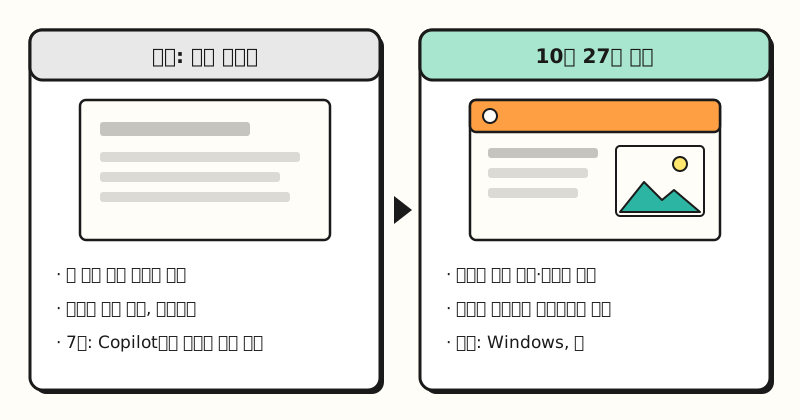 What changed at the creation step, placed side by side as described in the release notes. (figure labels in Korean)
As an analogy, an existing deck is like a sewing pattern used to make clothes. Before, Copilot made clothes from an off-the-rack pattern every time; now it's as if you hand it a pattern tailored to your company's measurements and have it cut the new fabric (the content) on top of that.
※ Note: Who Can Use It?
These two features appeared in the Microsoft 365 Copilot release notes, a document that collects changes generally available in the Current Channel of Microsoft 365 apps. I couldn't confirm whether they work at the same time on personal subscriptions (Personal, Family, Premium). The release notes say Copilot features roll out gradually, starting with some users within a tenant, under a safe deployment model, so even within the same company, a coworker may see it while you don't yet.
The frequently asked questions about Copilot in PowerPoint also lists these conditions.
- Designer license: Without one, you can still use features like summarization, Q&A, and basic chat, but some features only work with a Designer license.
- Organizational branding: Only users licensed to use Microsoft Copilot can use it.
- Files and connection: It only works in PowerPoint files (.ppt, .pptx) and requires an internet connection.
The help article on creating a new presentation also notes that if you don't see Copilot, it may not be included in your Microsoft 365 subscription or may be due to organization settings, so if it's a company account, asking your IT admin first is the quicker route.
2. How Do You Create a New Deck With an Existing PPT Design?
Combining the steps in the release notes with the help article on creating a new presentation, the flow looks like this.
- Open PowerPoint and open the Copilot pane with the Copilot icon at the bottom right of the screen.
- Choose an AI model in the model selector, or leave it on Auto.
- Use the Attach file feature to choose the existing PowerPoint deck whose design you want to bring in. Depending on the document, this menu is also written as Reference a file.
- If there are images you want to include, attach them to the same prompt.
- Ask it to create slides in the style of the attached deck.
According to the help article, Copilot may ask follow-up questions about who the audience is, how long the deck should be, the template or design direction, and the kinds of images to include. You can answer them or skip them and let Copilot decide.
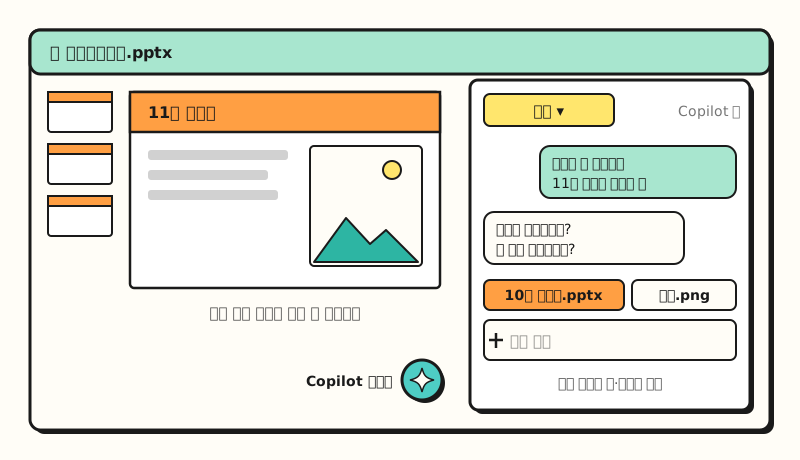 Example figure: not an actual screenshot but a simplified layout based on the help article's description; button positions and shapes may differ from the real thing. (figure labels in Korean)
It's convenient to write your request so that it answers those follow-up questions in advance. For example, you could write it like this.
## Role
You are the person who puts together the marketing team's monthly report.

## Instructions
Create a draft of the November report using the theme and style of the attached "October Report.pptx".
Put the attached image on the cover slide.

## Format
- Audience: for reporting to the team lead, about 8 slides
- Order: summary, performance by channel, next month's plan

## Materials
<materials>
(Paste this month's key figures and notes)
</materials>
The help article on adding a slide from a file recommends specifying particular sections or items within the reference file for the best results. If you want to borrow only the design and write new content, it's better to state clearly what to take, like "use only the style as a reference." If you're curious why I split prompts into role, instructions, format, and materials, see my prompt writing basics post as well.
3. How Is This Different From Company Templates and Brand Kits?
Besides attaching an existing deck, there are two more ways to match the design.
| Method | How to use it | When to use it |
|---|---|---|
| Start from a company template | Open the standard template file first, then create with Copilot | When there's one fixed company format |
| Brand kit | + button in the Copilot pane > Select brand | When the organization manages templates, colors, fonts, images, and tone as a bundle |
| Attach an existing deck (October) | Choose a deck with Attach file when creating | When you want to carry on the look of a specific deck, like last month's material |
The help article on creating a new presentation explains that if you start by opening your organization's standard template file, Copilot keeps the theme and design and uses the existing layouts. According to the brand kit help article, a brand kit bundles approved templates, brand styles like colors and fonts, assets like images and icons, and brand voice and tone. In the Microsoft Copilot app, you go to Create > More > Brand kit and upload a .pptx or .potx template or choose one from the organization's asset library.
Whichever method you use, what Copilot refers to is ultimately the source file, so it's important to build the source well. The brand kit help article says Copilot learns mainly from sample slides and recommends refining your template like this.
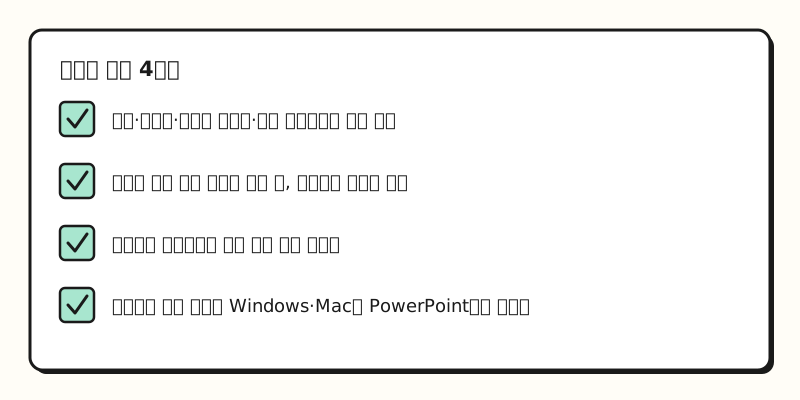 The template authoring tips from the brand kit help article, condensed into four lines. (figure labels in Korean)
There's also a tip to keep instruction text outside the template, because placeholder text is for defining style and Copilot doesn't read it as instructions.
4. What Should You Check in Slides Copilot Made?
The FAQ advises reviewing PowerPoint Copilot's suggestions before accepting them since they come from AI, and states that while it supports multiple languages, quality is expected to be highest in English. If your draft is in Korean, it's best to be prepared to polish the sentences once more. So where should you start? Here's the checking order I've put together.
- Numbers and facts: Compare against the source to make sure no figures or sentences appeared that weren't in the material you pasted.
- Whether the design really carried over: Check that the fonts, colors, and logo position match the attached deck, and that text doesn't overflow its placeholders.
- Image sources: Keep track of whether an image is one you attached or one Copilot picked or generated, and if the material will go outside the company, check that it complies with company rules.
- Contents of the attached file: The July entry says this feature respects existing file permissions and access controls, but you should check yourself that old client information or internal notes from a past deck you attached didn't slip into the new one.
I've covered why AI gives plausible but wrong answers in my AI hallucination post.
To sum up, with this update PowerPoint Copilot now follows the design of the deck you choose from the moment you create something new, and you can hand it images in the prompt as well. I'll try it on my monthly report template and put the request wording and checking order together again.
FAQ
- Can I reuse an existing PPT design as is in PowerPoint Copilot?
- Yes. According to the October 27, 2026 Microsoft 365 Copilot release notes, when you create a new presentation with Copilot in PowerPoint on Windows and the web and attach an existing PowerPoint deck, its theme and style are applied to the new deck. The feature rolls out gradually within tenants, so it may not be visible yet.
- Can I add images to PPT Copilot to create slides?
- Yes. The release notes from the same day added a feature for Windows and the web where you enter a prompt in the Copilot pane and attach an image, and Copilot creates slides that include that image. The steps also include reviewing the slides that contain the image.
- How is a Copilot brand kit different from attaching an existing deck?
- A brand kit bundles approved templates, colors and fonts, images and icons, and brand voice and tone, is managed in the Microsoft Copilot app, and is chosen via the + button > Select brand in the PowerPoint Copilot pane. Attaching an existing deck brings the theme and style of one specific PPT file into a new deck, so it's well suited to carrying on the look of past material.
- What should I do if I don't see PowerPoint Copilot?
- According to the help article, if you don't see Copilot, it may not be included in your Microsoft 365 subscription or may be unavailable due to organization settings. PowerPoint Copilot only works in .ppt and .pptx files while connected to the internet, and some features require a Designer license, so if it's a company account, check the license and settings with your IT admin.
Related Posts
- How to Use Copilot in Excel - Handing off table analysis, formulas, and formatting with the same Copilot button, and what to review
- Prompt Writing Basics - Why to split requests into role, context, examples, and output format
- Why Does AI Hallucinate? - What to check before trusting AI-generated results