The Google Sheets QUERY function takes the form =QUERY(data, query, headers) and, with a single query statement written in quotes, picks out just the columns and rows you need and even calculates sums and averages.
The query statement is written in the Google Visualization API Query Language, and since words like select, where, group by, and order by resemble SQL, you can treat a sheet like a small database.
You can build a summary table with one formula without going through filters, sorting, and pivots separately, which makes it a good fit for cleaning up reports that repeat every week.
Have you ever applied and removed filters over and over on a weekly ad report sheet, thinking, "I just want Naver campaigns only, sorted by cost, top five only"? When you want to keep a summary table with the same criteria always showing on another tab without touching the source, the QUERY function is a good fit. In this post, I'll go from the basic syntax to practical examples based on Google's official help on the QUERY function and the Query Language reference.
What Kind of Function Is the Google Sheets QUERY Function?
The help article describes QUERY as a function that runs a Google Visualization API Query Language query across data. It has only three arguments, and the last one, headers, is optional.
| Argument | Meaning | Notes |
|---|---|---|
| data | The range of cells to perform the query on | Each column should contain only one type: boolean, numeric (including date/time), or string |
| query | The query statement to perform | Wrap it in quotes, or reference a cell containing the query statement |
| headers | The number of header rows at the top of the data | If omitted or -1, it's guessed based on the content of the data |
As an analogy, the QUERY function is like a request slip you hand to a librarian. You leave the shelves (data) as they are and write, "From the books in this section, bring me only the ones that match these conditions, in this order," and the librarian picks them out and puts them on your desk. Once you write the slip as a formula, it stays in the cell, so there's no need to apply and remove filters every time.
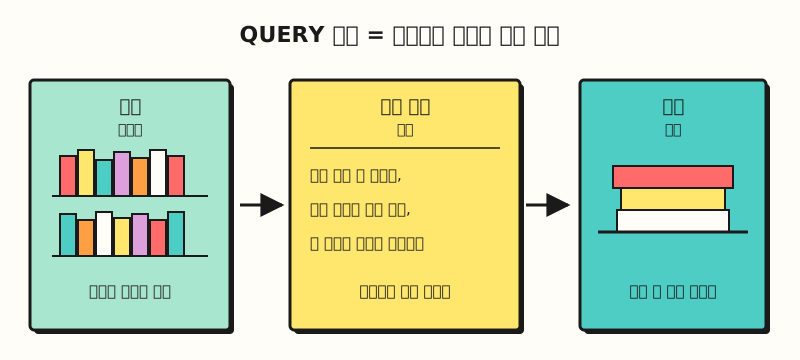 The shelves stay as they are, and only what's picked according to the slip's conditions lands on the desk (figure labels in Korean)
So what syntax should you use to write this slip?
1. In What Order Do You Write a Query Statement?
The Query Language reference sets the order of the clauses: select, where, group by, pivot, order by, limit, offset, label, format, options, and you must follow this order when writing a query. You don't need every clause; just pick the ones you need. These are the clauses used most often in practice.
- select: Chooses the columns to return. If omitted or written as
select *, all columns are returned in their original order. - where: Keeps only the rows that match the condition.
- group by: Groups identical values together and aggregates them with
sum(),avg(),count(),max(), ormin(). - order by: Sorts rows by the values in the specified column; add
descafter it for descending order. - limit: Limits the number of rows returned.
- label: Changes the header name of a result column.
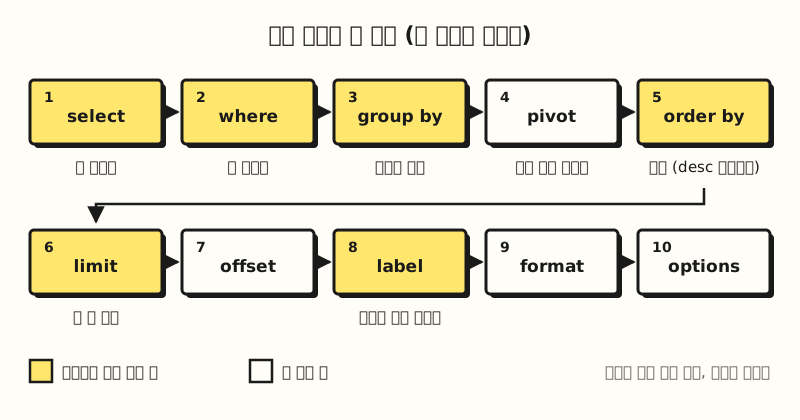 The yellow boxes are the clauses used most often in practice. Use only the clauses you need, but keep the order (figure labels in Korean)
Also remember that in Google Sheets, you refer to columns by column letters like A, B, and C.
The reference notes that keywords like select and where aren't case-sensitive, but column letters and string values are.
String values can be wrapped in single or double quotes, but since the QUERY function already wraps the whole query in double quotes, it's less confusing to write inner values with single quotes, like 'Naver'.
2. How Can You Use It With Ad Reports?
Let's take as an example a report sheet with dates in column A, campaigns in column B, channels in column C, cost in column D, and clicks in column E, with headers in row 1.
All the formulas below assume they go into a single empty cell on a tab separate from the source, and the range is set generously, like A1:E500, to cover the data.
Show only a specific channel
=QUERY(A1:E500, "select B, D, E where C = 'Naver'", 1)
Show total cost by campaign, largest first
=QUERY(A1:E500, "select B, sum(D) where B is not null group by B order by sum(D) desc", 1)
Here, where B is not null is a condition to remove the empty rows in the generously sized range from the results. The reference says to compare against null with is null and is not null.
Keep only the top five and rename the header
=QUERY(A1:E500, "select B, sum(D) where B is not null group by B order by sum(D) desc limit 5 label sum(D) 'Total cost'", 1)
You can see that, following the clause order, limit comes after order by, and label comes after that. That's the result of following the ordering rule above.
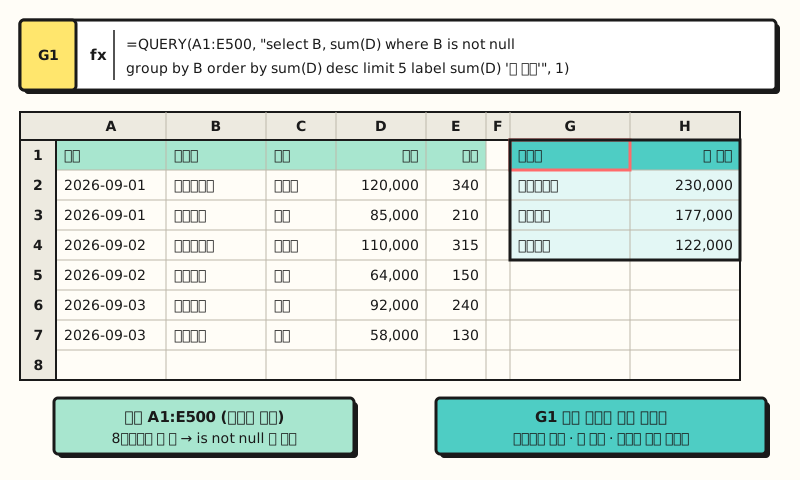 Example figure: sample data. A single formula in G1 organizes total cost by campaign from largest to smallest, and the header changes to "Total cost." (figure labels in Korean)
Cut by date range
=QUERY(A1:E500, "select B, sum(D) where A >= date '2026-09-01' group by B", 1)
The reference says that when comparing with dates, you put the date keyword before the value and write it as a string in yyyy-MM-dd format. If the date cells contain text rather than actual dates, this comparison may not work, so check the format of the source date column too.
Spread channels into columns to build a cross-tab
=QUERY(A1:E500, "select B, sum(D) where B is not null group by B pivot C", 1)
The pivot clause turns the distinct values in one column into new columns, so this formula creates a table with campaigns as rows and channels as columns. It's like doing with a formula what you do in an Excel PivotTable by dragging fields into the Rows and Columns areas.
3. What Conditions Can You Use in the where Clause?
The comparison operators are =, <, >, <=, >=, !=, and <>, and both != and <> mean "not equal."
One thing the reference makes a point of noting is that equals is written as a single =, not ==.
You can join multiple conditions with and, or, and not, and set precedence with parentheses.
When working with strings, the following operators are handy.
- contains: True if the value appears anywhere in the string.
where B contains 'Brand' - starts with / ends with: True if the beginning or end matches
- like: Pattern matching with the wildcards
%(zero or more of any characters) and_(any single character) - matches: Regular expression matching
These string comparisons are case-sensitive.
In the reference's example, contains 'John' finds 'John Adams' but not 'john adams', so if your campaign names mix in English, I recommend normalizing to lowercase with lower() before comparing, as in where lower(B) contains 'brand'.
※ Note: Where Do People Commonly Get Stuck With QUERY?
If the formula seems right but the results look odd, check these three things first.
- The group by rule: When you use group by, every column in select must either be in group by or be wrapped in an aggregate function like
sum(). If you leave C out of group by, as inselect B, C, sum(D) group by B, it breaks this rule and returns no result. - Numbers and text mixed in one column: The help article explains that for a column with mixed types, the majority data type determines the column's type, and the minority types are treated as null values. If a few cells in the cost column contain text like "-" or "checking," those cells drop out as if they were empty.
- Number of headers: If you omit the headers argument, Sheets guesses the number of header rows from the data. If the headers are picked up incorrectly, enter a number like 1 yourself.
When the condition is simple, another function may be easier than QUERY. The Google Sheets function list describes FILTER as returning only rows that meet conditions, SORT as only sorting, and UNIQUE as returning only unique rows. Using FILTER when you're just filtering by one condition, and QUERY when you want to filter, group, aggregate, and sort all at once, makes your formulas much easier to read. For removing duplicates, my Excel remove duplicates post is based on Excel, but please check it out too.
In Short, When Should You Use the QUERY Function?
To sum up, the Google Sheets QUERY function is most useful when you want to leave the source as it is and keep a summary table with the same criteria always showing.
Once you get used to the sequence of choosing columns with select, filtering rows with where, grouping with group by, and tidying up with order by and limit, most report summaries come down to a single formula.
I'm going to get the clause order and the group by rule back into my hands as I tidy up my ad report tabs, so for more operators and functions, please refer to the Query Language reference.
FAQ
- What quotes should I use for string conditions in the Google Sheets QUERY function?
- The Query Language lets you wrap string values in single or double quotes. Since the QUERY function wraps the entire query statement in double quotes, writing inner values with single quotes, as in where C = 'Naver', keeps things from getting confusing.
- Why do I get an error when I use group by in the QUERY function?
- When you use group by, every column in select must either be in group by or be wrapped in an aggregate function like sum(), avg(), count(), max(), or min(). If any column breaks this rule, the query won't run.
- Why are some numbers missing from my google sheets query results?
- According to Google's help, if a column has mixed data types, the majority type is used as the column's type and the minority types are treated as null values. Check whether text or symbols are mixed into your number column, and whether numbers are stored as text.
- Is the contains condition in the QUERY function case-sensitive?
- Yes, the Query Language reference explains that string comparisons are case-sensitive. If you want to search regardless of case, normalize with the lower() function before comparing, as in where lower(B) contains 'brand'.
Related Posts
Here are posts worth reading together when summarizing data in Sheets and Excel.
- What Is an Excel PivotTable, and When Should You Use It? - How to do the same kind of summary as group by and pivot through menus
- VLOOKUP vs XLOOKUP in Excel - Comparing functions that connect a summary table to other tables
- Removing and Finding Duplicates in Excel - How to clear duplicate rows before aggregating