You can now use Claude with Google Sheets right inside the sheet, with no copying and pasting. Claude for Google Workspace, which Anthropic released on October 6, 2026, is an extension that opens a Claude sidebar next to Google Sheets, Docs and Slides so it can read the open file and edit it in place. It's available in beta on the Pro, Max, Team and Enterprise plans, and the Docs, Sheets and Slides connectors, which let you create and edit Google files from a Claude chat, came out in beta at the same time.
"Why is VLOOKUP returning #N/A on only a few rows of this sheet?" When a question like this comes up right before a report deadline, you end up copying the sheet into an AI chat, getting an answer, and carrying it back into the sheet, over and over. The Anthropic announcement offers a way to cut down on that round trip: Claude comes to sit next to your file. In this post I'll walk through how to install it, what you can do in each app, how it differs from the chat-side connectors, and the limits worth knowing before you start.
1. What's new in Claude for Google Workspace?
According to the announcement, two things were released.
- Claude for Google Workspace (extension, beta): opens a Claude sidebar inside Google Docs, Sheets and Slides files. It's offered as a public beta on all paid plans.
- Google Docs, Sheets and Slides connectors (beta): work the other way around, creating new Google files or pulling them in by link and editing them from a Claude chat.
The two start from different places. The extension help article explains that while connectors let Claude reference Drive, Gmail and Calendar while you chat on claude.ai, the extension works the opposite way: Claude moves to the file you already have open. To put it in an analogy, a connector is like an assistant you've handed the keys to the records room, while the extension is closer to a colleague at the next desk who looks only at the document you're looking at. So how do you bring that colleague over?
2. How do you install the Claude extension for Google Sheets?
The steps in the help article are simple. Go to the Claude listing on Google Workspace Marketplace, click Install, choose your Google account, and allow the permissions. Once installed, it shows up in all three apps (Docs, Sheets and Slides), so you don't need to install it three times.
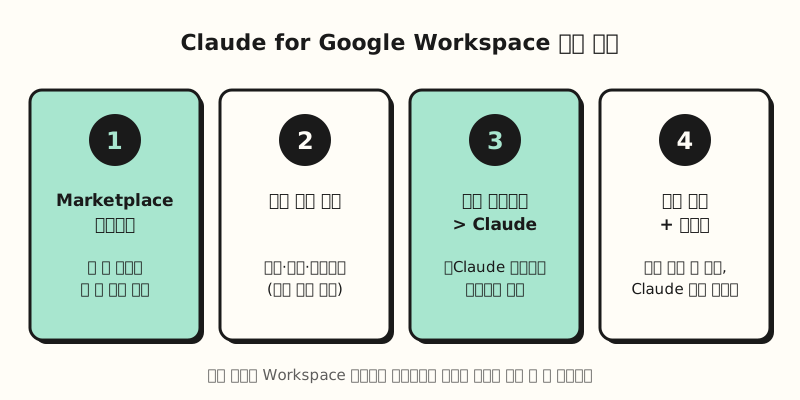 The quick-start steps from the help article, laid out as a diagram (figure labels in Korean).
After installing, open a file, go to Extensions > Claude > Open Claude, allow the two Google permissions the first time, and sign in with your Claude account in the sidebar. On a work account, the Install button may be grayed out or you may see a message saying the application isn't allowed by your administrator. That message comes from Google's settings, not Claude, so your Workspace admin needs to add Claude to the allowlist or install it for you. According to the help article, a super admin can also install Claude for the whole organization or only for specific groups.
3. What can you do in Sheets, Docs and Slides?
Claude in the sidebar reads the open file and the range you've selected, and edits it directly in place. Grouping the examples from the announcement and help article by app gives you the following.
| App | What you can do (official examples) |
|---|---|
| Google Sheets | Write and explain formulas, build pivot tables and charts, add new tabs, standardize date formats, find the cause of a VLOOKUP #N/A |
| Google Docs | Shorten long documents, turn notes into tables, clean up heading styles and numbering, show large edits as suggestion cards |
| Google Slides | Create new slides from notes, split text-heavy slides, restyle to match the deck's layout and theme, flag overlapping elements |
You choose how edits happen with the mode at the bottom of the sidebar. The default, Ask before edits, shows what Claude plans to do first and waits until you click Allow, while Accept all edits goes ahead with ordinary content changes without stopping. Even in Accept all edits mode, adding links, inserting images from a web address, and anything that affects someone's access to the file still require approval.
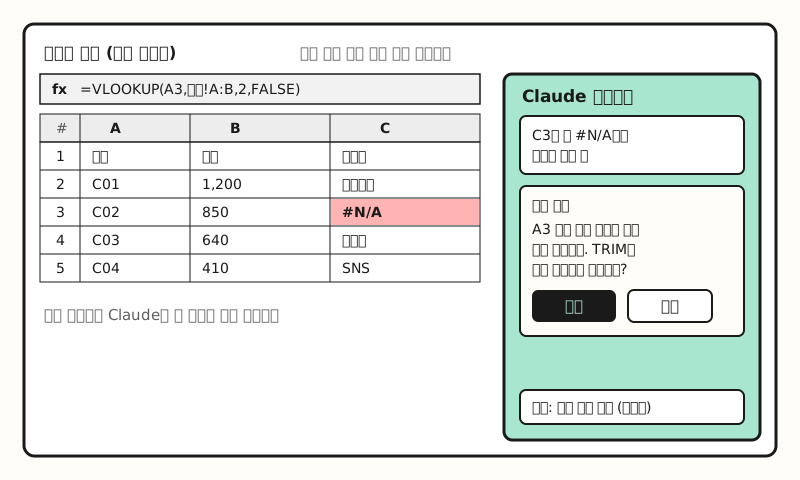 Example figure: not a real screenshot but a simplified screen layout based on the help article, with sample data (figure labels in Korean).
Google records Claude's edits under your name, so they appear in version history as if you'd made them yourself. If you want to roll something back, use Undo or restore an earlier version from version history. Claude is also blocked from sharing files or changing ownership, and it can't create menus or scheduled automations. As a marketer, you could imagine having it find hard-coded numbers in a channel performance sheet or even out title lengths in a monthly report deck, but those are uses I came up with based on the official examples.
4. How is the extension different from the Docs, Sheets and Slides connectors?
If you'd rather start from a chat, use the connectors. According to the Google Workspace connector help article, you turn on the Docs, Sheets and Slides connectors from the plus (+) button in the chat, then paste a Google file link or ask by name, like "create a Google Slides deck," and the file opens in a pane next to the conversation. That pane works on Claude for web in Chrome or in the Claude desktop app with the built-in browser turned on; elsewhere you open it with "Open in Google." Keep in mind that if you just ask for a "document" or "deck" without mentioning Google, you'll get a downloadable file rather than a Google file.
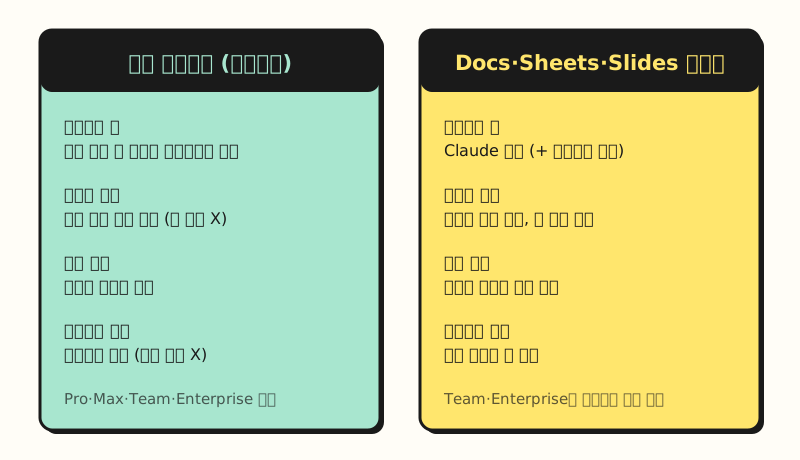 Both features are in beta and follow your existing Google sharing permissions (figure labels in Korean).
Put the two help articles side by side and the differences are fairly clear. The extension works only in the one open file and can't open or create other files in Drive, whereas the connectors can create new Google files. For doc comments, the extension can't read or reply to them, but the connectors can read and work with comments and suggestions. On the other hand, the extension inserts slide charts as images, while the connector help article says Claude currently can't add charts to slides. On Team and Enterprise plans, an owner or primary owner has to turn on the connectors in organization settings before members can use them.
※ Notes: beta limits and data handling
Because the extension is in beta, the help article lists quite a few limits.
- Google files only: Excel, Word and PowerPoint files aren't supported even when opened in Sheets, Docs or Slides, so you need to convert them first, for example with File > Save as Google Sheets.
- Browser: you need Chrome, Edge or Safari. In Firefox the sidebar may open, but tasks won't finish.
- Task time: a single task runs for up to 6 minutes before Google stops it, so ask for large jobs in steps, and don't close the sidebar while a task is running.
- Connected Sheets: Claude can't read Connected Sheets tabs that show live BigQuery data, so extract the data to a regular tab first.
Data handling is worth a look too. According to the help article, Claude sees only the files you open and the connectors you turn on, Anthropic doesn't use content from this extension to train models, and inputs and outputs are deleted within 30 days unless otherwise noted. Pro and Max follow the consumer terms and Team and Enterprise follow the commercial terms, and chat history is stored in the browser per file and doesn't sync across devices. The help article also warns that documents may contain hidden instructions, so for files you received from outside your company, I'd recommend double-checking what Claude is about to do before you approve it.
To sum up, Claude for Google Workspace is a sidebar that edits the one Google file you're looking at, in place, and the connectors are a way to create and work with multiple Google files from a chat. I'll revisit this as I study which tasks I can hand off to the sidebar in the reports I put together in Google Sheets. For details, see the Anthropic announcement and the help articles Use Claude in Google Docs, Sheets, and Slides and Use the Google Workspace connectors.
FAQ
- Can I use Claude for Google Workspace on the free plan?
- No. According to the help article, Claude for Google Workspace is offered in beta on the Pro, Max, Team and Enterprise plans. You also need a Google account that can install Google Workspace Marketplace apps, and on a work account, if your Workspace admin has blocked Marketplace apps, the admin must allow or install it first.
- Can the Claude sidebar in Google Sheets edit Excel files?
- Not directly. The extension works only in files in Google Docs, Sheets or Slides format, and it isn't supported even if you open an Excel file in Google Sheets. Convert it with File > Save as Google Sheets and open Claude in the new file.
- Can I undo it if Claude edits my sheet incorrectly?
- Yes. Claude's edits are recorded in version history under your name, so you can roll them back with Undo or by restoring an earlier version from version history. In the default Ask before edits mode, Claude shows what it plans to do and waits for your approval before editing.
- Should I use the Google Workspace connectors or the extension?
- To polish the one sheet or doc you have open, the extension you open inside the file is the right fit. To create new Google files or work across several files, the Docs, Sheets and Slides connectors you use in a Claude chat are the better choice. If you need to read doc comments, only the connectors support that.
Related posts
Posts that help when you're working with Google Sheets and Claude together.
- Google Sheets QUERY Function Basics: Use a Sheet Like a Database - a sheet function worth knowing before you hand formulas to Claude
- What Is an Excel Pivot Table? From Creating to Refreshing - the basic concept behind the pivot tables the sidebar builds
- Claude Marketplace Launch: Connectors vs Skills vs Plugins - a broader look at the connector concept from this post