The first step in fixing Excel's #### is figuring out why it appears.
Microsoft's help names two causes: the column is too narrow to show the cell's contents, or a formula returns a negative date or time.
The first is fixed instantly by widening the column, while the second stays the same no matter how wide you make the column, so you need to fix the formula or the number format.
"I definitely entered a number, but the cell only shows ####."
If you've pasted in sales totals or cleaned up a date column, you've probably seen a perfectly fine cell suddenly fill up with hash signs at least once.
It looks like an error message, so you worry the data is broken, but going by the causes the help article lists, the value in the cell hasn't been deleted. The problem is with how it's being displayed.
So when exactly does #### appear, and how do you fix it? In this post, I'll go over the causes and fixes based on Microsoft's ##### error help article.
1. Why does an Excel cell show ####?
The help article explains two causes.
- When the column is too narrow: If the column isn't wide enough to display all of the cell's contents,
####can appear. - When a date or time is negative: Formulas that return dates and times as negative values can also be displayed as
####.
The first case is like trying to fit an A4 document into a small business card holder. Nothing is wrong with the document; the holder is just too small, so once you widen it, the contents show up as they are. The second case is a little different. According to the Date systems in Excel help article, when you enter a date, Excel converts and stores it as a serial number representing the number of days since January 1, 1900. For example, July 5, 2011 becomes 40729. Because dates are numbers counted from January 1, 1900, a result below 0 isn't a value that can be shown as a date or time.
So when you see ####, you can tell the two apart by first trying to widen the column. If a number appears after widening, it's the first case; if #### is still there, it's most likely the second.
Let's start with how to fix the column width problem.
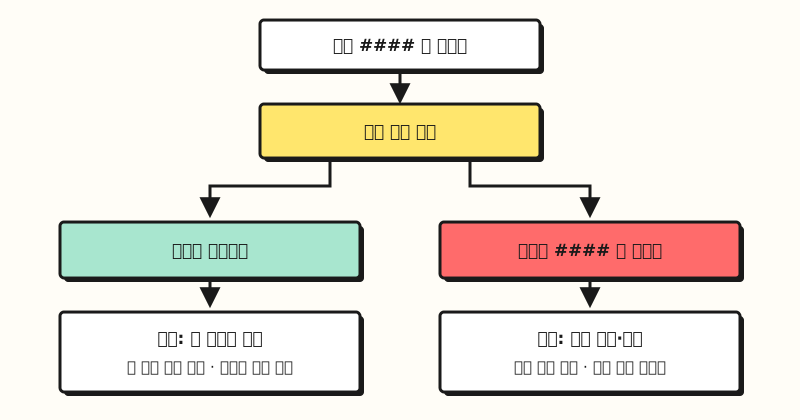 Widening the column is all it takes to separate the two causes (figure labels in Korean)
2. Fixing Excel ####: what if it's the column width?
The quickest way, as the help article says, is to select the right edge of the column header and drag it to the width you want. If adjusting widths one by one is tedious, you can use the methods in the Change the column width and row height help article.
| Method | Steps (Microsoft help wording) |
|---|---|
| Automatically fit the contents | Double-click the boundary between two column headers. Or go to Home > Cells > Format and select AutoFit Column Width |
| Exactly, by number | Right-click the column, select Column Width, and enter a value. Or go to Home > Cells > Format and select Column Width |
| Same width as another column | Copy a cell in the source column, right-click a cell in the target column, point to Paste Special, and then select Keep Source Column Widths |
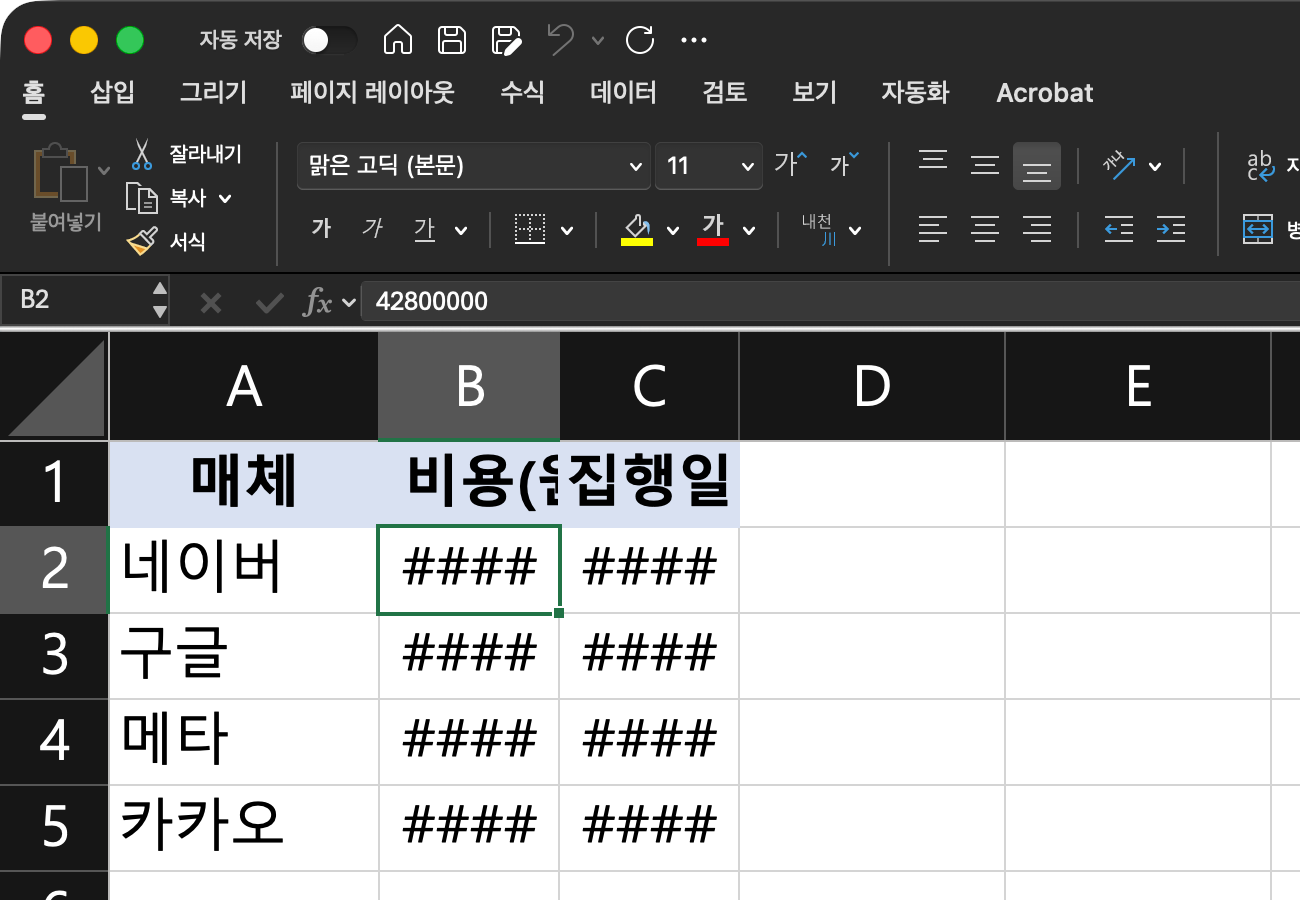 Actual Excel screen (sample data): Columns B and C are narrow, so the monthly cost and run date show as
####. The formula bar still shows 42800000. (figure labels in Korean)
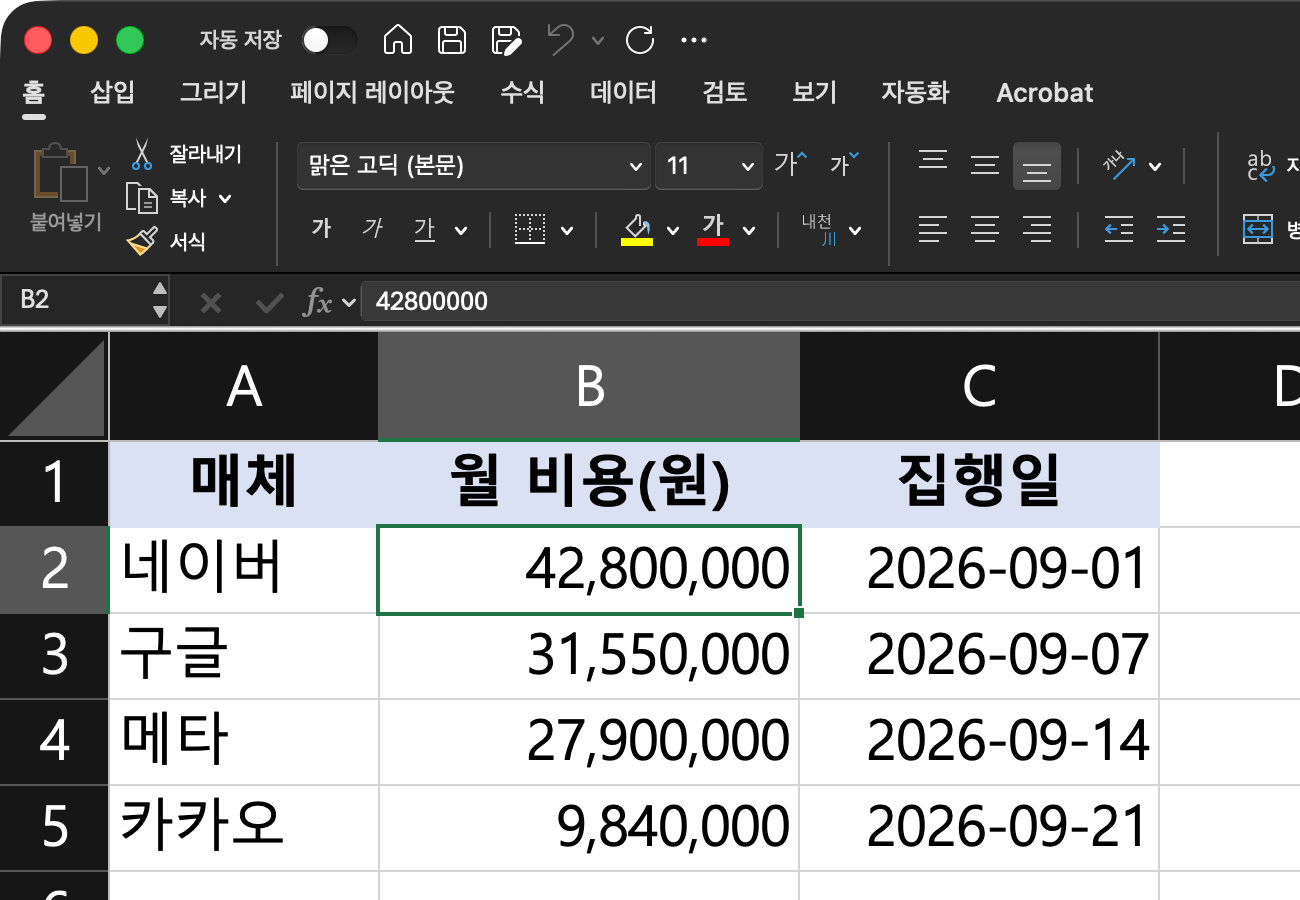 Actual Excel screen (sample data): In the same sheet, widening columns B and C brought back the original numbers and dates in place of
####. (figure labels in Korean)
According to the help article, column width is measured in number of characters of the default font used in the cell, can be set from 0 to 255, and defaults to 8.43.
If #### appears in several columns at once, select all of those columns and double-click the right boundary of any one of their headers to fix them in one go. It's the least effort when you're cleaning up a whole table at once.
Note that a narrow column doesn't always produce ####. The Stop showing rounded numbers help article explains that if a column isn't wide enough to display the whole number, the number can appear rounded, and in that case the full number is still shown in the formula bar at the top of the worksheet.
But what if, as with a report template, it's hard to change the column width?
3. Is there another way if I can't widen the column?
Besides widening the column, the help article offers three more methods.
- Shrink to fit: On the Home tab, select Alignment Settings to open the Format Cells dialog box, and select the Shrink to fit check box. The text size shrinks to fit the column width.
- Decrease Decimal: If a number has too many decimal places, select Decrease Decimal on the Home tab.
- Short Date: If a date is displayed too long, select the Number Format arrow on the Home tab and choose Short Date.
What all three methods have in common is that they leave the value itself alone and only shrink how it looks. However, Shrink to fit reduces the text to match the column width, so the narrower the column, the smaller the text; and Decrease Decimal only reduces the digits shown, so calculations still use the value stored in the cell. The rounding help article above also says the full number is used in calculations. For reports you share, I recommend adjusting with these methods and then checking once more in Print Preview or on someone else's screen.
4. What should I check if #### stays after widening the column?
In this case, check whether the cell value is a negative date or time.
A common example is a formula with the subtraction order reversed. If A2 has the start date and B2 has the end date, writing =A2-B2 instead of =B2-A2 gives a negative result, and if the cell has a date format applied, it can show as ####.
The same goes for times: if a job started at 10 PM and ended at 2 AM the next day and you subtract using only the times, the end time is smaller than the start time and you get a negative number.
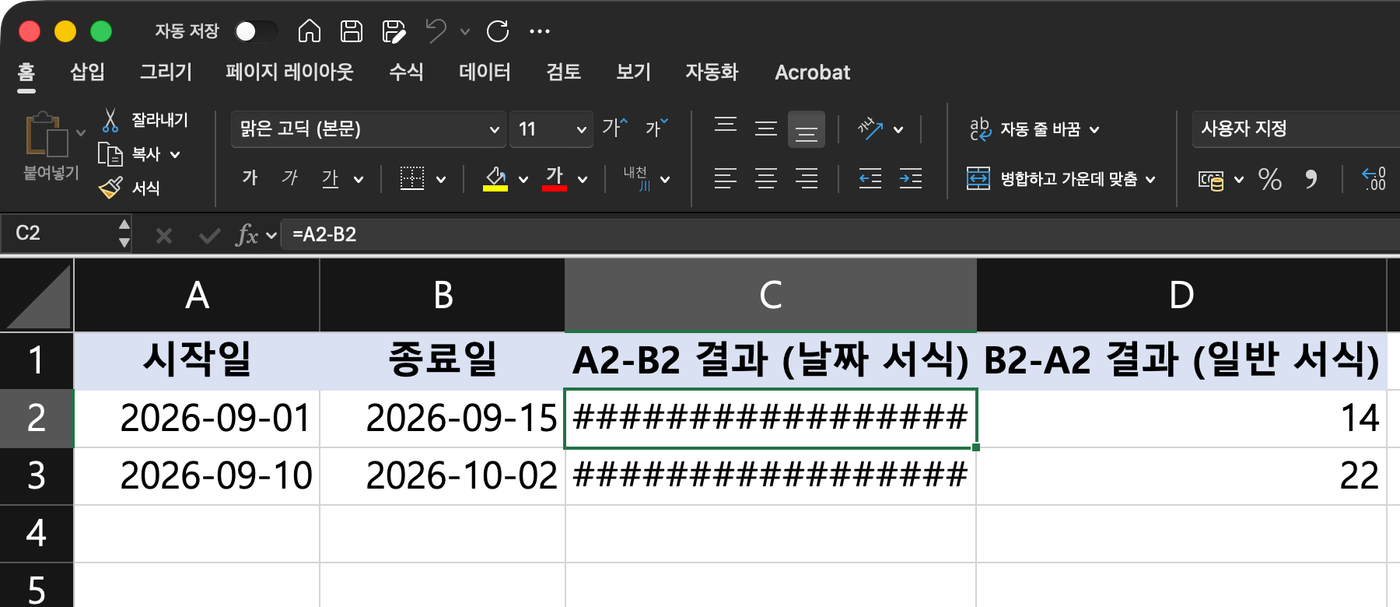 Actual Excel screen (sample data): Column C (
=A2-B2, date format) gives a negative result, so it shows #### even with a wide column, while column D (=B2-A2, General format) shows the number of days, such as 14. (figure labels in Korean)
Here's what the help article tells you to check.
- If you use the 1900 date system, make sure dates and times are positive values. This system is the default in Excel for Windows.
- Write formulas that subtract dates or add and subtract times correctly. Check the subtraction order and reference points so you don't get negative results.
- Change negative results to a different number format. If a negative result is correct, apply a different number format instead of a date or time format.
Number 3 is for cases where a negative result is correct. For example, if you calculate "days left until the deadline" and the deadline has already passed, a negative number is a natural result, so it reads better to change the cell format from a date to General or Number so it shows as -3.
For reference, the Excel specifications and limits help article lists the earliest date allowed for calculation as January 1, 1900 (January 1, 1904 if you use the 1904 date system), which shows that the range Excel treats as dates has a starting point too.
※ Note
Menu names in this post follow Microsoft's help wording for Excel for Microsoft 365.
The ##### error help article applies to Excel for Microsoft 365, Excel 2024, 2021, 2019, and 2016, and Microsoft 365, 2024, and 2021 for Mac, and the ribbon layout may look slightly different depending on your version or screen size.
There's also a setting to change the date system from 1900 to 1904, but according to the date systems help article, the two systems differ by 1,462 days (4 years and 1 day), so changing it in a workbook that already contains dates can shift those dates. Rather than touching this setting first to get rid of ####, it's safer to look at the formula and format first.
To sum up, #### is mostly a display issue that appears when a column is too narrow or a date or time result is negative, and simply widening the column tells you which of the two it is.
You run into display issues like this often when moving downloaded data into Excel. I also try to go back to the official help whenever I hit a confusing display while cleaning data, so for details, please see Microsoft's help article.
FAQ
- What should I do first to fix #### in Excel?
- Double-click the right boundary of that column's header to widen the column to fit its contents. If the value appears, the column was just too narrow; if #### is still there, check whether a date or time calculation is returning a negative result.
- I subtracted dates in Excel and got ####. Why?
- The subtraction order may be reversed, making the result negative. Microsoft's help explains that formulas returning dates and times as negative values can be displayed as ####. Fix the formula to subtract the start date from the end date, or, if a negative result is correct, change the cell format to General or Number.
- Can I get rid of #### without changing the column width?
- On the Home tab, select Alignment Settings to open the Format Cells dialog box and select Shrink to fit, and the text shrinks to fit the column width. If there are many decimal places, use Decrease Decimal; if a date is long, choose Short Date from Number Format.
Related posts
Posts that are useful alongside this one when cleaning up data in Excel.
- How to fix broken Korean text in Excel data - Fixing garbled Korean characters when opening a downloaded CSV in Excel
- VLOOKUP vs XLOOKUP: which Excel lookup function to use and when - Comparing two functions that look up values from another sheet
- What is an Excel PivotTable, and when should you use one? - How to summarize cleaned data by multiple criteria