Until now, using Copilot in Excel meant opening an Excel file first and then calling up the Copilot pane inside it. On November 17, 2026, at Microsoft Ignite, Office in Copilot became generally available (GA), so the order can now run the other way. While chatting in the Copilot app, you can say "make a document from this," and a Word, Excel, or PowerPoint file opens next to the conversation, where you can refine it with prompts, edit it yourself, and keep going with teammates. Every file is saved to OneDrive and inherits Microsoft 365 permissions, sensitivity labels, and compliance settings from the start, so you end up working inside the security rules your organization has already set.
"I pasted my meeting notes into Copilot and got a summary, but now do I have to move it into Word and build the table in Excel separately?" If you have used Copilot chat, you have probably felt this friction at least once. This announcement is about cutting exactly that copy-and-paste step. In this post, let's look at what Office in Copilot is, how it differs from the Copilot already inside Excel, Word, and PowerPoint, who can use it and when, and how a marketer might try it for a weekly ad report.
What is Office in Copilot? Has Copilot in Excel moved into the Copilot app?
Office in Copilot is not brand new. According to the October 9 Microsoft Community Hub announcement, it first opened to Frontier customers (Microsoft's early-access program), and was already described as available in both Chat and Cowork in the Copilot app. At Ignite, the Copilot blog and the Ignite Book of News announced general availability. The flow the announcement describes breaks down into four steps.
- Create a file from the conversation: Ask something like "create a launch brief," and Copilot creates a Word document and opens it next to the conversation.
- Refine with prompts: Follow up with requests like "make the opening more direct" or "add a comparison table."
- Edit it yourself: Use the editing controls on the open file (the canvas).
- Work together: Share it for comments, coauthoring, and presence, and switch to the standalone Office apps when needed.
There is also a collection view called Library. It shows your recent Word, Excel, and PowerPoint files, whether you made them in Copilot or in the Office apps, plus pages and AI-generated images, and from there you can reopen a file, keep editing it with Copilot, or start a new one. Home, the Copilot app's starting screen, also became generally available in the same announcement. The Copilot blog describes Home as the starting point where Chat and Cowork come together, with a single composer where Auto picks the right model and effort level for each task. If a Chat question grows into a bigger job, Auto can suggest moving it to Cowork, and it only moves if you agree.
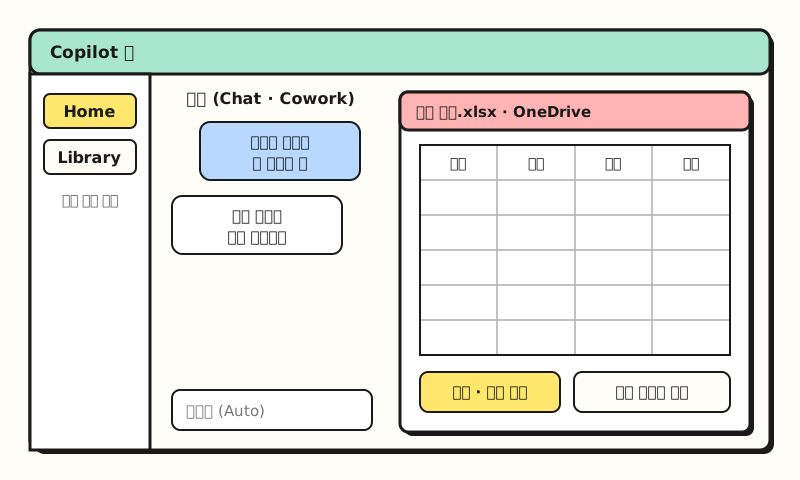 Example figure: not a real screenshot, but a simplified layout based on the announcement (files open beside the conversation, Library collection). Menu positions and shapes may differ from the actual app. (figure labels in Korean)
As an analogy, Copilot chat used to be like a meeting room whiteboard. Ideas gathered well, but when the meeting ended someone had to copy it all into a document. Office in Copilot spreads a Word or Excel file out next to that whiteboard from the start, so the notes go straight into the document while you talk.
How is it different from Copilot in Excel?
So does this make Copilot in Excel, opened from the Copilot button at the bottom right of Excel, unnecessary? The announcements don't compare the two directly, but when you line up the published descriptions, the biggest difference appears to be where you start.
| Criteria | Copilot inside Excel, Word, PPT | Office in Copilot in the Copilot app |
|---|---|---|
| Where you start | A file you already opened | A conversation in the Copilot app (Chat, Cowork) |
| Good for | Editing existing files, adding formula columns, analyzing tables | Drafting new documents from notes or conversations |
| Screen | Copilot pane on the right of the app | Canvas where the file opens beside the conversation |
| File storage | The file's original location | OneDrive (inherits permissions and sensitivity labels) |
| Detailed editing | Full features of the app | Canvas editing, move to the Office app when needed |
| Status (2026-11-19) | Already available | Generally available (announced Nov 17) |
I put this table together from Microsoft's announcements and the Copilot in Excel help docs. It is not an official comparison from Microsoft.
Keep in mind that Copilot inside the apps keeps improving too. The October announcement also mentioned on-brand slide help and custom templates in PowerPoint, and reviewing Copilot edits and chart recommendations in Excel, and the Microsoft Copilot release notes list, under November 4, the ability to click links in a Copilot in Excel response to jump straight to the changed sheets, tables, and charts. I covered the Edit, Plan, and Chat modes and how to review formulas in the Copilot in Excel post, and how to reference an existing design in the PowerPoint Copilot post, so you may want to read them together.
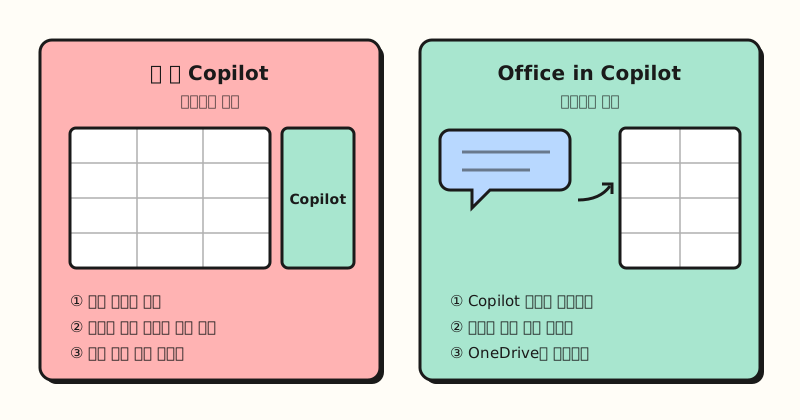 An easy way to remember it: start from a file and it's Copilot in the app; start from a conversation and it's Office in Copilot. (figure labels in Korean)
Note: who can use it, and since when?
Generally available doesn't mean it shows up in every account on the same day, so I recommend checking the following first.
- License: The Copilot blog says this is "already included in your Copilot subscription license." However, I couldn't confirm from the announcements whether it also works for work accounts that only use free Copilot Chat, or for Microsoft 365 Personal and Family plans.
- Rollout schedule and language: The announcements don't mention country-by-country rollout or Korean language support. For work accounts, it may appear later depending on admin settings and rollout timing.
- Storage location: Saving files to OneDrive is convenient, but if your organization keeps team materials in SharePoint document libraries, it's a good idea to agree on storage rules in advance.
- Most features announced alongside it are still in preview: Many of the features introduced the same day are Frontier-only.
| Feature | What it does | Status (per Ignite announcements) |
|---|---|---|
| Office in Copilot | Create and edit Word, Excel, PPT beside the conversation | Generally available |
| Home | Starting screen combining Chat and Cowork, Auto picks the model | Generally available (rolling out worldwide) |
| Copilot Code | Builds apps, dashboards, and widgets from plain-language descriptions | Frontier, GA planned for December |
| Today | Brings mail, calendar, Teams, meetings, and tasks into one view | Frontier private preview |
| Workspaces | Team space where people and agents share context (evolution of Copilot Notebooks) | Frontier |
| Autopilot | Personal agent that takes on long-running work | Rolling out in Frontier |
According to the Frontier help article, Frontier is a space for trying features before general release, and anyone with a Copilot license can take part within their organization's admin settings. Personal subscribers (Personal, Family, Premium, Pro) can also access some Frontier features, but the article says early features come first in English for U.S. users and may change. The Book of News says Today's once-a-day summary (Today Brief) is included with a Microsoft 365 Copilot license, while recurring updates throughout the day use Copilot credits, and Cowork lets your team set a spending limit, so it's worth remembering that the cost structure differs by feature.
How could you use it for a weekly ad report?
Imagine a marketer who shares ad performance every Monday as a one-page Word summary and an Excel table. Below is an example sequence built around the flow described in the announcement. I have not checked the actual results on screen myself.
- Start from Home in the Copilot app: Paste last week's numbers downloaded from each ad platform into the conversation and ask for an Excel table first.
- Review on the Excel canvas: Check the column names and the total row, and calculate a few rows of computed columns like conversion rate by hand.
- Create a Word summary in the same conversation: Ask for a one-page weekly summary based on the table you just made.
- Share and coedit: Share it with your manager for comments, and finish detailed work like table formatting in the Excel app.
For step 3, you could start with a prompt like this. The key is including a condition that tells it not to make up numbers.
## Role
You are a marketer reporting digital ad performance.

## Instructions
Create a one-page Word summary of the weekly ad performance in the material below.
- Show cost, clicks, conversions, and conversion rate by platform in one table.
- Name the two platforms that changed the most from last week, with their numbers.
- Do not invent numbers or causes that aren't in the material; write "needs checking" instead.

## Format
Title, three-line summary, table, things to check next week, in that order.

## Material
<material>
(Paste the Excel table or numbers by platform)
</material>
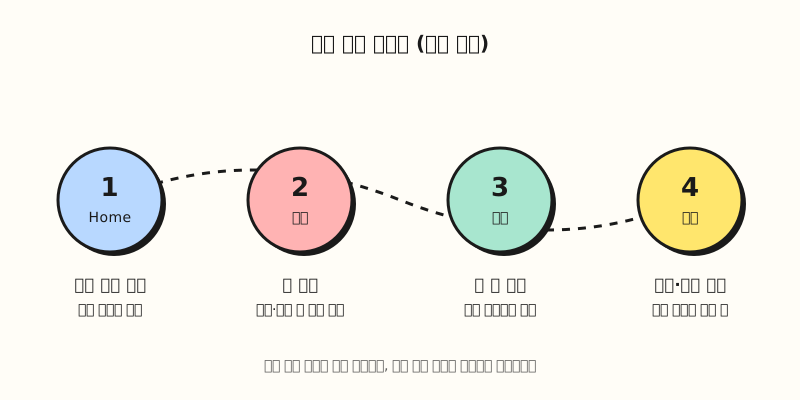 An example applying the announcement's flow (create a file from the conversation, refine, edit directly, collaborate) to an ad report. (figure labels in Korean)
The step to be most careful with is step 2. An AI-generated table can look convincing yet include the total row in an average or misread a column. For checking, you can use the AI hallucination post and the review steps in the Copilot in Excel post as they are.
So what should marketers change?
A new feature doesn't mean you need to move all your work into the Copilot app. Here are the decision criteria I came up with.
| Situation | Recommendation | Why |
|---|---|---|
| Turning meeting notes or research into a draft document | Copilot app (Office in Copilot) | The file is created right from the conversation context, so there's less copying and pasting |
| Editing an existing report file | Copilot inside Excel, Word, PPT | You keep the file where it is and use the app's full features |
| Careful work with formulas, PivotTables, formatting | Excel app | Detailed editing is easier in the app, and the announcement keeps the path to the Office apps open |
| Repetitive work with multiple steps | Cowork (check the spending limit) | The announcement describes handing off a whole workflow to Cowork |
| Client files and sensitive material | Company storage rules first | Files are saved to OneDrive, so check sharing scope first |
In the end, what changes is how you start a document. Instead of opening a blank Word file and calling Copilot, you can try thinking things through in a conversation and creating the file right there. Before applying this to the whole team, though, I recommend checking whether the feature is available in your company account and whether OneDrive storage fits your team's rules. Similar flows are appearing in other AI tools too. Anthropic's Claude also merged chat and Cowork into one (Claude Cowork chat unification post), and the direction of "starting from a conversation and moving into tasks and files" looks similar across companies.
Wrapping up
Office in Copilot lets you create and keep editing Word, Excel, and PowerPoint files beside a conversation in the Copilot app, and you can split your use between the existing Copilot in Excel, which starts from a file, and this new approach, which starts from a conversation. Please also note that Copilot Code, Today, Workspaces, and Autopilot, announced alongside it, are still at the Frontier stage. I'll share an update once I can confirm when the feature opens in the Korean UI and what each plan includes.
FAQ
- Is Office in Copilot free?
- The Microsoft Copilot blog says it is already included in your Copilot subscription license. However, the announcements don't say whether accounts that only use free Copilot Chat, or Microsoft 365 Personal and Family plans, can use it, so check your account screen or ask your admin.
- Does Office in Copilot change how I use Copilot in Excel?
- Opening Copilot from the button at the bottom right inside Excel stays the same. Office in Copilot adds a new path that starts from a conversation in the Copilot app, so you can use Copilot inside Excel to edit existing files and the Copilot app to create new documents from notes or conversations.
- Where are files created in Office in Copilot saved?
- According to Microsoft's announcement, every file is saved to OneDrive, keeps its formatting, comments, sharing permissions, and version history, and inherits your organization's security labels and compliance settings. You can reopen files from the Library in the Copilot app.
- Can I use Copilot Code or Autopilot now?
- Per the Ignite announcements, Copilot Code is available first through the Frontier program with GA planned for December, Autopilot and Workspaces are rolling out in Frontier, and Today is in private preview. The Frontier help article says early features come first in English for U.S. users.
Related posts
- Copilot in Excel - Edit, Plan, and Chat modes in Excel's Copilot and how to review results
- PowerPoint Copilot - Creating a new deck that references an existing PPT design
- Claude Cowork chat unification - How another AI tool merged chat and task modes