Copilot in Excel opens from the Copilot button at the bottom right of Excel. You describe what you want in plain words, and it edits the workbook directly using Excel features like tables, charts, PivotTables, and formulas. It has three modes, Edit, Plan, and Chat, and you need a qualifying subscription, such as a Microsoft 365 personal plan or a work Copilot license, to use it. Formulas and formatting made by AI can look convincing and still be wrong, so the key is knowing what to check before you hand work off.
"Can you add one column with the conversion rate for each campaign in this ad report?" A lot of Excel work is like this: plenty of clicking, not much judgment. If you hand that to Copilot, will it really do it as asked, and how far can you trust the result? In this post I'll cover what Copilot in Excel can do, what you need to use it, table analysis and formula suggestions, how to ask for formatting and charts, and what to look at when reviewing the results.
1. What can Copilot in Excel do?
The Get started with Copilot in Excel help article breaks down what Copilot can do like this.
- Edit worksheets: Add, rename, and delete sheets, enter and edit cell values, and apply conditional formatting, data validation, and borders
- Generate data and formulas: Run calculations, apply formulas across multiple sheets, and summarize data.
- Create charts and PivotTables: They stay connected to the source data, so you can edit them by hand later.
- Find insights: Ask questions about your data and it answers with charts, PivotTables, summaries, trends, and outliers.
- Highlight, sort, and filter, plus web search with cited sources and pulling in data from other workbooks
There are three modes, and the default is Edit mode. Edit mode changes the workbook right away, Plan mode shows you a plan to review before making changes, and Chat mode only analyzes and answers without changing the workbook. Excel on Windows, Mac, and the web supports all three modes, but iPad supports only Chat and Plan, and iPhone and Android support only Chat. The article also says Edit mode on iPad and iPhone is rolling out gradually. According to the tips article, you can also pick between Anthropic and OpenAI models in the model selector at the top left of the pane. Per the FAQ, though, model switching only works with a commercial Microsoft Copilot subscription or a Microsoft 365 Premium subscription, and to use Claude on a work account, your admin has to allow Anthropic as a subprocessor.
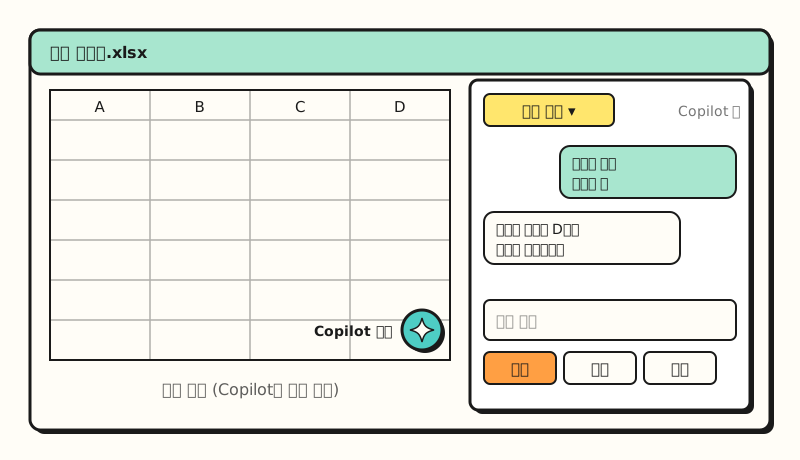 Illustration: Not an actual screenshot. This is a simplified layout based on the help articles, and button positions and shapes may differ from the real thing (figure labels in Korean).
If you think of it as an airplane, Copilot really is the co-pilot, as the name says. It takes the controls and handles a lot of work for you, but the important part is that you, the captain, decide where to go and confirm the landing.
For reference, according to the COPILOT function help article, the preview function you used to write in a cell like =COPILOT("instruction", range) can no longer be used as of September 14, 2026, and recalculating it returns a #NAME? error. Now you ask for the same thing in words in the Copilot pane.
※ Note: What do you need to use Copilot in Excel?
The Copilot in Excel FAQ lists four eligible subscriptions.
- Personal: Microsoft 365 Personal or Family with an AI credits plan, or Microsoft 365 Premium
- Work: A commercial Microsoft Copilot subscription, or a Microsoft 365 or Office 365 business or enterprise subscription that includes Copilot Chat
For work accounts, what you can use depends on tenant settings. The FAQ explains that if you see "M365 Copilot (Premium)," you have priority access through an add-on license, and "M365 Copilot (Basic)" means standard access without an add-on license. The Microsoft Copilot requirements article also notes that Microsoft 365 Copilot has now been renamed Microsoft Copilot, so it's worth searching under both names.
If you don't see the button, start with the causes covered in the Copilot button troubleshooting article.
- Make sure you're on the latest build, then go to File > Account > Update License and reopen the app.
- If your work PC is on the Semi-Annual Enterprise Channel, Copilot features aren't available. It needs to be on Current Channel or Monthly Enterprise Channel.
- In your account privacy settings, experiences that analyze your content and connected experiences need to be turned on, and Excel for the web may fail the license check if third-party cookies are blocked.
There are file requirements too. According to the FAQ, Copilot editing is only supported when calculation options are set to Automatic, formats like Strict Open XML need to be re-saved as .xlsx, and files on SharePoint sites that require check-out should be used in Excel for the web rather than the desktop app. On where the file is saved, the docs disagree. The Copilot in Microsoft 365 subscriptions FAQ says AutoSave must be on and the file saved to OneDrive, and that it won't work on unsaved files, while the Copilot in Excel tips say it runs whether AutoSave is on or off. I couldn't tell from the pages which one is more recent, so if the button doesn't show up, I'd suggest opening a file saved to OneDrive or SharePoint.
2. How do you hand table analysis and formulas to Copilot in Excel?
Looking at the examples in the data insights help article, requests can be fairly ordinary language. One tip keeps coming up, though: the more you name the exact columns to analyze, the more accurate the results.
- Ask questions: "Which regions have the highest and lowest sales?", "Are there any outliers in this data?"
- Add formula columns: Ask something like "Add a column showing each region's share of total revenue," and it creates a new column and explains how the formula works.
- Lookup formulas: If you ask it to pull values from another sheet, it recommends formulas like XLOOKUP and adds a result column.
- Explain formulas: In an inherited file, select a cell with a formula and say "Explain the formula in the selected cell."
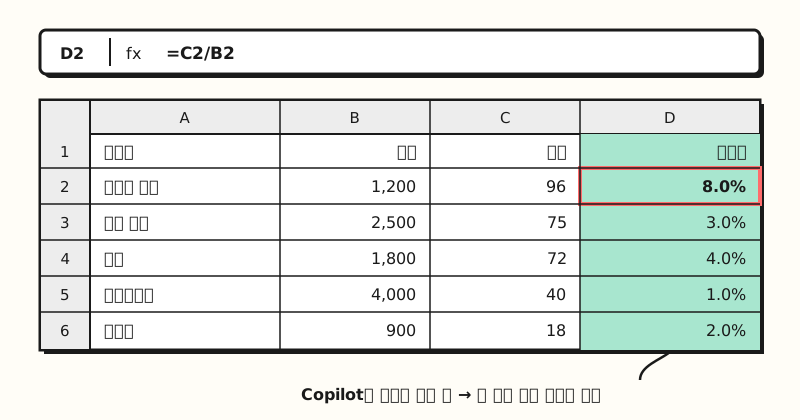 Illustration: Not an actual screenshot, and the data is fictional. The added column is entered as a formula, so you can check it right in the formula bar (figure labels in Korean).
You can also hand off text-heavy columns like survey responses or reviews. According to the help article, Copilot finds themes and sentiment and adds them as new columns, and hovering over the superscript numbers in the analysis shows the source data it referenced.
There are also ways to get formula help without opening the pane. According to the formula suggestions help article, formula completion suggests a complete formula based on headers and nearby data the moment you type = in a cell, and formula by example reads the pattern in a few sample values and suggests a formula to fill the whole column. If they get in the way, on Windows you can turn them off under File > Options > Copilot.
If lookup functions themselves are unfamiliar, reading my post on the difference between VLOOKUP and XLOOKUP first will make the formulas Copilot writes much easier to read.
3. How do you ask for conditional formatting, charts, and PivotTables?
Applying the request examples from the data visualization help article to a marketing report looks like this.
- Charts: "Make a line chart of cost by date, with data labels and gridlines"
- PivotTables: "Create a PivotTable with month in rows, channel in columns, and the sum of cost"
- Highlight, sort, filter: "Bold the top 10 by conversion rate," "Sort by CPA, highest first"
- Conditional formatting: The getting-started article lists applying conditional formatting as an editing feature, so state the range and condition together, like "In the CPA column, color cells above the average red."
The help article also describes a flow where Copilot explains the changes in the chat pane and you click Apply to show them on the sheet. If the result isn't what you wanted, it suggests adding more specific conditions and having it try again. Rather than trying to write a perfect request from the start, it's easier to do what the tips article suggests: start broad and narrow down based on the previous result. The PivotTables and conditional formatting Copilot creates are just standard Excel features in the end, so you can adjust them the same way I explained in my Excel PivotTable post and conditional formatting post.
4. What should you review in Copilot in Excel results?
The FAQ states that Copilot can make mistakes or misinterpret information and produce inaccurate results, and advises against using it for decisions in sensitive areas like finance, law, or medicine. The insights and visualization help articles include the same line about reviewing, editing, and verifying results before you use them. So where do you start? Here's the review order I've put together.
- Check the range first: Make sure formulas didn't pull in header or total rows, and that conditional formatting rules apply to the right range.
- Calculate a few rows by hand: Pick two or three rows in the new column and calculate them yourself, and for text analysis, check against the source using the superscript numbers.
- Ask what changed: As in the change history help article, if you ask "What changes did Copilot make to this workbook?", Copilot explains what it changed.
- Know how to roll back before sharing: Saved Copilot changes are visible to everyone with access to the file, including co-authors, so undo them or restore a previous version if needed.
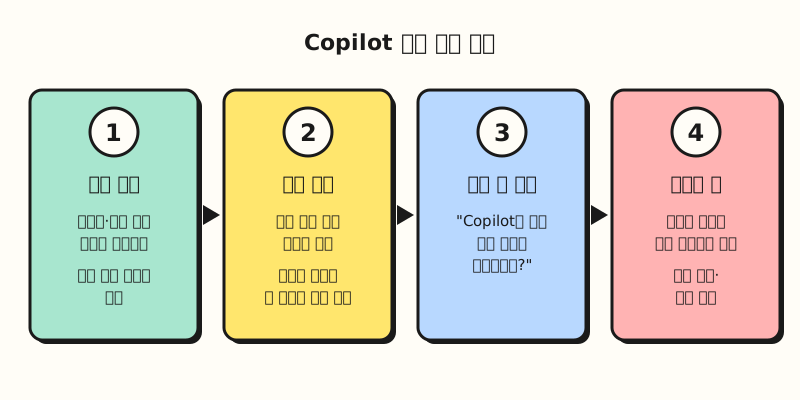 I put this review order together based on the cautions in the help articles (figure labels in Korean).
Change history only reports changes that Excel tracks, and it tracks them for up to 365 days, so for older edits you'll need to check Review > Show Changes or version history yourself. For important shared files, you can get a plan first in Plan mode, or follow the tips article and turn off AutoSave while you experiment. But as we saw earlier, the personal subscription FAQ lists AutoSave as a requirement, so if that approach is blocked, I'd suggest making a copy to test on. If you're curious why AI gives convincing wrong answers, see my post on AI hallucinations as well.
To sum up, Copilot in Excel is a co-pilot you can hand tedious work to in plain words, like adding formula columns, formatting, charts, and PivotTables, but checking the ranges and results is still the person's job. I'll try it out on cleaning up ad reports and write up my request phrasing and review order again.
FAQ
- Can I use Copilot in Excel for free?
- According to the Copilot in Excel FAQ, you need one of the following: Microsoft 365 Personal or Family with an AI credits plan, Microsoft 365 Premium, a commercial Microsoft Copilot subscription, or a Microsoft 365 or Office 365 business or enterprise subscription that includes Copilot Chat. For work accounts, what you can use may vary depending on tenant settings.
- What if I don't see the Copilot button in Excel?
- First, check the bottom right of Excel. The button that opens Copilot has been moved there. If it's still missing, check in this order: install the latest build, go to File > Account > Update License, and confirm connected experiences in your privacy settings. If your work PC is on the Semi-Annual Enterprise Channel, Copilot features aren't available, so contact your IT admin.
- What's the difference between Edit, Plan, and Chat modes in Copilot in Excel?
- Edit mode changes the workbook right away based on your request, and Plan mode shows you a plan to review before making changes. Chat mode only analyzes and answers without changing the workbook. The default is Edit mode, and iPhone and Android support only Chat mode.
- Can I still use the COPILOT function in Excel?
- No. According to the COPILOT function help article, this function, which was offered as a preview, can no longer be used as of September 14, 2026. Results that were already calculated remain as values, but recalculating the cell returns a #NAME? error. You can ask for the same thing in words in the Copilot pane.
Related posts
- What Is an Excel PivotTable? - How to edit and refresh PivotTables that Copilot creates
- Excel Conditional Formatting - Rules and ranges for showing numbers as colors, bars, and icons
- Why Does AI Hallucinate? - What to check before trusting AI results