Product listing keywords shouldn't all be crammed into the product name field; they should be spread across the product name, category, brand/manufacturer, attributes, and tags. That's because Naver Shopping (the shopping search of Naver, Korea's largest search engine) calculates a "relevance" score based on how well a search query matches these fields. The direction of Naver's official guide is to write the brand, product type, and main option concisely in the product name, and to leave out discount or shipping phrases and repeated words that mean the same thing.
When you're listing products on Smart Store (Naver's e-commerce platform), you may think, "To show up in search, shouldn't I put as many keywords as possible in the product name?" You've probably seen product names with a string of similar words tacked on, but Naver actually says names like these can be penalized in search. The Naver Shopping Product Search SEO Guide and the Smart Store Center help pages show that each keyword has its own place, so in this post I'll go over where and how to put your product listing keywords.
Where does Naver Shopping read product listing keywords?
The order of Naver Shopping search results is based on three scores: relevance, popularity, and reliability, and grouped products and catalogs are arranged alongside them. The guide applies to both Naver Price Comparison and N+ Store (Naver Plus Store), and N+ Store additionally uses a preference score for personalized results. Of these, relevance is the score sellers can most directly improve when listing products.
According to the relevance page, relevance measures how closely the product information relates to the search query a user enters, and to increase it, you should register the product name, brand/manufacturer, category, attributes, and tags according to the guide. The SEO Guide also explains that the components of relevance all match the fields you fill in when listing a product.
As an analogy, it's similar to finding a book in a library. A librarian doesn't just look at the title but also at the author, call number, and index terms when finding a book for you, and a book with an accurate call number gets into your hands faster than one with all sorts of words added to its title. It's easy to understand if you think of the product name on Naver Shopping as the book's title, the category as the call number, and tags as index terms.
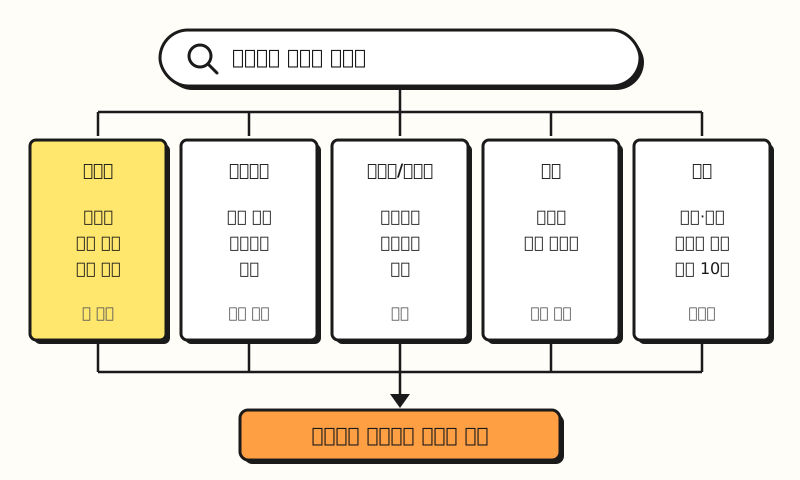 Figure: relevance goes up when a search term is spread across multiple product information fields, not just the product name (a summary of the Naver Shopping Product Search SEO Guide). (figure labels in Korean)
So what keywords should go in the product name, the first thing you'll touch?
1. What keywords should go in the product name?
Naver recommends a product name written concisely with key information, including the brand and category. The example in the guide is something like "Maeil Dairies Blue Diamond Almond Breeze Chocolate 190ml 24-pack," with the brand, product name, flavor, volume, and quantity in order.
- Main option: Put the most representative option, such as color, volume, or size, in the product name. For products clearly divided by gender, the guide also says to include "men's" or "women's."
- Official names: Write the brand, manufacturer, and model name exactly as officially used. Abbreviations or unofficial names can hurt search visibility.
- 1 or 2 trending keywords: Look at autocomplete and related searches and include expressions people are searching for lately, but rather than listing many, include only one or two main keywords related to your product.
- Spacing: The search system analyzes spacing automatically, but the guide says it's not good to run words together too much or add unnecessary spaces.
This doesn't mean shorter product names are better. Naver explains that you should keep the product name concise but include all the information users need to find the product and decide to buy.
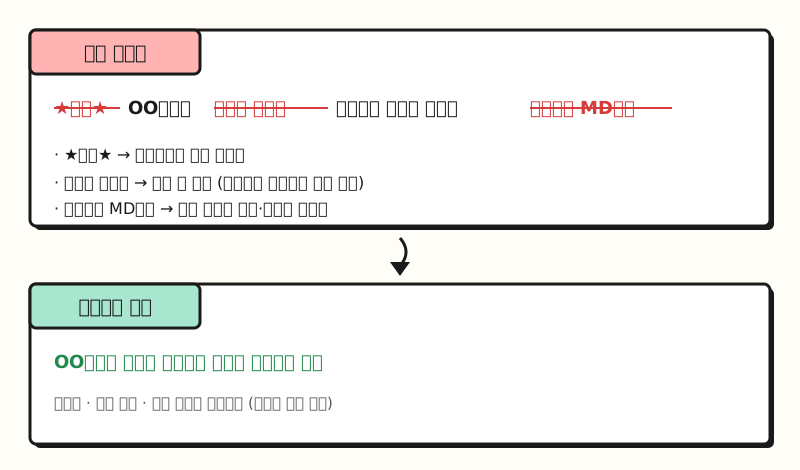 Example: made with a fictional product. A product name that drops promotional phrases and repeated synonyms and keeps only the brand, product type, and main option fits the guide. (figure labels in Korean)
2. What keywords should you leave out of the product name?
What to leave out is confused more often than what to put in. The Smart Store Center's product name registration standards say to write concisely and leave out duplicate words, keywords unrelated to the product, and discount information. Combined with the product name examples in the Product Search SEO Guide, it comes down to this.
| What to leave out | Why, and where to put it instead |
|---|---|
| Repeated words with the same meaning | Naver builds a synonym and near-synonym dictionary that's handled automatically in search, so there's no need to repeat them, and repetition can be judged as abuse |
| Price, perk, and promotional modifiers | Words like "great value," "lowest price," "free gift," "sold out," "MD's pick," and "new arrival" go in separate fields like shipping or events, not in the product name |
| Unrelated brand names | Including brand or model names that don't fit the product can lead to penalties |
| Special characters, phone numbers, seller codes | \ * ? " < > can't be used in product names, and phone numbers and seller-specific identification codes shouldn't be included either |
| Phrases imitating famous products, emojis | Expressions like "[Brand] style," "[Brand]-esque," or "[Brand]st" can be sanctioned without separate notice, and emojis can lead to a sales ban by administrators |
That doesn't mean you can't promote discounts or free gifts at all. The Smart Store Center help page says that if you put promotional copy in the Event item under the Purchase/Review Benefit Conditions area of the product listing screen, it shows at the top of the product detail page.
You can also check right as you type the product name. The SEO Guide recommends checking whether your name fits the guide by looking at the suggested fixes, since a search quality check runs when you enter a product name in the Smart Store Seller Center.
3. Why are category, brand, and attributes as important as keywords?
The category is a way to gain keywords outside the product name. According to the SEO Guide, every product is matched to one category and gets keywords related to that category's name as search keywords, so a product can be found by category-related keywords even if the category name isn't in the product name.
- Category: You can't register in a parent category that groups several categories; you need to register in the lowest-level category. Naver explains that registering a product in the most suitable category is the most important factor for showing up well in search results. Each search term also has highly related categories, and products in those categories may be shown first.
- Brand/manufacturer: Search and pick the value that appears in autocomplete, and type it in yourself only when the brand or manufacturer isn't listed. Many search queries include brands and manufacturers, and filter usage is high, so entering them accurately is said to help visibility.
- Attributes: Frequently searched, standardized products are managed with attribute information. If you enter attributes unrelated to the product, it gets rematched, and if it's judged to be malicious, the product service may be suspended.
In the end, rather than trying to hook every search term in the product name field, it fits the guide's direction better to keep the product name concise and fill the category, brand, and attribute fields accurately. So where should the detailed keywords that didn't fit in the product name go?
4. How many tags should you add, and how?
That's where tags come in. The SEO Guide explains that using tags helps products show up accurately for a variety of detailed search terms, and on Smart Store, you can register up to 10 tags in total.
- Good tags to add: Information that's hard to put in other fields, such as use case, user characteristics, seasonal keywords, and mood expressions. The guide's examples are "home interior," "newborn products," "winter goods," and "retro style."
- Tags to avoid: Words that overlap with other fields, like category names, brand names, and seller names, and promotional phrases about discounts or shipping.
- Suggested tags discontinued; now entered manually: You used to be able to pick suggested tags on the product listing screen, such as "trending HOT tags," mood tags, event tags, and targeted tags, but according to the Smart Store Center help page, these suggested tags have been discontinued. So now you have to enter tags yourself.
- Not every tag you enter is used in search: The same help page says some manually entered tags may not show in search depending on internal standards. The Naver Shopping SEO Guide still explains that tags not in the internal tag dictionary or not meeting the standards aren't shown, and that if few usable tags remain, automatic tags drawn from the product information are added. But now that suggested tags are discontinued, sellers have no way to browse the dictionary and choose, so the surest approach is to check directly with the button below whether your tags are applied.
You can check whether your tags are actually used with the Check tags applied to search button under the Search Settings section of the product listing screen. The same help page adds that the order in which you register tags doesn't affect your ranking on Naver Shopping. Filling all 10 isn't the goal, either. The Smart Store Center help page says unnecessary or excessive tags can actually hurt relevance and visibility, so pick only the information you really need.
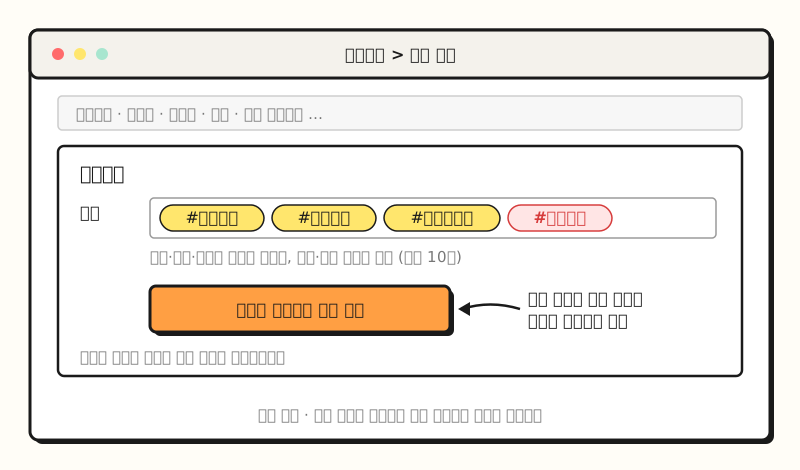 Example: a simplified drawing of the screen layout, not an actual screenshot. After entering tags in the Search Settings area, use "Check tags applied to search" to see whether they're applied. (figure labels in Korean)
※ Note: What if you still don't rank near the top after adding keywords well?
Relevance is just one of three scores, so even if you add keywords according to the guide, you may not reach page one right away. The popularity page explains that Naver Shopping looks at clicks within the last 7 days, the sales index and review count within the last 30 days, and recency for new products, and that because search is relative, rankings depend on the popularity of other sellers' products. The reliability page warns that driving traffic through slot-based top-placement programs or reward ads can result in a penalty on the seller's entire store.
After revising your keywords, I recommend checking the following.
- When changes apply: Editing alone doesn't build up penalties. As for timing, the SEO Guide says rankings reflect changes in about 1 day, while the Smart Store Center help page says edits to already-listed products take up to 1 to 2 days, so the two sources differ slightly.
- Incoming keywords: In the Search Report under Smart Store Center's data analytics, you can see visits by keyword to learn which search terms led people to your product.
- Listing information review: It gathers and shows products on sale whose names need fixing, whose attributes, manufacturer, or brand are empty, or that have no tags. Fixing them isn't mandatory; they're recommendations for improving rankings.
- Guide changes: The SEO Guide's policies can change at any time and changes are announced in the Shopping Partner Center, so it's good to check the announcements often.
To sum up, with product listing keywords, putting them in the right place matters more than putting in a lot. The direction of Naver's guide is to put the brand, product type, and main option in the product name, accurate values in the category, brand, and attributes, detailed keywords like use case and season in tags, and to move promotional phrases to the event field. Rereading the guide this time, I was reminded once again that product information needs to be in order before you even start thinking about shopping ads. Before listing products, I suggest skimming the Naver Shopping Product Search SEO Guide once.
FAQ
- Which product listing keyword tip should I take care of first?
- According to the Naver Shopping Product Search SEO Guide, it's registering in the accurate, lowest-level category. Naver describes registering a product in the most suitable category as the most important factor for search visibility, and says category-related keywords can be found in search even if they're not in the product name. Next, write the brand, product type, and main option concisely in the product name.
- How many tags can I register on Smart Store?
- According to the Smart Store Center help page, you can register up to 10 tags in total. The old feature for picking suggested tags has been discontinued, so you need to enter them manually, and some manually entered tags may not be used in search depending on internal standards. Unnecessary or excessive tags can hurt relevance. You can check whether they're applied with the "Check tags applied to search" button.
- Do I need to include every word with the same meaning (e.g., cell phone, mobile phone, smartphone) in the product name to be found?
- No. Naver says it continuously builds a synonym and near-synonym dictionary for shopping keywords, and registered synonyms are handled automatically in search, so there's no need to repeat them. In fact, if using duplicate words is judged as abuse, you may be penalized.
- Does editing the product name often hurt search performance?
- Naver says there are no disadvantages or penalties simply for editing. However, if the edited product name doesn't fit the SEO Guide, it can be penalized in search. Changes can take about 1 day to apply according to the SEO Guide, and up to 1 to 2 days according to the Smart Store Center help page.
Related posts
- Various attempts to drive keyword exposure in shopping search ads - How to drive exposure through product names and categories in shopping search ads, where you can't register keywords directly
- What are the ways to optimize search ads? - A checklist for reviewing search ad performance at the impression, click, and conversion stages
- SEO basics: how Google crawls, indexes, and shows pages in search results - How search engines find and read pages