Starting October 28, 2026, product detail pages on Naver Shopping's Smart Store and Brand Store were added to the placements for Shopping Search Ads. (Naver is Korea's largest search engine, and Smart Store is Naver's e-commerce platform.) Shopping Search Ads in the Shopping Mall Product format and ADVoost Shopping ads appear on both PC and mobile in the "Various store products people also look for" section below the seller information, and Naver has said that ad registration, ranking and billing remain unchanged. Around the same time, Naver is also running a test that changes the total number of products in the Shopping collection in mobile integrated search, so if your impression counts have changed, you need to look at both.
"Search volume hasn't changed, so why did our Shopping Search Ads impressions go up this week?" When you get a question like this while looking at an ad report, you tend to suspect keywords or bids first, but sometimes, like this time, the places where ads run have simply increased. In this post I'll cover the conditions under which product page ads appear, how to adjust them if you don't want them, and other changes worth knowing about at the same time.
Where do Smart Store product page ads appear?
According to a Naver Ads notice (posted October 16, 2026), the new placement and eligible ads are as follows.
- Effective date: Wednesday, October 28, 2026. The notice says the schedule may change due to internal circumstances.
- Placement: below the seller information on Smart Store and Brand Store product detail pages (PC and mobile)
- What the section is: the "Various store products people also look for" section, which recommends products that go well with the one being viewed
- Eligible ads: Shopping Search Ads in the Shopping Mall Product format, ADVoost Shopping
- Placement names: "Naver Shopping Smart Store Recommendations - Mobile" and "Naver Shopping Smart Store Recommendations - PC"
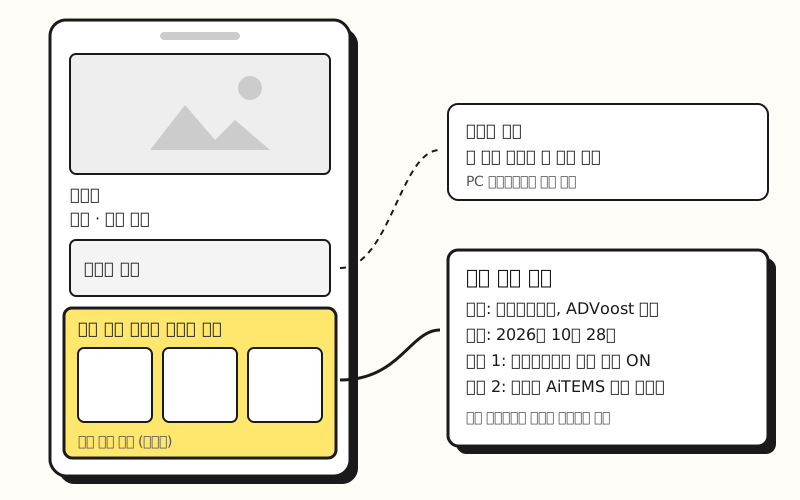 Example figure: a structural diagram, not an actual screenshot. It simply marks the position stated in the notice (below the seller information) (figure labels in Korean)
To use a store analogy, until now advertised products were placed only on the shelf in front of the search box, and now there's also a "you might also like" shelf next to the spot where a shopper is already holding a product and looking it over. The difference is that the ads are seen by users at the stage of looking closely at one product, not at the stage of comparing products in search results. However, the notice adds the caveat that in some categories this recommended ad section doesn't appear at all, and advertised products in those categories aren't shown either.
So does your ad automatically run in this spot?
What conditions are needed for ads to appear on product pages?
The notice lists two conditions together. One is the advertiser's placement setting, and the other is a setting on the side of the store that owns the product page.
- Advertiser: placement setting ON: "Naver Shopping Smart Store Recommendations - Mobile/PC" must be turned on in the ad group's placements for your ads to run in this spot.
- Store: AiTEMS recommendations set to "Show": advertised products can appear in the recommended ad section only on the product pages of stores that have set Store Management > Store Display Management > Product Details > AiTEMS Recommendations to "Show" in Smart Store Center.
The confusing part here is that the second condition is a setting for the place where the ad appears (someone else's product page). Which stores' product pages your advertised products appear on depends on those stores' settings, and whether other ads appear on your own store's product pages is tied to your store's AiTEMS recommendation setting.
This placement isn't actually a new name. The help article on recommendation and content placements already lists "Naver Shopping Smart Store Recommendations - Mobile/PC" as a placement for the Shopping Mall Product format, with 12 products shown on mobile and 10 on PC. So rather than a brand-new placement, it seems more natural to see this as the same-named placement expanding to below the seller information on product pages. The notice title is also "Notice on expanded ad exposure on product detail pages."
How do you adjust Shopping Search Ads placements with placement settings?
If the new placement underperforms, or you'd like to watch it at first, you can adjust it at the ad group level. The help article on showing ads in recommendation and content placements gives these steps.
- Check placements: in Advanced options on the ad group creation or edit screen, check whether "All placements" or the detailed placement types include "Recommendation and content placements."
- Set a dedicated bid (optional): you can enter a "Recommendation and content placements dedicated bid" as an amount (50 to 100,000 KRW) or a percentage (10% to 500%); if you leave it blank, the default bid applies.
- Check excluded placements: add placements you don't want under "Set excluded placements," and your ads won't appear there.
- Check performance: because it's hard to check exposure in real time for these placements, use the multidimensional report to see metrics from the previous day onward.
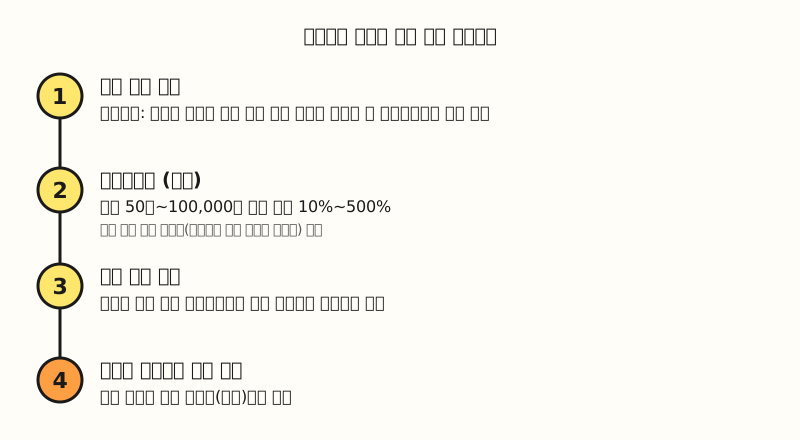 Example figure: a four-step summary of the setup steps in the Naver Ads help center (figure labels in Korean)
According to the help article on how bids are determined, if you enter a dedicated bid, that value is used in auctions for recommendation and content placements instead of the default bid or keyword bid. However, the dedicated bid is an ad-group-level value that applies to all recommendation and content placements, not just product pages, so if you want to adjust only the product pages separately, the excluded placements in step 3 are the better tool. Also, the help article explains that recommendation and content placements select ads based on AI-driven recommendations, placement relevance and popular keywords and topics, so exposure isn't always guaranteed, and products that aren't general consumer goods, such as those for business, office or commercial use, may not be shown even if you raise the bid.
Smart Store ads run from Smart Store Center are a little different. The Smart Store ads help article explains that these ads use automated bidding and appear on placements that perform well, so you can't choose placements or positions yourself, and performance by placement isn't provided. The help article comparing the two products explains that ADVoost Shopping uses the same technology but lets you make detailed settings like product filtering in the advertiser center, so if you want to look at placements in more detail, it's worth weighing which of the two to run as well.
How is the Shopping collection product count test different?
Product page ads may not be the only reason your impression counts changed. According to the Shopping collection test notice, in addition to ad positions and counts by keyword, Naver is running a test that changes the total number of products shown in the Shopping collection in mobile integrated search based on user response.
| Item | Product page ad expansion | Shopping collection test |
|---|---|---|
| Schedule | Effective October 28, 2026 | Round 1 Sept 17 to 24, round 2 Oct 15 to 22, round 3 Oct 30 to Nov 6 |
| Scope | Smart Store and Brand Store product pages (PC, mobile) | Part of mobile integrated search traffic |
| Eligible ads | Shopping Mall Product format, ADVoost Shopping | Shopping Search Ads, ADVoost Shopping (per the notice title) |
| What doesn't change | Registration, ranking, billing | Registration method, ranking, billing method |
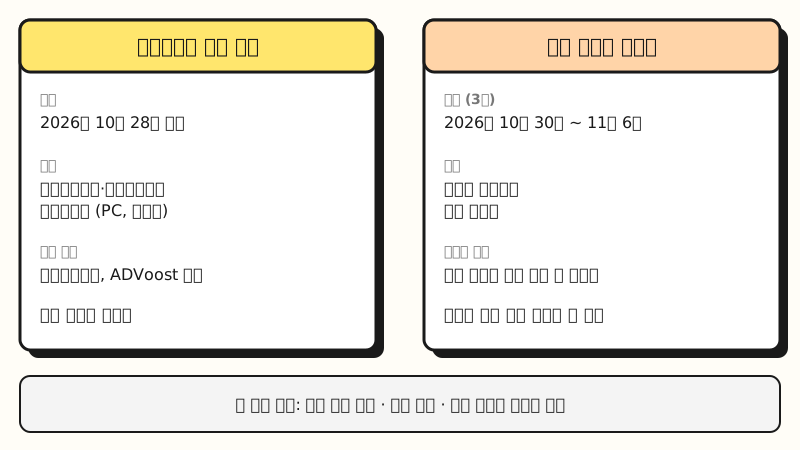 Example figure: comparison cards laying out the schedule and scope of the two notices side by side (figure labels in Korean)
The test notice also says that when a personalized block is attached below the Shopping collection, the existing two-row display changes to one row. It also says the composition of test traffic may change at any time, so if mobile impression counts swing in early November, I recommend first checking whether it overlaps with the test period before rushing to change bids.
※ Note: what else changes in November?
If you run Shopping Search Ads, there are two more changes scheduled for November besides the placements.
- Renaming to N Ads, November 4: according to the N Ads notice, the name and logo of the Naver advertiser center will change, but the URL, accounts, running ads and budget settings, and Bizmoney and coupons all carry over. The names of the terms of use and operating policies will also be updated on the same day.
- Click expectation score introduced and quality index retired, November 25: according to the click expectation score notice, each creative in Shopping Mall Product and Product Catalog ad groups will get a 1-to-10 score based on its past click-through rate, and the existing seven-level bar-style quality index will no longer be provided. You can read 1 to 3 as needs improvement, 4 to 7 as average, and 8 to 10 as good, and the notice clearly states that the score itself is a reference metric that doesn't decide whether or in what order ads are shown.
Both notices add that schedules may change due to internal circumstances, so it's safer to check the notices once more around the effective dates.
To sum up, this change means Shopping Search Ads in the Shopping Mall Product format and ADVoost Shopping now appear below the seller information on product pages, and you can adjust this with the ad group's placement settings and excluded placements. I plan to break down performance by placement once more when I look at shopping ad reports, and for the list of placements, please refer to the help article on recommendation and content placements.
FAQ
- Do Smart Store product page ads cost extra?
- According to the Naver Ads notice, this change only widens the placements, and ad registration, ranking and billing stay the same as before. You don't buy a separate product; existing Shopping Search Ads in the Shopping Mall Product format and ADVoost Shopping ads can appear in the new section.
- How do I exclude only product pages from Shopping Search Ads placements?
- For Shopping Search Ads, turn off the "Naver Shopping Smart Store Recommendations - Mobile/PC" placement in the ad group's advanced options, or add it to your excluded placements. The notice says ads can appear on product pages when this placement setting is ON.
- Do Product Catalog ads also appear on product pages?
- The October 28 notice covers Shopping Search Ads in the Shopping Mall Product format and ADVoost Shopping, and the Product Catalog format isn't listed. The help article on recommendation and content placements also lists the Smart Store recommendation placement as a Shopping Mall Product placement.
- Does a high click expectation score for Shopping Search Ads mean higher placement?
- No. According to the Naver Ads notice, the click expectation score is a reference metric that shows the expected click level on a 1-to-10 scale based on a creative's past click-through rate, and the display order is determined by factors such as the bid, the relevance between product information and the search term, and user response. It's scheduled to take effect on November 25, 2026.
Related posts
Posts that help you understand Naver shopping ads and product exposure together.
- How to Add Keywords When Listing Products: Naver Shopping Product Names, Tags and Categories - how to refine the product information Shopping Search Ads match against
- Ways to Drive Keyword Exposure for Shopping Search Ads - how exposure works for Shopping Search Ads, where you don't register keywords directly
- What Are the Ways to Optimize Search Ads? - how to review ad performance at the impression, click and conversion stages