Don't Shopping Search Ads Use Keyword Settings?
These days, shopping search ads are the ads e-commerce can't do without. In particular, depending on the keyword or placement, they can appear even above regular keyword search ads (PowerLink, Premium Link, etc.), so bid competition can get even fiercer.
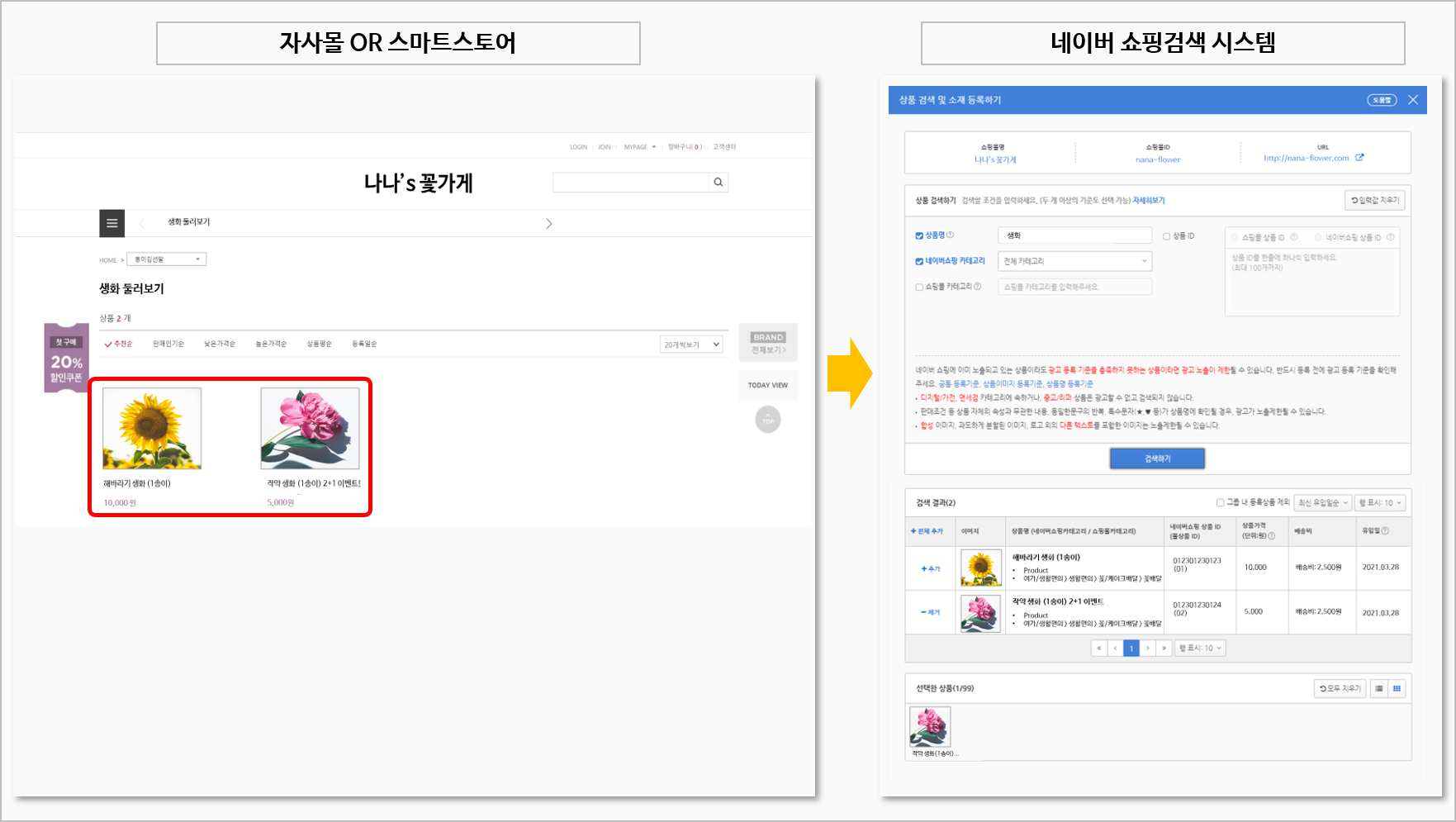
But! As I explained earlier in the post on the characteristics of each ad type, these ads don't work by registering specific keywords directly the way keyword search ads do, so it can be a headache when your ads don't get picked up for the keywords you want. Sometimes you raise your bid as high as you like and dig to the very end of the results, and your product still doesn't show up, right?
Today I'd like to share various methods you can try to get shown for shopping search keywords in cases like this. I'll explain with Naver (Korea's largest search engine) as the focus, but shopping search ads work in similar ways across platforms, so if you catch even one method, you can apply it to managing shopping/product search ads on other platforms too.
Understanding How Naver Shopping Search Ads Are Registered and Matched to Keywords
Know your enemy and know yourself, and you'll win every battle. If you understand shopping search ads and how keyword matching works, it should be a bit easier to find actions for getting shown on keywords, right?! So let's first talk about how shopping search ads are registered and how keyword matching works.
To start with the conclusion: with keyword search ads, you register keywords and write ad copy that fits them well, whereas with shopping search ads, it's best to think of it as registering the ad creative and having keywords matched to it. However, while keyword search ads also let you write the copy yourself, shopping search has no place to register keywords directly. So how does matching happen?
First, shopping search ads start by linking your online store to each portal's shopping center and pulling in the product information registered in your store to register the ad creative. That means your products need to be registered in your store first, and your store or Smart Store (Naver's e-commerce platform) needs to be registered with Naver Shopping. After the creative is imported, it goes through review, and the ad is shown as keywords get matched, but nobody knows which keywords it will be shown for. Still, if you sell hats, your ad shouldn't suddenly appear for T-shirts, so how do the platforms choose which keywords to show it for?
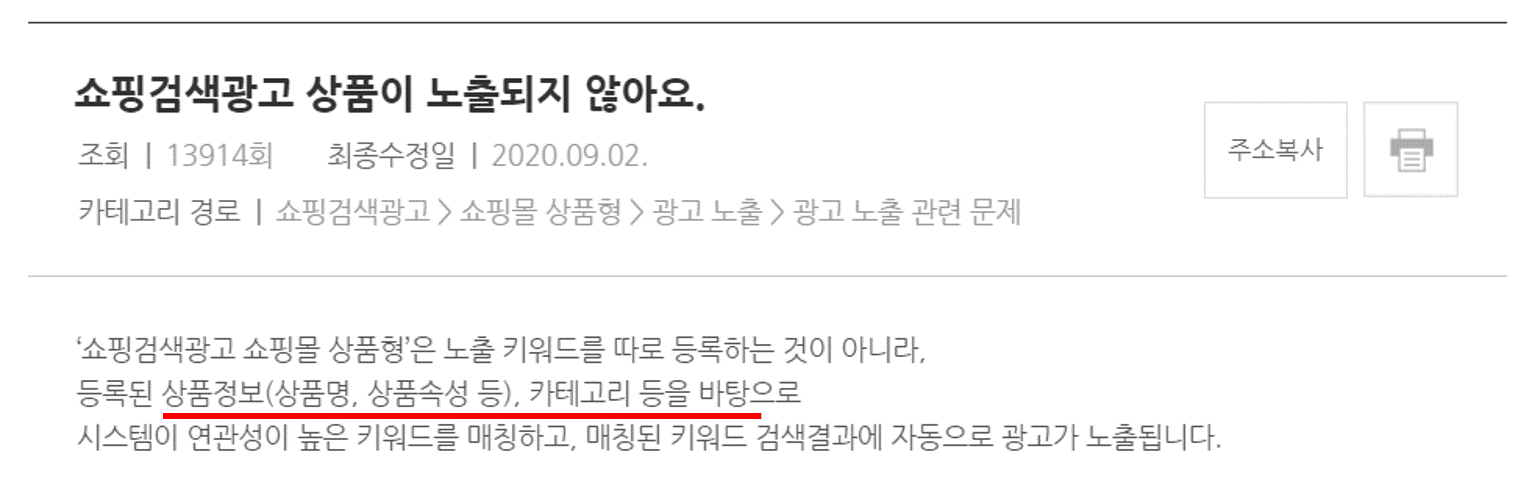
According to Naver's explanation, keywords are matched based on product information and category. In other words, the parts we can control are limited to roughly the product information and category. So let's look at how you can change the category and product information.
How to Secure Keywords for Exposure
1. Check the category and product name of products already showing for the keywords you want!
Just as you pick a role model and follow their lead to reach a goal, your chances of success with ads go up if you look at the best cases and follow them! Keyword matching is the same. If you figure out the characteristics of the product ads matched to the keywords you want, the chances of your ad being shown for those keywords go up.
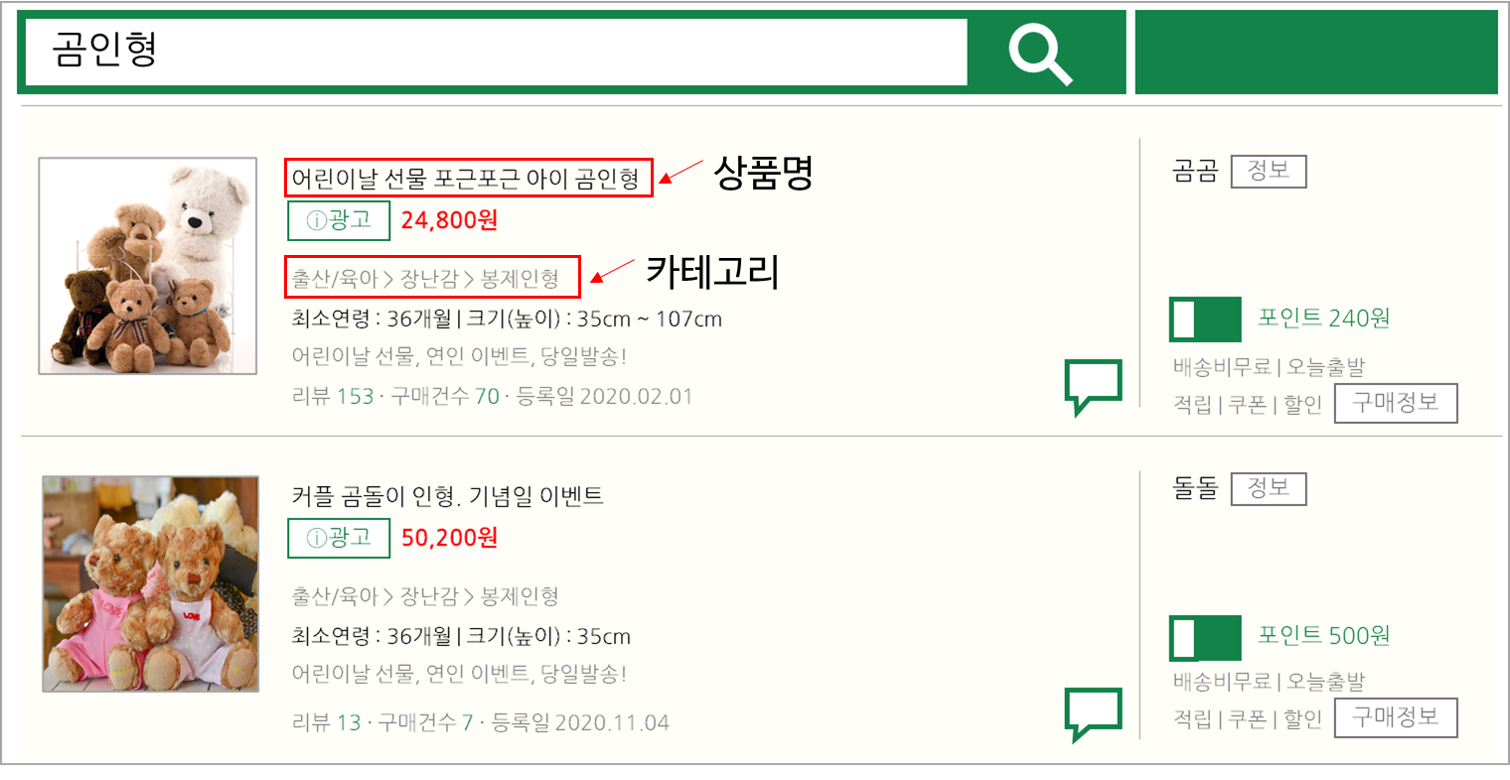
First, search Naver Shopping for the keyword you want, and check the category and product name of the products being shown as ads. In most cases, the search keyword will be included in the product name, or the category information will be set exactly the same. Then you just need to change your product's title and category based on the products currently being shown, right?
2. Change the category - edit in [Naver Shopping]
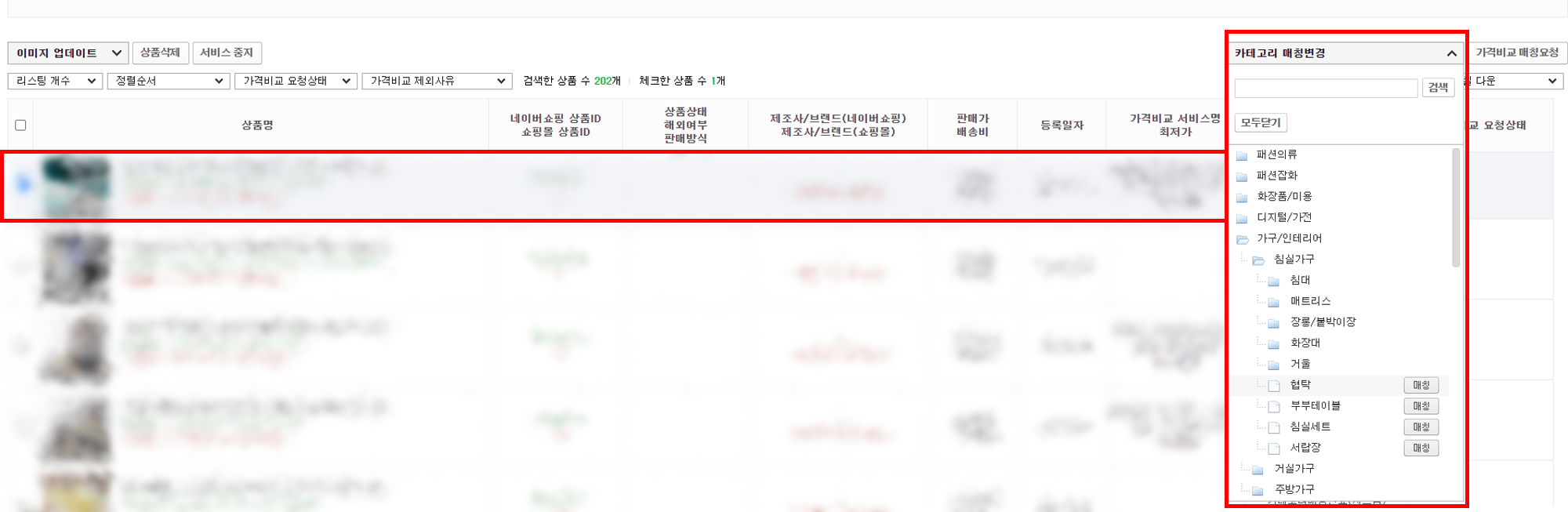
This is something you must check when you register products on Naver Shopping. Regular (non-ad) shopping search keywords are likely matched on a similar principle, so the category has to be matched well for organic traffic to come in too.
In particular, when a product is first registered, Naver also matches the category automatically, so it can occasionally end up in a strange category. For example, a beverage product might be placed in a hair product category. Then, naturally, it becomes hard to get food-related keywords.
In that case, you can try editing the product category in Naver Shopping. The changed category is automatically reflected in the shopping search ad system within a few hours, and within a few days the chances of being shown for related keywords go up. One more tip: remember that it shows up well only when even the detailed subcategory matches!
3. Change the product name - edit in [your store's product name] OR [the ad management system]
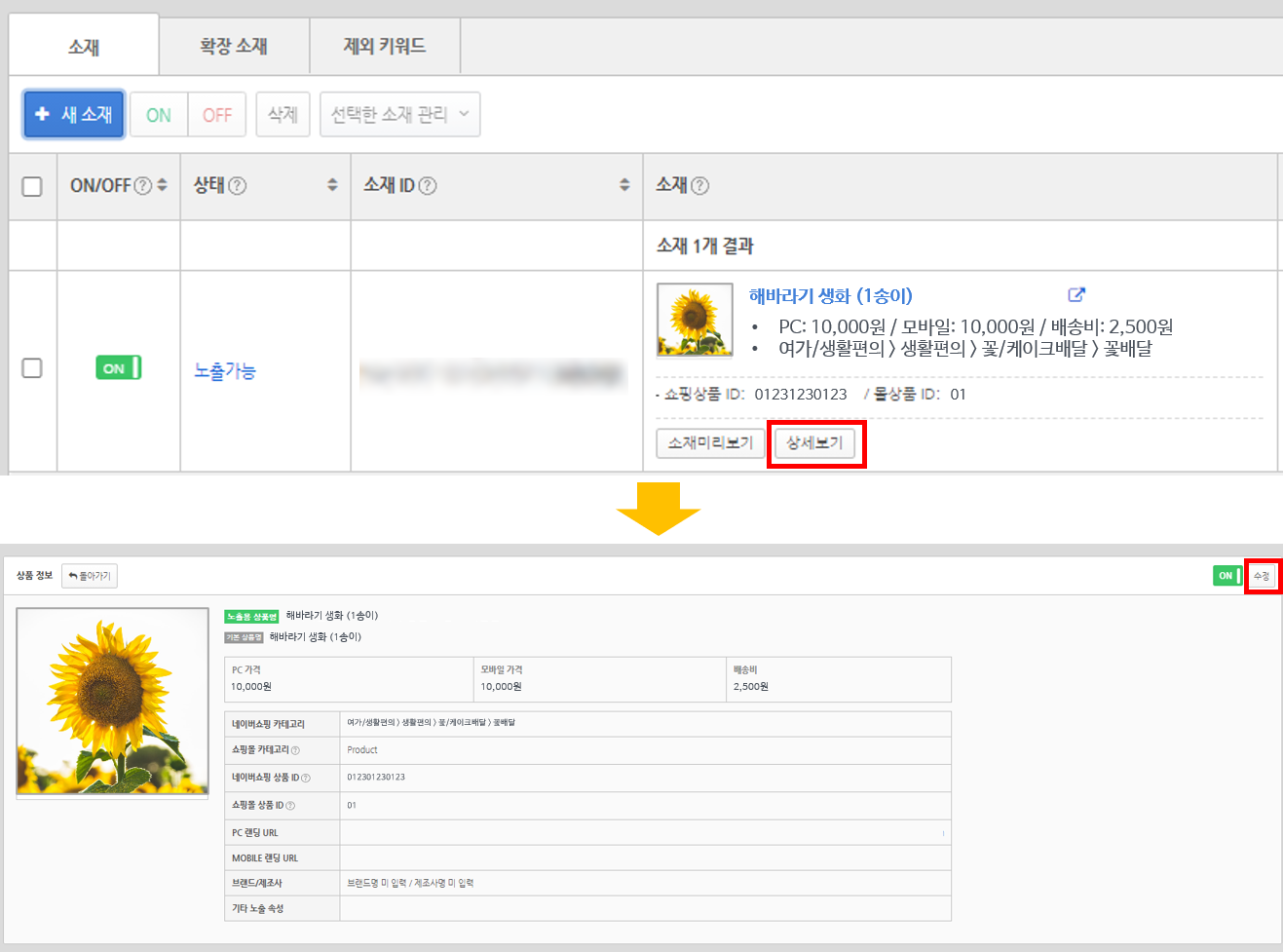
If keyword matching still doesn't work well after fixing the category, the next thing you can edit is the product name. Since the product name is pulled in exactly as it's registered in your store, there are two ways to edit it. One is to edit the displayed product name in your store, and the other is to edit it in Naver's ad management system. You probably already know how to manage your store, so I'll explain how to edit it in the ad management system.
If the keywords you want to be shown for are something like "bouquet" or "flower delivery," but you're only being shown for "sunflower," you can try including those keywords in the product name. Click the [View details] button on the creative registered in the group, then click the [Edit] button at the top right. The product name registered in your store appears at the top as the default product name, and below that is a place where you can edit the display product name. If you write a display product name there and register it, you'll see that the product name stays the same when people go to your site, and only the product name shown in the ad changes.
Once the category and product name line up properly like this, you can see your ad being shown for the keywords you wanted.
4. Set up excluded keywords
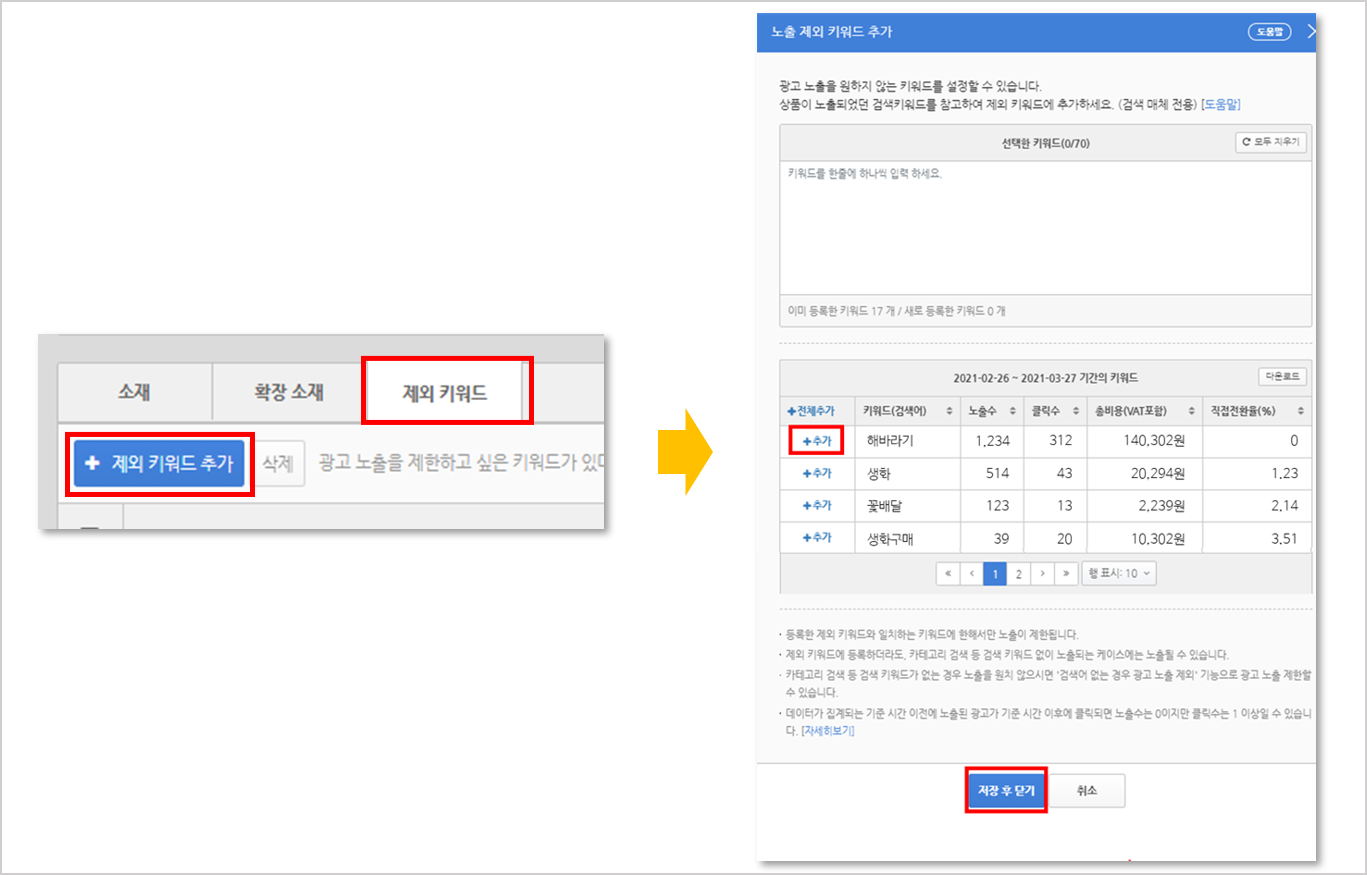
Even after you succeed in getting matched to the keywords you want, it can be hard to manage efficiency if CPC is hard to control or the ads concentrate on keywords you'd rather not be shown for. Before running ads you don't know which keywords they'll be shown for, but Naver shopping search ads provide a history of the shopping search ad keywords shown up to the previous day and have a feature for registering those keywords as excluded keywords, so you can manage efficiency with exclusion settings.
For example, "sunflower" is a main keyword, so it's likely to have a high bid and a low conversion rate. If it isn't converting well, registering it as an excluded keyword lets you manage your budget efficiently.