AI Max in Google Ads is an AI optimization feature you turn on inside a Search campaign. Once it's on, your ads can show for search terms you never added, and AI can also pick the ad headlines and landing pages. So if you use AI Max, you need to check whether the scope the AI has expanded fits your business by looking at the "search terms and ad combinations" view in the search terms report together with the keyword, asset, and landing page reports. Each report shows something different, so knowing up front where to find the results of each feature lets you review them without getting lost.
"I turned on AI Max, but which search terms did my ads actually show for, and with what copy?" If you run Search campaigns yourself, you've probably asked this question at least once. Unlike the days when you chose every keyword yourself, once more of the decisions are made by AI, the way you check results has to change too. Working in digital marketing, this was the part I was most curious about, and I wanted to write it down as I read the AI Max reporting help article. In this post, I'll cover what AI Max changes, which reports show its results, and what you can fix after reviewing them.
1. What Is Google Ads AI Max, and Why Look at Its Reports Separately?
The How AI Max works help article describes AI Max as an optimization feature you activate within an existing Search campaign, not a new campaign type. Turning on AI Max gives you three features, and the AI Max option is selected by default in new Search campaigns.
- Search term matching: Expands your existing keywords using broad match and keywordless technology, showing your ads on related search terms you haven't added.
- Text customization: Creates ad copy that fits the search term using text from your existing ads, landing pages, and assets, along with generative AI. It was formerly called "automatically created assets."
- Final URL expansion: When it's likely to improve performance, it sends users to a URL on your website that's more relevant to the search term.
The About AI Max help article cites a figure that advertisers who turned on AI Max in Search campaigns saw 14% more conversions or conversion value at a similar CPA or ROAS. But the source is Google's internal data (2025, non-retail advertisers), so you can't assume the same will hold for your account.
There's also a reason to look at this feature now. In its DSA upgrade announcement, Google said that campaigns using automatically created assets and campaign-level broad match settings will be automatically upgraded to AI Max starting in September 2026, and Dynamic Search Ads (DSA) campaigns starting in February 2027. That means even if you didn't turn it on yourself, campaigns with AI Max applied may appear in your account.
To use an analogy, it's similar to having someone do your grocery shopping for you. If you only wrote "milk" on the shopping list but the person running the errand might also bring back similar soy milk or yogurt, the first thing you'd look at when they get home is the receipt. AI Max reports play exactly that receipt role. So which lines on the receipt should you look at?
2. Where Do You See the Search Terms AI Max Expanded To?
The first place to look is the search terms report. According to the search terms report help article, you go to Campaigns → Insights & reports → Search terms in the left navigation panel. There are three things to check here related to AI Max.
- Search type column: Shows how closely the search term that triggered your ad relates to your keywords, and search terms that came in through AI Max are labeled "AI Max."
- Source column: A column you add to the default view yourself, showing whether a match came from broad match expansion or from keywordless search.
- "Search terms and ad combinations" view: A view you select from the search terms drop-down above the table, showing the search term that triggered your ad together with the headline, landing page, campaign, and ad group used at that time, all in one row.
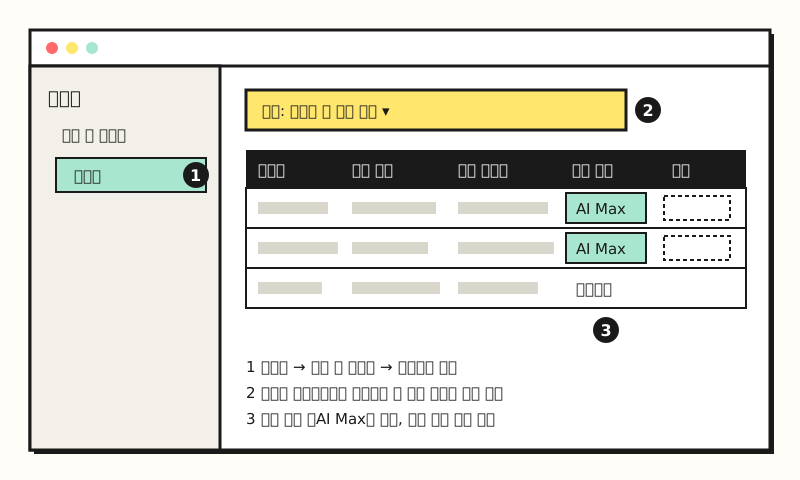 Example figure: not the actual Google Ads screen, but a simplified drawing of the menu locations described in the help article (figure labels in Korean).
The help article lists the third view as "Search terms and ad combinations (formerly: AI Max search terms and landing pages)," so the old "AI Max search terms and landing pages" view has been given a new name. Industry outlets have reported that this name started appearing in some accounts from mid-October, but I haven't yet found a launch date announced separately by Google. Even if your account still shows the old name, just check the drop-down in the same place.
There's one thing to be careful about here. The help article notes that if you filter the search type to "AI Max" only, "other search terms" are left out, so AI Max's numbers may look lower than they really are. The search terms report already omits search terms without enough search activity under its privacy standards, so it's better not to conclude that AI Max contributed little based on the filtered results alone.
3. What Should You Look at in the Keyword, Asset, and Landing Page Reports?
If the search terms report shows "which search terms the ads showed for," the other reports break down AI Max's results by feature. Here is the "Reporting for all AI Max features" section of the reporting help article, turned into a table.
| AI Max feature | Where to look | What to check |
|---|---|---|
| Search term matching | Keywords report | The two total rows at the bottom: "Total: AI Max broad match" and "Total: AI Max landing page match" |
| Text customization | Campaign- and ad-level asset reports | Headlines and descriptions marked "Google AI" in the "Source" column |
| Final URL expansion | Landing pages report | Whether the URL was chosen by AI Max, in the "Selection method" column |
The two total rows in the keywords report mean different things. "AI Max broad match" is traffic from broad match keywords that AI Max expanded based on the keywords you added, while "AI Max landing page match" is traffic from search terms matched because of your landing pages or assets, regardless of keywords. Traffic from URLs expanded by final URL expansion is also reflected in this landing page match row.
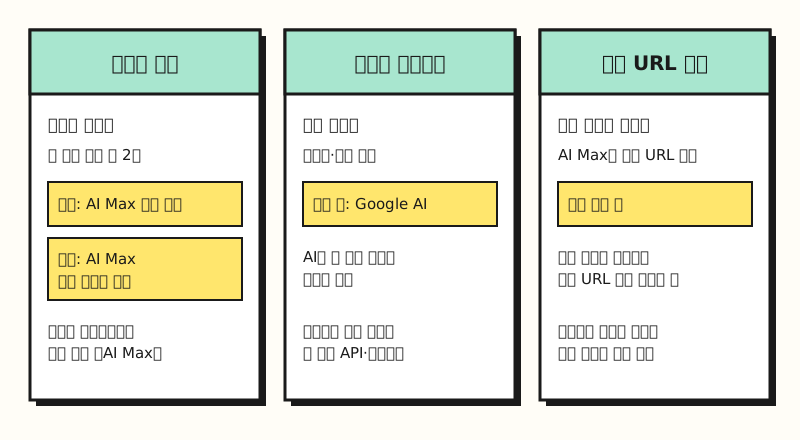 Figure: the report and column where you check the results of each AI Max feature, paired up (figure labels in Korean).
The asset report also has a campaign-level "Expanded final URL assets" tab, which shows the combinations of URLs expanded by final URL expansion and the assets that served with them. It's a handy tab for checking that AI-written copy hasn't been paired with an unrelated page.
Note: Conditions to Know Before Reading the Reports
Rather than drawing conclusions from AI Max reports right after turning it on, it's better to check the conditions first.
- Wait two weeks: The help article recommends waiting at least two weeks after turning on AI Max before making changes such as adding negative keywords. That's because Google Ads is learning and optimizing during this period.
- Bid strategy and budget: The AI Max setup help article says you need a conversion-based Smart Bidding strategy to use search term matching, final URL expansion, and text customization effectively, and the how-it-works help article notes that AI Max can't be used effectively in campaigns that are limited by budget.
- Pinned assets: If you turn on final URL expansion or URL inclusions, pinned responsive search ad assets won't be used when a more relevant URL is selected. If you absolutely need your pinned assets, you'll have to turn off both settings.
- Tracking templates: If you've put a fixed URL in your tracking template without the
{lpurl}tag, users may be sent to that fixed URL instead of the landing page chosen by final URL expansion.
When your report numbers look strange, checking these four things first makes it easier to narrow down the cause. So what can you fix after reviewing the reports?
4. What Should You Fix After Reviewing the Reports?
The actions the help article describes fall into those you can take right from the report screen and those you take in settings.
- Exclude search terms and landing pages: In the search terms report, select the checkbox next to an underperforming search term or landing page, then choose "Add as negative keyword" or "Add as URL exclusion."
- Remove assets: In the asset report, click the status icon and choose "Remove." However, text assets customized by Google can't be removed in bulk in the Google Ads interface; you can only remove them in bulk with the Google Ads API or Google Ads Editor.
- Include and exclude URLs: On the keywords page, use the "URL inclusions" and "URL exclusions" tabs to set which pages AI Max can and can't use. You can also exclude them directly from the landing pages report.
- Brand settings: Create a list under "Tools → Shared library → Brand lists," then apply it as an inclusion or exclusion in the AI Max settings panel of a campaign or ad group.
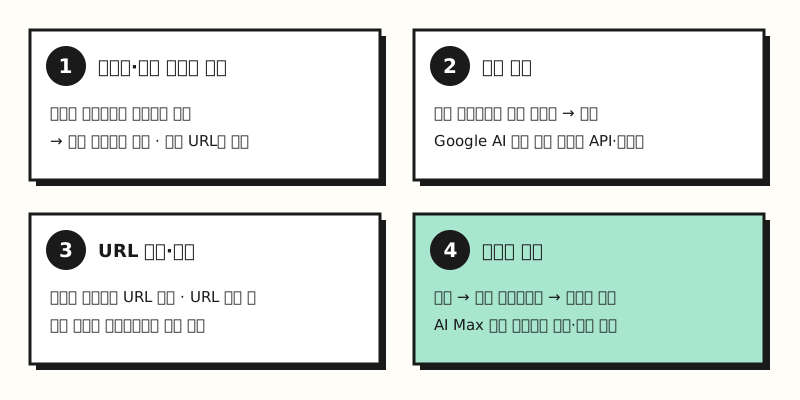 Figure: the actions from the help article, grouped by where they sit in the reports (figure labels in Korean).
That said, I recommend using negative keywords sparingly. The best practices at the very end of the reporting help article (which appear alongside a description of a travel Search campaign) also say to add negative keywords only for search terms that consistently underperform against your goals across all campaigns, and that overusing them can limit the effectiveness of intent-based targeting. When you first see the search terms the AI has expanded to, many of them look unfamiliar and you'll be tempted to block them one by one. But just as the same best practices say to prioritize meeting your conversion goals over strict keyword relevance, deciding whether to keep or block a term based on conversions, rather than on whether it exactly matches your keywords, fits the reason you turned on AI Max in the first place.
5. Summary: When and How Should You Read AI Max Reports?
Because AI Max is a feature where AI chooses the search terms, the ad copy, and even the landing pages, it's easiest to follow if you look at the overall picture in the "search terms and ad combinations" view of the search terms report first, then break down the results by feature in the keyword, asset, and landing page reports. I recommend opening the reports once two weeks have passed since you turned it on, and starting with a few exclusions and removals at a time, based on conversions. If bid strategies are still unfamiliar, please also see Google Ads bid strategy basics. As the automatic DSA upgrade gets closer, I'll write up what's changed again.
FAQ
- Is Google Ads AI Max a new campaign type?
- No. The How AI Max works help article describes AI Max not as a new campaign type but as an optimization feature you activate within an existing Search campaign. Turning it on gives you search term matching, text customization, and final URL expansion, and each can be turned off at the ad group or campaign level.
- Where do I find the AI Max search terms report?
- In the left navigation panel, go to Campaigns → Insights & reports → Search terms. If you select the "Search terms and ad combinations (formerly: AI Max search terms and landing pages)" view from the search terms drop-down above the table, you can see the headline, landing page, campaign, and ad group alongside each search term.
- How can I tell which ad headlines were created by AI?
- In the campaign-level and ad-level asset reports, text assets customized by Google are marked "Google AI" in the "Source" column. You can remove assets you don't like, but they can't be removed in bulk in the Google Ads interface; you can remove them in bulk with the Google Ads API or Google Ads Editor.
- What happens if I'm using Dynamic Search Ads (DSA)?
- Google said it will automatically upgrade DSA campaigns to AI Max starting in February 2027. After the upgrade, dynamic ad groups become standard ad groups, search term matching, text customization, and final URL expansion are turned on, and your existing URL settings are kept. Campaigns using automatically created assets and campaign-level broad match settings are subject to the upgrade starting in September 2026.
Related Posts
Posts that pair well with this one on running Google Ads and its AI features.
- Google Ads bid strategy basics - The core concepts behind the Smart Bidding that AI Max requires
- What are the ways to optimize search ads? - Strategies for improving performance at the impression, click, and conversion stages
- Google Ads AI campaign localization tools - Another generative AI feature added to Search campaigns