GA4 user-provided data collection (UPD) is a feature that hashes the email addresses, phone numbers and addresses you collect with consent on your website, sends them to GA4, and lets Google match them against its own data to improve measurement accuracy. On November 11, 2026, the GA4 release notes added a new diagnostic that flags setup problems with this feature, so properties that had it turned on but were not actually receiving any data now show up right in the Admin page. There are three collection methods, automatic detection, specifying CSS selectors or JavaScript variables, and adding a code snippet, so choosing the right one for your site is half of the setup.
"There's a warning in GA4 Admin saying it isn't receiving UPD. What exactly am I supposed to fix?" Some of you may have thought enhanced conversions were already on and were surprised to see a diagnostic alert. User-provided data is not finished by flipping one switch in GA4; the tag settings of your data stream and the collection method on your site also have to line up before any values actually get through. In this post, I'll walk through what GA4 user-provided data is and what it's used for, what the two new diagnostic alerts mean, how to choose among the three collection methods, and how to check that the data is really being sent.
1. What is GA4 user-provided data, and what is it used for?
According to the user-provided data collection help article, GA4 Administrators and Editors can turn on this feature to send consented, first-party data from a website to GA4, and the data is matched with other Google data in a privacy-safe way. The values you can send are hashable fields such as email addresses, phone numbers and addresses, and on a website you can either hash them yourself with SHA256 or send unhashed values and let the Google tag hash them. SHA256 is a one-way hashing method that can't be reversed, so the email isn't passed along as is; it is turned into a long, code-like string before it's sent.
The help article lists three uses.
- Enhanced conversions: Fills the gaps in Google Ads interactions that are missed when cookies or other identifiers aren't available, and improves conversion modeling, bidding and cross-channel reporting.
- Customer Match targeting: Supports Customer Match targeting for GA4 audiences exported to linked Google advertising products, increasing the audience you can reach.
- Demographics and interests: Provides demographics reporting based on first-party data and data from consented, signed-in Google users.
The part that's easy to confuse is how it differs from User-ID. The help article describes User-ID as a unique, non-personally identifiable identifier you assign to signed-in users (for example, a CRM member number), and user-provided data as hashable personal information fields you send to Google. As an analogy, User-ID is a locker number that only works in your own store, while user-provided data is closer to a contact card in a sealed envelope. A locker number tells you whether the same customer came back, but it can't be joined with Google's records, whereas a sealed contact card can be matched to the same person without Google ever opening it. The help article recommends using both together.
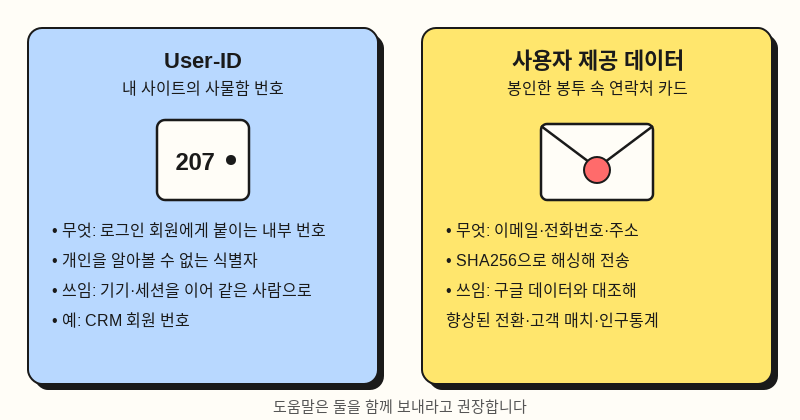 User-ID links the same person within your site, while user-provided data matches against Google data using hashed values (figure labels in Korean)
2. What do the diagnostic alerts added in November mean?
According to the November 11 entry in the GA4 release notes, when a property fails to receive user-provided data or runs into quality issues, diagnostics appear in the GA4 Admin and Data streams panels. The diagnostics troubleshooting article says these alerts can appear in the property's Admin > Data collection and modification > Data collection settings and in Task Assistant, and it splits them into two types.
| Diagnostic alert | Meaning | Fix the help article recommends |
|---|---|---|
| Your property is not yet receiving UPD from a Google tag or Data Manager API | Collection is on and the terms are accepted, but no values are coming in | Update the collection method to automatic collection, CSS selectors or manual code on the page |
| Your property's UPD has a low PII rate | Values arrive, but there's too little personally identifiable information (PII) to be useful | Switch from automatic collection to GTM manual setup, CSS selectors or JavaScript variables, a code snippet, or the Data Manager API |
Going by the help article's description, the first alert means the switch on the GA4 side is on, but your site isn't actually sending any values. That's because, as the gtag.js collection article shows, separately from the property's User-provided data collection, you also have to enable Allow user-provided data capabilities in the Google tag settings of your web data stream and choose at least one way to identify the data. The implementation verification article also points out that both settings must be on for it to work properly.
For the second alert, the help article recommends adding manual code to the page instead of relying on automatic collection. The diagnostics article gives these examples of why values come up empty: pages where a signed-in customer didn't re-enter their information, data that was only collected on a previous page, and CSS selectors that don't work in some browsers or behave differently on mobile and desktop.
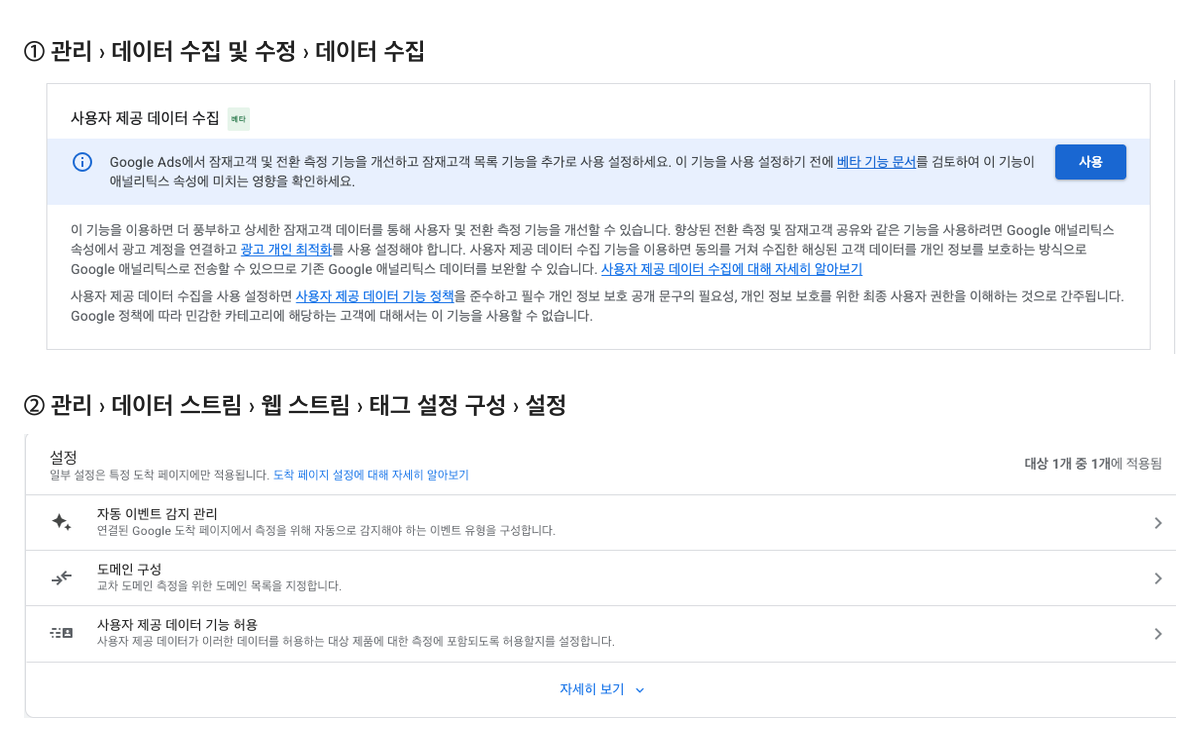 Source: this blog's own GA4 property admin screens (November 2026). (1) is a property-level setting, (2) is a Google tag setting on the web stream; the Google tag settings now open in a Tag Manager-style view (screen in Korean).
3. Automatic detection, CSS selectors or a code snippet: which should you choose?
The gtag.js collection article offers three identification methods, and for sites using GTM there's one more: adding a user_data parameter to your GA4 event tag, as described in the GTM manual configuration article.
Putting them side by side on the same criteria makes the differences clear.
| Method | How it finds data | Accuracy and stability | Effort | Best for |
|---|---|---|---|---|
| Automatically detect user-provided data | Scans the page for strings matching email, phone, name and address patterns | Lowest. The help article also recommends using it with the options below | Just tick a box | When you want to turn it on and see what happens |
| Specify CSS selectors or JavaScript variables | Specify a CSS selector for a page element or a global JavaScript variable for each data type | More accurate than automatic detection, but not as reliable as a code snippet | Copy and paste selectors using developer tools | Sites whose page structure rarely changes |
| Add a code snippet to your website | Pass values directly in page code with gtag('set', 'user_data', {...}) | Most reliable | Requires development work | Sites that frequently change sign-up or checkout pages |
| GTM User-Provided Data variable | Connect a manually configured variable to the user_data parameter of an event tag | Depends on the quality of the variables you connect | Marketers can do it with GTM access | Sites already running GA4 through GTM |
Here are the decision criteria I came up with while reading the help articles.
- If it's hard to get help from a developer: Start with GTM manual configuration if you have GTM, and with specifying CSS selectors if you don't. This is because if you only turn on automatic detection, you're likely to run into the second diagnostic alert.
- If you frequently change your sign-up or checkout pages: The help article itself recommends a code snippet. When the page design changes, CSS selectors can end up pointing to the wrong element or finding nothing at all.
- If you run an online store with many signed-in members: The email may not be visible on the order confirmation page, so it's better to pass the member information variables your site already has rather than on-screen elements.
- If you turn on automatic detection alongside a manual method: According to the collection article, automatic detection only kicks in when the manual or code method doesn't identify the data, so you can leave it on as a backup without overlap.
4. If you manage an online store, in what order should you set it up?
Let's imagine a marketer at an online store that uses both GA4 and Google Ads and wants to send email addresses and phone numbers with the purchase-complete event (this is a hypothetical scenario).
- Check links and permissions first: According to the collection article, the GA4 property must be linked to a Google Ads account, and you need Editor or higher permissions at the property level to turn on the feature.
- Turn on collection in the property: In Admin > Data collection and modification > Data collection, click Turn on under User-provided data collection, review the User-provided data policy, then click Turn on again.
- Allow the capability in the data stream: In Admin > Data collection and modification > Data streams, select your web stream, enable Configure tag settings > Settings > Allow user-provided data capabilities, then choose an identification method and save.
- Connect the values in GTM: Add
user_dataunder Event Parameters in the purchase-complete GA4 event tag, create a User-Provided Data variable as the value, and connect your email and phone variables with Manual configuration. The GTM article says to skip the value formatting field, and changes only take effect after you click Submit to publish. - Match the value formats: Phone numbers must be in E.164 format, meaning digits with a
+and the country code, without dashes, parentheses or spaces. For a Korean mobile number, you would send something like+821012345678(example).
If you pass values through code instead of GTM, you can shorten the example from the code snippet article like this.
userEmail and userPhone are example values that you need to replace with the names of the member information variables your site already has.
gtag('set', 'user_data', {
  "email": userEmail,          // use email for unhashed values
  "phone_number": userPhone    // E.164 format, e.g. "+821012345678"
});
If you send values you've already hashed, you need to change the key names to ones starting with sha256_, such as sha256_email_address and sha256_phone_number.
The code snippet article says to normalize the data before hashing by removing leading and trailing whitespace and converting it to lowercase, and explains that if you pass the same value in event, config and set, event takes the highest priority.
5. Note: What limitations should you know before setting it up?
- It's still in open beta: The collection article and the GTM and gtag.js setup articles all label this feature as open beta, so menu names and behavior may change.
- Properties in the "Health" industry category can't use it: The collection article says so.
- It can take up to a month to see the effect: It can take that long for improved modeling and attribution from enhanced conversions to show up in GA4 and Google Ads reports and bidding. So it's best not to turn it off just because conversions didn't rise a few days after you enabled it.
- Retention follows your property settings: Your user data retention setting (2 months or 14 months) applies as is.
- Consent comes first: The user-provided data policy requires that you only send first-party data and obtain end-user consent for the collection, passing and use of personal information. It also states that this works independently of users' consent mode
ad_storageandanalytics_storagechoices. - Addresses are based on English characters: The diagnostics article says first and last names should be written in English letters and the country as a 2-letter code. For Korean sites that mostly collect names and addresses in Korean, I think it's more realistic to focus on sending email addresses and phone numbers.
- Data is only hashed on HTTPS pages: Error code
e3in the diagnostics article means the data wasn't hashed because the page is HTTP. - Policy acknowledgment can't be undone: Acknowledging the feature policy is permanent, but if you uncheck the checkbox, user-provided data won't be processed in the property.
Once the setup is done, you need to check that values are actually being sent. Here are the Chrome developer tools steps from the implementation verification article.
- On a page that sends values, such as the order confirmation page, right-click and select Inspect.
- With the Network tab open, refresh the page and type
googlein the search box. - Select the request going to
www.google-analytics.com/g/collect(oranalytics.google.com/g/collectin some browsers) and open the Payload tab. - If the
emparameter showstv.1~emfollowed by a long hashed string, it's working. If you only seetv.1~em, or a code frome0toe3follows it, the setup needs fixing.
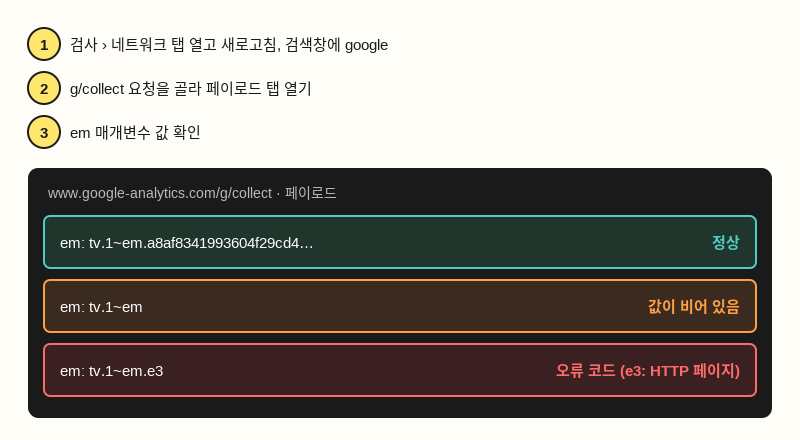 Example figure: a long hash after em means it's working; an empty value or a code like e0 or e3 means a setup error (figure labels in Korean)
According to the diagnostics article, e0 means a formatting error (for example, an email without @), e1 an unsupported legacy browser, e2 a SHA256 hashing failure, and e3 an HTTP page.
It also recommends using Google Tag Assistant to check every page with a conversion tag across browsers and devices.
Wrapping up
GA4 user-provided data collection only starts working once you've turned on both User-provided data collection in the property and Allow user-provided data capabilities in the data stream, and you're passing values with an identification method that suits your site. The diagnostic alerts added in November are a signal that tells you which part is missing, so if you see one, I recommend first checking whether you're relying only on automatic detection, and whether your formats and HTTPS are right. I'll share an update if the menus or behavior change after the beta ends. For detailed setup of each method, please refer to the help articles linked in this post.
FAQ
- If I turn on GA4 user-provided data collection, is the email sent to Google as is?
- No. On a website, you either hash it yourself with SHA256 before sending, or send unhashed values and the Google tag normalizes and hashes them before sending. When sending through the Measurement Protocol, you must hash the data beforehand.
- Do I need to set up GA4 enhanced conversions and Google Ads enhanced conversions separately?
- In most cases, setting up one doesn't automatically apply to the other. GA4 enhanced conversions become available once you set up user-provided data collection, and they're automatically shared with Google Ads accounts that import GA4 conversions. If you bid using Google Ads conversion tracking, you need to set up enhanced conversions on the Google Ads side separately.
- How is user-provided data different from User-ID?
- User-ID is a non-personally identifiable internal identifier you assign to signed-in users, used to connect devices and sessions. User-provided data is hashable fields such as email, phone number and address, matched against Google data for enhanced conversions, Customer Match and demographics. The help article recommends sending both together.
- I fixed the UPD diagnostic alert. When will it go away?
- The help article doesn't say when alerts disappear. After fixing it, first check with developer tools or Tag Assistant that a hashed value is included in the em parameter, and keep in mind that the effect of enhanced conversions can take up to a month to show up in reports and bidding.
Related posts
Posts worth reading alongside GA4 and Google Ads data connections.
- GA4 Data Manager: Streams, Links and Imports in One Place - The GA4 data connection hub launched in November
- Google Ads Data Strength: Tag Gateway and Enhanced Conversions - Enhanced conversions and identifier signals on the Google Ads side
- GTM Tags, Triggers, and Variables: Google Tag Manager Basics - The basics to know before connecting a user_data variable in GTM