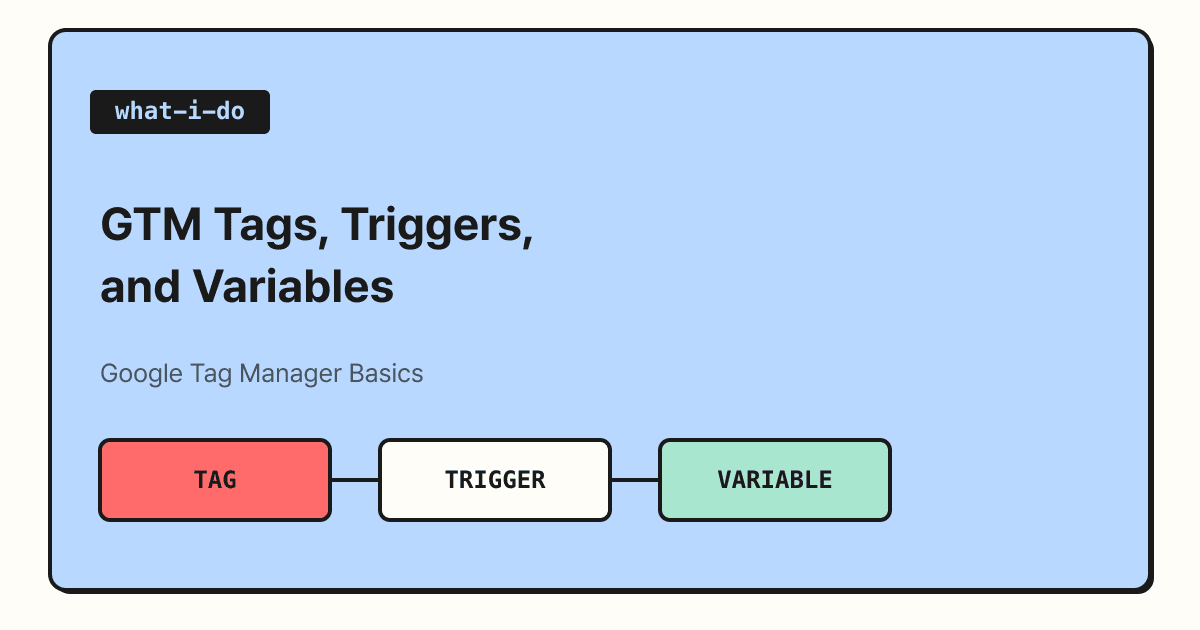
Google Tag Manager (GTM) works through three pieces fitting together: tags, triggers, and variables. A tag is the code that sends data, a trigger decides when that tag runs, and a variable is used to set conditions or fill in the values to send. In this post I'll go over these three concepts and look at how they combine, using a GA4 event as an example.
If you've set up GA4, you've probably heard someone say, "Just track the button click with GTM." But when you actually open GTM, the Tags, Triggers, and Variables menus sit side by side, and it's hard to know what to create first. Once you clearly separate the role of each, the settings screens become much easier to read, so in this post I'll walk through these basic concepts step by step.
1. What is Google Tag Manager?
The Tag Manager overview help article describes GTM as a tag management system that lets you configure and manage tags without editing your site's code. Once you add the two GTM code snippets to every page of your site, you can then add and edit tags for GA4 or ad platforms from the GTM interface. The bundle of tags, triggers, variables, and related settings installed on a site is called a container.
The components help article describes GTM's components like this.
| Component | Official description | In one line |
|---|---|---|
| Tag | Code that sends data to a system like Google Analytics | What to send |
| Trigger | Something that listens for events like clicks, form submissions, and page loads | When to send |
| Variable | A named placeholder for values that change, like product name, price, or date | Which values to use |
| Data layer | A place that temporarily holds values so tags, triggers, and variables can use them | The channel that passes values |
A shipping analogy makes this easy to understand. A tag is the box you're sending, a trigger is the shipping condition like "ship when an order comes in," and a variable is the recipient and quantity written on the shipping label. Just as a package doesn't go anywhere if you have a box but no shipping condition, a tag doesn't run without a trigger.
2. When does a trigger fire a tag?
According to the triggers help article, a trigger listens for events like form submissions, button clicks, and page views, and when its conditions are met, it fires or blocks the connected tag. That's why every tag needs at least one trigger.
A trigger's condition has three parts.
- Variable: What to look at (e.g., Page URL)
- Operator: How to compare (e.g., equals, contains, matches RegEx)
- Value: What to compare against (e.g.,
/products/)
As in the help article's example, if you set the condition "when Page URL contains /products/," the tag runs only on product pages.
Notice that variables also go into the condition slot of a trigger.
Because variables are used in both tags and triggers, it's better to understand the three as one set rather than as separate pieces.
3. Where are variables used?
The variables help article describes a variable as a named placeholder whose value is filled in when the code runs, and splits its uses into two.
- In triggers: Used as conditions that decide when a tag runs. For example, you can make a tag run only on URLs that contain certain text.
- In tags: Used to carry and send values that change. For example, you can pass the transaction amount and product ID to a conversion tracking tag.
Variables come in two kinds: built-in variables that GTM has already created, and user-defined variables that you create yourself as needed. Page URL, which returns the current page address, is a typical built-in variable. You can think of it this way: most setups can be handled with built-in variables, and you create user-defined variables when your site needs a different value.
4. What does it look like combined into a GA4 event?
Here's the setup "send an event to GA4 when someone clicks the Contact Us button," broken into the three pieces. Actual settings vary depending on your site's structure, so treat this as a way to understand the flow.
| Component | What it does in this example |
|---|---|
| Tag | Sends an event like click_contact to GA4 (the name is just an example) |
| Trigger | Fires when the clicked element's text is "Contact Us" |
| Variable | Uses values like the clicked text and current page URL in the conditions and event parameters |
If you want to measure the submission of the contact form itself rather than the button click, it's easier to work with in reports if you use the GA4 recommended event generate_lead (for when someone submits a form or a request for information).
Once you've finished setting it up, I'd recommend turning on Preview before publishing right away. According to the Preview help article, clicking the Preview button in your workspace opens Tag Assistant, where you can test your settings on the live site before publishing. You can also see which tags fired in what order and what values came into variables and the data layer, so you can catch misconfigured trigger conditions before publishing. Preview and publishing are separate steps, so you need to publish separately after checking for the new version to go live on your site.
Summary
In GTM, tags handle "what to send," triggers handle "when to send," and variables handle "which values to use." When you create new tracking, writing out these three in sentences first, checking with Preview, and then publishing will cut down on mistakes a lot. For detailed settings in each menu, see the official help articles linked in the post.
FAQ
- Which should I create first in GTM: tags, triggers, or variables?
- Usually you start by creating the tag, which defines the data to send, and then connect a trigger from the tag settings screen. If a variable you need for a condition or value isn't among the built-in variables, you create a user-defined variable separately.
- What happens if I create a tag without a trigger?
- It won't run. The official help article explains that every tag needs at least one trigger to work.
- How do I check whether my tags are working?
- Open Tag Assistant with the Preview button in your GTM workspace. You can see which tags fired in what order and the values in variables and the data layer, and after checking, you need to publish separately for the changes to go live on your site.
Related posts
- Understanding Attribution Models with Google Analytics - A framework for interpreting the data you collect with GTM
- Chatbots, AI Agents, and Automation: What's the Difference? - Useful for understanding how tag automation differs from AI automation
- Google Ads Scripts Basics: Entities, Iterators, and Selectors - How to automate ad operations with code