GA4 Data Manager is a new menu that gathers data streams, connected products and data import into a single tab of the Admin page. It appeared in the GA4 release notes on November 6, 2026 as an open beta, and it shows where your data comes in and where it goes like a map, letting you fix broken connections right away. That said, if you already connected the same data on the Google Ads side, conversions can be counted twice, so it's important to decide first what gets managed where.
"Where did we put the Meta ad costs in GA4 again? And who linked Google Ads?" When several people touch one GA4 property, data streams live in one menu, product links in another and data import in yet another, which makes it hard to see the state of every connection at once. Have you ever clicked around the Admin page just to find out what is actually connected? In this post, let's look at what GA4 Data Manager shows, how it differs from the existing menus and from Google Ads Data Manager, and then walk through importing Meta ad costs and the things to watch out for while it's in beta.
1. What is GA4 Data Manager, and where is it?
The GA4 release notes introduce Data Manager as a new hub in Admin for connecting and controlling product links, data streams and first-party data. According to the Data Manager help article, you find the Data Manager tab in the left navigation of the GA4 Admin page, and because it is an open beta, the feature may change. Right now the help article is only in English, so you'll need to check in your own property what it is called in other interface languages.
The help article lists four capabilities.
- Centralized management: You set up, manage and troubleshoot your data setup on one screen.
- Simplified ingestion: Bringing data in is a single all-in-one flow, with more connectors available.
- Data connection map: It visualizes how data flows from source through the property to export destinations, so you can spot bottlenecks or setup errors.
- Data strength guide: It proactively finds measurement gaps and recommends improvements based on specific signals.
The data connection map is easy to picture if you think of a subway map. Just as a subway map puts a station (the property) in the middle and shows which lines (data sources) come in and where they continue, the connection map puts the property in the center with data sources on the left and data export destinations on the right. The expanded view is split into four columns, Data sources, Data types, Property and streams, and Data export, and hovering over a node highlights the path that one piece of data travels. Sources with problems show a broken state or a red status indicator, and the help article explains that clicking one shows the issue in a summary card, where you can click Fix to resolve it directly.
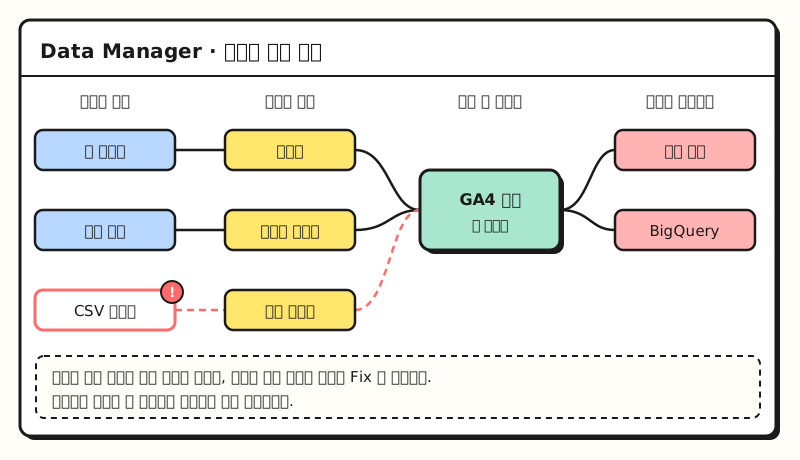 Example illustration: a simplified layout of the data connection map. Names and placement may differ from the real screen (figure labels in Korean)
2. How does it differ from the existing menus and Google Ads Data Manager?
Data Manager's arrival doesn't mean the existing features are gone. The path in the About Data Import article (Admin > Data collection and modification > Data import) and the Product links menu in the Google Ads linking article are still documented, and Data Manager is closer to a single screen that gathers those connections. The help article says existing imports automatically appear in Data Manager and recommends using Data Manager for any future connections.
What's easy to confuse is that Google Ads has a tool with a similar name. According to the Google Ads Data Manager help article, that one lives in the Google Ads Tools menu and connects data sources such as BigQuery or HubSpot for uses like Customer Match and offline conversion imports.
| GA4 Data Manager | Existing GA4 menus | Google Ads Data Manager | |
|---|---|---|---|
| Location | GA4 Admin > Data Manager tab | Admin > Data streams, Product links, Data import | Google Ads Tools menu |
| What it does | See and fix streams, product links and imports on one screen | Set up each feature separately | Connect first-party data for Customer Match and offline conversions |
| Connection status | Data connection map, red status indicators | Check each menu separately | List of data sources and destinations |
| Data flow | One way, from GA4 to linked Google Ads and GMP | Varies by feature | Used inside Google Ads |
| Status | Open beta | Standard menus | No beta label in the help article |
The sentence to remember here is that the data flows one way. The help article explains that data ingested through GA4 Data Manager flows downstream to linked Google Ads and GMP (Google Marketing Platform) accounts, but not the other way around. Also, data types exclusive to GA4, such as item data and third-party campaign data, must be connected directly through Data Manager in GA4.
3. In what order do you import Meta ad costs into GA4?
Let's take the example of a store's marketer who runs both Google and Meta ads and wants to see the costs of both channels on one GA4 screen for a weekly report. The steps for importing Meta ad costs into GA4, as laid out in the Connect Meta article, are below. Data Manager's +Connect Product follows a similar flow, where you choose a data source, choose how you'll use it and click Begin setup, so only the starting point differs.
- Line up your UTMs first. Meta ad destination URLs must include
utm_sourceandutm_medium, andutm_campaignandutm_idare optional but recommended. The Import campaign data article says paid traffic from one source should be tagged with a single value for source and a single value for medium, so as an example, put the same values on every Meta ad, likeutm_source=meta&utm_medium=paid_social. - Create an import source. In Admin's Data import, create an import source, choose Campaign data as the data type and Meta as the source. You need at least the Editor role on the property.
- Connect your Meta account. Sign in to Meta Ads, choose your Business Center and Ad Account, and enter exactly the same UTM values from step 1 in the source and medium fields.
- Review and finish. The import can take up to 30 minutes, and data can take up to 24 hours to show in reports. What comes in is Ads cost, Ads clicks and Ads impressions.
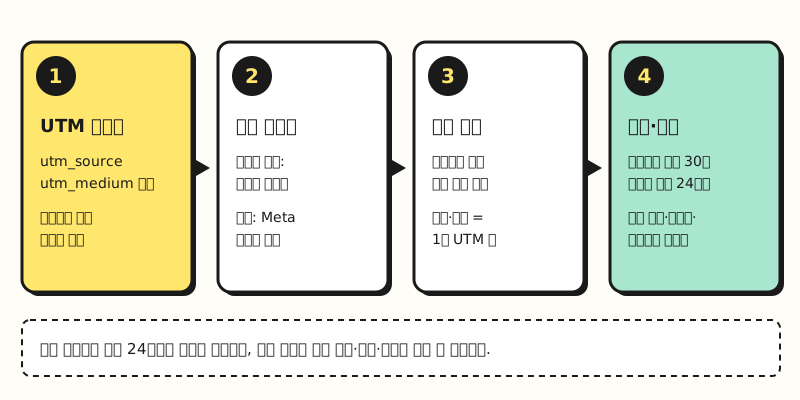 The source and medium values in step 3 must match the UTM values from step 1 exactly, because campaign data is joined to GA4 data using source, medium and date as keys (figure labels in Korean)
There are two things that are easy to miss when you connect for the first time. The connector tries to pull at least 24 months of historical Meta Ads data, so the help article says to delete first any Meta cost data you uploaded earlier by CSV if the periods overlap. And once the connector is created, you can't change the ad account, source or medium, so if you want to change your UTM values, you have to delete the connector and create a new one.
4. Note: What should you watch out for during the beta?
Data Manager is still an open beta, so I'd recommend checking the limits in the help articles before you rely on it.
- Subproperties and roll-up properties: These two property types don't currently support the Data Manager landing page.
- Duplicate conversions: The help article warns that activating an identical data pipeline in both GA4 and Google Ads can log conversions twice. Its guidance is to keep managing connections you already manage in Google Ads or GMP there, rather than recreating them in GA4.
- Query-time data: According to the About Data Import article, campaign data is a reporting/query-time import that is joined when you open a report, so it can't be used when creating audiences or Exploration segments.
- Size and frequency: Each import source can be up to 1 GB, uploads are limited to 120 per property per day, and you shouldn't upload files with duplicate keys.
- Permissions: Data Manager only says you need the appropriate permissions for your property, while starting a data import requires Editor or above at the property level.
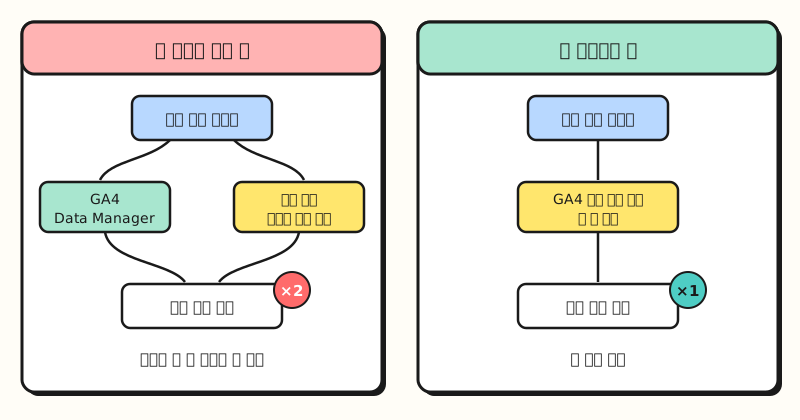 Turn a pipeline on in one place only. Connections already managed in Google Ads stay there (figure labels in Korean)
5. What should you try first in Data Manager?
It feels a bit early to make a beta feature your working standard, but I think it's worth opening now just to look. Here's the order I came up with based on the help articles.
- Scan the connection map: Start by checking for red status indicators or broken connections. Just finding an import that quietly stopped without anyone noticing is worth it.
- Decide who manages what: If you already upload customer data through Google Ads Data Manager, leave that connection as it is, and let GA4 handle GA4-only data such as campaign data and item data. This is to prevent duplicate conversions.
- New connections in Data Manager: If you plan to bring in costs from other channels like Meta or TikTok, create them in Data Manager as the help article recommends, so they show up on the connection map too.
- Read the data strength guide: When a recommendation appears, check what it says is missing, and share it with your team before changing anything.
On the other hand, if your team works from subproperties or roll-up properties, it's better to keep managing things in the existing menus for now.
Wrapping up
GA4 Data Manager is a beta menu that gathers scattered data streams, product links and data imports on one screen and shows their status as a map. Creating new connections in Data Manager while leaving connections already managed in Google Ads where they are is enough on its own to prevent mistakes like duplicate conversions. I'll share again if anything changes as the beta evolves. For connector-specific settings, please refer to the help articles linked in the post.
FAQ
- Can every GA4 property use Data Manager?
- It is an open beta feature, and subproperties and roll-up properties don't currently support the Data Manager landing page. You need the appropriate permissions for the property, and starting a data import requires the Editor role or above at the property level.
- How is GA4 Data Manager different from Google Ads Data Manager?
- GA4 Data Manager gathers data streams, product links and data import in the GA4 Admin page, and the data it ingests flows one way to linked Google Ads and GMP accounts. Google Ads Data Manager lives in the Google Ads Tools menu and connects first-party data for Customer Match or offline conversions. Turning on the same pipeline in both places can log conversions twice.
- What comes in when you import Meta ad costs with GA4 data import?
- Ads cost, Ads clicks and Ads impressions. The utm_source and utm_medium values on your Meta ad URLs must match the source and medium you enter in the connector, and the first connection tries to pull at least 24 months of historical data, so delete any overlapping existing data first.
- Can you build audiences from imported campaign data?
- No. Campaign data is a reporting/query-time import that is joined when you open a report, so it can't be used when creating audiences or Exploration segments.
Related posts
Posts worth reading alongside GA4 data connections.
- Google Ads Data Strength: Tag Gateway and Enhanced Conversions - Google Ads Data Manager and data strength
- UTM Parameters and GA4 Default Channel Groups Explained - the source and medium values to line up before importing costs
- How to Use GA4 Explorations: Free Form, Funnel and Path Exploration - the next step for slicing the data you import