Excel's phonetic guide (called 윗주 in Korean Excel) is a feature that attaches a small reading above the characters you typed into a cell. You enter the reading with Edit in the phonetic menu in the Font group on the Home tab, and it only appears on screen once Show Phonetic Fields is turned on. If you want to pull the phonetic text into another cell, use the PHONETIC function.
"How do you read 東京都?" When several people work on a sheet that mixes Japanese market keywords or client names written in Chinese characters, this question tends to come up at least once. In digital marketing I sometimes handle overseas media reports and product lists, and writing the reading in parentheses next to the cell makes the data messy, while a note only shows up when you hover over it, so I've often been unsure what to do. That's where Excel's phonetic guide comes in. In this post, let's look at how to add and show phonetic guides, what to check when they don't appear, how to pull them out with the PHONETIC function, and when to use them compared with notes and comments.
1. What is Excel's phonetic guide?
The phonetic guide is what Microsoft's English help calls this feature, and it's used to write the reading in small text above East Asian characters such as Chinese characters. In Japanese it's called furigana. The PHONETIC function help article also describes it as "phonetic (furigana) characters," so you can treat the two terms as referring to the same feature in Excel. As an analogy, it's like the small pronunciation written above a difficult character on a Chinese character workbook. The main text stays as it is, and only the reading sits in the narrow space above it.
The phonetic guide is information stored separately from the cell value. The Phonetic object page in the Excel VBA reference says this object contains information about a specific phonetic text string in a cell. You can think of it as a structure where the visible cell value stays 東京都, and a separate piece of text called the phonetic guide is attached above it. So when you want to bring the phonetic text into another cell, you use the PHONETIC function, which we'll cover later.
Note: the phonetic guide needs a region setting
According to the help article on using furigana with Japanese text, this feature applies only to East Asian languages, and you need to set your region to Japanese, Chinese, or Korean to use it. If you use Korean Windows and Korean Excel, you'll usually meet this condition, but if your work PC's region is set to English, the menu may not appear. The same help article says that if you don't see the phonetic button in the Font group on the Home tab, you need to set up Japanese language features first. So in what order do you actually add a phonetic guide?
2. How do you add and show a phonetic guide in Excel?
The key is that adding the phonetic guide and showing it work separately. Even if you add the text, it won't appear on screen while Show Phonetic Fields is off. The menu names follow Microsoft's help (Mac and Excel for the web). On Windows, the button may look or be named slightly differently, so keep that in mind.
- Select the cell: Pick the cell containing the characters you want to add a reading to.
- Edit the phonetic guide: Click the arrow next to the phonetic button in the Font group on the Home tab and choose Edit. When a space for typing appears above the cell, type the reading.
- Confirm: Finish typing and confirm. In the Mac instructions of the furigana help article, you press RETURN twice to confirm and ESC twice to cancel.
- Show Phonetic Fields: In the same menu, click Show Phonetic Fields. If there's a check mark next to it, the phonetic guide is visible; clear the check to hide it.
- Settings: Use Settings in the same menu to change the phonetic guide's font, size, and alignment. Besides the default left alignment, you can choose no alignment, center, or distributed.
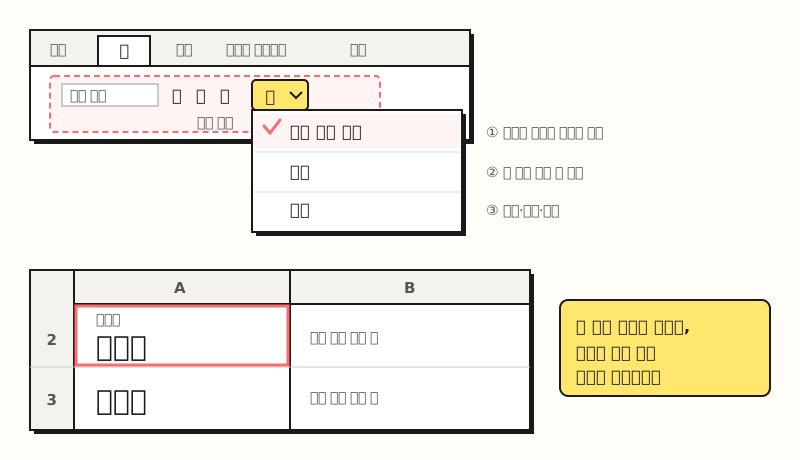 Example figure: the phonetic menu in the Font group on the Home tab, and a cell with Show Phonetic Fields turned on (not an actual screenshot) (figure labels in Korean).
On the Font tab of the Settings dialog, you can also apply bold, italic, color, and underline to the phonetic guide. However, the help article on adding phonetic guides to East Asian text explains that character formatting applied to the text doesn't affect phonetic guides, so you need to format the phonetic guide separately. On a Mac, you can press OPTION+Shift+Up Arrow to move to the phonetic guide and OPTION+Shift+Down Arrow to return to the original text. But what should you check if the phonetic guide doesn't show up even though you're sure you added it?
3. What should you check when the phonetic guide doesn't show or disappears?
When the phonetic guide misbehaves, these are the five things to check first. I've grouped the conditions from the furigana help article by symptom.
- Show Phonetic Fields is off: This is the first place to look. Check whether Show Phonetic Fields has a check mark. The show command applies to the selected cells, so turn it on while the cell with the phonetic guide is selected.
- The show command is grayed out: If there's no phonetic information in the cell, you can't use the show/hide command. In that case, add a phonetic guide with Edit first.
- No phonetic guide appears automatically after typing Chinese characters: Furigana is added automatically only to new data entered in the Japanese version of Excel. For data created in Korean Excel or other programs, you have to add it yourself.
- You can't edit it in Excel for the web: In Excel for the web, you can show or hide phonetic guides, but to edit them you need Excel for Windows. Region settings on the web are managed by the host, such as SharePoint or OneDrive.
- The phonetic guide disappeared after you changed the text: You can change simple formatting such as color or bold without removing the phonetic guide, but other text changes may remove it. If you removed it by mistake, press Ctrl+Z right away to undo.
The last item deserves special care in practice. If you change the value of a cell that has a phonetic guide by pasting or editing, the reading you placed above it may be lost along with it. For columns whose source values change often, it's safer to write the reading in a separate column than to use a phonetic guide. Then what do you do when you need to pull existing phonetic guides out into a table?
4. How do you pull the phonetic guide into another cell with PHONETIC?
According to the PHONETIC function help article, PHONETIC extracts the phonetic (furigana) characters from a text string. The syntax is simple.
=PHONETIC(reference)
- reference (required): A reference to a cell or range of cells containing the phonetic text, or a text string.
- If you pass a range: It returns only the phonetic text in the upper-left cell of the range.
- If you pass separate ranges: A range of nonadjacent cells returns the #N/A error.
- Region requirement: As with the phonetic guide feature, your region setting must be Japanese, Chinese, or Korean.
- Versions: Available in Excel for Microsoft 365 (Windows and Mac), Excel 2024, Excel 2021, Excel 2019, and Excel 2016.
For example, if you've added 「도쿄도」 (the Korean reading) as the phonetic guide on 東京都 in cell A2, you can type =PHONETIC(A2) in cell B2 to pull the phonetic text into the next column. A column created this way is plain text, so you can filter it, sort it, or look values up in it with VLOOKUP as is.
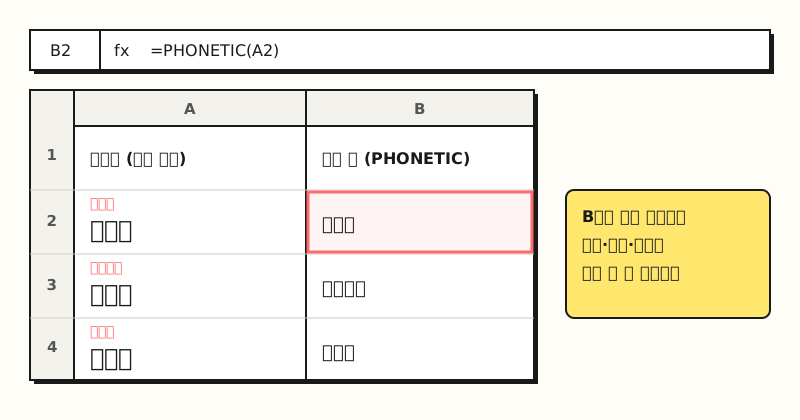 Example figure: column A's phonetic guides pulled into column B with PHONETIC (sample data; results may vary with region settings) (figure labels in Korean).
You can also find tips online saying PHONETIC can join text from several cells at once. But the official help only says that a range returns the phonetic text of the upper-left cell, so I don't recommend relying on that behavior. If your goal is to combine several cells into one, the TEXTJOIN function is built for exactly that. Set the delimiter and whether to ignore empty cells, as in =TEXTJOIN(", ", TRUE, A2:A8), and note that if the result exceeds 32,767 characters, you get the #VALUE! error.
Now that you know how to use phonetic guides, when should you choose them over notes or comments?
5. Phonetic guide, note, comment, or a separate column: which should you use?
There are several ways to attach an explanation to a cell besides the phonetic guide. The behavior of notes and comments follows the help article on the difference between threaded comments and notes.
| Criterion | Phonetic guide | Note | Comment (threaded) | Separate column |
|---|---|---|---|---|
| Where it appears | Right above the cell text | Yellow box next to the cell (expanded with Show All Notes) | Comments pane on the right | Its own column |
| Replies | No | No | Yes | No |
| Pulling out with a formula | PHONETIC function | Not applicable | Not applicable | Direct cell reference |
| Filter and sort | Requires a pulled-out column | Not applicable | Not applicable | Works directly |
| Best for | Readings of Chinese characters or foreign words | Sources, counting rules | Requests for review, questions | Readings or codes you'll treat as data |
The table makes the choice fairly clear. Here's how I'd suggest choosing by situation.
- You just want to help viewers read the text: The phonetic guide fits. It appears right above the text without opening anything and doesn't touch the table's column structure.
- You need to explain why a number is what it is: A note is the right choice. Sources and calculation rules are explanations, not readings, so they don't match what the phonetic guide is meant for.
- You need to ask someone and get an answer: Use a comment, which supports replies.
- You need to search or sort by reading: It's better to write the reading in a separate column from the start, or create a column that pulls the phonetic guide out with PHONETIC.
Real-world scenario: adding readings to a Japanese market keyword report
Say you're in charge of a sheet of Japanese search keyword performance that you review with your team. The keywords mix kanji and kana, and some teammates can't read Japanese.
- Leave the keyword column as is: Don't edit the original keywords downloaded from the ad platform, so you can match them against next week's data.
- Add phonetic guides only to keywords you look at often: Select the top keyword cells, add a Korean reading with Edit, and turn on Show Phonetic Fields. Anyone opening the report can read it right away from the small text above the cell.
- Pull it out if you need a sort column: Put
=PHONETIC(A2)in the next column to create a reading column, and you can filter by the Korean reading. - Be careful before pasting in source data: If you overwrite the keyword column with new data next week, the phonetic guides may be removed, so keeping the reading list on a separate sheet and reattaching it with VLOOKUP or XLOOKUP is easier to maintain over time.
In the end, the phonetic guide is a display aid for viewers, and information you need to handle as data belongs in a column.
Wrapping up
Just remember that Excel's phonetic guide is a two-step feature, added with Edit and made visible with Show Phonetic Fields, and that you use the PHONETIC function to pull it out. If it doesn't appear, check the show setting, your region setting, and whether you're in Excel for the web first, and for cells whose values change often, a separate column is the safer choice. When I share lists that mix Chinese characters or Japanese, I plan to split things up, putting readings in phonetic guides and counting rules in notes. For step-by-step instructions by platform, see Microsoft's help article on using furigana.
FAQ
- Why doesn't my Excel phonetic guide show up?
- Adding the phonetic guide and showing it are separate steps. Select the cell and check whether Show Phonetic Fields is checked in the phonetic menu in the Font group on the Home tab. If the menu itself is missing, check that your region setting is Japanese, Chinese, or Korean.
- How do I temporarily hide a phonetic guide in Excel?
- Select the cell with the phonetic guide and clear the check from Show Phonetic Fields. The phonetic information stays in the cell, so it reappears when you check it again.
- What does the PHONETIC function return?
- It pulls out the phonetic (furigana) text stored in a cell. If you pass a range, it returns only the phonetic text of the upper-left cell, and nonadjacent ranges return the #N/A error. It's available in Excel 2016 and later and in Excel for Microsoft 365.
- Can I edit phonetic guides in Excel for the web?
- In Excel for the web, you can show or hide phonetic guides, but you can't edit them. To change the phonetic text, open the file in Excel for Windows.
Related posts
These posts are worth reading alongside this one when you're adding explanations to cells and polishing tables.
- Excel Comments vs Notes: Add, Show, Copy, and Print Them - Comments and notes for leaving explanations rather than readings
- Excel PivotTable Guide: What It Is, How to Create and Refresh - How to summarize keyword performance by criteria
- VLOOKUP vs XLOOKUP: Which Excel Lookup Function to Use - The functions to use when reattaching a reading list from a separate sheet