In Excel for Microsoft 365, annotations come in two kinds: comments and notes. Comments are for conversations where people reply back and forth, while notes are for attaching a short explanation or reminder to a cell. The yellow "comments" from older versions of Excel are what's now called notes, so the names are easy to mix up.
"Where did this number come from?" When a report file gets passed around among several people, questions like this end up attached to cell after cell. In digital marketing, I often need to note the source or counting rules on channel performance sheets, and I kept getting confused about whether to use a comment or a note, so I wanted to sort it out once. In this post, I'll cover the difference between Excel comments and notes, how to create them, how to show all of them and copy them, and the setting that includes annotations when you print.
1. What's the difference between Excel comments and notes?
According to the help article on inserting comments and notes, Excel for Microsoft 365 has two kinds of annotations. Comments (threaded comments) are for having conversations with others about the data, and notes have no reply box, so they're only for leaving annotations or reminders on a cell. As an analogy, a comment is a group chat opened next to the cell, and a note is a sticky note stuck on the cell. Replies keep coming in a group chat, but a sticky note only has what you wrote.
The help article on the difference between threaded comments and notes summarizes the differences like this.
| Item | Comment (threaded comment) | Note |
|---|---|---|
| Background color | White | Yellow |
| Replies | Yes | No |
| Finishing input | Post with Ctrl+Enter | Exit with Esc (Ctrl+Enter adds a line break) |
| Formatting and images | Not currently supported | Supported |
| Resizing | Not currently supported | Supported |
| Author name | Can't be changed or removed | Can be changed or removed |
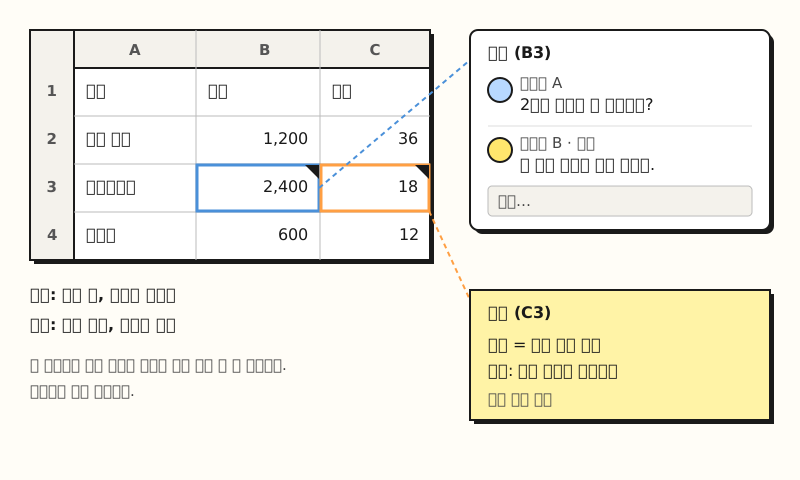 Example: the comment on cell B3 collects a question and replies, while the note on cell C3 only holds an explanation (sample data). (figure labels in Korean)
The same article says that if you want the old style of comment, choose New Note instead of New Comment. So how do you create each one?
2. How do you add Excel comments and notes?
Both start by right-clicking a cell. Menu names follow the English version of Microsoft's Help.
- Add a comment: Right-click the cell, choose New Comment, type your text, and click Post or press Ctrl+Enter. You can also use New Comment on the Review tab, and according to the keyboard shortcuts help article, the Windows shortcut is Ctrl+Shift+F2.
- Add a note: Right-click the cell and choose New Note, or press Shift+F2, then type, and on Windows click outside the cell to finish. You can also go to Review tab > Notes > New Note.
Comments come with collaboration features. If you type @ and a name in the input box to @mention someone, they get an email notification about the comment, and others continue the thread with Reply.
Only the author can edit a comment, so others can only reply. To edit a note, right-click the cell, or go to Review tab > Notes > Edit Note.
Once a discussion is done, you can close the comment with Resolve thread. A resolved thread can still be viewed, but no replies can be added until it's reopened, and anyone with write access to the workbook can resolve or reopen it. But what if you want to see all the annotations scattered across cells at once?
3. How do you show all Excel comments and notes, and copy them?
According to the difference help article, they're viewed differently too.
- Comments: Click Show Comments on the Review tab to open the Comments pane to the right of your data, where all the sheet's comments are gathered in one place.
- Notes: Click Review tab > Notes > Show All Notes to expand every note around its own cell.
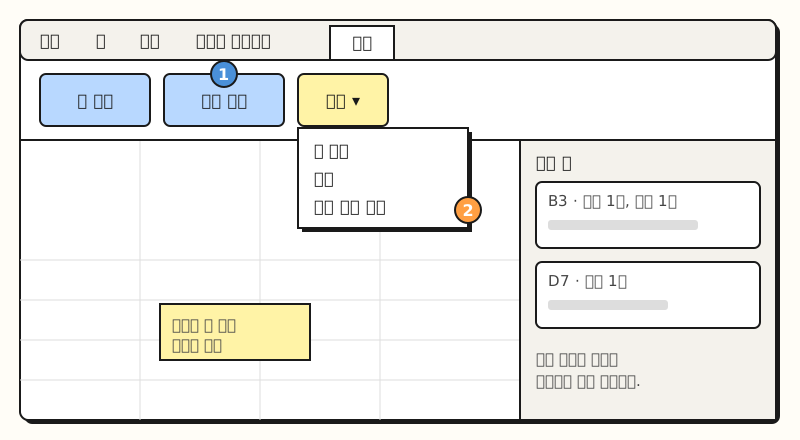 Example: on the Review tab, comments are viewed in a pane on the right and notes are expanded next to their cells (not an actual screenshot). (figure labels in Korean)
Sometimes you want the opposite and hide even the indicators in the cell corners. On Windows, go to File > Options > Advanced and, under "For cells with comments, show," choose whether to hide both annotations and indicators, show only indicators with annotations on hover, or show both indicators and annotations. To hide all annotations and indicators across the whole workbook, choose the first option. If several cells need the same explanation, copying is faster than retyping each one.
How do you copy an Excel comment to another cell?
Here are the Windows steps from the help article on inserting comments and notes.
- Select the cell with the comment or note and press Ctrl+C.
- Select the cells to paste into, then on the Home tab, click the arrow under Paste > Paste Special.
- Under Paste, select Comments and click OK.
There are two things to watch out for here. If you press Enter after clicking OK, the cell contents get pasted in addition to the comment, and any existing comments in the paste area are replaced by the copied comment. On a Mac, choose Comments and notes in Paste Special, and in Excel for the web, pasting with Ctrl+V pastes the cell values as well, so keep that in mind.
4. How do you print Excel comments and notes?
According to the Page Setup help article, the Comments setting for printing defaults to (None), so if you don't change anything, annotations won't appear on the printout. Click the small arrow at the bottom right of the Page Setup group on the Page Layout tab to open the dialog box, and choose on the Sheet tab.
| Option | How it prints |
|---|---|
| At end of sheet | Adds pages at the end of the printout and prints all annotations together |
| As displayed on sheet | Prints annotations in their original position on the worksheet |
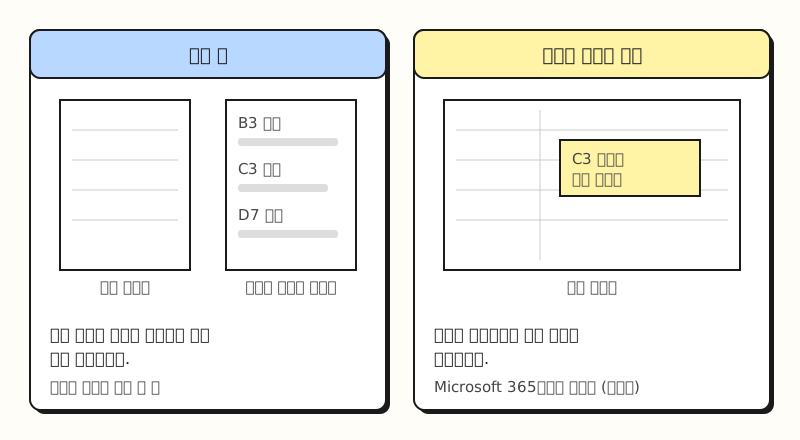 In Excel for Microsoft 365, only notes print right next to their cells; comments are gathered and printed at the end of the sheet. (figure labels in Korean)
The help article on printing comments and notes explains that in Excel for Microsoft 365, threaded comments can't be printed as they appear on the worksheet, but notes can. So to export both comments and notes, choose At end of sheet; to print only notes next to their cells, choose As displayed on sheet (legacy) and expand the notes beforehand with Show All Notes.
※ Note: What should you know when using comments and notes?
- Comments are file content that anyone can edit: The difference help article notes that because comments are stored in the file, anyone with edit access to the file can modify them. It's safer not to keep finalized rules or approval records only in comments.
- Notes behave a bit differently in Excel for the web: On the web, you can't move notes, formatting added to notes on the desktop isn't shown, and editing a note on the web removes its existing formatting.
- Menu names differ by version: This post follows the menu names in Microsoft's Help for Excel for Microsoft 365. Older versions of Excel had only one kind of "comment," which corresponds to today's note, so read "comment" in older guides as a note.
To sum up, the basic rule for Excel annotations is: use a comment when you need replies, and use a note for an explanation that should stay attached to a cell. I'm planning to split them the same way on report sheets, leaving sources and counting rules as notes and using comments only for questions that need checking. For more detailed steps, see Microsoft's help article on inserting comments and notes.
FAQ
- Should I use a comment or a note in Excel?
- If you need to ask someone and get an answer, use a comment (threaded comment), which supports replies. If you only need to record a source or rule on a cell, use a note. Notes have no reply box, but they do support formatting and resizing.
- How do I add a yellow comment like in older Excel?
- In Excel for Microsoft 365, right-click the cell and choose New Note instead of New Comment, or press Shift+F2. The yellow comment from older versions is today's note.
- How do I print comments in Excel?
- Open the Page Setup dialog box from the Page Layout tab, and on the Sheet tab change Comments to At end of sheet; the annotations will print together at the end of the printout. The default is (None), so nothing prints unless you change it. In Excel for Microsoft 365, only notes can print right next to their cells.
Related posts
Posts worth reading when you're organizing report sheets with other people.
- What is an Excel PivotTable? From the basics to creating and refreshing one - How to summarize numbers by criteria before annotating them
- Excel Conditional Formatting | See numbers at a glance with colors, bars, and icons - How to make things stand out with color instead of explanations
- How to fix broken Korean text in Excel data - Fixing garbled Korean characters when opening a downloaded CSV in Excel