In search advertising, keyword expansion looks like simply adding more keywords, but in practice it's a bundle of three steps: finding new keywords, setting how far your ads can reach with match types, and filtering out what you don't need by looking at the search terms that came in. In Google Ads, those three steps are handled by Keyword Planner, broad match, phrase match and exact match, and the search terms report together with negative keywords. If you use only one of the three, it's easy to end up with impressions that don't grow, or the opposite, budget leaking into irrelevant searches, so I recommend looking at all of them together.
"I added more keywords, but impressions haven't moved." If you run search ads, you've probably had this worry at least once. Working in digital marketing, I've noticed it's easy to think of keyword expansion as just making a longer keyword list. In this post, let's look at what each of the three ways to expand keywords in Google Ads does, when to use which, and a weekly review routine you can follow.
1. Why are there three ways to expand ad keywords?
Keyword expansion is a lot like casting a net. Choosing which sea to cast in is finding new keywords, deciding how fine the mesh should be is match types, and sorting out what you can't use after hauling it in is checking and excluding search terms. If you widen the sea but the mesh is too fine, nothing gets caught, and if you only widen the mesh, a lot of things you didn't want come up too.
| Method | What it does | Where | Good for | Limits |
|---|---|---|---|---|
| Keyword Planner | Finds new keyword candidates and estimated search volume | Tools > Keyword Planner | Creating a campaign for the first time, adding a new product | No results for keywords with very low volume or sensitive keywords |
| Match types | Sets the range of searches one keyword can reach | Set per keyword | Too few impressions, or reach that's too wide | The wider the range, the more irrelevant searches may mix in |
| Search terms report + negative keywords | Adds or blocks based on searches that actually came in | Campaigns > Insights and reports > Search terms | Fine-tuning a running campaign | Search terms with low search activity are omitted from the report |
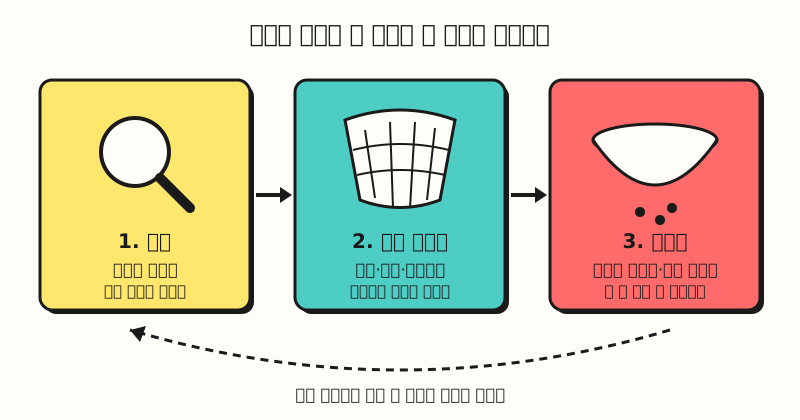 Keyword expansion means running find, set reach and filter as one loop. (figure labels in Korean)
Lined up in this order, when I hear "I added keywords but impressions didn't grow," I look at the second step first, and when I hear "clicks are growing but there are no conversions," I look at the third step first. So let's start with the first step, finding new keywords.
2. How do you find new keywords with Google Keyword Planner?
According to the Keyword Planner help article, you open Keyword Planner from the Tools menu at the top, and it has two functions: Discover new keywords and Get search volume and forecasts.
- Discover new keywords: Enter words related to your product or service, or choose Start with a website and enter a site address, and it shows related keyword ideas. You can enter several words at once separated by commas.
- Get search volume and forecasts: Paste a keyword list you already have or upload it as a CSV file to see estimated search volume and forecasts such as clicks, impressions and conversions.
Once keyword ideas appear, you can check the keywords you need, choose a match type, and save them to a plan with Add keywords, or choose Add to account from the three-dot icon in the keyword ideas section to pick an ad group and add them straight to a campaign. That said, the same help article says you need to complete account setup by entering billing information to use the basic features, so if your account hasn't run ads yet, check this first.
One more thing to know: keywords with very low search volume or keywords considered sensitive can't be looked up or forecast. The help article notes that sensitive categories like health and finance often return no results, so if you're in one of those industries, I recommend also trying to start with your website address instead of keywords. When you add the keywords you found, the searches they reach differ depending on how you enter them, even for the same keyword.
3. What's the difference between broad match, phrase match and exact match?
The match types help article describes the three match types like this.
| Match type | How to enter (example) | Searches your ad can show on | Reach |
|---|---|---|---|
| Broad match | flower delivery (no symbol) | Searches related to the keyword, including searches that don't contain the keyword's direct meaning | Widest |
| Phrase match | "flower delivery" (quotes) | Searches that include the meaning of the keyword, including searches where the meaning is implied or more specific | Middle |
| Exact match | [flower delivery] (square brackets) | Searches with the same meaning or intent as the keyword | Narrowest |
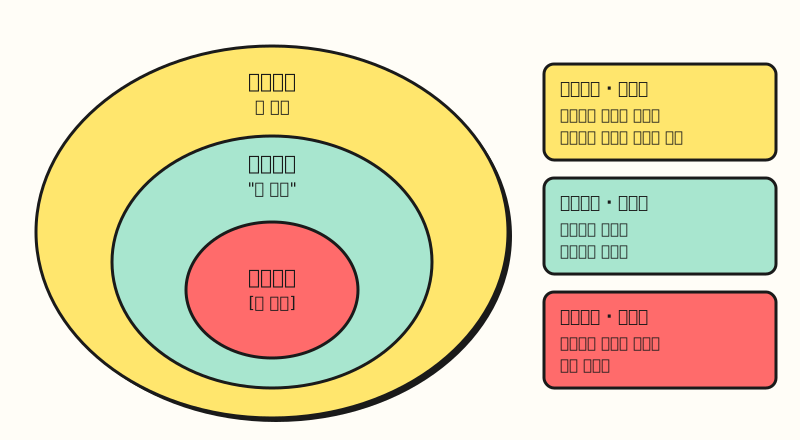 Broad match covers every search the narrower match types catch, and reaches further. (figure labels in Korean)
There are two things that are easy to miss here. First, if you enter a keyword without any symbol, broad match is the default. The help article explains that broad match is assigned as the default match type for all keywords because it's the most comprehensive, so even when you add keywords straight from Keyword Planner to your account, they can go in as broad match if you don't check the match type. Second, broad match picks searches by context, not by words. According to the broad match help article, it considers the user's recent search activity, the content of landing pages and assets, and other keywords in the same ad group, so if you mix keywords of different kinds in one ad group, the reach can get blurred as well.
When should you use which match type?
Below are the criteria I've set for myself based on the help articles.
- Broad match: Fits when impressions are short and you're using Smart Bidding. Both help articles stress that it's important to use Smart Bidding with broad match, because the right bid differs for each search.
- Phrase match: A safe choice when you use manual bidding, or want to widen a bit without straying far from the keyword's meaning.
- Exact match: Use it for keywords whose reach you really want to hold tight, like brand keywords or core keywords with proven conversions.
The same help article notes that very similar keywords like "red car" and "car red" are treated as duplicates for the same search, and only the one with the higher Ad Rank is used. So adding keywords that only change word order does almost nothing for expansion. Then where can you see which searches actually came in after widening your reach?
4. How do you expand and filter keywords with the search terms report?
It helps to separate two terms first. According to the search terms report help article, a search term is the words a user actually typed into the search box, and a keyword is the words an advertiser added to an ad group. Since one broad or phrase match keyword can be connected to many search terms, it's hard to tell what your ads actually showed for from the keywords report alone, so you should open the search terms report too.
You open the report from the left navigation panel under Campaigns > Insights and reports > Search terms. There are three things to look at.
- New keyword candidates: Find search terms that brought conversions but aren't keywords yet, and add them as keywords. If it's a core search term, adding it separately as exact match lets you hold its reach.
- Exclusion candidates: Add search terms with low relevance to the products or services you sell as negative keywords. The help article recommends this too.
- Match type column: This column shows how closely the search term that triggered your ad relates to the actual keywords in your account, so you can gauge which keywords are spreading wide.
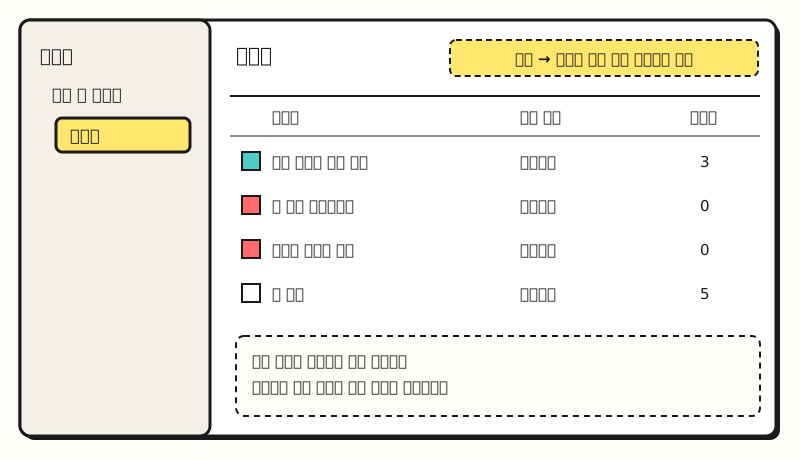 Example figure: a simplified drawing of the menu location from the help article, not an actual screen capture. Search terms and numbers are made up. (figure labels in Korean)
Not every search term shows up in this report, though. According to the help article, search terms without enough search activity are omitted to meet privacy standards. So the search terms you see may not add up to the campaign's total clicks, and keep in mind that you can't block the hidden part with negative keywords.
Negative keywords block different ranges depending on match type
The negative keywords help article uses the negative keyword running shoes to show the difference between the three types.
| Negative type | Blocked searches (help article example) | Not blocked |
|---|---|---|
| Negative broad match (default) | running shoes, blue running shoes, shoes running | running shoe, blue tennis shoes |
| Negative phrase match | running shoes, blue running shoes | shoes running, running shoe, blue tennis shoes |
| Negative exact match | running shoes | blue running shoes, shoes running, running shoe, blue tennis shoes |
The biggest difference from regular keywords is that negative keywords don't expand to synonyms or singular and plural forms. Just as blocking "running shoes" doesn't block "running shoe," you have to add each expression you want to block. The help article says casing and misspellings are accounted for automatically, so you don't need to add typos separately.
5. In what order should you run a weekly keyword review?
Imagine you manage the search campaign for an online flower delivery shop. I made an example of a routine to run once a week. The keywords and situation are all made up.
- Open the search terms report: Open it for the last 7 days and sort by conversions.
- Promote to keywords: Add search terms that converted but aren't keywords (e.g., "same-day birthday bouquet delivery") to the relevant ad group. If it's a search you really want to keep, add it as exact match like
[same-day birthday bouquet delivery]. - Exclude: Add search terms with no purchase intent, like "bouquet making supplies" or "flower delivery part-time job," as negative keywords. Words no campaign needs, like "part-time job," shouldn't be added campaign by campaign; use the list features below.
- Find new candidates: Once a month, enter the address of a newly opened product page in Keyword Planner to get ideas, check the match type, and add them.
- Check reach: For ad groups whose impressions stay low, first check whether to switch phrase match to broad match, and whether the bid strategy is Smart Bidding.
Negative keyword list example (made up): words to block account-wide
part-time job
hiring
"making supplies"
[flower delivery reviews]
There are two list features for step 3. According to the negative keyword lists help article, you can create up to 20 negative keyword lists per account, put up to 5,000 keywords in each, and apply them to several campaigns at once; when you add a keyword to a list, the change applies to all campaigns that list is attached to. The account limits help article lists 10,000 negative keywords per campaign. Account-level negative keywords from the account-level negative keywords help article are added under the Admin icon > Account settings > Negative keywords, up to 1,000, and they apply automatically to all Search and Shopping inventory in Search, Performance Max, App, Shopping, Smart and Local campaigns. Words truly unwanted anywhere, like "hiring," are easier to manage at the account level, and words unwanted only for a specific group of campaigns are easier to manage in a list.
Note: What should you know before expanding keywords?
- This post is based on Google Ads: Naver (Korea's largest search engine) search ads use their own tools and settings, so the menu names and match type explanations here may not apply as-is. For Naver campaigns, check Naver's search ads help separately.
- When used alongside Performance Max: According to the match types help article, when a Search campaign and a Performance Max campaign both qualify for the same search, exact match keywords identical to the search term are applied first, and phrase and broad match keywords share priority with an identical Performance Max search theme. If you want to keep core searches in your Search campaign, adding them as exact match is the safe choice.
- Negative keywords don't expand to close variants either: As in the account-level negative keywords help article's example, excluding "bouquet" as broad match blocks "red bouquet," but your ad can still show for "red flowers."
- Campaigns with AI Max turned on: According to the AI Max how-it-works help article, AI Max's search term matching broadens your existing keywords to find relevant searches, and search terms added this way show as "AI Max" in the match type column of the search terms report. If you have it on, I recommend checking this column more often.
Wrapping up
Keyword expansion is a cycle you repeat: find candidates with Keyword Planner, set reach with match types, and filter with the search terms report and negative keywords. Rather than adding keywords blindly, looking first at which of these three steps is stuck makes the next thing to do clear. I'm also trying to build the habit of opening the search terms report first when I look at search campaigns, and I'll let you know if menus or conditions change. For detailed behavior, please refer to the Google Ads match types help article.
FAQ
- Which match type do keywords chosen in Keyword Planner get?
- According to the Keyword Planner help article, there's a step to choose the match type when you add keyword ideas to a plan or account. The match types help article explains that the default for keywords without a specified type is broad match, so it's a good idea to check the drop-down for the type you want before adding.
- Which is best: broad match, phrase match or exact match?
- No single one is always best. Broad match reaches the widest and fits when used with Smart Bidding, while exact match fits when you need to hold reach tight, like brand or core keywords. Phrase match is in between.
- How many negative keywords can you add in Google Ads?
- Account-level negative keywords are capped at 1,000 per account. Separately, you can create up to 20 negative keyword lists per account, each with up to 5,000 keywords, and apply them to several campaigns.
- Why are some search terms missing from the search terms report?
- According to the search terms report help article, search terms without enough search activity are omitted from the report to meet data privacy standards. So the search terms you see may not explain all of a campaign's clicks.
Related posts
Posts worth reading together when expanding and refining search ad keywords.
- Search Ad Optimization: A Practical Process and Checklist - Basics of what to fix at each stage: impressions, CTR and conversions
- Google Ads AI Max Reports: Check AI-Expanded Search Terms and Ads - How to check the searches AI Max expanded beyond your keywords
- Google Ads Bidding Strategies: Manual CPC vs Smart Bidding - Basics of Smart Bidding, which pairs with broad match