There are different ways to put an X mark in Excel or a check mark, depending on what you need: use a checkbox if you want to click it on and off, a symbol if you only need something to look at, and the IF function if you want O or X to change automatically based on another value. In Excel for Microsoft 365, a checkbox puts TRUE in the cell when checked and FALSE when unchecked, so formulas can count it right away. A symbol is a static character that works more like a picture and doesn't change when you click it, so if your table needs totals, a checkbox or IF is the better fit.
"If I marked the reviewed creatives with a check and the unfinished ones with an X, I could see everything at a glance." If you've ever managed an ad creative review sheet or a pre-launch campaign checklist in Excel, you've probably thought this at some point. But in practice you end up with some people typing X, some pasting symbols and some inserting checkboxes, and counting them later becomes a headache. In this post, I'll compare four ways to show X marks and check marks in Excel side by side and walk through a checklist example to help you decide which one to use when.
1. What are the ways to show an X mark in Excel?
There are four main ways to show a check or X in Excel. They may look similar, but the value that actually goes into the cell is different, and that decides whether you can toggle it with a click and whether formulas can count it.
| Method | Value in the cell | Changes on click | Totals with formulas | Best for |
|---|---|---|---|---|
| Checkbox | TRUE / FALSE | Yes | Easy | Checklists people tick by hand |
| Inserted symbol | A symbol character | No | Hard | Printed tables, fixed legends |
| O/X text with IF | Text like "O" / "X" | No (calculated automatically) | Easy | Automatic pass/fail from other values |
| Icon sets | The original number | No (shown automatically) | Possible via the numbers | Showing number ranges as symbols |
I find it easiest to think of this as a traffic light versus a painting of a traffic light. Checkboxes and IF are real traffic lights whose signals actually change, so the traffic (your formulas) can read them, while a symbol is a traffic light painted on a wall: it looks the same, but nothing moves. So if you first decide whether you'll need to count how many are done later, the choice becomes much easier.
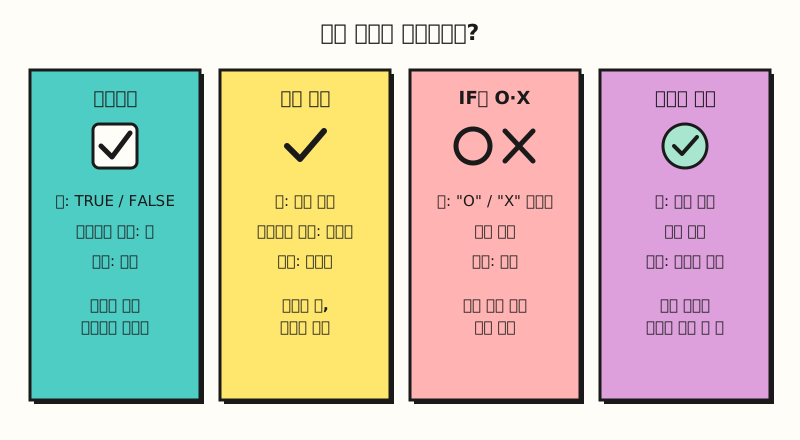 Look first at what goes into the cell (TRUE/FALSE, a symbol character, text, a number) rather than how it looks. (figure labels in Korean)
2. How do you insert a checkbox in Excel?
According to the Excel checkbox help article, you select the range where you want checkboxes and choose Insert > Checkbox, and each selected cell gets a checkbox. Here's how to use them.
- Checking and unchecking: Click a checkbox, or select one or more and press the Spacebar. The Spacebar is handy when you want to check several rows at once.
- Cell value: Checked puts TRUE in the cell and unchecked puts FALSE, and any formula referencing that cell receives the value as is.
- Removing: Select the range and press Delete. If all boxes are unchecked, they're removed; if any are checked, they're only unchecked first, so you press Delete again to remove them.
- Keeping the values but removing the look: Choose Home > Clear Formats to remove just the checkbox look while keeping the TRUE/FALSE values. The help article notes that this also removes the cell's other formatting, so you may need to reapply colors or borders.
※ Note: versions and the older checkbox
The help article lists Excel for Microsoft 365 and Excel for Microsoft 365 for Mac as the products this in-cell checkbox applies to. The Excel team's blog post introducing checkboxes says it has fully rolled out on Windows and Mac desktop to Current Channel, Monthly Enterprise Channel and Semi-Annual Channel, and to web and mobile (iPad, iOS, Android) as well. So in a one-time-purchase version like Excel 2021, which isn't in the applies-to list, you may not see Checkbox on the Insert tab.
The older approach for those cases is the form control checkbox. Turn on the Developer tab, pick the check box under Form Controls in Insert, then right-click it, open Format Control and enter a cell address in Cell link, and that cell receives the checked state as TRUE/FALSE. You have to set a cell link for each checkbox separately, and the same help article says you can't use these check boxes in Excel for the web and that the controls are lost immediately if you edit the workbook there, so they don't suit shared files. If your version shows the new Checkbox option, I recommend using the in-cell checkbox.
How are Google Sheets checkboxes different?
The Google Sheets checkbox help article shows that selecting cells and choosing Insert > Checkbox works the same way as in Excel. The difference is that you can change the value a checkbox puts in the cell. Under Data > Data validation, set the criteria to Checkbox, click Use custom cell values, and enter values like "Yes" and "No" in the Checked and Unchecked fields, and those values go in instead of TRUE/FALSE. The help article also says you can use checkboxes with charts, filters, pivot tables and functions.
3. How do you insert a check mark or X mark symbol?
If you just want a mark and don't need to click it, a symbol is the simplest option. The steps in the insert a check mark symbol help article are:
- Select the cell where you want the symbol.
- On the Insert tab, open Symbol from the Symbols menu.
- Change the Font to Wingdings.
- Type
252in the Character code box to select the check mark.254, two squares away, is another style of check mark. - Select Insert, then Close to dismiss the dialog.
If you choose the Segoe UI Symbol font instead, character codes 2705, 2713 and 2714 give you other check mark styles. The help article doesn't list a character code for an X mark, so you'll need to find one by eye in the same Symbol dialog. If you use it often, you can register the symbol in AutoCorrect so that typing a short word replaces it.
The thing to watch out for is that a mark inserted this way is a static symbol. The help article itself points you to the checkbox feature if you need a box you can select or clear by clicking. What's in the cell is just one character that looks like a check, so it isn't a value like TRUE/FALSE that formulas can read directly. So how do you make O or X change on its own based on values in another column?
4. How do you show O or X automatically with IF?
Putting O or X in a cell based on a condition is a job for the IF function. The syntax is IF(logical_test, value_if_true, [value_if_false]), and any text you return must be wrapped in double quotes.
- Pass/fail by comparing values: To show O when spend (column C) is at or under budget (column D) and X when it's over, write
=IF(C2<=D2,"O","X"). - Reading a checkbox: If column B has checkboxes, the cell value is already TRUE/FALSE, so you can put just the cell in the condition, like
=IF(B2,"Done","X"). The example in the checkbox help article works the same way, putting the checkbox cell into IF to show a message of your choice. - Counting X marks: Use the COUNTIF function, as in
=COUNTIF(E2:E11,"X"). COUNTIF doesn't distinguish upper and lower case in text criteria, so cells where someone typed a lowercase x are counted too. That's convenient, but it can be confusing if your table uses "x" to mean something else. - Counting checked boxes: For a checkbox column, you can count with TRUE (no quotes) as the criterion, as in
=COUNTIF(B2:B11,TRUE). The COUNTIF help article doesn't show an example that uses a logical value as the criterion, so I'm marking this as an example; if you get 0, first check that you haven't wrapped TRUE in quotes, which makes it search for text.
If you need a "not equal" condition (<>) to mark X, see my Excel not equal operator post, and for combining multiple conditions with AND/OR, see the Excel TRUE FALSE functions post.
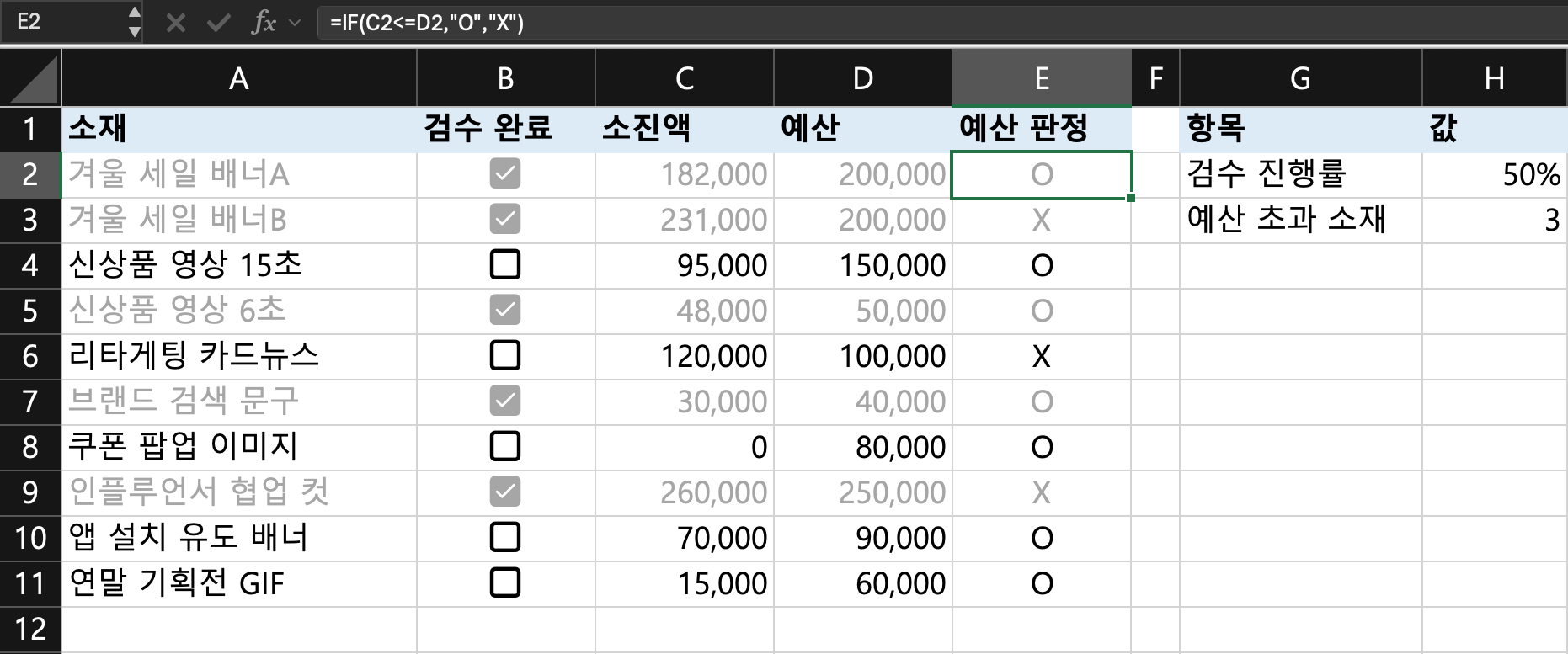 A sheet built with sample data in Excel (Microsoft 365, Mac).
=IF(C2<=D2,"O","X") in E2 shows O or X, and column H counts checked boxes (TRUE) and "X" with COUNTIF (screen in Korean).
5. What if you turned an ad creative review sheet into a checklist?
Let's assume you're reviewing 10 creatives before a campaign launch and follow along from the start. All data and cell positions below are examples.
- Set up the table: Put creative names in column A, "Reviewed" in column B, spend in column C and budget in column D. List the 10 creatives from A2 to A11.
- Insert checkboxes: Select B2:B11 and choose Insert > Checkbox. Each time a review is done, click it or press the Spacebar to check it.
- Add an automatic pass/fail column: Enter
=IF(C2<=D2,"O","X")in E2 and fill down to E11 to flag over-budget items. - Gray out finished rows: Select A2:E11, go to Home > Conditional Formatting > Manage Rules > New Rule, choose "Use a formula to determine which cells to format," enter
=$B2=TRUEand set the font to gray. The conditional formatting help article says to use relative references if you want the reference to adjust for each cell in the range, so you put$only before the column and leave the row number as is, and each row checks its own column B. I cover formula rules in more detail in my Excel conditional formatting post. - Track progress: In an empty cell, enter
=COUNTIF(B2:B11,TRUE)/COUNTA(A2:A11)and apply a percentage format to see review progress. Count over-budget creatives with=COUNTIF(E2:E11,"X").
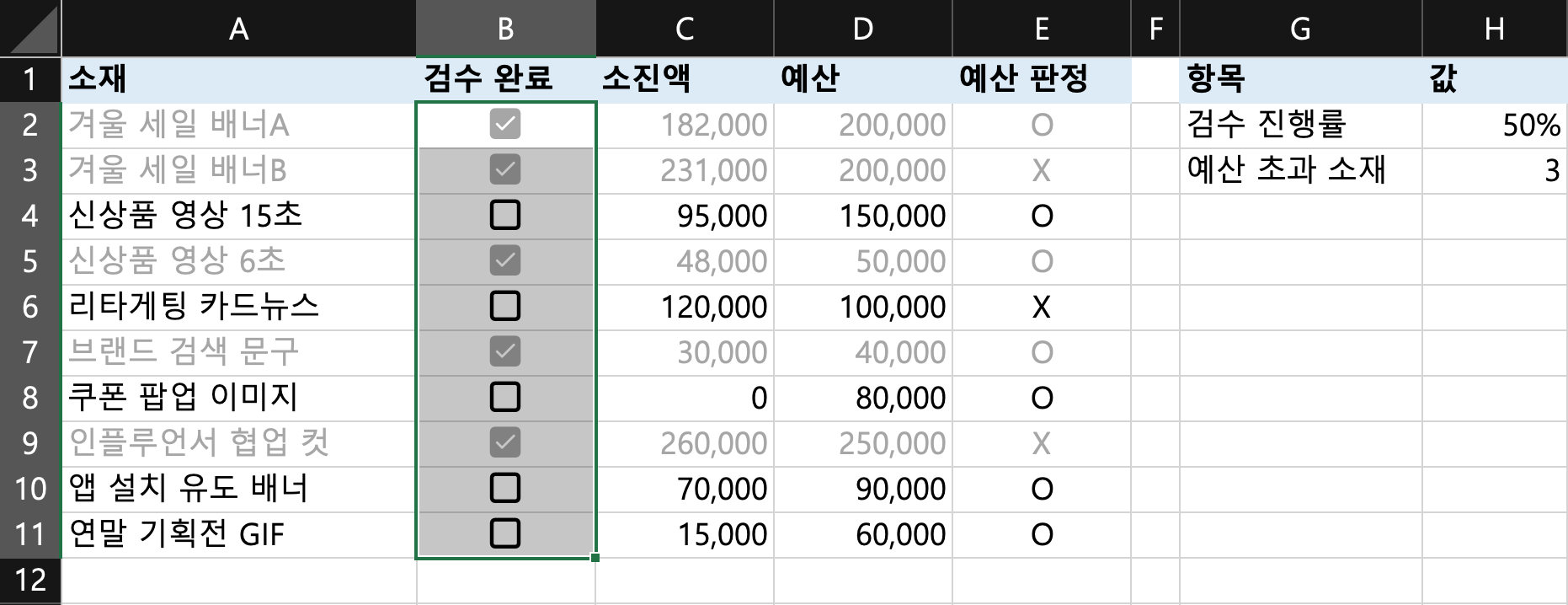 The review sheet built with the five steps above. Checkboxes were added to B2:B11 with Insert > Checkbox, checked rows turn gray with the
=$B2=TRUE conditional format, and progress is calculated as 50% right away (sample data, screen in Korean).
If you share this sheet with colleagues on the web, avoid form control checkboxes as we saw earlier and use in-cell checkboxes. If all you need is to show number ranges as symbols, conditional formatting icon sets are another option instead of checkboxes. According to the conditional formatting help article, icon sets classify values into three to five categories separated by thresholds and add an icon to each, and turning on "Show Icon Only" hides the number and shows just the icon. The same article gives an example of mixing icons, such as a green check mark symbol, a yellow traffic light and a red flag; for how to choose icons, also see the icon set comparison in my Excel increase/decrease arrows post.
Wrapping up
Most Excel X mark needs are covered if you remember "checkbox when people tick it, symbol when it's just for looks, IF when another value decides." Especially for a table where you'll need counts later, choose a method that puts TRUE/FALSE or O/X text in the cell instead of a symbol, so you can total it right away with COUNTIF. I'll share anything new I learn as I build my own checklists. If you want to add symbols like ▲▼ to numbers, see my Excel increase/decrease arrows post.
FAQ
- What do I do if Checkbox doesn't appear on Excel's Insert tab?
- According to the help article, in-cell checkboxes apply to Excel for Microsoft 365 and Excel for Microsoft 365 for Mac, so one-time-purchase versions may not have the menu. In that case you can insert a form control checkbox from the Developer tab and get TRUE/FALSE through Cell link in Format Control, but this checkbox can't be used in Excel for the web.
- How do I count checked checkboxes in Excel?
- A checkbox cell holds TRUE when checked and FALSE when unchecked, so you can count them with TRUE (no quotes) as the criterion, as in =COUNTIF(B2:B11,TRUE). If you need a share of the total, divide that by the number of items (COUNTA) and apply a percentage format.
- What's the difference between a check mark symbol and a checkbox in Excel?
- A check mark inserted through Insert > Symbol with a code like Wingdings 252 is a static symbol that doesn't change when you click it. A checkbox can be toggled with a click or the Spacebar and puts a TRUE/FALSE value in the cell, so formulas like IF and COUNTIF can read it directly.
- Can a Google Sheets checkbox store something other than TRUE?
- Yes. Under Data > Data validation, set the criteria to Checkbox, turn on Use custom cell values, and enter the values you want, such as "Yes" and "No," in the Checked and Unchecked fields. The Excel in-cell checkbox help article doesn't describe a setting like this.
Related posts
More posts that help when you're working with Excel display and formatting.
- Excel Up and Down Arrows: Add ▲▼ and Colors with Custom Formats - format codes that add symbols and colors while keeping the numbers intact
- Excel Conditional Formatting: See Numbers as Colors, Bars, and Icons - formula rules to gray out checked rows, and icon sets
- Excel TRUE and FALSE Functions: How to Use AND, OR, and NOT - working with TRUE/FALSE, the values checkboxes store, as conditions