Gemini file creation is a feature that turns what you ask for in chat directly into files such as documents, sheets, slides, and PDFs. With an update announced on October 29, 2026, you can now preview the files it creates right in the chat, and edit them yourself or ask Gemini to edit them. PDFs can be previewed and edited on both web and mobile, other formats on the web, and it's available in every language the Gemini app supports.
"Can you turn these meeting notes into a presentation right away?" Have you ever gotten a good draft from AI chat, only to spend time pasting it into a document app and fixing the formatting all over again? Gemini's file creation feature has been around since last spring, and now the ability to preview and edit the created files inside the chat has been added. In this post, I'll go over how file creation and the new preview and editing features in the Gemini app work, and how they differ from Canvas.
1. What changed in Gemini file creation this time?
File creation itself first came out with an April 2026 Workspace announcement. It said that when you ask in conversation, Gemini creates Google Docs, Sheets, and Slides, PDF, Word (.docx), Excel (.xlsx), CSV, LaTeX, TXT, RTF, and Markdown files, one file per prompt. The "Generate files in chat" section of the Gemini Apps help article has the same list of formats and says most formats can be downloaded to your device or exported to Google Drive. However, the help article's Workspace files item lists only Docs and Sheets, which is worded slightly differently from the April and October announcements that also list Slides.
The October 29 Google blog announcement adds in-chat preview and editing on top of that. The file you create shows up right in the conversation, and you can touch up the content on the spot before downloading it.
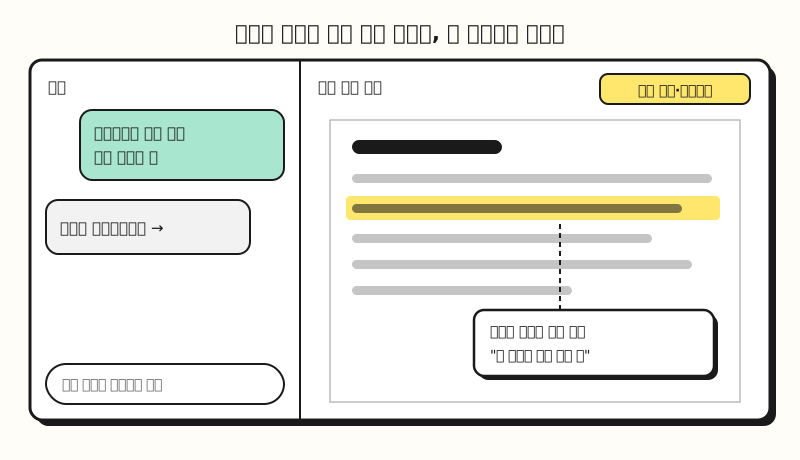 Example figure: Not an actual capture but a simplified screen layout based on the announcement; button positions and names may differ from the real screen (figure labels in Korean).
Put another way, Gemini used to hand you a finished document in an envelope; now it can spread it out on the desk so you can look at it together and say, "Just fix this part." So how exactly can you edit the file once it's spread out?
2. How do you edit files inside the chat?
The October Workspace announcement introduces three ways to edit.
- Type directly: Expand to full screen and edit the content by hand.
- Select and ask: Highlight (select) text and ask about that part. In the Google blog example, you pick a specific section and ask Gemini to revise the writing or visuals.
- Ask Gemini to refine: Tell it in chat how to revise, such as "make the tone more polite" or "reorder the table of contents."
The example in the Google blog is uploading handwritten lecture notes to create a PDF study guide, then editing it yourself or picking specific sections for Gemini to revise, and even asking follow-up questions. Translated into marketing work, you could upload meeting notes to create a weekly report document, then pick just the paragraphs with numbers and ask Gemini to turn them into a table, or edit only the closing remarks yourself. To me, the most practical change is being able to fix only what's needed without regenerating the whole thing, because when you get fresh drafts over and over, even the parts you already liked tend to change.
3. Where do slides, sheets, and docs each lead?
The October announcement explains what you can do with each format.
- Slides: Create a presentation outline or slide content and preview the layout in chat. After adjusting the tone and structure, open it in Google Slides or download it as PPTX or PDF.
- Sheets: Create trackers, tables, and data models from a prompt, preview them, then open them directly in Google Sheets.
- Docs and PDFs: Create drafts as PDF, Google Docs, LaTeX, Markdown, or TXT and edit them on the web or in full screen. All of them can be uploaded to Drive.
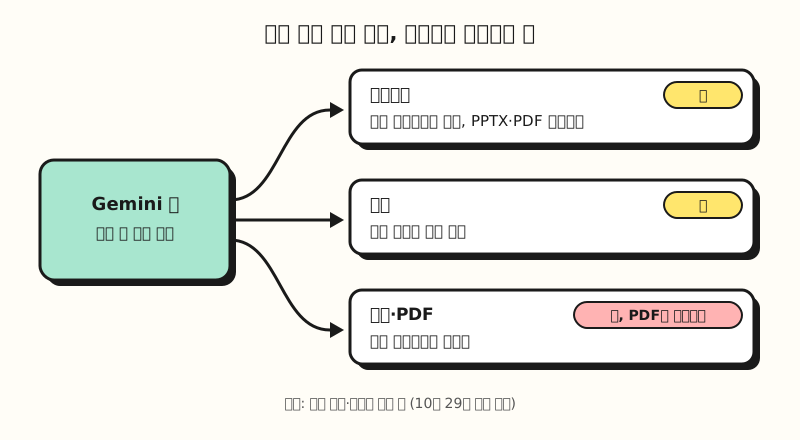 Each format leads somewhere different after the preview. Only PDFs can be previewed and edited on mobile too (figure labels in Korean).
If you want to make PowerPoint decks with Gemini, the slides part is probably the most welcome, since you can check the layout in chat first and get it as a PPTX. For material with fixed rows and columns, like a campaign schedule or a content publishing plan, it feels natural to create it as a sheet and keep refining it in Google Sheets. If you want to use AI further at the cell level after organizing things in a sheet, my post on filling Google Sheets with Gemini is worth a look too.
4. How should you ask for files?
According to the help article, you can ask by naming the file format you want, and sometimes Gemini will ask first whether you'd like the result as a file. The help article's example prompt, "Create a spreadsheet that tracks students' math progress with weekly scores," puts what to include and the file type in one sentence. For longer tasks, splitting the request into sections like the one below makes it easier for both Gemini and your future self to read.
## Role
The person preparing materials for the marketing team's weekly meeting

## Instructions
Turn the meeting notes below into a 5-slide presentation.
Put only a one-line title and 3 key lines on each slide, and fill the last slide with next week's to-dos.

## Format
Make it so it can be opened in Google Slides.

## Material
<material>
(paste the meeting notes)
</material>
Once the file is created, check the slide order and wording in the preview, and ask again only for the slides you don't like. If you're curious why you'd split a prompt into sections, see my post on prompt basics as well.
5. How is it different from Canvas?
The Gemini app already had a workspace called Canvas. According to the Canvas help article, in Canvas you can create or edit documents, apps, slides, and code, and there are features to select text and ask Gemini to revise it or to change its length and tone. Documents you create can be exported to Google Docs.
- Canvas: A separate workspace you start by choosing Canvas below the input box. It also handles outputs you run, like apps and code.
- File preview and editing: Open and edit a file you received as a chat response right inside the conversation. It works at the level of files with a set format, such as PDF, Markdown, and TXT.
The approach of asking it to fix only a selected part looks similar in both, but the October announcement doesn't explain how the new feature relates to Canvas. It's safer to check again how the two are divided once there's an official explanation.
Note: Who can use it, and where?
- Who: According to the October announcement, it's available to all Google Workspace customers, Workspace Individual subscribers, and users with personal Google accounts, and there's no admin setting to turn it on or off.
- Languages: Available in all languages the Gemini app supports. The Gemini web app supported languages and countries help article includes Korean and South Korea.
- Devices: PDF preview and editing work on web and mobile; Docs, Sheets, Slides, Markdown, TXT, and code work only on the web.
- Sign-in: The April announcement described file creation as available to users signed in to the Gemini app.
Files created by Gemini are still AI-written drafts, so it's a good idea to double-check that numbers and proper nouns match your source material. I've written about why AI produces plausible wrong answers in my post on AI hallucinations.
To sum up, with this update Gemini file creation has gone from "a feature that hands you a file" to "a feature where you finish the file by editing it in chat." I'll also look at how far I can get inside the chat when outlining report drafts or presentation materials, and write it up again.
FAQ
- Does Gemini file creation work with a free account?
- The October 29 Workspace announcement lists all Google Workspace customers, Workspace Individual subscribers, and users with personal Google accounts as eligible, and doesn't mention any paid plan requirement. According to the April announcement, you need to be signed in to the Gemini app to use file creation.
- Can I make PowerPoint slides with Gemini?
- Yes. According to the October announcement, you can create slide content in the Gemini app, preview the layout in chat, and then open it in Google Slides or download it as PPTX or PDF. Slide preview and editing work on the web.
- Can I edit PDFs on mobile in the Gemini app?
- Yes. According to the Google blog announcement, PDF preview and editing are supported on both web and mobile, while Google Docs, Sheets, Slides, Markdown, TXT, and code are supported only on the web.
Related posts
- Fill with Gemini in Google Sheets - A feature where Gemini fills empty cells in a sheet and shows the source for each cell
- Creating Slides and Videos in NotebookLM - The Gemini Notebook feature that creates slides and video overviews from your materials
- Gemini Connected Apps Explained - Google services and third-party apps you can connect to the Gemini app