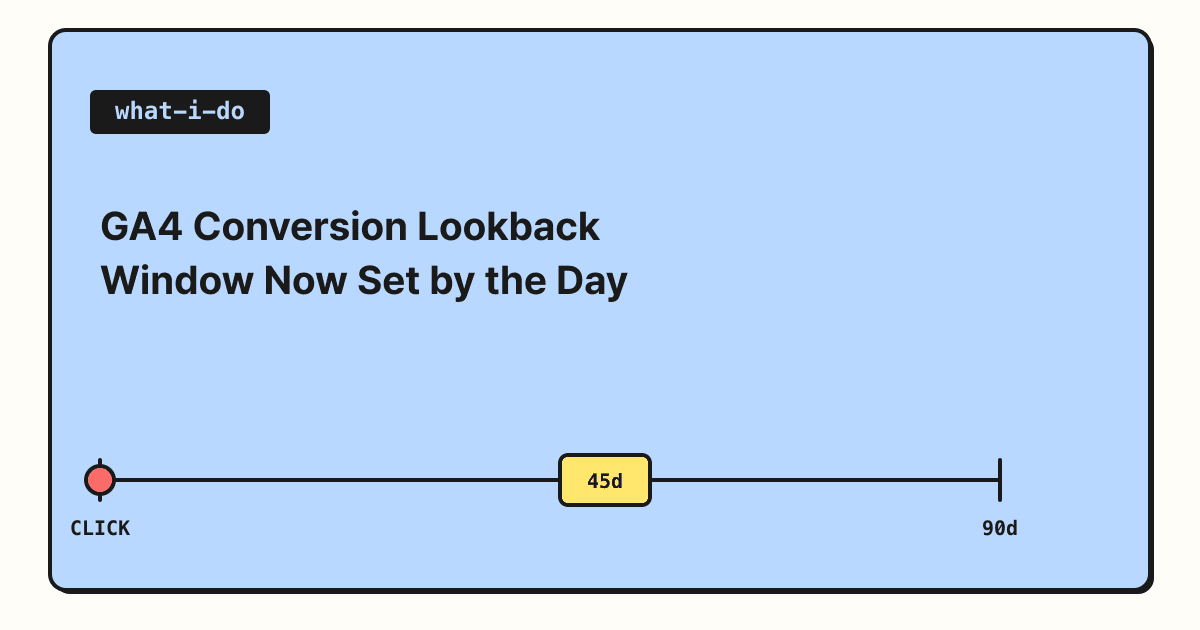
On August 11, 2026, Google Analytics (GA4) started letting you set the lookback window for conversions yourself, down to the day. You can now enter any number from 1 to 90 days for click-through conversions and from 1 to 30 days for engaged-view conversions. In this post, I've summarized what a lookback window is, what changed, and how the lookback windows for key events and conversions differ, which is easy to mix up.
If you look at ad performance, you've probably had moments where you wondered, "Should this purchase really be credited to the ad?" Whether someone who clicked an ad and bought three days later counts the same as someone who bought two months later comes down to how you set the lookback window. Until now, GA4 only let you pick this window from a fixed set of options, but with this update, you can match it more closely to your business's purchase cycle.
1. What is a lookback window (conversion window)?
The GA4 Help article describes a lookback window as "the period of time in the past during which a touchpoint is eligible for credit." The example in Google Ads Help makes it clearer. If a customer clicks your ad on March 1 and the window is 30 days, only conversions that happen by March 30 are recorded as results of that click.
It's easy to understand if you think of a coupon's expiration date. The validity period starts on the day someone clicks or views the ad, and a purchase only counts toward the ad if it happens within that period. So if you set the window too short, ads for products with long consideration times look like they performed poorly, and if you set it too long, purchases unrelated to the ad may get credited to it.
2. What changed with this update?
According to What's new in GA4, there are two changes.
| Type | Before | From August 11, 2026 |
|---|---|---|
| Click-through conversions (CTC) | Choose from 1, 7, 14, 30, 60, or 90 days | Any whole number from 1 to 90 days |
| Engaged-view conversions (EVC) | Fixed at 3 days | Any whole number from 1 to 30 days |
Previously, click-through conversions could only be set to one of the fixed values, so you couldn't set a period in between, like 45 days. Now you can set it by the day to match your purchase cycle.
Click-through conversions happen after someone clicks an ad, and engaged-view conversions happen after someone watches a video ad for a certain amount of time. Google Ads Help says that for skippable in-stream ads, an engaged view means watching for 10 seconds or more (or to the end if the ad is shorter than 10 seconds). If you also run YouTube ads, being able to adjust the engaged-view window yourself, after it was fixed at 3 days, is especially welcome.
You'll find the setting in GA4 under Advertising > Conversion management > more options > Settings, and you can also change it on the conversion management screen in your linked Google Ads account.
3. Do key events and conversions have separate lookback windows?
Here's one part that's easy to get confused about. GA4 has both key events and conversions, and what changed this time is on the conversion side. The GA4 Help article distinguishes them like this.
| Type | Key events | Conversions |
|---|---|---|
| Purpose | Measure actions important to your business | Measure ad campaign performance and optimize bidding |
| Google Ads bidding | Can't be used | Can be used |
| Order of creation | Event → key event | Event → key event → conversion |
| Where to manage | Admin > Key events | Advertising > Conversion management |
The lookback windows for key events are still described as fixed options in a separate help article.
Acquisition events like first_open and first_visit default to 30 days (7 days available), other key events default to 90 days (choose from 30, 60, or 90 days), and engaged-view key events default to 3 days.
The same article explains that these windows also apply to session attribution.
That's why the numbers in your key events reports and conversion reports can differ. The help article also notes that the two can show different numbers because they use different lookback windows and attribution models. When the numbers don't match, rather than suspecting a tracking error first, I recommend checking whether the attribution settings for the two reports are the same.
4. What should you check before changing the lookback window?
- It applies from the day you change it: Both GA4 and Google Ads Help say lookback window changes apply to data going forward. Past reports aren't recalculated, so be careful when comparing.
- Record the change date: When you compare performance before and after the change, numbers may look different because of the window difference. It's a good idea to note the change date and reason in your team's docs.
- Match it to your purchase cycle: In my view, it's natural to set a shorter window for low-involvement products with short consideration times, and a longer one for B2B or high-priced products with long review periods. But the right answer depends on your industry and data, so I recommend first looking at how long it actually takes people to convert.
Summary
With this update, you can set GA4 conversion lookback windows by the day, from 1 to 90 days for click-through conversions and from 1 to 30 days for engaged-view conversions. Keep in mind, though, that what changed is conversions, which are used for ad bidding, and that key event lookback windows are set separately. For where to find the setting and the conditions, please refer to the official help articles linked in this post.
FAQ
- Does changing the GA4 lookback window change past data?
- No. Both GA4 and Google Ads Help say lookback window changes apply to data going forward.
- Why are the numbers for key events and conversions different?
- Because the two can use different lookback windows and attribution models. GA4 Help also explains that this can cause the numbers to differ.
- Where do I change the conversion lookback window?
- In GA4, go to Advertising > Conversion management, click the more options icon, and open Settings, or change it on the conversion management screen in your linked Google Ads account.
Related posts
- Understanding attribution models with Google Analytics - The attribution model to look at alongside the lookback window
- GTM tags, triggers, and variables: Google Tag Manager basics - How to collect the events that conversions are built on
- What are the ways to optimize search ads? - How to use conversion data in ad operations