What is Ads Script?
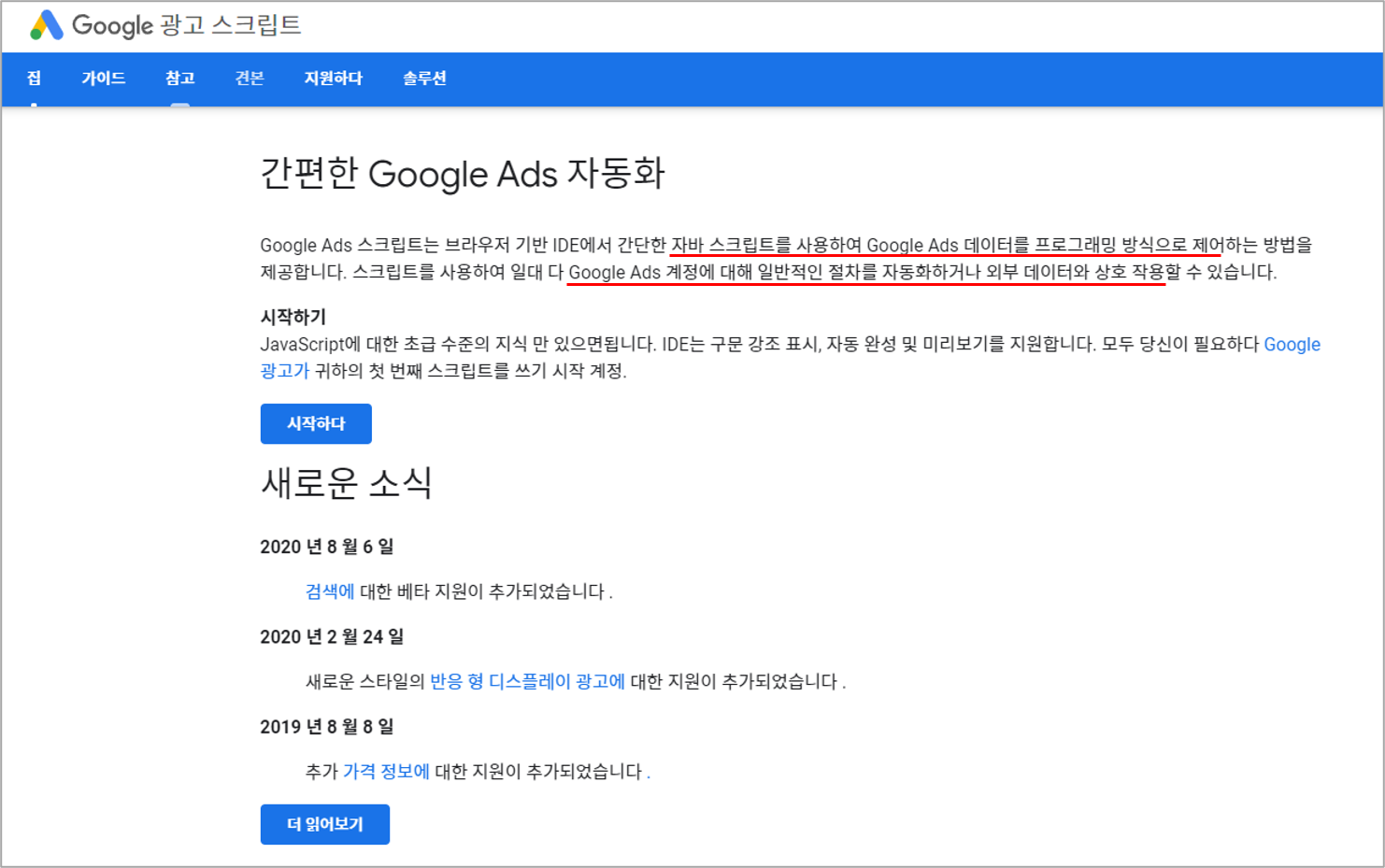
Ads Script is a scripting tool for working with Google Ads. Using the various methods Google provides, you can manage your Google campaigns or pull out data. I'd heard you only need basic JavaScript to use it, so I tried applying Ads Script partly as a way to study JavaScript.
The basics you need to know to use Ads Script
To make use of Ads Script, you first need to know what you can control and how, right? Bulk creation and management are easy enough to handle with Ads Editor, so I focused on the benefit of Ads Script for regular performance management and thought about how to control things with it.
First, to use Ads Script for managing campaign performance, you need to understand Ads Script's Entity, Iterator, and Selector, which you could roughly translate as object, iterator, and selector.
1. Entity
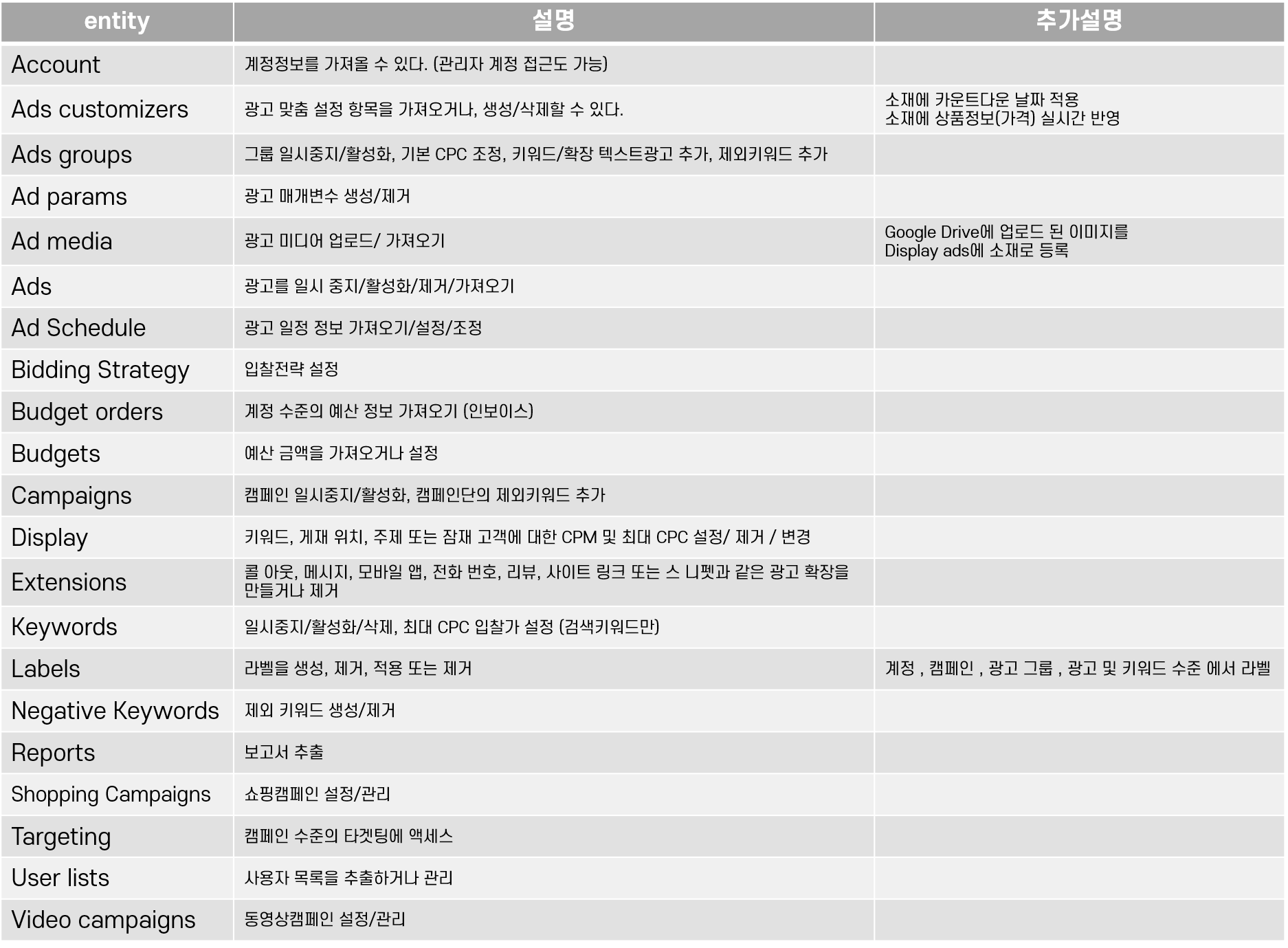
Entity describes the objects, that is, the elements we can control with Ads Script and what we can do with them. You can see that you can access and edit account, campaign, and ad group settings, create or remove them, and even add creatives and pull reports.
2. Iterator
If you've written loops before, Iterator will feel familiar. When managing creatives or keywords, there's no point in using a script to manage just one keyword, so you'll end up using it in a loop. Google Ads Script provides methods (hasNext(), next()) that let you iterate with a while loop, making loops easy to use.
A typical loop:
for (var i = 0; i < myArray.length; i++) {
    var myObject = myArray[i];
}
Iterating with a while loop:
while (myIterator.hasNext()) {
  var myObject = myIterator.next();
}
With a while loop plus hasNext() and next(), you can work with multiple Google Ads elements more easily.
3. Selector
In Google Ads Script, you can use a Selector when you want to select only the elements that meet certain conditions.
The conditions you can select by include performance data like impressions, clicks, and conversions, as well as the period the ads ran. You can also sort the results by a specific criterion or take only a certain number in order. You can combine these conditions too. For example, when you want to see performance only for keywords that got impressions among those that ran yesterday, or when you want to pull only elements with a specific ID. Or, a bit more complex, when you want only the top 50 keywords with the most impressions among those that ran yesterday, you can combine selectors to get them.
In the example below, I selected campaigns that ran yesterday with 1,000 or more impressions and 10 or more clicks, sorted by impressions in descending order.
var campaignSelector = AdsApp.campaigns()
.withCondition("Clicks > 10")
.withCondition("Impressions > 1000")
.orderBy("Impressions DESC")
.forDateRange("YESTERDAY")
.get();
Today I went over what you can do with Google Ads Scripts and the basics you need to know to control Google Ads with scripts. Now that you have a rough idea of the concepts, it's time to put them to use in real work, right?!
In the next post, I'll write about how to (sort of) automatically optimize live campaigns using Ads Scripts.