Google Vids AI video generation switched to Google's new video model, Omni 1.2 Flash, on November 5, 2026. According to the Google blog, anyone with a Google account or Google Workspace subscription can create up to three 15-second videos per month at no additional cost. The maximum clip length grew from 10 seconds with Omni 1.1 to 15 seconds, and the same model also arrived in Google Ads Asset Studio and the Gemini API. That said, the free limit is stated in different units depending on the document, and many features are English-first, so there are a few things marketers in Korea should check before using it.
"Do I really have to book a shoot just to make one 15-second product promo?" If you have to produce new social ad creatives every week, you have probably asked yourself this. Now that a few photos and one sentence can produce a draft, how much can you hand off, and where does a person still need to step in? In this post, I'll look at what changed in Omni 1.2 Flash, how much you can use for free, how to choose between Vids, Flow, Asset Studio and the API, and the steps for making a 15-second product promo.
What changed in Omni 1.2 Flash?
According to the Gemini Omni 1.2 Flash announcement, the model is now generally available (GA) on the Gemini API and Google Cloud, with three main changes.
- Length: You can create and edit videos up to 15 seconds. Omni 1.1 topped out at 10 seconds, and length is set in one-second steps from 3 to 15 seconds.
- Price: About $0.07 per second at 720p, 30% lower than Omni 1.1. Google recommends drafting at 360p or 720p, fixing things, then upscaling to 1080p or 4K.
- Consistency: It takes character, product and style reference images so faces, garments, packaging and brand colors change less from the first frame to the last. Multi-turn editing (swapping just the product or background by conversation), more natural speech and camera movement handling also improved.
The Vids announcement puts these changes in marketer terms. It highlights short social and promo videos that run in one continuous take without cuts, image-based videos that keep characters and scenes consistent through reference images, and narration that sounds less synthetic.
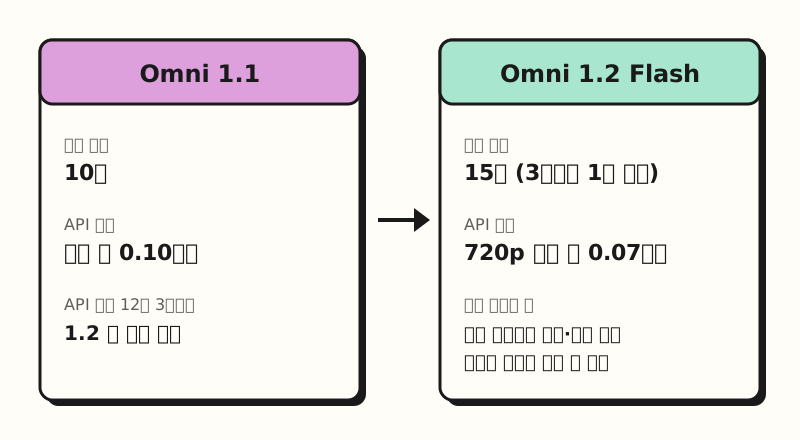 Only what the announcement and the Gemini API pricing page state, side by side (figure labels in Korean).
The Gemini API pricing page lists Omni 1.1 Flash at about $0.10 per second, and says that from December 3, 2026, requests sent to 1.1 are automatically routed to 1.2 and billed at 1.2 rates. If your team uses 1.1 through the API, the look of your output may change, so it's worth comparing the two before then.
※ Note: How many free videos, and does it work in Korean?
The free limit is stated in different units depending on the document.
- November 5 announcement: Anyone with a Google account or Workspace subscription can create up to three 15-second videos per month at no additional cost.
- Gemini features in Vids: This page states AI video clip limits in seconds. Personal Google accounts and Workspace Individual get 60 seconds per month, Business Starter gets 200 seconds, and Business Standard/Plus and Google AI Pro get 500 seconds. It also notes that personal accounts may have some restrictions on AI video editing.
- Generate AI video clips in Vids: Most users can generate up to 50 videos per month, and the limit resets at 12 AM Pacific Time on the first day of each month. The top of the same page still says the feature requires an eligible Workspace subscription, which doesn't match the announcement's "anyone with a Google account."
So rather than memorizing one number, it's more accurate to check what's left in your own account's Vids screen. For personal accounts, both the announcement's three 15-second videos (45 seconds) and the help page's 60 seconds come down to "only a few per month," so on a free account it pays to polish your prompt before you press generate.
Language is worth flagging too. The Vids features page says many AI features in Vids are currently available only in English, and the Omni documentation in the Gemini API says only English is fully supported, while other languages haven't been evaluated and may give variable results. That doesn't mean Korean prompts don't work, but if the result isn't what you expected, I recommend rewriting the same content in English. Check especially carefully if the video includes on-screen Korean text or Korean dialogue.
The Vids help page also lists these conditions.
- Regional limits: Users in the European Economic Area (EEA), the UK, Switzerland, and the US states of Illinois and Texas can't edit videos they upload, only AI-generated ones.
- Where you can use it: The page says generated images and videos can be used only within Google Vids, so if you plan to take them out as ad creatives, it's safer to check the terms along with your company's rules first.
- History: Generation history disappears when you close the Vids tab, so insert any clip you like right away.
Vids, Flow, Asset Studio or the API: where should you create?
Besides Vids, the announcement lists Flow, Google Ads, the Gemini app and the Gemini API/Google Cloud as places to use Omni 1.2 Flash. Even with the same model, what each tool is good for differs quite a bit.
| Tool | Good for | Cost | Keep in mind |
|---|---|---|---|
| Google Vids | Short scenes for internal training or presentation videos, drafts | No additional cost within each account's monthly limit | Many AI features are English-first; generated output is for use only within Vids |
| Flow (Google Labs) | Refining scenes through several rounds of conversation | No pricing terms in this announcement | The announcement presents it for multi-turn edits |
| Google Ads Asset Studio | Creating ad creatives and using them in campaigns right away | Free feature inside Google Ads | Takes brand guidelines and a website URL, outputs 16:9 and 9:16 |
| Gemini API / AI Studio | Development work that auto-generates videos for dozens of products | Billed per second, no free tier | About $1.05 for one 15-second 720p video (calculated at $0.07 per second) |
According to Google's Gemini Omni in Google Ads page, in Asset Studio you import brand guidelines and a website URL, create storyboards and scenes from a short prompt or existing image assets, keep refining scenes, voiceover, pacing and aspect ratio, then export for Demand Gen, Performance Max and YouTube campaigns. The May Google Ads blog post said these features roll out globally in English, so they may not show up yet in a Korean-language account.
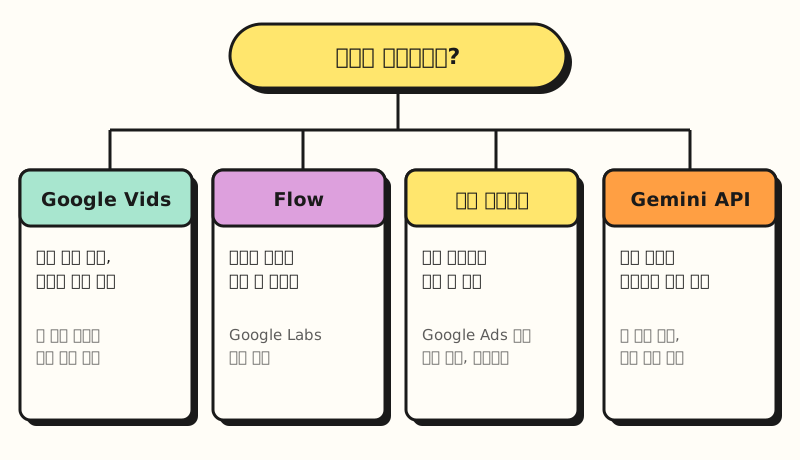 The table split by one question: what are you making? (figure labels in Korean)
My own rule of thumb is simple: I start by asking where the output will run. For internal sharing or a draft to show an idea, Vids is the lightest. For creatives you'll actually run as ads, starting in Asset Studio gets you through export and campaign setup in one go. If you have many products and need to repeat the same format, that's when to look at the API.
How do you make a 15-second product promo video?
Say you're a marketer at an online store who needs a 15-second vertical draft to promote a new tumbler. Following the generation steps in the Vids help page, the flow looks like this.
- Gather materials: Pick product photos (sharp .jpg or .png files), brand colors, and one or two scenes the video must include. Vids accepts up to 7 reference images (Ingredients).
- Write the prompt: The help page recommends describing the subject, location, action, camera, lighting, dialogue, sounds and tone.
- Set up generation: At vids.new, choose Create AI videos, set 9:16 vertical, 15 seconds and 720p in the settings, then generate.
- Pick and insert: Insert the clips you like right away, and if one falls short, use Recreate to rework the same prompt.
- Review and next step: Go through the checklist below, and recreate the version you'll actually run as an ad in Asset Studio.
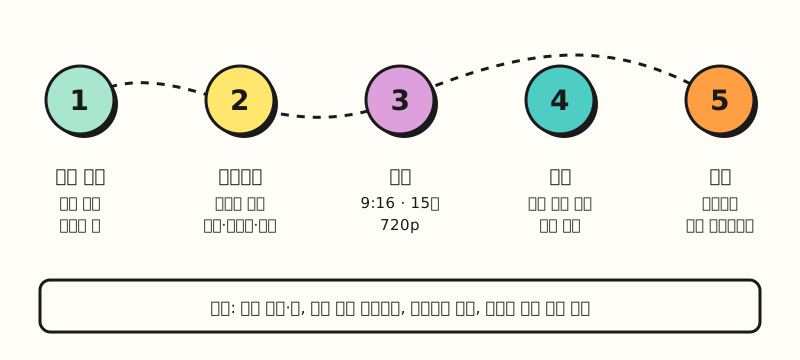 Example figure: not a real screen capture, but a simplified version of the steps in the help page. Menu names may differ by account language (figure labels in Korean).
Since the free limit is small, step 2 deserves the most effort. I recommend giving a chat AI your product description and asking it to turn that into an English video prompt. You can paste the template below as is.
## Role
You are a video planner who writes storyboards for 15-second social product promo videos.

## Instructions
Using the material below, write one paragraph of English video prompt to put into Google Vids.
Include the subject, location, action, camera movement, lighting, sound and mood.
Make it one continuous scene without cuts, and don't put any text on screen.

## Format
- 1 English prompt (around 120 words)
- Below it, a 3-line scene description in Korean

## Material
<material>
Product: stainless steel tumbler, mint color, handle on the lid
Target: office workers in their 20s and 30s on their morning commute
Mood: clear morning, bright and calm
</material>
The English prompt you get back might look something like "A mint stainless tumbler on a wooden cafe table by a sunny window, a hand lifts it by the lid handle, slow push-in camera, soft morning light, gentle cafe ambience, calm and fresh mood." This is an example whose output I haven't verified, so be sure to watch the first one on screen and refine it. For Korean on-screen copy, it's easier to edit if you add it as text in the Vids editor rather than having the model draw it into the video. I explain why I split prompts into role, instructions, format and material in Prompt basics.
So what should marketers change?
Using a video generation AI is a lot like basting when sewing clothes. Just as you loosely tack a garment together, try it on and adjust before the final stitching, generating quickly at low resolution, fixing, and upscaling only once at the end saves both time and money. That's also why the announcement recommends drafting at 360p or 720p, fixing with edits, then moving up to 1080p or 4K.
Here's what's worth changing in practice.
- Collect reference images at the planning stage: Since 1.2's strength is keeping reference images consistent, gathering product shots, model shots and brand color swatches in one folder makes drafts more stable. The Omni documentation says images containing certain recognizable real people aren't supported, so check whether your model photos can be used first.
- Use it first to check storyboards before a shoot: Because it can show a continuous scene within 15 seconds, it works well as a draft to align the team before commissioning a shoot.
- Set review criteria: Every time, check that the product's shape and color match the photos, that hands and text aren't distorted, that the narration sounds natural, and that it doesn't claim benefits that aren't true.
- Keep AI-generated labeling in mind: Both the Omni documentation and the Google Ads page say generated videos carry an invisible SynthID watermark. I covered how to check it in the SynthID Detector post.
For why AI produces plausible but wrong output and how to review it, please also see How to reduce AI hallucinations.
Wrapping up
With Omni 1.2 Flash, you can now make 15-second videos for free in Vids, but the free limit is a handful per month and many features are English-first. I recommend using Vids for internal drafts and Asset Studio for real ad creatives, and preparing your prompts and reference images in advance so each generation counts. As I apply this to ad draft work, I'll share any differences I notice with Korean prompts.
FAQ
- Is Google Vids AI video free?
- According to the November 5, 2026 Google blog post, anyone with a Google account or Google Workspace subscription can create up to three 15-second videos per month with Omni 1.2 Flash at no additional cost. The Vids help pages state limits in seconds: 60 seconds per month for personal accounts and 500 seconds for Business Standard/Plus and Google AI Pro, so check your remaining amount in your own account.
- What's the difference between Omni 1.2 Flash and Omni 1.1?
- According to the announcement, the maximum length grew from 10 to 15 seconds, and the 720p price dropped 30% to about $0.07 per second. Consistency of characters, products and brand colors through reference images, multi-turn editing by conversation, speech and camera movement also improved. In the Gemini API, requests to 1.1 are automatically routed to 1.2 from December 3, 2026.
- Does Google's AI video generation work with Korean prompts?
- The Vids features page says many AI features in Vids are currently available only in English, and the Omni documentation in the Gemini API says only English is fully supported, while other languages haven't been evaluated and may give variable results. Try Korean first, and if the result isn't what you expected, switch to English.
- Where should I create AI videos for ad creatives?
- Gemini Omni is rolling out globally as a free feature in Google Ads Asset Studio, where you can create scenes based on your brand guidelines and website URL and export 16:9 and 9:16 versions for Demand Gen, Performance Max and YouTube campaigns. The rollout starts in English, so it may not appear yet in a Korean-language interface. The Vids help page says generated videos can be used only within Vids, so Asset Studio is the better fit for running ads.
Related posts
- How to check AI-generated images - How to check the SynthID watermark that Omni videos also carry
- Prompt basics - Why to split requests into role, context, examples and output format
- How to reduce AI hallucinations - What to check before trusting AI output