With ChatGPT image generation moving to Images 2.6 on November 4, 2026, two features were added: making animated GIFs in chat, and photo markup, where you draw directly on a photo to show what to fix. The models are also split into two, Sunburst for careful work and Flare for fast iteration, so there are now criteria for choosing based on what you're making.
"I only asked it to move the banner copy a little, so why does the whole image change every time?" If you've ever made ad creative drafts with AI, you've probably felt this frustration. There's a limit to explaining "a bit below the top left" in words. In this post, we'll look at what changed in Images 2.6, how the two models and the ChatGPT and API features differ, and in what order a marketer making ad creatives might use them.
What's new in ChatGPT Images 2.6?
According to the ChatGPT Images 2.6 System Card OpenAI published on November 4, this update consists of two models, GPT-Image-2.6 Sunburst and GPT-Image-2.6 Flare. It says both models improve editing consistency, detail preservation, and responses to sketches and image annotations. The new features fall into three groups.
- GIF creation: Added to both ChatGPT and the API. You can get a moving image right away instead of a single still.
- Photo markup: Also added to both ChatGPT and the API. It lets the model make fixes based on the spots you mark on a photo.
- SVG output: A vector image format that doesn't break when scaled up, but this was added to the API only.
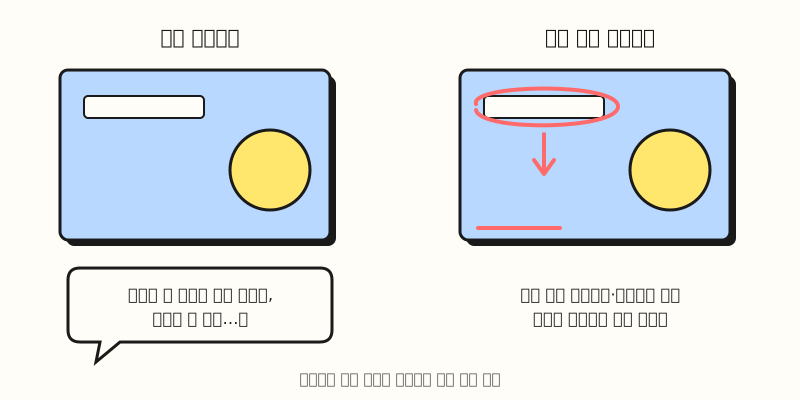 Figure: Photo markup tells the model where to fix with marks on the photo instead of words. This illustrates the concept and is not an actual ChatGPT screen. (figure labels in Korean)
You can also choose speed now. The system card says Flare is optimized for faster generation, and that in ChatGPT you can change the reasoning effort in the model picker to control generation and editing speed. The OpenAI developer changelog posted the same day also lists the two model releases, along with markup-guided editing added for supported GPT Image 2.5 and 2.6 models.
Sunburst or Flare: which should you choose?
The image generation guide separates the two models' roles fairly clearly. It recommends Sunburst for work where editing precision matters most, and Flare for fast, high-quality everyday generation. Side by side on the same criteria, they look like this.
| Criteria | Sunburst | Flare |
|---|---|---|
| Docs description | For detailed visual work | For fast iteration |
| Good fit | Product photo touch-ups, partial edits to an approved draft | Many idea drafts, concept comparisons |
| Shared features | Complexity control, markup-guided editing, SVG and GIF output | Same |
| Watch out for | May take longer than Flare, which is optimized for speed | Fast, but always check detail preservation |
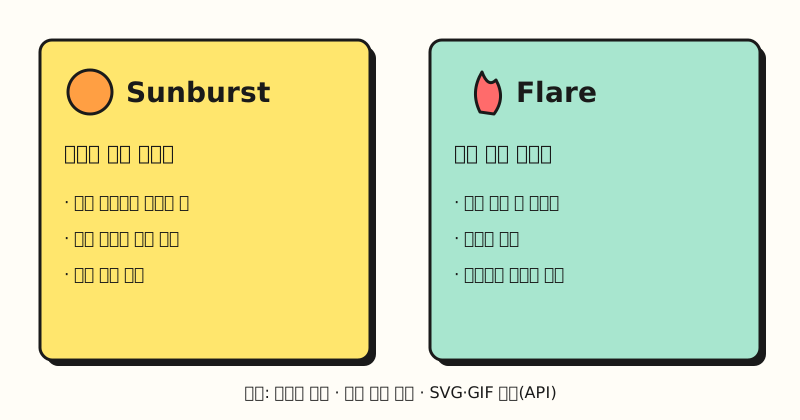 Figure: The two models side by side, based on the uses stated in the docs. The "good fit" items are my own examples matched to work scenarios. (figure labels in Korean)
There are also differences between ChatGPT and the API. Both support GIFs and photo markup, but SVG output is API only.
The system card doesn't say which of the two models ChatGPT uses or whether users can choose, so it's more accurate to think of ChatGPT as controlling speed through reasoning effort rather than model names.
If you're a developer using the API, you can set complexity to low, medium or high (it runs as high if omitted), get GIFs with output_format: "gif", and set each frame's duration between 20 and 2,000 milliseconds (default 200 milliseconds).
Markup-guided editing works by sending an annotation image as markup with the edit request, and the guide notes it can't be combined with the existing area selection (mask).
Still image or GIF: when should you use which?
Having GIFs doesn't mean every creative needs to move. I think it's right to first ask, "Can the viewer understand this from one frame?" The criteria below are my own, based on the feature scope in the official docs, so if you have media specs or an in-house design guide, follow those first.
| Situation | Recommendation | Why |
|---|---|---|
| A banner with one message, like a discount rate or deadline | Still image | One frame is enough, and it's easier to place copy accurately |
| Creative where "change" is the point, like before/after or color options | GIF | The content only makes sense when two or three scenes play in sequence |
| How-to or assembly steps on a product detail page | GIF draft, then designer review | Seeing the order helps, but text in every step means more to check |
| Graphics used at different sizes, like logos and icons | SVG (API) or a design tool | Vectors don't break when enlarged, and the brand original takes priority for the final version |
As an analogy, a still image is like a poster and a GIF is closer to a flip-through flyer. A poster has to be read at a glance as people pass by, while with a flyer the flipping order is the message, so you need to design the scene order first. So how should you give instructions when you want to fix a scene?
If you handle ad creatives, what order should you follow?
Let's follow, from start to finish, a scenario where a shopping mall marketer reworks a weekend promotion banner and then makes a short GIF draft with the same content. The steps and prompt below are an example, not results I actually ran.
- Upload the existing banner: Upload last week's banner image to the chat and first state what must not change (the product, the logo position).
- Mark up the photo: Instead of describing fixes in words, use photo markup to mark the copy position and the area whose background color should change. It's the same as circling things in red pen on a proof before sending it to the printer.
- Lock in the still image first: When reviewing many drafts, lower the reasoning effort to run them quickly (Flare if you're on the API), then after picking one, raise the effort or switch to Sunburst to refine the details.
- Expand into a GIF: Use the approved still image as the first scene and request a GIF.
- Check copy and provenance: Have a person check text position, spelling, price notation and brand colors, and decide whether to re-apply the final copy in a design tool.
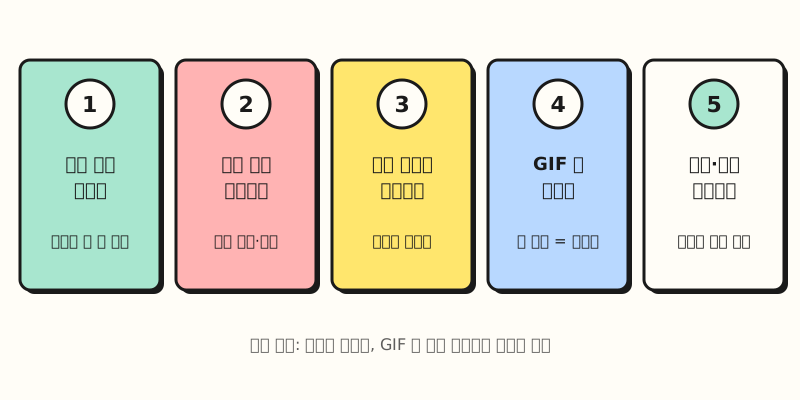 Figure: The order is to mark what to fix, approve the still image, and then expand it into a GIF. (figure labels in Korean)
Here's a prompt template you can use in step 4. As covered in the prompt basics post, splitting the role, instructions, format and material keeps the "do not change" conditions from drifting.
## Role
A designer making promotion banner drafts for an online shopping mall

## Instructions
- Make a short GIF that uses the attached banner as the first scene.
- Do not change the product photo, logo position or background color.
- In the second scene, make only the "Weekend only" copy appear.

## Format
- Landscape, 3 scenes, loop smoothly
- Large text, one line per scene

## Material
<material>
Product: Winter muffler (hypothetical example)
Copy: Free shipping, weekend only
</material>
The docs don't describe a setting in ChatGPT for choosing the number of scenes or how it loops, so requesting it in the prompt like this and adjusting while looking at the result is the realistic approach. If the copy changed in a way you didn't intend, going back to step 2 and marking that scene again is faster than explaining it repeatedly in words.
※ Note: limits and provenance to check before you use it
- Check plans and usage limits yourself: The system card doesn't say which plans include these features or how many you can make per day. Please check your ChatGPT screen and help center.
- Text and brand elements are still weak spots: The image generation guide says text placement and clarity may still be imprecise, and that it can be hard to keep recurring characters or brand elements consistent. For creatives with prices or discount rates, a person must always cross-check.
- Complex requests take time: The same guide says complex prompts may take up to 2 minutes to process. I'd recommend not running it for the first time right before a deadline.
- GIFs are filtered more strictly: The system card says that, because of risks from motion, some content categories are blocked more broadly than in still images. A request that worked as a still image may be refused as a GIF.
- Provenance information is attached: According to the system card, Images 2.6 output includes industry-standard C2PA metadata and Google DeepMind's invisible watermark SynthID across ChatGPT, Codex and the API. OpenAI says provenance signals can be checked with its public verification tool.
Provenance labeling actually gives marketers a standard to work with. The SynthID page lists OpenAI as a partner and explains that the watermark is designed to withstand modifications like cropping, filters and lossy compression. That means presenting AI-made creatives as if a person made them could come to light through verification tools later, so it's safer to set an in-house standard for AI-generated labeling in advance.
Final thoughts
ChatGPT image generation 2.6 is an update that turns "fixes explained in words" into marks on the photo and "single-frame drafts" into GIFs. On the API, the basic direction is Sunburst for careful work and Flare for fast drafts, and in ChatGPT, matching speed and precision through reasoning effort. I'll also check how accurate markup editing is when making drafts for blog thumbnails and illustrations, and let you know if anything changes. For the detailed scope of the features, please refer to the system card and the image generation guide.
FAQ
- Can you make GIFs in ChatGPT?
- Yes. According to OpenAI's system card, ChatGPT Images 2.6, released on November 4, 2026, added GIF creation to both ChatGPT and the API. However, the system card doesn't say which plans include it or how many times you can use it, so check your ChatGPT screen and help center. GIFs are subject to safety rules that block some content more broadly than still images.
- What's the difference between GPT-Image-2.6 Sunburst and Flare?
- OpenAI's image generation guide recommends Sunburst for detailed visual work where editing precision matters, and Flare for fast, high-quality everyday generation. Both models support the same features, such as complexity control, markup-guided editing, and SVG and GIF output.
- Can other people tell an image was made with ChatGPT?
- According to the system card, Images 2.6 output includes C2PA metadata and Google DeepMind's SynthID watermark, and OpenAI points to a public verification tool. The SynthID page lists OpenAI as a partner and explains that SynthID Detector checks content made with AI from Google and its partners.
- Can you get SVG files from ChatGPT image generation?
- The system card says SVG output was added to the API only. Getting SVGs in the ChatGPT chat screen was not part of this announcement.
Related posts
- How to Check AI-Generated Images: SynthID Detector and Gemini - How to check the SynthID watermark, which is also in Images 2.6
- Prompt Writing Basics: Instructions, Context, Roles, Examples - Splitting role, instructions and format, which also works for image requests
- Gemini File Creation and Editing: Edit Slides, Sheets, PDFs in Chat - How another tool creates and edits outputs in chat