Copilot Code is the new Code tab in the Microsoft Copilot app: describe the result you want, such as "build a dashboard that shows weekly signups by channel," and it builds a dashboard, tracker or simple app and shows you a live preview. It was introduced at Microsoft Ignite on November 17, 2026, is currently open only through Frontier, Microsoft's early-access program, and general availability is planned for December. The key point is that you can use it without knowing how to code, but it comes with conditions: usage draws down credits, and an admin has to set a spending policy before anyone can use it.
"Instead of rerunning the same pivot on this Excel sheet every week, couldn't I just look at one screen?" If you report ad performance weekly, you've probably had that thought. Until now it meant asking the dev team or learning a separate BI tool, so most of us ended up back in familiar Excel. In this post, I'll walk through what Copilot Code can build, how it differs from Chat and Cowork in the same app, and, if a marketer tries it, where to start and what to watch out for.
What is Copilot Code, and what can it build?
The Copilot Code overview describes it as a separate tab next to Home in the Copilot app, built for people who think in outcomes rather than implementation details. You describe the result in plain language and Copilot Code writes and runs the software. According to the docs, it can build:
- Apps and interactive tools: trackers, forms, calculators and the like
- Dashboards and data views
- Static websites and landing pages
- Data transforms, scripts and automations
- Internal tools
It takes plenty of input, too. You can drag in CSV files, spreadsheets, images, documents, PDFs and presentations, or paste text, and with your permission it uses Microsoft 365 work data such as documents, emails, meetings and calendar (Work IQ) as context. While it builds, the result appears as a live preview on a canvas next to the conversation; you can select an element in the preview and say "change just this part," or revert to an earlier version if you don't like where it's going.
An analogy: Copilot Code is like a custom furniture workshop. You say what piece you need, the carpenter asks a few questions and builds it right in front of you, and you look at the finished piece and ask for "one more drawer." The Get started guide also says Copilot Code might first ask what kind of app you want and how it should look before it builds.
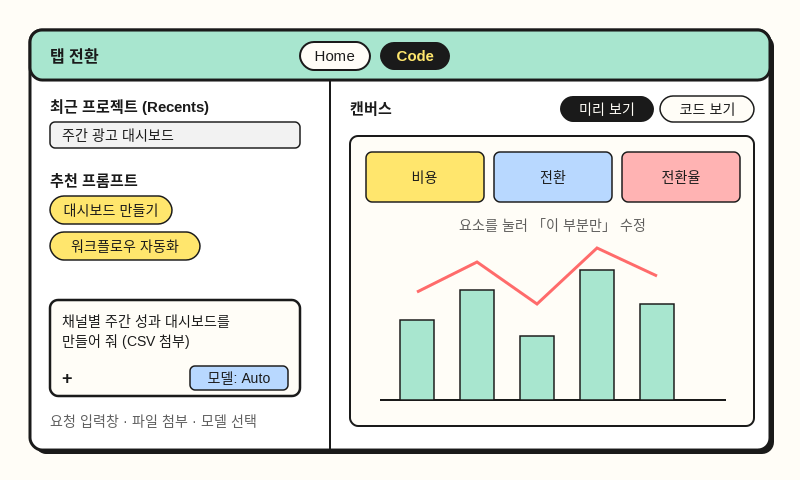 Example figure: a simplified layout based on the Get started guide's description of the screen (task input, suggested prompts, Recents, model picker, canvas), not an actual screenshot (figure labels in Korean).
So how is it different from Chat and Cowork, which are already in the same Copilot app?
Chat, Cowork and Code: what's the difference?
The easiest way to tell the three tabs apart is by what you get back. The Ignite Book of News describes Home as the place to move between quick questions (Chat) and delegating complex workflows (Cowork), and describes Copilot Code separately as letting everyone build dashboards, trackers and apps with natural language. Add Office in Copilot, which became generally available last week, and it looks like this:
| Criteria | Chat | Cowork | Code | Office in Copilot |
|---|---|---|---|---|
| What you get back | An answer | Results of multistep work | A working dashboard, app or script | Word, Excel or PowerPoint files |
| Good for | Quick questions, drafts | Delegating work that spans several steps | Building tools people keep opening and typing into | Writing reports and documents |
| Status (as of November) | Available in Home | Available in Home | Frontier, GA planned for December | GA |
| Cost model | Not covered separately in the announcement | Team sets a spending limit | Usage-based billing, spending policy required | Included in the Copilot subscription license |
One thing worth noting: according to the overview, Code tab conversations stay in the Code tab and don't appear in the Chat or Cowork tabs. If you want to take something you were working through in Chat and turn it into a dashboard in Code, the reliable way is to put the material or summary into the Code tab again.
The other choice is where it runs. Copilot Code can run a project on your own device (local) or in an isolated cloud environment, and the two fit different uses.
| Where it runs | Location | Good for | Keep in mind |
|---|---|---|---|
| Local | A project folder you choose on your device | Iterating quickly with files on your computer | You can edit code directly in code view; automations run only locally |
| Cloud | An isolated cloud environment | Sharing with coworkers, continuing across devices | Organization-scoped link sharing is cloud only; mobile supports cloud sessions only |
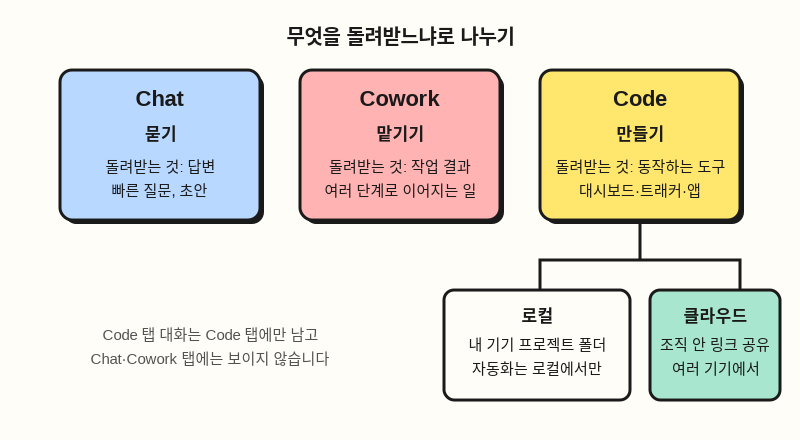 Ask in Chat, delegate in Cowork, and when you need a tool you'll keep using, think Code (figure labels in Korean).
※ Note: Who can use it, and when?
Copilot Code isn't generally available yet, so who can use it is limited. Based on the requirements page and the announcements, here's what to check:
- Frontier preview: For now, only Frontier participants can use it. On timing, the Copilot blog says "in the coming weeks" and the Book of News says "December."
- Work accounts: You need a Microsoft Copilot license, and your organization has to enable the Code tab.
- Personal accounts: You need a supported Microsoft Copilot consumer plan. That said, the Frontier help page explains that early Frontier features for personal subscribers come first in English to U.S.-based subscribers.
- Cost: Code is a usage-based billing feature, so an admin has to configure a spending policy before it can be used. The feature page says there's no separate SKU and Copilot Credits are consumed based on usage.
- Devices: It runs in the Windows and Mac desktop apps and on the web; in the iOS and Android apps you can start and follow cloud sessions. The sandbox that runs projects on your device supports Windows 11 version 24H2 or later and Mac, and Windows 10 isn't supported.
There's one place where the docs disagree. The Book of News lists the Mac local sandbox as "coming soon," but the requirements page, updated November 17, lists Mac as supported. The requirements page is the more recently updated one, but if you plan to run projects locally on a Mac, I'd recommend checking again in the actual app.
How would you start with a weekly ad dashboard?
Let's take a marketer who rebuilds a weekly ad performance report by channel in an Excel pivot every Monday. Below is an example sequence based on the flow in the Use Copilot Code guide; I haven't verified the actual result screens myself.
- Prepare the data: Combine the last few weeks of performance you've downloaded from each platform into one CSV with matching column names. Remove anything that must not leave the company, like client names, first.
- Start in the cloud: If it's a screen you'll view with your manager, choose a cloud project, which supports organization-scoped link sharing.
- Ask in Plan mode: Rather than having it build right away, get a plan first in Plan mode and confirm the metric definitions are right. Besides the default Interactive mode, the docs describe Plan and Automatic modes.
- Check the numbers: When the preview appears, compare the totals and a few conversion rates against your Excel pivot.
- Change one thing at a time: Ask for changes one by one, like "add a channel filter" or "add a vs. last week column." The docs also recommend making one focused change at a time.
- Share or publish: Share a static screen as a link; for an app people type into and update, ask something like "Publish it" to publish it to Copilot Managed Runtime. Building doesn't publish it automatically; publishing happens only when you ask.
For the step 3 request, I'd start with a template like this. Adding conditions not to fill in numbers that aren't in the data and to show the calculation formulas on screen makes step 4 much easier.
## Role
You are a dashboard builder helping a marketer who reviews digital ad performance.

## Instructions
First, make a plan for a weekly ad performance dashboard by channel using the data below.
- Summary cards at the top for this week's cost, clicks, conversions and conversion rate
- Below that, a weekly trend line chart and a table by channel
- Channel and week filters
- For calculated metrics like conversion rate, show the formula on screen
- Don't make up numbers that aren't in the data; show "No data" instead

## Format
Show me the plan first, and start building once I approve it.

## Data
<data>
(Attach the CSV, or paste the column names and a few rows)
</data>
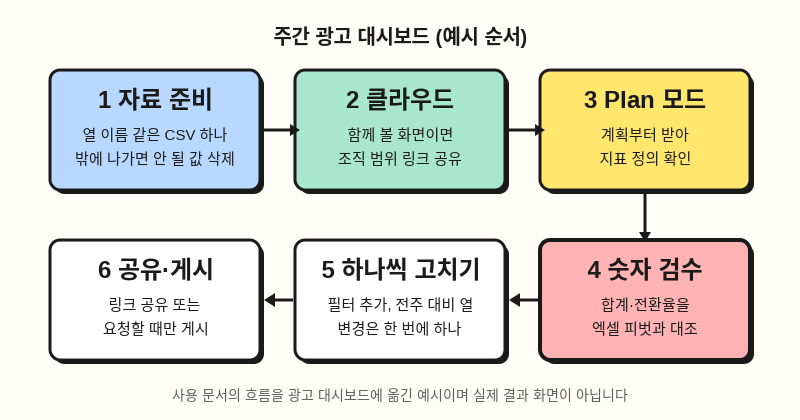 Not skipping step 4, checking the numbers, is the heart of this flow (figure labels in Korean).
According to the automations guide, you can also set a schedule like "Update this dashboard every day at 9:00 AM." But automations run only on your device, so your device and the Copilot app need to be available when a run is due, and cloud automations aren't available yet. They also run only on a schedule or when you start them; they can't start when something happens, such as a new message posted in a Teams channel.
What limits and cautions should you know before using it?
With a tool you build by talking, it's easy to lose track of what you've allowed. Here are the documented limits marketers should especially know:
- Approvals and "Always allow": By default, Copilot Code asks for permission before making network connections, using extensions and MCP, running terminal commands, or reading and writing files outside your project. Once you turn on "Always allow," it stays on until you turn it off and applies to existing sessions too, which is why the docs say to use caution.
- The condition for Automatic mode: Automatic mode is available only when Always allow is enabled. The docs also list a known issue: if an automation uses Automatic mode with "Run all tools without asking" turned off, tool use is rejected and the run might not complete.
- Running out of credits stops things: If credits run out during an automation run, that run and its automation are paused. For a dashboard that updates daily, check your spending limit ahead of time.
- Apps run outside a session aren't protected: The sandbox doc explains that if you run an app Copilot Code built outside of a Copilot Code session, the sandbox doesn't restrict it, and it recommends reviewing the generated code before running it yourself.
- Sharing doesn't change data permissions: Sharing a published app doesn't share the connected data. People see only the data they already have permission to access in connected sources, such as a SharePoint list. If you hear "the dashboard opens but the numbers are empty," check those permissions first.
- Admins can see the record: According to the admin guide, IT admins can access audit logs that include generated code, commands run, and files read or written. On a work account, it makes sense to treat it as a work tool rather than a personal notepad.
AI-built dashboards look clean, which makes it easy to question the numbers less. Mistakes like mixing a total row into an average or misreading a column stay put no matter how good the screen looks, so I'd recommend bringing the review habits from my AI hallucination post to this tool as well.
So what should marketers change?
Copilot Code doesn't mean you need to turn every Excel report into a dashboard. Here's how I'd split it by situation:
| Situation | Recommendation | Why |
|---|---|---|
| A one-off summary you look at once | Excel pivot | Quick to build, and you can verify the numbers right away |
| A report file in the same format every week | Office in Copilot or Copilot in Excel | The output is a document or file, so sharing and archiving are familiar |
| A screen several people open daily and filter | Copilot Code (cloud) | You build a tool people keep using and share it as a link within your organization |
| A campaign calendar or request form teammates fill in | Copilot Code + publish to Managed Runtime | Matches the tracker, form and planner types the docs give as examples |
| A screen that pulls in raw client data as is | Check company rules first | Admin policy decides work data use and sharing scope |
In the end, what changes is the habit, from "sending a report" to "keeping a screen open." But since it's still in Frontier, most work accounts will likely see it only after GA in December, so for now there are about three things to do:
- List your recurring reports: Write down which reports have you rerunning the same pivot every week.
- Standardize column names: If you align each platform's different column names into one CSV format, you can use it right away whichever AI tool you build the dashboard with.
- Prepare questions for your admin: Check whether the Code tab is available, the spending policy and per-person limits, and which execution location (cloud or local) is allowed.
The flow of building tools by talking is showing up at other companies too. Claude's dashboards feature heads in a similar direction (Claude dashboards and Motion post), so whichever AI your company uses, preparing data you can verify is just as valuable.
Wrapping up
Copilot Code lets you build dashboards, trackers and apps by describing them in the Code tab of the Copilot app, refine them in a live preview, and then share or publish them within your organization; it's a Frontier preview for now, with GA planned for December. Check the conditions first, like usage-based billing, permission approvals and automations that run only on your device, then split the work: one-off summaries in Excel, screens you open every day in Code. Once GA arrives and I can confirm the Korean-language experience and what each plan includes, I'll share an update.
FAQ
- Do I need to know how to code to use Copilot Code?
- No. Both Microsoft's feature page and the overview say you can start without coding knowledge. You describe the result in plain language and Copilot Code builds it, and people who know how to code can also edit the generated files directly in code view (code editing is local projects only).
- Is Copilot Code free?
- No. Copilot Code is a usage-based billing feature, so work accounts need a Microsoft Copilot license plus a spending policy configured by an admin, and Copilot Credits are consumed based on usage. Personal accounts need a supported Microsoft Copilot consumer plan, and it's currently in the Frontier preview stage.
- How is Copilot Code different from Copilot in Excel?
- Copilot in Excel helps with table analysis, formulas and formatting inside an Excel file, and the output is an Excel file. Copilot Code builds a working tool itself, like a dashboard, tracker or app, in the Code tab of the Copilot app, and you can share it as a link or publish it to Copilot Managed Runtime so several people can use it.
- If I share a dashboard built with Copilot Code, is the data shared too?
- Sharing a published app doesn't share the connected data itself. People see only the data they already have permission to access in connected sources like a SharePoint list, and they might be asked to approve a connection the first time they open the app.
Related posts
- Office in Copilot is GA - Office in Copilot, which became generally available the same day, and the features announced with it
- How to use Copilot in Excel - Handing off table analysis, formulas and formatting to Copilot in Excel, and what to review
- Excel pivot tables - The basic tool for verifying numbers before you move to a dashboard