Claude Meetings lets Claude join a Google Meet call as a visible participant, take notes, answer questions during the meeting and build documents or whiteboards on the spot. Anthropic started rolling it out in beta to Team and Enterprise plans on November 12, 2026. What stands out right now is that it only supports Google Meet, and it keeps a transcript and summary instead of an audio recording.
"AI already writes our meeting notes, so how is this different from the Google Meet notes we already use?" As meeting features pile up, that's probably the first question on your mind. In this post, let's look at what Claude Meetings does, how it differs from Google Meet's automatic notes and Microsoft Teams Facilitator, how to turn it on, and what to watch for in meetings with outside guests.
What is Claude Meetings, and what's new?
According to the Claude Meetings announcement, the key point is that Claude becomes one of the meeting participants. When someone adds Claude to a meeting or has auto-join turned on, Claude joins the call and follows the conversation. Participants can say "Claude" out loud or type a question in the Meet chat, and by default Claude answers in writing in the Meet chat.
What sets it apart from note-only tools is that it produces work during the meeting. The announcement gives examples like a planning doc, a budget comparison and a whiteboard schedule, and invitees can edit these together. After the call, each meeting gets its own page in claude.ai that collects the summary, action items, transcript and anything made during the meeting.
- What it keeps: the transcript, a summary and descriptions of shared screens. It does not save audio.
- After the meeting: invitees inside the organization get a recap email with a link to the meeting page, and in regular Claude chats you can ask about past meetings you have access to.
- Connected tools: Claude can use the tools each participant has connected to Claude, with that person's permission. It asks the first time.
As an analogy, if an AI that only leaves notes is a stenographer taking notes in the corner of the room, Claude Meetings is closer to a junior planner who takes notes and then opens a laptop to say, "Want me to turn that budget plan into a table?" So how does it compare with tools that already offer something similar?
How is Claude Meetings different from Google Meet's notes and Teams Facilitator?
Google Meet already has automatic notes (the "Take notes for me" feature), and Microsoft Teams has Facilitator, an AI agent that sits in meetings. Putting the three side by side on the same criteria makes the differences clear. The table below only includes what each official help page says.
| Criteria | Claude Meetings (beta) | Google Meet automatic notes | Teams Facilitator |
|---|---|---|---|
| Meeting tool | Google Meet only (other platforms "coming soon") | Google Meet | Microsoft Teams |
| Plan required | Claude Team or Enterprise | An eligible Workspace edition or Google AI plan | Microsoft 365 base license + Teams license + Microsoft Copilot license |
| Questions during the meeting | Say "Claude" or use the Meet chat | The help page focuses on taking notes | Mention @Facilitator in the chat |
| What it makes in the meeting | Docs, whiteboards, slides | Google Docs meeting notes | Collaborative notes, Word documents |
| Where results go | claude.ai meeting page + recap email | "Google Meet" folder in the organizer's Drive, attached to the Calendar event | "Meetings" folder in the starter's OneDrive (.loop file) |
| Outside participants | Depends on admin settings. If allowed, it only takes notes and doesn't reply in chat | Organizer chooses who receives notes (can include outside guests) | External meetings not supported |
| Languages | Help page doesn't list supported languages | 8 languages including Korean, one at a time | Copilot-supported languages, one meeting language must be chosen |
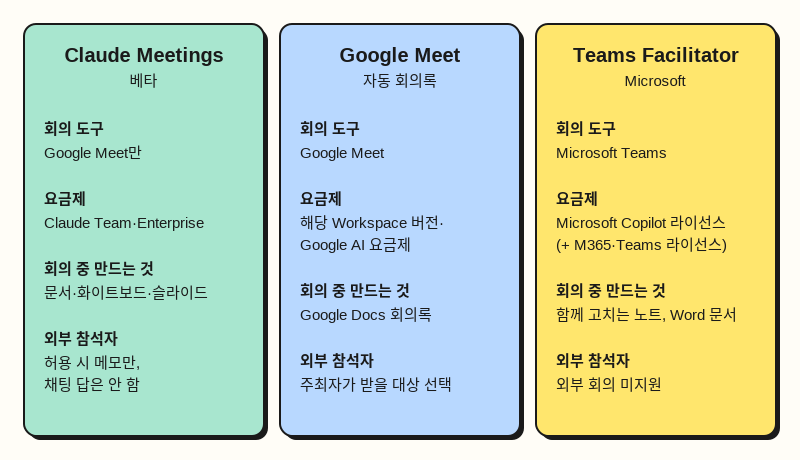 All three leave meeting notes, but they differ in what they can make during the meeting and how they handle outside participants. (figure labels in Korean)
The biggest difference in the table is where the AI lives. Google Meet's notes and Facilitator are built into their own meeting tools, so results pile up in that company's document tools (Docs, Word and Loop). Claude Meetings borrows Google Meet as the meeting tool, but the results gather on the Claude side. If you already connect ad data or internal documents to Claude, being able to pull that material into the meeting is a plus. On the other hand, if your team stores and shares notes in Drive, you need to weigh the fact that you'll have one more place where notes live.
Language is worth flagging too. Google Meet's automatic notes list Korean as a supported language, but the Claude Meetings help page has no language information. Since note quality in Korean-language meetings isn't confirmed by official documentation, I'd recommend testing it in an internal meeting first before using it for an important one.
How do you set it up to add Claude to a meeting?
Let's follow the steps in the Claude Meetings help article. It works in Claude on the web and in the Claude desktop app, and the steps are split between what admins do and what individuals do.
- Admin: turn the feature on: Set it in Organization settings > Products > Claude Meetings (beta). On Team plans it's on by default and an owner can turn it off; on Enterprise plans an owner has to turn it on for the whole organization or by custom role.
- Admin: allow Google Calendar: An owner must enable Google Calendar for the organization before users can connect it.
- Individual: connect the calendar and add Claude: In Claude's Meetings view, connect Google Calendar, pick a meeting and click "Add Claude."
- Individual: auto-join (optional): In Settings > Capabilities > Meetings > Auto-join, you can have Claude join all your meetings, or all except one-on-ones. Owners can't set this for you.
- In the meeting: When Claude asks to join, the host lets it in. If the host declines, Claude won't try again unless someone adds it again.
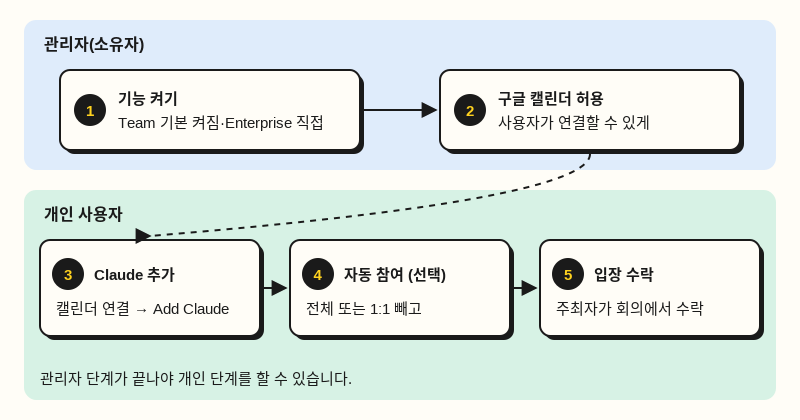 The two admin steps have to be done before individuals can add Claude to their meetings. (figure labels in Korean)
During the call, Claude's tile shows its current state, and you can pause, resume or remove it from the meeting page. It can stay for up to eight hours and warns you before it leaves, so unless you're running an all-day workshop, that limit won't matter much. So how would you actually use this in marketing work?
So what should marketers change?
Say you run a 30-minute weekly ad performance meeting every Monday (this is a hypothetical scenario). If you've been copying metrics into slides beforehand, having someone take notes during the meeting and emailing action items afterward, here's how you could change that with Claude Meetings.
- Before the meeting: Add Claude to this meeting from the calendar. It's an internal meeting, so it won't run into the outside-guest settings.
- Questions during the meeting: Ask something like "Claude, put the budget changes by campaign we just discussed into a table" so the numbers from the meeting get organized right away. The answer shows up in the Meet chat for everyone to see.
- Documents during the meeting: Ask for output like "Make a doc for next week's creative test plan with columns for owner and due date." The doc attaches to the meeting page and participants edit it together.
- After the meeting: Check the action items in the recap email, and before the next meeting, ask in a regular Claude chat, "What budget changes did we agree on in last week's ad meeting?"
One thing to be careful about: requests that use connected tools, like step 2, count toward that person's usage and may create charges for the organization. And because answers posted in the Meet chat are visible to everyone on the call, it's safer to keep requests narrow so nothing from your connected data that other participants shouldn't see slips in.
Here's one way to split when to turn it on and when to leave it off. This isn't an official recommendation; it's my own rule of thumb based on the features and limits in the help article.
| Situation | Call | Why |
|---|---|---|
| Internal recurring meetings (weekly reports, planning) | Worth trying | Notes, action items and in-meeting docs help the most here |
| One-on-ones | Exclude from auto-join | Auto-join has a separate "except one-on-ones" option |
| External meetings with advertisers or agencies | Check admin policy and the other side's consent first | Even if allowed, Claude only takes notes, and the other side's words stay in the notes |
| Meetings on Zoom or Teams | Not available yet | Only Google Meet is supported for now |
| Organizations with sensitive meetings (zero data retention, etc.) | Not available | ZDR, HIPAA-ready and CMEK organizations are excluded from the beta |
Agreeing on request wording ahead of time keeps results from varying with how each participant phrases things. Below is a template for requesting a document to attach to the meeting page. It's an example, not something I've run and verified.
## Instructions
Turn what we decided in this meeting into an action plan document for next week.

## Format
- Table: task / owner / due date / related campaign
- Leave cells empty where no number came up in the meeting and write "needs confirmation"
- Collect undecided items separately under "agenda for next meeting" below the table

## Material
<material>Full transcript of today's meeting</material>
The reason for asking for "needs confirmation" is to stop the AI from filling in plausible-looking numbers that never came up in the meeting. I covered how to check AI output in more detail in how to reduce AI hallucinations.
※ Note: what limits should you check before turning it on?
Because it's a beta, the scope is narrow in quite a few places. Here are the limits listed in the help article and the announcement.
- Plans and organizations: It's rolling out gradually in beta on Team and Enterprise plans. Organizations using zero data retention (ZDR), a HIPAA-ready configuration or customer-managed encryption keys (CMEK) can't use it.
- Meeting tools: Only Google Meet works for now. Other platforms are only described as "coming soon," with no names or dates.
- Outside participants: Allowed by default on Team plans (an owner can turn it off); on Enterprise plans an owner has to allow it. If it isn't allowed, Claude won't join meetings with outsiders and leaves if one joins mid-call. Another company's notetaker bot also counts as an outsider. If it is allowed, Claude only takes notes and doesn't reply in the chat, and outside guests don't get the meeting page or the recap email.
- Cost: Notes, transcripts and answers that don't use connected tools are included in the plan. Docs and whiteboards made in meetings are free through February 10, 2027, and using connected tools counts toward usage.
- Consent to transcription: Both the help article and the announcement recommend making sure everyone is comfortable being transcribed before adding Claude or turning on auto-join. Claude posts a notice in the meeting chat when it joins, but that alone is hard to treat as consent.
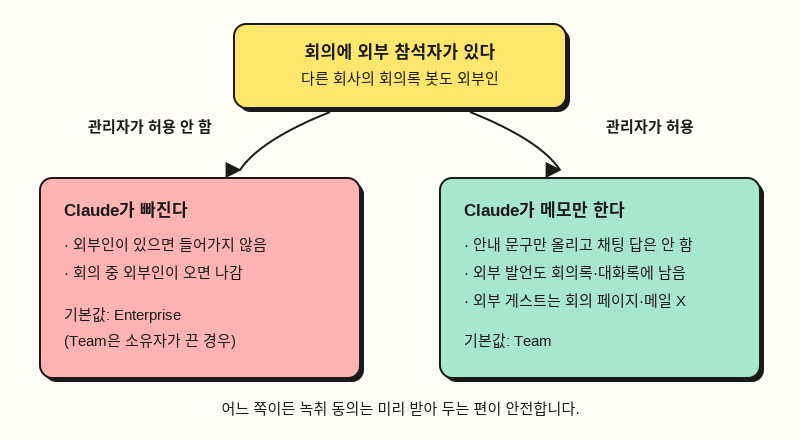 Whether outside participants are allowed changes whether Claude stays in the meeting and what it does. (figure labels in Korean)
If you're a marketer with lots of meetings with advertisers or agencies, check the outside-participant setting first. On Team plans the default is to allow it, so with auto-join on, Claude can end up in external meetings too. It's safer to tell the other company in advance that their words will be saved as a transcript on your company's Claude meeting page, and get their consent. Anthropic says it's also working on integrations to send transcripts to meeting tools like Gong, Granola, Fireflies.ai and Otter, but for now that's only described as "soon."
Wrapping up
Claude Meetings goes a step beyond writing notes: Claude makes docs and tables during the meeting, and you can still ask about the meeting after it ends. For now, though, it's limited to Google Meet and Team and Enterprise plans, and Korean support isn't officially documented, so I'd suggest trying it in internal recurring meetings first while sorting out external-meeting settings and transcription consent. I'll compare again when AI meeting features change, and if you want to see the setup screens, please refer to the Claude Meetings help article.
FAQ
- Can I use Claude Meetings on the free plan?
- No. Claude Meetings is rolling out in beta on Team and Enterprise plans. Organizations using zero data retention (ZDR), a HIPAA-ready configuration or customer-managed encryption keys (CMEK) are excluded from the beta. Notes and transcripts are included in the plan, and docs and whiteboards made during meetings are free through February 10, 2027.
- Does Claude Meetings work in Zoom or Teams meetings?
- Currently it only supports Google Meet. Anthropic says other meeting platforms are coming soon, but it hasn't announced which ones or when. If you use Teams, Facilitator, included with a Microsoft Copilot license, plays a similar role.
- How are Google Meet's automatic notes different from Claude's meeting notes?
- Google Meet's automatic notes turn the meeting into Google Docs notes saved in the organizer's Drive and support 8 languages including Korean. Claude Meetings goes beyond notes: it answers questions during the meeting and builds docs, whiteboards and slides, and the results gather on a claude.ai meeting page. The Claude Meetings help article doesn't list supported languages.
- Does Claude Meetings record the meeting?
- It doesn't save audio; it saves a transcript, a summary and descriptions of shared screens. Claude appears as a participant and posts a notice in the meeting chat when it joins, but Anthropic recommends making sure all participants are comfortable being transcribed before adding Claude.
Related posts
- Claude Cowork and chat unified: what changed and when you can use it - The change that merged Claude chat and Cowork into one
- What is prompt injection? Risks to know before handing email and the web to AI agents - Risks to know when you let AI use connected tools
- Claude Marketplace: how connectors, skills and plugins differ - The basics of the connectors Claude uses in meetings